Written by: Doug Camplejohn, CEO & Co-Founder, Coffee | Last updated: September 9, 2026
Key Takeaways
- Salesforce opportunity monitoring tracks deal health, stage movement, and forecast accuracy so you can spot risk before revenue slips.
- A layered setup works best: native Salesforce tools for visibility, plus automation to keep data complete and current.
- Stage age, close-date changes, activity recency, weighted pipeline, and coverage ratio together show how reliable each opportunity is.
- Manual report updates and alert tuning do not scale, so automation becomes essential for accurate monitoring as your team grows.
- Automate Salesforce opportunity monitoring with Coffee AI and replace manual pipeline reviews.
Salesforce Opportunity Monitoring Explained
Salesforce opportunity monitoring turns your pipeline into a reliable revenue engine instead of a source of surprises. Without a clear system, deals stall quietly, forecasts miss by wide margins, and leaders only see problems after the quarter ends. Only 18.7% of sales organizations achieve 75% or higher forecast accuracy, and incomplete CRM data drives most of that gap, even though 69.9% still rely on CRM reporting as their main forecasting method.
A practical solution uses layers. Native Salesforce features handle reports, dashboards, alerts, Pipeline Inspection, and Einstein. An automation layer then keeps data fresh and consistent so those tools stay trustworthy. Coffee AI provides that automation layer.
Why Consistent Opportunity Monitoring Matters
Consistent monitoring improves forecast accuracy, exposes risk early, and guides better resource allocation. The data problem is structural: sales reps spend only 35% of their time selling, and admin work often gets skipped, which weakens every downstream report.
Companies with mature sales analytics achieve 28% higher revenue growth because they see issues sooner and adjust faster. Monitoring should surface problems before they become missed quarters and give reps support instead of scrutiny.
Automate Your Pipeline Monitoring With Coffee AI so your team spends more time selling and less time fixing data.
Key Salesforce Opportunity Metrics To Watch
Reliable monitoring depends on a small set of connected metrics rather than a single number. Close-date extensions, days since last stage change, and total days open work best together because each metric highlights a different risk. Focus on these essentials:
- Stage Age (Days In Current Stage): Measures how long a deal has stayed in its current stage. A formula field showing days since the last stage change is a core monitoring metric. Any deal that exceeds your normal stage duration deserves a closer look.
- Close Date Movement: Counts how many times a deal’s close date moved from one month to another. The “# Close Date Month changes” metric is especially useful for spotting slipping deals.
- Activity Recency: Tracks days since the last logged call, email, or meeting. Flag any opportunity with no activity in the last 14 days so reps can re-engage or close it out.
- Amount And Probability: Shows weighted revenue value. Calibrate stage probabilities against historical win rates so weighted pipeline reflects reality instead of hope.
- Pipeline Coverage Ratio: Compares total pipeline value to quota. Most B2B teams need 3x–4x coverage to hit target reliably, and this ratio keeps that target visible.
How To Track Opportunities In Salesforce With Monitoring Reports
Use a focused opportunity report to surface at-risk deals automatically. Follow these five steps to build it.
- Create the base report. Go to the Reports tab, click New Report, search for “Opportunities,” and select the standard Opportunities report type. Use the plain Opportunities type instead of related-object variants like “Opportunities with Products”. Extra joins often duplicate rows and inflate totals.
- Apply monitoring filters. Narrow the report to open opportunities in the current quarter. Set Close Date to Current FQ and Stage to exclude Closed Won and Closed Lost. Change the “Show Me” filter to All Opportunities so you see the full pipeline, not just your own deals.
- Add monitoring columns. Include Opportunity Name, Account Name, Stage, Close Date, Amount, Probability, Owner, and Next Step. Add a formula field for “Days in Current Stage” so stalled deals stand out immediately.
- Group for visibility. Switch to Summary format and group first by Stage, then by Owner. This layout shows where deals cluster and where they slow down, which makes coaching conversations more concrete.
- Add a weighted pipeline column and save. Create a summary formula using
AMOUNT * PROBABILITY / 100and format it as Currency. Save the report with a clear name such as “Pipeline — Open Opps by Stage and Owner — FQ,” place it in a shared folder, and subscribe via the bell icon. Use conditional alerts like “Send when Total Amount is less than $500,000” so emails only arrive when something changes.
Pro Tip: Use the Opportunity History report to track stage changes over time. Salesforce tracks stage changes automatically on the OpportunityHistory object, so you get this view without extra configuration.
Salesforce Opportunity Monitoring Dashboard Setup
After your reports are ready, combine them into a focused monitoring dashboard. Aim for 6–10 components so leaders can scan it quickly.
- Navigate to the Dashboards tab and click New Dashboard.
- Add components from your saved reports.
- Structure your layout across three rows: Top Row for summary metrics, Middle Row for visual trends, and Bottom Row for actionable lists.
- Use Dynamic Dashboards for team visibility so each rep sees their own pipeline while managers see the full picture. Salesforce limits orgs to 5 dynamic dashboards on Enterprise and 10 on Unlimited, so reserve them for core views.
- Subscribe key stakeholders. Each user can subscribe to up to 5 reports and 5 dashboards. Configure conditional subscriptions so emails only send when something important happens, such as total pipeline dropping below a coverage threshold.
Use the three-row structure consistently. The top row holds total pipeline value, weighted pipeline, and coverage ratio. The middle row shows pipeline by stage and close month. The bottom row lists stalled deals, upcoming close dates, and activity gaps that need action.
How To Set Up Opportunity Alerts In Salesforce
Dashboards provide a visual overview, and alerts catch problems between reviews. Native Salesforce offers three main alert mechanisms plus Einstein scoring.
Big Deal Alerts: Go to Setup > Opportunities > Opportunity Settings. Check Enable Big Deal Alerts, then set the email recipient, amount threshold, and probability threshold. These alerts fire once per opportunity per qualifying state change, which prevents noisy repeat emails.
Update Reminders: On the same Opportunity Settings page, enable Update Reminders so owners receive emails when opportunities go stale. Salesforce defines staleness as a Close Date in the past or a Stage that has not changed for a set number of days. Choose a frequency such as weekly or bi-weekly. These reminders use the owner’s email address, so reps who filter system emails may still miss them.
Flow-Based Alerts (For At-Risk Deals): A Record-Triggered Flow on the Opportunity object gives precise control over alert conditions. In Setup, search for “Flows” and click New Flow. Select Record-Triggered Flow, choose the Opportunity object, and trigger it when a record is created or updated. Add a decision element for your condition, such as Stage unchanged for 14 days, then add an action that sends an email or posts to Slack. Test thoroughly, then save and activate.
Einstein Opportunity Scoring: Turn this on in Pipeline Inspection settings to receive predictive risk signals. Einstein analyzes opportunity data weekly and refreshes its model, then uses that model several times per day to update insights. Add the Alerts column in Pipeline Inspection to see risk signals such as single-threaded contacts, pushed deals, and activity drops.
Using Pipeline Inspection And Einstein For Predictive Monitoring
Pipeline Inspection gives a consolidated view of open opportunities, forecast category totals, recent changes, activity indicators, and deal-level signals. Enterprise Edition and above include this feature.
Key capabilities include:
- Pipeline Movement Tracking: Shows what has been added, removed, pushed, or closed since your last review so you can focus on change instead of static lists.
- Einstein Deal Insights: Uses data science to predict deal health and recommend actions, drawing from Opportunity Scoring, service cases, email insights, and conversation insights.
- Alerts Column: Displays a count of deal insights per opportunity and highlights the three most urgent ones for quick triage.
Limitation: Pipeline Inspection still needs human review on a regular cadence. It presents the data, and your team must interpret and act on it. Einstein insights also depend on the right licenses and enough activity data flowing into Salesforce.
Use Coffee AI To Replace Manual Pipeline Reviews With Automated Intelligence when you want insights without constant checking.
How Coffee AI Automates Salesforce Opportunity Monitoring
Native Salesforce features demand ongoing setup and maintenance, and their accuracy depends on consistent data entry. Reports age quickly, alerts drift out of tune, and activities often never get logged. Coffee AI acts as an autonomous companion that handles monitoring work for you.

- Automatic Data Entry And Enrichment: Coffee creates and updates contacts, companies, and activities from email and calendar data. Your pipeline stays accurate without human effort. That reliable data makes every monitoring view more trustworthy.
- Pipeline Compare: Coffee tracks week-over-week changes automatically and highlights progressed deals, stalled opportunities, and new additions. Pipeline reviews shift from hunting for updates to discussing strategy.
- AI Meeting Bot: Coffee joins calls, records and transcribes them, then logs summaries and next steps directly to Salesforce. Every customer interaction appears in your CRM, so monitoring data no longer has gaps. Customizable summary templates, released in November 2025, write back to Salesforce and keep your system of record current.
- Real-Time Alerts: Coffee flags at-risk deals based on activity recency and stage age without complex Flows. The agent watches your pipeline continuously and surfaces issues as soon as they appear.
- Natural Language Insights: Coffee’s AI search on deals, released in January 2026, answers questions like “Which deals are stuck in negotiation?” and “What’s closing this month?”. Pipeline questions turn into instant answers inside your workspace.
Coffee AI runs as a Companion App on top of your existing Salesforce instance. You keep Salesforce as your system of record while Coffee handles data capture and monitoring. Connect with simple authentication, and Coffee syncs data, enriches records, and writes insights back automatically.

Salesforce Opportunity Monitoring Best Practices
- Review Pipeline Weekly. Weekly or bi-weekly reviews catch overdue close dates, unrealistic stages, and stalled deals before they damage your forecast.
- Define Clear Stage Criteria. Use Salesforce Path to enforce stage discipline with required fields and exit criteria. Stages should reflect buyer commitment so stage-based metrics stay meaningful.
- Automate Activity Logging. Strong monitoring systems avoid relying on reps to remember every log. Tools like Coffee AI capture interactions automatically so your activity recency metric reflects real engagement.
- Audit Stalled Deals Monthly. Archive opportunities that have not progressed in 90+ days with no recent activity. This keeps your pipeline clean and your forecasts closer to reality.
- Calibrate Probabilities Against History. If 60% of deals at “Proposal Sent” close, that probability works. If results sit closer to 35%, adjust the probability downward. Historical performance should guide every probability setting.
Consistency matters more than complexity. A simple monitoring system you review every week beats a sophisticated setup that only gets attention once a quarter.
Frequently Asked Questions
How Do I Track Opportunities In Salesforce?
Create opportunity reports using the standard Opportunities report type. Filter for open opportunities in the current quarter, then add columns for Stage, Amount, Close Date, and Owner, and group by Stage. Include a “Days in Current Stage” formula field to spot stalled deals quickly. Save the report to a shared folder and schedule email delivery for regular updates. For tracking that does not depend on manual logging, Coffee AI captures activity data automatically and surfaces week-over-week pipeline changes through its Pipeline Compare feature.
How Do I Set Up Opportunity Alerts In Salesforce?
Salesforce offers several native alert options. Use Big Deal Alerts in Setup > Opportunities > Opportunity Settings for high-value deals that cross both an amount and probability threshold. Turn on Update Reminders on the same page so owners receive emails when deals go stale. Build Record-Triggered Flows for custom conditions such as “Stage unchanged for 14 days” that send email or Slack notifications. Enable Einstein Opportunity Scoring for predictive risk alerts inside Pipeline Inspection. For teams that want alerts without building and maintaining Flows, Coffee AI monitors pipeline activity continuously and surfaces at-risk deals automatically.
What Is The Best Salesforce Opportunity Monitoring Dashboard?
An effective monitoring dashboard blends summary metrics with actionable lists. Include total pipeline value, weighted pipeline, and coverage ratio alongside lists of stalled deals, upcoming close dates, and activity gaps. Keep the dashboard to 6–10 components so leaders can scan and act quickly. Use dynamic dashboards so each rep sees their own pipeline while managers see the full view. Subscribe stakeholders with conditional alerts so the dashboard emails only when key thresholds change, such as coverage dropping below target.
Can Coffee AI Work With My Existing Salesforce Setup?
Yes. Coffee AI runs as a Companion App on top of your current Salesforce instance. It connects through simple authentication, syncs data, and enriches records with contacts, companies, and activities captured from email and calendar. Coffee also writes insights such as call summaries, next steps, and pipeline changes back to Salesforce. You keep your system of record and workflows while removing most manual data entry and monitoring tasks.
What Are The Biggest Limitations Of Native Salesforce Opportunity Monitoring?
Native monitoring depends on data quality, and data quality depends on rep behavior. If reps skip activity logging, the activity recency metric loses value. If close dates stay outdated, stage-age alerts highlight risks that do not exist. Tools like Pipeline Inspection and Einstein Opportunity Scoring also require the right licenses, enough historical data, and consistent manual input. Reports age between reviews, and Flows need updates as your sales process changes. Automating data capture at the source solves this structural problem. Coffee AI ingests emails, calendar events, and call transcripts automatically and writes them back to Salesforce without human effort.
Conclusion: Let Coffee AI Handle Salesforce Opportunity Monitoring
Salesforce opportunity monitoring only works when data stays accurate and current, yet native tools rely heavily on manual effort. Dashboards, alerts, and Einstein insights all depend on reps entering every activity and update, which rarely happens at scale.
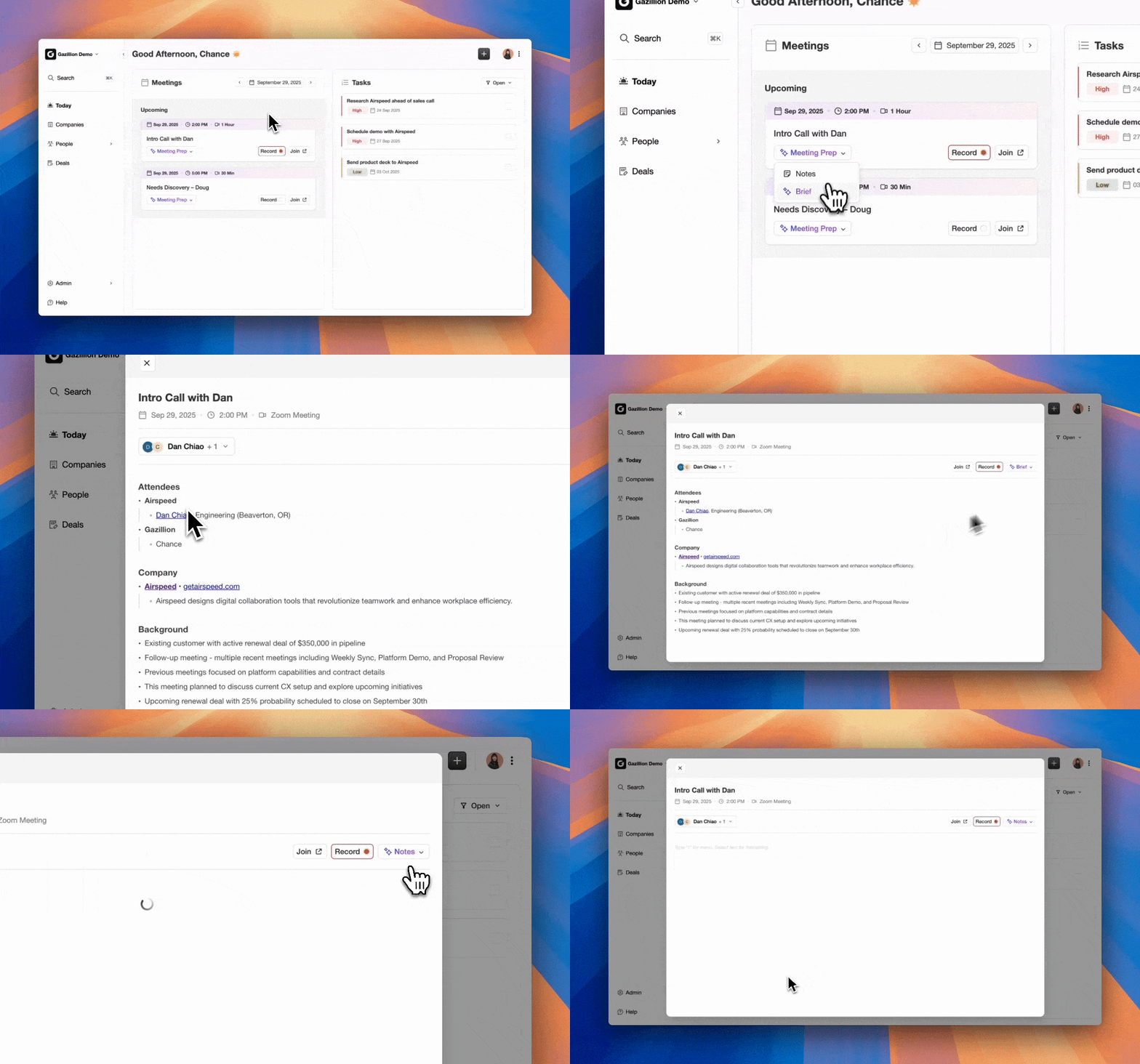
Coffee AI removes that burden by capturing data at the source and tracking pipeline changes continuously. It logs emails and meetings, highlights week-over-week movement, surfaces at-risk deals in real time, and writes insights back to Salesforce. Your team gains always-on monitoring and can turn pipeline reviews into strategic conversations instead of data clean-up sessions.
Start Using Coffee AI To Automate Salesforce Opportunity Monitoring and keep your pipeline accurate without manual work.