
Written by: Doug Camplejohn, CEO & Co-Founder, Coffee
Key Takeaways for Granola-to-CRM Sync
- Manual CRM data entry consumes 10–11 hours per rep each week, which creates incomplete records and unreliable forecasts.
- Three integration paths exist: Granola’s native connectors (Attio, HubSpot, Affinity), Zapier for non-native CRMs like Salesforce, and Coffee’s autonomous agent.
- Native and Zapier options still require manual clicks or ongoing field-mapping maintenance, while Coffee’s agent automates the entire workflow without extra tools.
- Post-setup validation of last-activity dates, contact enrichment, and pipeline changes keeps data quality high across any integration method.
- Eliminate manual CRM entry from your team’s workflow today with Coffee.
Why Automating Granola Notes to CRM Matters
B2B CRM contact data decays at roughly 30% per year due to external changes such as job transitions and company acquisitions. Rushed manual entries add lag and accuracy problems, and 37% of sales staff admit to fabricating CRM data when facing too many required fields that block their workflow. The downstream effect is a forecast that cannot be trusted. Rushed notes after back-to-back meetings cause the same label, such as “interested,” to mean different things across reps, which creates inconsistent pipeline data.
Automation fixes these issues at the source by capturing structured information during or immediately after the meeting. AI automation in CRM systems reduces manual data work and gives sales teams back the hours they previously spent on data entry. For teams on Salesforce, HubSpot, or similar systems, structured automatic sync keeps last-activity dates current, enriches contact records, and makes pipeline reviews reflect reality.
Readiness Checklist Before You Start Integrating
Confirm these items before you configure any integration:
- Granola Business plan or higher ($14 per user per month), because native CRM integrations and Zapier access are unavailable on the free plan.
- An active CRM account with admin or Super Admin permissions, which you need for OAuth authorization in HubSpot.
- Google Workspace or Microsoft 365 connected to Granola, since calendar sync is required for accurate contact matching.
- Defined buyer personas and CRM field mappings documented before the first sync, which prevents orphan notes and duplicate records.
Step 1: Connect Granola to Attio, HubSpot, or Affinity
Granola offers native integrations with Attio, HubSpot, and Affinity that let users attach enhanced meeting notes to CRM records via the Share menu. There is no native Salesforce connector at this time.
- Open Granola and go to Settings > Integrations. Select your CRM (HubSpot, Attio, or Affinity) and complete OAuth authentication.
- After each meeting, open the note and click Share. Granola suggests the correct CRM contact based on attendee email addresses pulled from your calendar invite.
- Confirm the suggestion, and the integration syncs meeting notes and related information to CRM records.
- Confirm the target record exists in your CRM before syncing. Granola does not automatically create new HubSpot Contact records, so the contact must exist first or be created via Zapier.
Common mistake: HubSpot sync failures frequently stem from mismatched account email addresses between Granola and HubSpot. Disconnect and reconnect the integration via Settings while confirming identical email addresses on both accounts. Note that all native integrations are strictly one-way, where Granola pushes notes to the CRM and the CRM does not sync data back into Granola. If your CRM is not supported natively, you can bridge the gap with Zapier.
Step 2: Use Zapier to Connect Granola with Salesforce and Other CRMs
As of early 2026, Granola has no native Salesforce connector and routes all Salesforce data flows exclusively through Zapier, which can push enhanced notes into Salesforce Opportunities, Contacts, and Tasks.
- In Zapier, create a new Zap and select Granola as the trigger app. Choose the trigger event “New Note Sent from Granola” or “New Note Added to a Specific Granola Folder” based on your folder governance setup.
- Connect your Granola account and test the trigger to confirm a sample note appears correctly.
- Select your CRM as the action app, such as Salesforce. Map Granola output fields, including title, date, participants, note body, and action items, to the corresponding Salesforce object fields. For contact matching, add a “Find or Create Contact” step using the attendee email address to avoid orphan records.
- Enable the Zap and run a live test. Verify Zapier field mappings against target Salesforce objects if the test step returns an error, since incorrect trigger or action field mapping is the most common cause of Zapier sync failures.
- Add a human review step before the Zap updates pipeline-stage, renewal, or deal-value fields. Place this review in your workflow after Granola generates the note but before Zapier writes to the CRM. Pushing AI-generated summaries directly into CRM without a governance layer creates data quality problems that only become visible when a forecast goes wrong.
Step 3: Deploy Coffee’s Agent for Hands-Off Granola Sync
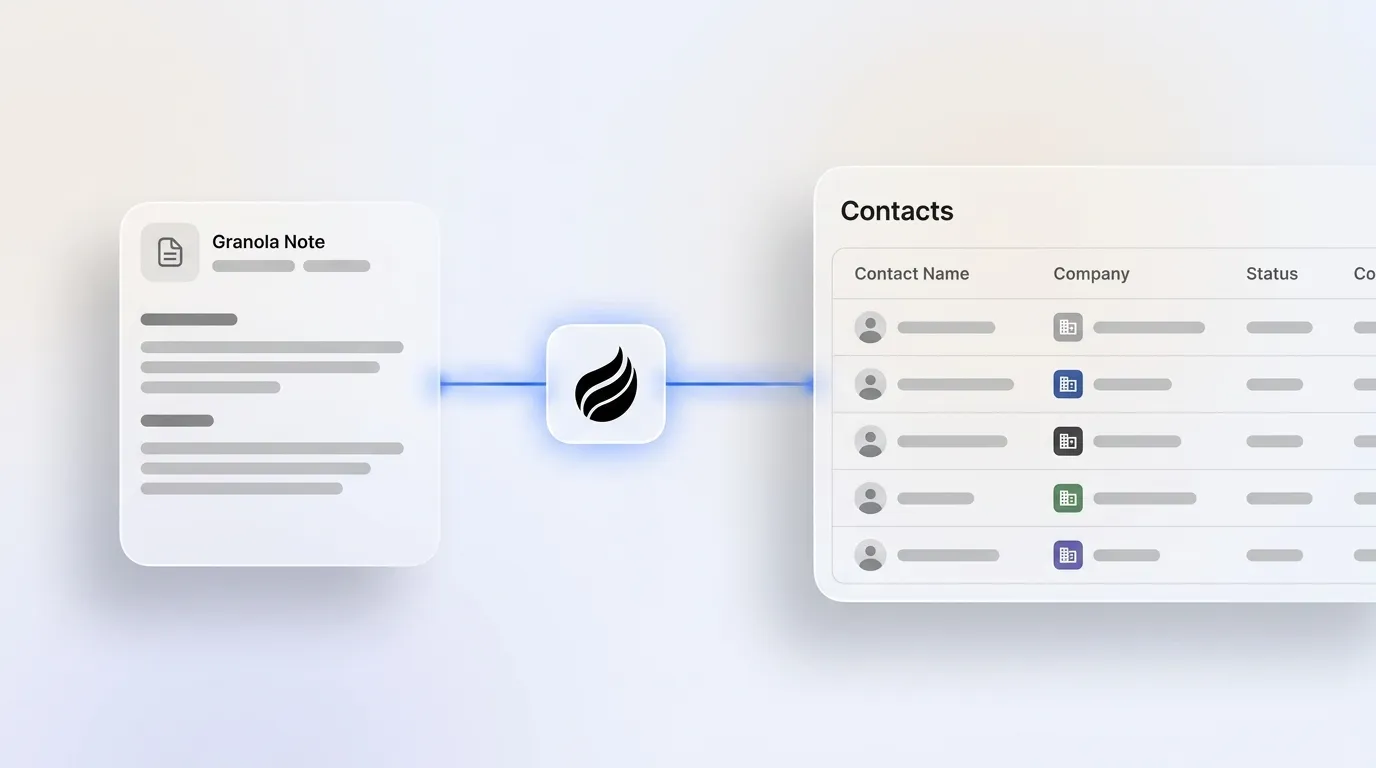
Native integrations require a manual click per note, and Zapier requires field mapping maintenance plus a human review gate. Coffee’s agent removes both constraints by ingesting Granola transcripts and turning them into structured CRM records automatically. Coffee released improved summary templates in November 2025, which you can customize to match workflows and write back to Coffee, HubSpot, or Salesforce.
With that context, you can set up Coffee’s agent in a few steps.
- Connect Coffee to your Granola workspace and your CRM (Salesforce or HubSpot) through a single OAuth authentication. You do not need a Zapier account.
- The Coffee agent ingests each Granola transcript and parses it against your defined CRM schema for contacts, companies, activities, and opportunities. It maps fields according to your configured buyer personas and sales methodology, such as BANT, MEDDIC, or SPICED.
- The agent writes structured records back to Salesforce or HubSpot automatically and enriches contacts with job titles, funding data, and LinkedIn profiles via licensed data partners. No rep action is required after the meeting.
- Review the agent’s output in Coffee’s pipeline view. The Pipeline Compare feature visualizes week-over-week changes and highlights progressed deals, stalled opportunities, and new additions without a manual CSV export.
- For teams on Coffee Standalone, not Salesforce or HubSpot, the agent manages the system of record entirely and handles contact creation, activity logging, and deal-stage updates from transcript data alone.
The result is simple: reps attend the meeting, and the agent handles everything after it, recovering the hours previously lost to manual data entry.
Eliminate manual CRM entry from your team’s workflow with Coffee.
Validate Your Data Quality After Setup
Run these checks during the first two weeks after you turn on any integration path:
- Last-activity dates: Every contact touched in a meeting should show an updated last-activity timestamp. Gaps indicate orphan notes that did not sync, which means those conversations are invisible to your forecast.
- Contact enrichment: Verify that job titles, company names, and email addresses on newly synced records are accurate. As noted earlier, natural data decay already erodes roughly 30% of your contact records annually, and adding unreviewed AI summaries accelerates this degradation by layering inaccurate records on top of aging data.
- Week-over-week pipeline changes: Use Coffee’s Pipeline Compare or your CRM’s activity report to confirm deal stages are updating from transcript data rather than remaining static. This check confirms that automation is driving real movement in your pipeline.
- Duplicate records: As mentioned in Step 1, contacts must exist before syncing, so establish deduplication rules using email or external IDs before the first sync. These rules prevent multiple versions of the same contact or deal from fragmenting activity history.
Teams that complete this validation see the 8–12 hours per rep per week in recovered selling time that Coffee’s agent is designed to deliver.
Choose the Right Granola-to-CRM Setup for Your Team Size
For teams of one to five reps, Granola’s native HubSpot or Attio integration offers a practical starting point. At this scale, the manual-click-per-note requirement is manageable because meeting volume stays low, and the one-way sync covers the core use case of attaching notes to contact records without extra complexity. However, if your team has outgrown spreadsheets but finds full Salesforce or HubSpot configuration excessive, Coffee Standalone offers a middle path and handles the system of record entirely without requiring you to maintain either Granola clicks or a full enterprise CRM.
For teams of ten to twenty reps, the manual-click model breaks down. At this scale, the cost of misallocated rep time is substantial, and data inconsistency across the team corrupts forecast accuracy. Coffee’s Companion App, deployed as an agent layer on top of an existing Salesforce or HubSpot instance, becomes the appropriate solution. It handles data entry, enrichment, and activity logging without requiring reps to change their meeting behavior or maintain Zapier workflows.
Compare deployment models and find the right fit for your team size on the Coffee pricing page.
Frequently Asked Questions
How long does initial setup take?
Granola’s native integrations with HubSpot, Attio, and Affinity require authenticating in Settings > Integrations and testing with one note. Zapier configuration for Salesforce involves connecting accounts and mapping fields. Coffee’s agent setup requires connecting to your CRM and Granola workspace, after which the agent can begin to ingest transcripts and write structured records.
Is Coffee SOC 2 Type 2 and GDPR compliant?
Yes. Coffee is SOC 2 Type 2 and GDPR compliant, and customer data is not used to train public models. For teams in regulated-adjacent industries or those handling sensitive deal data, Coffee’s compliance posture means transcript ingestion and CRM write-back occur within a governed, auditable environment.
Who owns the data after the agent writes to my CRM?
Your organization owns all data written to your CRM by the Coffee agent. Coffee functions as a data processor, not a data controller. Records written to Salesforce or HubSpot remain in your CRM instance under your existing data governance policies, and Coffee does not retain or repurpose CRM data for any purpose outside the scope of your account.
What happens when my team grows beyond 20 reps?
Coffee’s seat-based pricing scales linearly, so you pay for human seats and the agent’s labor is included without usage metering on LLM calls or automated processes. As team size grows, Coffee’s Companion App continues to operate as the agent layer on Salesforce or HubSpot and handles increased meeting volume, contact creation, and pipeline tracking without additional configuration. Teams that require custom Salesforce objects, complex forecasting hierarchies, or enterprise-grade workflow rules should contact Coffee’s team directly to assess fit before committing.
Conclusion: Turn Every Granola Note into Reliable CRM Data
Three paths exist for integrating Granola with your CRM. Native integrations with HubSpot, Attio, and Affinity work for small teams willing to click Share after each meeting. Zapier bridges the gap for Salesforce and non-native CRMs but requires field mapping maintenance and a human review gate. Coffee’s agent removes both constraints by ingesting Granola transcripts, mapping fields to structured CRM records, writing back to Salesforce or HubSpot, and enriching contacts automatically, with no Zapier, no copy-paste, and no manual clicks.
The business case stays straightforward. Many sales reps spend five or more hours per week on manual CRM entry alone, and every hour recovered becomes an hour available for selling. Good data in produces good data out, which supports accurate forecasts, reliable pipeline reviews, and a CRM that reps trust rather than resent.
Turn every Granola note into a structured, reliable CRM record and start your free trial on the Coffee pricing page.

