Key Takeaways for Mid-Market Sales Leaders
- Sales teams lose 8–12 hours weekly to manual contact creation. Automatic email-to-CRM workflows reclaim that time by parsing messages and writing structured records without human input.
- Native CRM toggles and Zapier-style tools provide basic automation. They still miss signature parsing, real-time enrichment, and built-in duplicate prevention that the Coffee Agent delivers.
- HubSpot and Salesforce Einstein setups require manual configuration for exclusions and field mapping. They still fall short on parsing phone numbers, titles, and external data enrichment.
- Preventing spam and duplicates requires domain blocklists, email-based deduplication keys, scheduled scans, and AI-assisted merging to keep CRM data clean at scale.
- Teams ready to eliminate manual data entry can get started with Coffee for seamless, always-on contact creation and enrichment.
Native CRM Toggles vs. Zapier vs. Coffee Agent
The table below compares three automation approaches across six core capabilities that shape data quality and admin workload. Pay close attention to signature parsing and duplicate prevention, because these two capabilities determine whether your team still cleans up records or can trust the system to run on its own.
| Capability | Native CRM Toggle | Zapier-Style Automation | Coffee Agent |
|---|---|---|---|
| Auto-create contacts from email | Yes (limited rules) | Yes (trigger-based) | Yes (always-on) |
| Signature parsing | Partial | No | Yes |
| Duplicate prevention | Manual review required | Requires extra Zap steps | Automated, real-time |
| Record enrichment | Paid add-on | Third-party connector | Built-in |
| Works on existing Salesforce/HubSpot | Native only | Yes, with setup overhead | Yes, via OAuth |
| Setup complexity | Low | Medium–High | Low |
Gartner predicts that by the end of 2026, 40% of enterprise applications will include task-specific AI agents capable of handling end-to-end workflows, up from less than 5% in 2025, so agent-led contact creation is quickly becoming the standard rather than the exception.
See Coffee pricing and start your trial
HubSpot Auto Create Contacts from Emails
HubSpot’s native email integration can create contacts automatically when connected to Gmail or Outlook, and the steps below reflect the 2026 configuration path.
- Connect your inbox. In HubSpot, navigate to Settings → General → Email → Connect personal email and authenticate via OAuth.
- Enable contact creation. Under Settings → General → Email → Email integration settings, toggle Create contacts for new email senders to ON.
- Set domain exclusions. In the same panel, add internal domains and known spam domains to the Never log emails from blocklist to prevent junk records.
- Configure field mapping. Navigate to Settings → Properties and verify that First Name, Last Name, Email, and Company map to the correct contact properties. Map custom properties manually here.
- Apply association rules. Under Settings → Objects → Contacts, enable Automatically associate contacts with companies based on email domain to reduce orphaned records.
- Review the activity log. Confirm contacts are being created correctly via Contacts → Contacts → Recently created filtered by source Email integration.
Limitation: HubSpot’s native toggle does not parse email signatures for phone numbers or job titles. Those fields still require manual entry or a paid enrichment add-on. Manual data entry is the biggest factor for lack of CRM adoption according to HubSpot, with 32% of salespeople spending an hour or more per day on it, so partial automation that still needs human cleanup keeps that barrier in place.
Salesforce Einstein Automated Contacts Setup
Salesforce Einstein Activity Capture (EAC) handles email-to-contact automation within Sales Cloud, and the 2026 configuration path looks like this.
- Enable Einstein Activity Capture. Go to Setup → Einstein → Einstein Activity Capture → Settings and click Enable. Confirm the connected org has Sales Cloud or Revenue Cloud licensing.
- Connect email accounts. Under EAC → Connected Accounts, add Google Workspace or Microsoft 365 credentials. Assign connected accounts to users or profiles.
- Configure contact creation rules. In EAC → Settings → Contacts and Leads, set the rule to Always create a contact or Create only when no match exists to control duplicate risk.
- Set sharing settings. Choose between Everyone, Only me, or Custom sharing to control which captured activities are visible across the org.
- Apply exclusion filters. Add internal email domains and distribution lists to the Excluded Addresses list under EAC → Email Exclusions to block internal noise from becoming contact records.
- Validate with Activity Metrics. Navigate to a Contact record and confirm the Activity Metrics component shows logged emails, which confirms the pipeline is active.
Limitation: EAC stores activity data in a separate data store, not directly in Salesforce objects, so historical context can disappear if the EAC subscription lapses. Sales reps typically spend 65–72% of their time on non-selling tasks, and native toggles reduce some of that burden but do not remove it.
Turn Off Unwanted Auto-Creation from Queues
Some teams need to prevent automated contact creation, especially when shared inboxes, support queues, or marketing aliases generate unwanted records.
Microsoft Dynamics 365 (2026 path):
- Navigate to Settings → Email Configuration → Mailboxes.
- Open the relevant mailbox record and set Incoming Email to None or Forward Mailbox to stop automatic record creation from that address.
- Under Settings → Administration → System Settings → Email tab, uncheck Automatically create records in Microsoft Dynamics 365 to disable org-wide auto-creation.
- Use Queue Item routing rules to route emails to queues without triggering contact creation.
Monday.com CRM (2026 path):
- Open CRM board → Automations → Manage automations.
- Locate any active automation with the trigger When an email is received, create a contact and toggle it OFF or delete it.
- For monday.com’s AI-driven contact capture, navigate to CRM Settings → AI Features and disable Auto-capture contacts from email to stop the AI layer from creating records independently.
Prevent Spam and Duplicates in Automated Workflows
Automated contact creation introduces two common failure modes: spam records from cold outreach and duplicate records from multi-thread conversations, and the following six-step checklist builds layered protection against both.
- Blocklist internal and transactional domains. Add your company domain, noreply addresses, and known ESP domains to your CRM’s exclusion list before enabling any automation. This step removes the most common source of noise, because internal team emails and automated system messages no longer clutter your contact database.
- Use email as the primary deduplication key. After you block noise at the source, focus on matching logic so each unique email address maps to a single contact record. Outreach is designed to allow one Prospect record per unique email address, though purposeful duplicates can be enabled at the org level, and you can mirror that approach in your CRM’s matching rules.
- Run scheduled deduplication scans. Even with a strong deduplication key, multi-thread conversations and bulk imports still create duplicates. HighLevel recommends weekly duplicate scans for high-volume accounts and post-import scans after any bulk data load to catch records that slip through real-time matching.
- Merge with field-level review. When you merge duplicates, compare conflicting fields side by side and choose which values to keep. Most platforms do not allow you to undo merges, so this review protects critical data.
- Validate signature data before writing. AI-assisted matching can reach high precision when merging duplicate records, and AI-powered deduplication usually outperforms simple rule-based matching, so use it wherever your platform supports it.
- Audit creation sources monthly. Filter contacts by creation source and review records created via email integration each month. Salespeople can miss opportunities because of incorrect CRM data, and a recurring audit catches drift before it compounds.
Coffee Agent Signature Parsing Workflow
The Coffee Companion App deploys as an intelligent layer on top of existing Salesforce or HubSpot instances, while the Coffee Standalone CRM replaces legacy systems entirely for teams starting fresh. Both models rely on the same agent-led contact creation workflow.
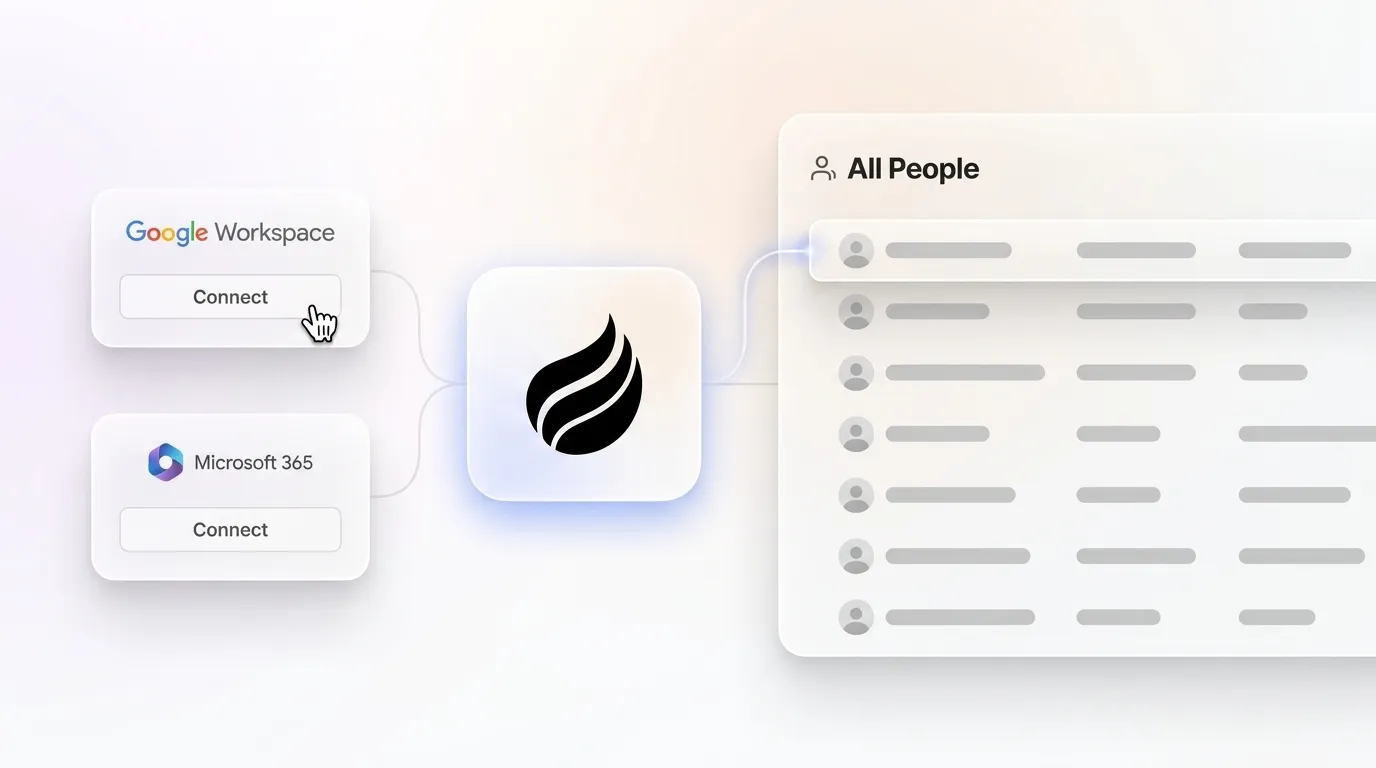
Setup: Authenticate Coffee via OAuth to Google Workspace or Microsoft 365. No Zapier steps, webhook configuration, or middleware are required. The agent starts scanning emails and calendars as soon as the connection is live.
Signature parsing: The Coffee Agent reads inbound and outbound email signatures to extract name, title, phone, company, and LinkedIn profile. Almost 90% of people use one email signature, so signatures provide a reliable, stable data source. The agent writes parsed fields directly to the contact record in Salesforce or HubSpot, or to the Coffee Standalone CRM, without human review.

Real-time enrichment: Beyond signature data, the agent augments records with job titles, funding rounds, and LinkedIn profiles via licensed data partners, which removes the need for separate tools like Apollo or ZoomInfo.
Activity logging: Every email interaction is logged as an activity against the correct contact record automatically. Last activity and next activity fields stay current without rep input. AI/automated CRM data processing reaches ~99.8% accuracy compared to ~95.8–95.9% accuracy for manual entry, and that gap grows more meaningful as team size increases.
Duplicate prevention: The agent applies real-time matching before writing any new record, so it blocks duplicates at the point of creation instead of relying on post-hoc cleanup.
Deploy the Coffee Agent in your CRM today
Coffee Case Study: From Spreadsheets to Agent-Led CRM
The workflow above describes the technical mechanics of agent-led contact creation. To see how these capabilities translate into measurable time savings in a real sales environment, consider the following case study.
A custom AI solutions firm generating tens of millions in revenue was managing sales in spreadsheets. The team rejected Salesforce and HubSpot because those systems required too much manual work. After deploying the Coffee Agent, automatic contact creation from Google Workspace kept the CRM clean without human effort. The Pipeline Compare feature replaced manual weekly review exports. The team recovered the 8–12 hours per rep per week mentioned earlier and removed the data-quality tax that had previously distorted their forecasts.
Readiness Checklist for Email-to-CRM Automation
If your team faces similar data-quality challenges or heavy manual-entry overhead, the checklist below helps you confirm whether your environment is ready for automated contact creation, regardless of which solution you choose.
Teams evaluating email-to-CRM automation should confirm the following before selecting a solution:
- Email provider is Google Workspace or Microsoft 365 and supports OAuth connection.
- Existing CRM has a defined deduplication key, with email address as the preferred option.
- Internal domains, noreply addresses, and distribution lists are documented for exclusion.
- Field mapping requirements, including custom properties and required fields, are documented.
- A data owner is assigned to review creation-source reports monthly.
- Security and compliance requirements such as SOC 2 and GDPR are confirmed with the vendor before connecting email data.
Get started with Coffee — no manual setup required.
Frequently Asked Questions
Does Coffee work on top of an existing Salesforce or HubSpot instance, or does it require replacing them?
Coffee offers both options. The Companion App connects to an existing Salesforce or HubSpot instance via OAuth and acts as an intelligent data layer on top of it, writing contacts, enriching records, and logging activities back to the primary CRM without replacing it. The Standalone CRM is a separate product for teams that want to move off legacy systems entirely. Both models use the same Coffee Agent and the same contact creation workflow.
How does Coffee prevent spam contacts and duplicates during automated email capture?
The Coffee Agent applies real-time matching at the point of record creation, using email address as the primary deduplication key. It also allows teams to configure domain exclusions so that internal addresses, noreply senders, and known spam domains never generate contact records. Unlike native CRM toggles that create records first and rely on manual cleanup later, Coffee’s agent blocks duplicates before they enter the system.
Is Coffee SOC 2 compliant, and is email data used to train AI models?
Yes, Coffee is SOC 2 Type 2 and GDPR compliant. Customer data, including email content used for contact parsing and activity logging, is not used to train public AI models. This policy is a firm data handling commitment, not a default setting that a platform update can change.
How does Coffee’s pricing model work for contact creation automation?
Coffee uses seat-based pricing. Teams pay per human seat, and the agent’s labor, including unlimited contact creation, enrichment, activity logging, and duplicate prevention, is included at no additional cost. There is no metering on the number of contacts created, emails processed, or AI operations performed, so costs stay predictable as email volume and team size grow.
What is the difference between Coffee’s agent-led contact creation and a native CRM toggle?
Native CRM toggles such as HubSpot’s email integration or Salesforce Einstein Activity Capture create basic contact records from email sender data, but they do not parse signatures for phone numbers or job titles, do not enrich records with external data, and require manual deduplication review. Coffee’s agent adds three capabilities that native toggles lack: signature parsing for phone and title fields, real-time enrichment from licensed data partners, and duplicate blocking at the point of creation. See the “Coffee Agent Signature Parsing Workflow” section above for the full technical breakdown. For teams on Salesforce or HubSpot, the Companion App adds this capability without replacing the existing system. For teams starting fresh, the Standalone CRM delivers the same agent behavior as the primary system of record.