Written by: Doug Camplejohn, CEO & Co-Founder, Coffee
Key Takeaways for Sales and RevOps Teams
- Manual CRM entry consumes 3–5 hours per week per rep, contributing to the 60% of time reps spend on non-selling tasks.
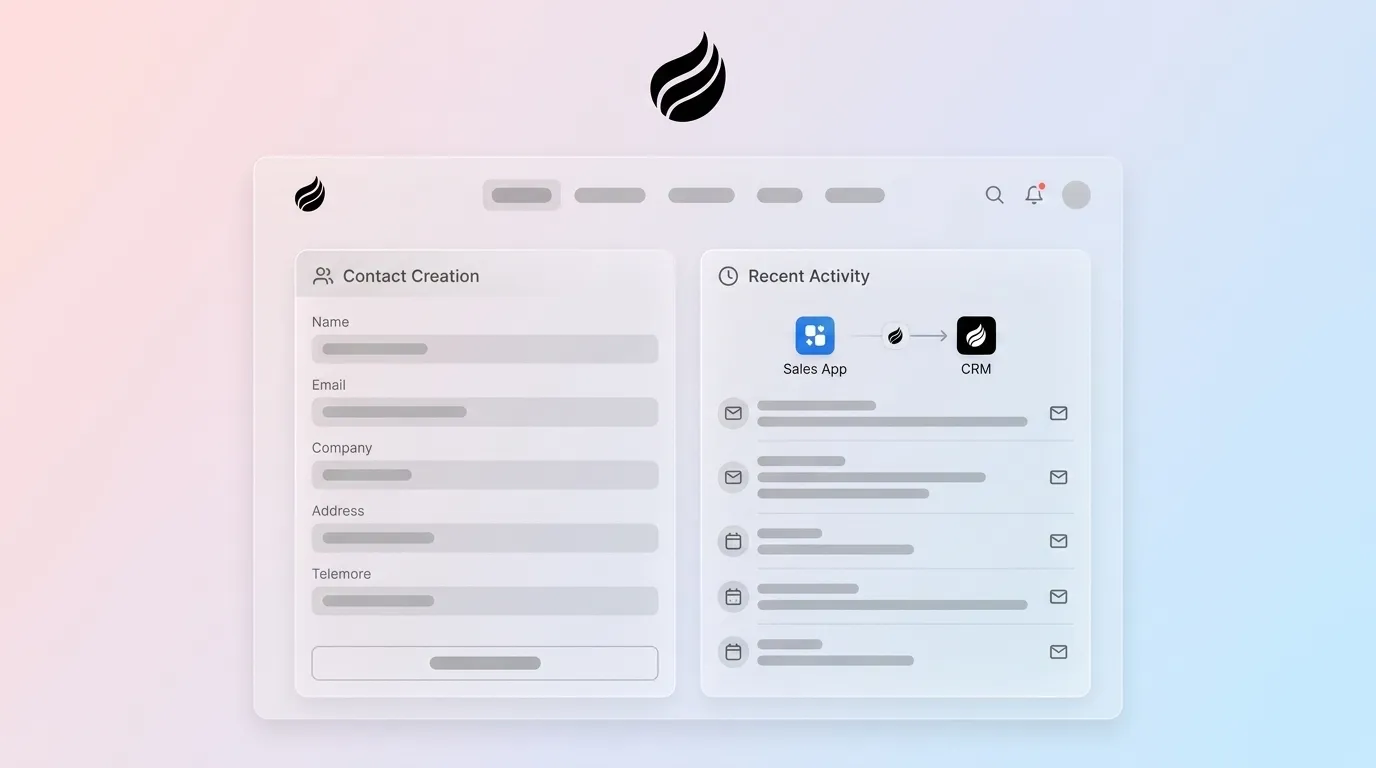
- Coffee’s autonomous agent continuously monitors email, calendar, and sales-app activity to create and enrich contacts with zero clicks.
- The six-step setup—connecting email/calendar, authenticating the agent, mapping fields, enabling enrichment, verifying the first contact, and testing follow-up actions—delivers fully automated contact creation.
- Whether used as a standalone CRM or Companion App for Salesforce/HubSpot, Coffee prevents duplicate records and keeps data accurate across systems.
- Teams scaling to 50 seats can Get started with Coffee to reclaim the time currently spent on CRM admin and redirect it to selling.
Step 1: Connect Your Sales Email and Calendar Environment
Start by connecting the inbox and calendar your team already uses. Navigate to Settings → Integrations → Email & Calendar inside Coffee. Two OAuth buttons appear: Connect Google Workspace and Connect Microsoft 365. Click the button that matches your environment, complete the standard OAuth consent screen, and grant the requested scopes (read/send mail, calendar read, contacts read). A green Connected status badge confirms the link is active. Coffee then begins scanning sent and received messages and scheduled meetings to identify net-new contacts.
Call-out — Missing OAuth Scopes: If the Connected badge does not appear, the most common cause is a Google Workspace or Microsoft 365 admin policy that restricts third-party OAuth grants. These policies block external apps from accessing company email and calendar data by default. To resolve this, ask your IT admin to allowlist Coffee’s OAuth client ID, which permits the connection while keeping your organization’s security controls in place.
[Screenshot request: OAuth consent screen with all required scopes checked and the green Connected badge visible in Coffee’s Integrations panel.]
Step 2: Authenticate the Coffee Agent in Standalone or Companion Mode
Choose how Coffee fits into your stack. Coffee offers two deployment modes. In Standalone CRM mode, Coffee becomes the system of record and stores all contacts and activity. In Companion App mode, Coffee acts as an intelligent layer that writes enriched data back to Salesforce or HubSpot while they remain the primary CRM.
In Settings → Agent → Deployment Mode, select your mode. For Companion App, click Authenticate Salesforce or Authenticate HubSpot, complete the OAuth flow, and confirm the bidirectional sync indicator turns green. Coffee then writes auto-created contacts and activity logs directly into your existing CRM instance.
Call-out — Duplicate-Record Settings: Before enabling sync, navigate to Agent → Deduplication Rules and set the primary match key to Email Address. Email is the most reliable unique identifier because names can vary (for example, “John Smith” vs. “J. Smith”) while email addresses remain constant. Setting email as the match key ensures Coffee checks for an existing record by email before creating a new contact, which prevents duplicates even when name formatting differs between systems.
[Screenshot request: Deployment Mode selector showing Standalone CRM and Companion App options, with the HubSpot/Salesforce OAuth confirmation screen.]
Step 3: Configure Data-Mapping Rules for Contacts, Companies, and Activities
Next, align Coffee’s fields with your CRM schema. Open Settings → Data Mapping. Coffee presents three mapping panels: Contact Fields, Company Fields, and Activity Fields. Map each Coffee field to its corresponding CRM field. For example, Coffee’s job_title maps to Salesforce’s Title field. Field mapping is essential because different systems use different names for the same attribute, and mismatches cause data corruption. Save the mapping configuration. A green Mapping Saved confirmation appears.

Call-out — Zapier Lag: If your stack uses Zapier to bridge Coffee to a secondary tool, remember that Zapier’s polling interval introduces a 1–15 minute delay. For real-time sync, rely on Coffee’s native Salesforce or HubSpot Companion App connection instead of a Zapier middleware step.
[Screenshot request: Data Mapping panel with Contact, Company, and Activity field columns and the Mapping Saved confirmation banner.]
Step 4: Turn On Enrichment from Licensed Data Partners
With mapping in place, enhance every new record with context. Navigate to Settings → Enrichment. Toggle on the enrichment sources available under your Coffee plan. If your plan includes a licensed data partner key, paste it into the API Key field and click Verify. Once active, Coffee’s agent automatically appends job titles, company firmographics, LinkedIn profile URLs, and funding data to every auto-created contact record. Coffee’s enrichment workflow cross-references multiple data points to confirm identity before writing validated data into CRM fields.
Visible enriched fields appear in the contact record under the Enriched badge. Your reps gain complete profiles without manual research or separate data-subscription tools.
[Screenshot request: Enrichment toggle panel with active data partner, showing the Enriched badge on a sample contact record with populated firmographic fields.]
Step 5: Verify the First Contact Appears Automatically
Now confirm that contact creation runs on its own. Send a test email to a net-new external address, or schedule a calendar meeting with a contact not yet in your CRM. Within minutes, open Coffee’s Contacts view. The new contact record should appear automatically, populated with name, email address, company, and any enriched fields the agent resolved. No manual action was taken. Automated systems scan recipient email addresses, match them against existing records using unique identifiers, and create new contact records when no match is found. Coffee’s agent applies this logic continuously.

[Screenshot request: Auto-created contact record in Coffee showing name, email, company, job title, and the Enriched badge, with no manual-entry timestamp.]
Step 6: Test Follow-Up Actions and Pipeline Updates
Finish by validating activity logging and pipeline context. After the contact is created, schedule a call with the new contact. Post-meeting, Coffee’s agent generates a summary, identifies next steps, and logs the activity with precise timestamps under Activity → Last Activity and Next Activity. If the Companion App is active, these activity records sync to the corresponding Salesforce or HubSpot contact and opportunity records automatically. Confirm the activity timestamp in both Coffee and your primary CRM to validate bidirectional sync.
[Screenshot request: Activity timeline on the auto-created contact record showing Last Activity and Next Activity fields with accurate timestamps, mirrored in Salesforce/HubSpot.]
Get started with Coffee to see the full agent workflow running in your own environment.
Quick Add vs. Agent Automation in Everyday Use
Now that you have seen how Coffee’s agent creates contacts automatically, compare that experience to the manual and semi-automated methods most teams use today. Legacy CRMs offer “Quick Add” buttons that reduce but do not eliminate manual effort. The table below compares the four primary contact-creation methods on time per contact and accuracy. Weekly hours saved figures are derived from published data cited inline.
| Method | Time per Contact | Accuracy |
|---|---|---|
| Full Manual CRM Entry (Salesforce / HubSpot / Dynamics) | ~3.4 hrs/week total across all contacts | Human error rate applies, with frequent typos and omissions |
| Quick Add Button (Salesforce / HubSpot) | 1–3 minutes per record, with fields still requiring manual input | Dependent on rep accuracy at time of entry |
| Microsoft Copilot / AI Summaries | Summarizes existing data while the rep still creates the contact record | Summary quality varies and no autonomous record creation occurs |
| Coffee Agent (Standalone or Companion) | 0 minutes, because the agent creates and enriches the record automatically | Higher than manual, since it removes human error at point of entry |
Validation Checklist: Confirm Your Data Is Working
- Contact record created automatically within 5 minutes of the first email or calendar event.
- Name, email address, company, and job title fields populated without manual input.
- Enriched badge visible with firmographic data such as company size, LinkedIn URL, and funding stage.
- Last Activity timestamp matches the date and time of the triggering email or meeting.
- Next Activity field populated after the agent identifies a follow-up action.
- Activity record visible in Salesforce or HubSpot for Companion App deployments.
- No duplicate record created for the same email address.
- Time savings visible: compare CRM admin time in week one versus week four to confirm the agent is reducing manual entry burden, targeting a reduction of at least 5 hours per rep per week.
Scaling from 5 to 50 Seats While Keeping Salesforce or HubSpot as System of Record
Coffee uses seat-based pricing, so you pay for human seats and the agent’s labor is included without metering on LLM usage or automated processes. This model keeps costs predictable as you grow, because adding a new rep simply means adding one seat with the same automation included. For teams scaling from a founding sales team to a 50-person organization, the Companion App configuration keeps Salesforce or HubSpot as the system of record throughout. Each new rep seat added to Coffee extends the same automatic contact creation to that rep’s inbox and calendar with no extra configuration beyond the initial OAuth grant.
Across a 10-person team realizing the time savings outlined above, the reclaimed hours each week can be redirected from data entry to revenue generation, effectively adding meaningful selling capacity without increasing headcount.
Good Data In, Good Data Out Framework
Coffee’s agent transforms three core input sources into structured CRM intelligence your team can trust. The table below maps each input type to the agent’s primary transformation and the reliable output your reps see.
| Input Source | Primary Transformation | Reliable Output |
|---|---|---|
| Sent / received email | Email → Contact Record | Complete contact record with full email history attached |
| Calendar meeting invite | Meeting → Briefing + Contacts | Enriched contact records plus a meeting briefing delivered before the call |
| Call transcript (Zoom / Teams / Meet) | Transcript → Structured Notes | Structured BANT / MEDDIC / SPICED notes with a timestamped activity log |
Frequently Asked Questions
Is Coffee SOC 2 compliant?
Yes. Coffee is SOC 2 Type 2 and GDPR compliant, and customer data is not used to train public AI models. For teams in regulated-adjacent industries or those with enterprise security review requirements, Coffee’s compliance documentation is available on request through the pricing and onboarding process.
How does Coffee differ from a Zapier sync?
Zapier is a middleware polling tool that checks for new data at intervals of 1 to 15 minutes and triggers predefined actions between apps. Coffee’s agent operates continuously and autonomously, so it does not wait for a polling interval, does not require a human to build a Zap, and does more than move data between fields. The agent interprets unstructured inputs like email text and call transcripts, creates and enriches contact records, and writes structured intelligence back to the CRM in real time. Zapier can still connect Coffee to secondary tools in your stack, but it does not replace the agent’s autonomous contact creation and enrichment logic.
What happens to contacts when a rep leaves the team?
Coffee writes all contact records, activity logs, and enriched data to a persistent system of record, which is either Coffee’s own data warehouse in Standalone mode or your Salesforce/HubSpot instance in Companion App mode. As a result, the organization owns the data rather than the individual rep. When a seat is deactivated, all historical contacts, interactions, and pipeline context associated with that rep’s email and calendar activity remain fully accessible to the team, so no data is lost during offboarding.
Can I still use my existing Salesforce or HubSpot instance?
Yes. As explained in Step 2, the Companion App deployment mode keeps Salesforce or HubSpot as your system of record while Coffee handles all data entry and enrichment autonomously. Your existing CRM remains the source of truth, and Coffee ensures the data inside it is accurate and complete without requiring any manual input from reps.
Conclusion: Let the Agent Handle CRM Entry
The six-step workflow above removes the productivity drain documented throughout this article: the hours per week reps lose to manual CRM entry, the human error that corrupts data quality, and the time Coffee returns to revenue-generating activities. Once connected to the email and calendar environment your team already uses, the agent keeps contact creation and enrichment running in the background.
The result is not a marginal improvement on the Quick Add button. It represents a structural shift in how contact data enters your CRM. Instead of reps manually creating records, even with shortcuts, the agent monitors communication channels continuously and populates the CRM automatically. Every new contact encountered in email or on a calendar invite becomes a fully enriched, activity-logged CRM record without any manual input from the rep.
Get started with Coffee and reclaim the hours documented throughout this article that your team currently spends on manual data entry.