Written by: Doug Camplejohn, CEO & Co-Founder, Coffee
Key Takeaways
- Automated contact import removes the 10+ hours per week sales reps spend on manual CRM data entry by reading emails, calendars, and transcripts without human effort.
- A readiness audit that documents every data source and assigns a single data owner is the essential first step before you configure any import pipeline.
- Field mapping, fuzzy-match deduplication, and enrichment with firmographic data must happen at the point of entry to prevent duplicates and keep data accurate.
- Coffee’s companion mode connects with Salesforce and HubSpot, writes enriched records back to existing CRMs, and preserves full historical context in a built-in data warehouse.
- Eliminate manual entry from day one with Coffee’s automated agent and reclaim 8–12 hours per rep each week.
How to Automatically Import Contacts by Email
Step 1: Run a Readiness Audit
Start by documenting every source that generates contact data, including inboxes, shared calendars, Zoom or Teams recordings, web forms, and any CSV exports from legacy tools. Assign a single data owner, typically the RevOps lead, who controls field mapping and deduplication rules. Define your inputs as raw email threads, calendar invites, and transcript files, and define your outputs as contact records with name, title, company, email, phone, and last-activity date written to the CRM.
Callout — Brittle CSV Schedules: ActiveCampaign’s Salesforce integration sync runs every 10 minutes or when 100 records are updated, whichever comes first. Any contact without a valid email address is silently dropped. Scheduled CSV imports share the same flaw, because they process only structured, pre-formatted rows and cannot read an email thread or a call transcript. When the source file format changes, the import breaks entirely.
Contact data decays at a 30% annual rate, which means even a perfectly executed readiness audit becomes stale within months. To keep data accurate, build a quarterly review into the data owner's calendar and treat the audit as a recurring checkpoint instead of a one-time setup task.
Automated Contact Import ActiveCampaign
Step 2: Connect Email and Calendar, Map Fields, and Set Duplicate Rules
Teams using ActiveCampaign or a comparable marketing-automation platform usually follow a standard setup path: navigate to Contacts, choose Import, select the external service, then follow the on-screen prompts. This flow connects your email and calendar so contact data can start flowing into the system.
HubSpot requires a unique identifier, such as email for contacts, to update existing records instead of creating duplicates. Map every field before the first sync runs so the platform can match incoming data to the right properties. HubSpot's native Duplicate Management tool identifies potential pairs, but it still requires one-by-one manual review.
Callout — Missing History: Legacy CRM architectures store only the current field value. When a contact's title is updated during an import, the prior title is overwritten and lost permanently. Coffee's agent writes to a built-in data warehouse, which preserves every historical state so pipeline reviews reflect the full relationship timeline.
Common pitfalls at this stage include secondary email addresses that cannot serve as matching keys in most platforms and existing databases that already contain a high volume of duplicates. The average CRM already contains 10–30% duplicate records before any new import runs, and fuzzy-match logic is rarely enabled by default. Once field mapping and duplicate rules are configured, the next challenge is ensuring that enrichment and deduplication happen at the point of entry before records reach your CRM.

Sync Contacts Between Databases Without Manual Entry
Steps 3–4: Enrich Records and Handle Duplicates at the Point of Entry
Step 3 focuses on enrichment. After raw contact data is captured, the agent augments each record with job title, company funding stage, and LinkedIn profile using licensed data partners. Standardizing phone numbers to E.164, stripping legal suffixes from company names, and normalizing job titles via seniority taxonomies must occur before enrichment to maximize match rates, which creates a multi-step process that many teams handle manually or skip. Coffee's agent executes this normalization automatically on every record it creates, so enrichment runs against clean, standardized data from the first contact forward.
Step 4 focuses on duplicate prevention at the point of entry. Fuzzy matching algorithms that compare name, email, company, and phone in combination are essential because exact-match methods miss variants like "J. Smith" versus "Jonathan Smith" at the same company. For teams using Coffee's Standalone CRM, the agent applies this logic continuously, not as a scheduled batch job, so duplicates never have a chance to accumulate.
Callout — Duplicate Records: Bulk list imports from unformatted spreadsheets are a primary source of CRM data degradation. An effective import protocol requires standardizing fields, enriching normalized records, deduplicating against the existing database, and loading through a staging environment. Coffee's agent handles every layer of this protocol autonomously.
Automated Contact Import for Salesforce and HubSpot (Companion Mode)
Steps 5–6: Connect Coffee as a Companion and Validate Write-Back
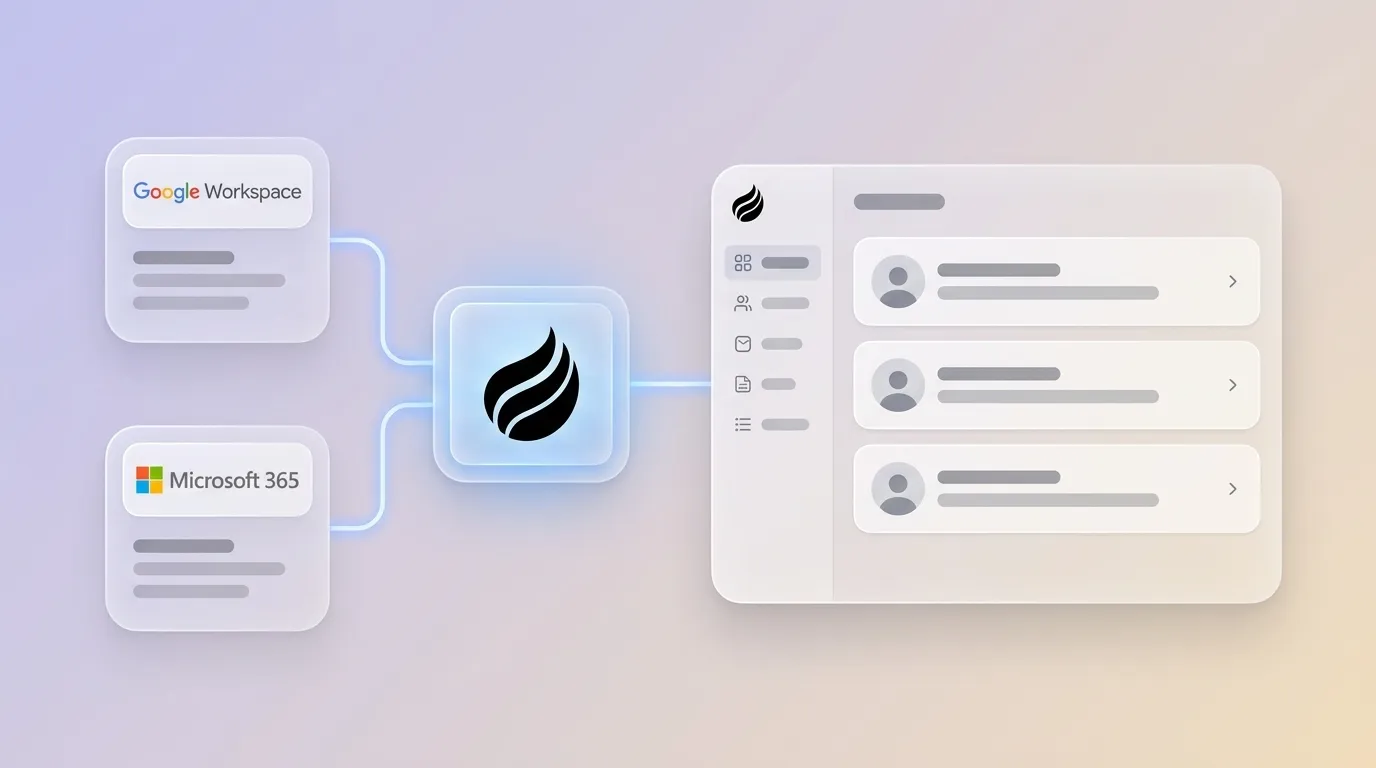
Step 5 covers companion-mode authentication. Teams already committed to Salesforce or HubSpot authenticate Coffee through a simple OAuth flow. The Coffee Agent then reads emails, calendar events, and call transcripts from Google Workspace or Microsoft 365 and writes clean, enriched records back to the existing CRM instance. No manual field mapping is required after initial setup, because Coffee understands Salesforce's required fields, quota objects, and forecasting hierarchies, a level of integration depth that newer alternatives like Day.ai and Clarify have not replicated.
Step 6 covers write-back validation. After the first 48 hours of operation, audit a sample of 20–30 newly created contacts in Salesforce or HubSpot. Confirm that records created from email threads carry the correct associated company, that activity logs show "last activity" populated without rep input, and that no duplicate pairs appear for contacts introduced through both email and calendar. A deduplication check within 48–72 hours after every significant import is the recommended cadence for active databases.
Self-Hosted CRMs and External Databases: Common Forum Pain Points
Teams running self-hosted CRMs or syncing contacts across external databases face a different set of challenges that legacy integration methods rarely solve. Legacy integrations such as CSV, XML, EDI, flat files, and FTP-based flows move structured data between systems but predate the ability to reason over unstructured content. An email thread that contains a new prospect's title change never reaches the CRM through these pipelines.
Zapier and Make.com can move files or trigger actions but cannot read or comprehend document content, which forces teams to bolt on separate extraction tools and still leaves no way to make branching decisions based on what an email actually says. RPA bots break when document formats change because they rely on fixed screen coordinates or rules, while AI agents adapt to layout variations using LLMs that understand document content.
Coffee's agent approach resolves these pain points by treating every data source, structured or unstructured, as an input. Whether the contact arrives through a forwarded email, a Zoom transcript, or a calendar invite, the agent extracts, normalizes, and writes the record without a template or a rule update.
Step 7: Validate and Monitor Your Automated Contact Pipeline
Step 7 focuses on validation and ongoing monitoring so the pipeline stays reliable as volumes grow. After completing all previous steps, use this checklist before you declare the pipeline production-ready.
- All new contacts created in the past 7 days have a populated email, company, and last-activity date.
- Zero duplicate pairs exist for contacts introduced through more than one channel, such as email plus calendar.
- Enrichment coverage for title, LinkedIn, and funding exceeds 80% of new records.
- Write-back to Salesforce or HubSpot is confirmed for required fields and forecast objects.
- The data owner has reviewed the weekly quality report and approved the first full import.
On time savings, automated data entry reduces CRM entry time by 35–55%. Sales and marketing departments lose significant time when data is incomplete or inaccurate. Coffee's agent targets 8–12 hours saved per rep per week by removing manual entry entirely and keeping contact data current.
Legacy Methods vs. Coffee: Comparison
The table below summarizes how Coffee's agent approach compares to legacy methods across the key dimensions that determine whether automated contact import truly eliminates manual work.
| Method | Handles Unstructured Data (Emails, Transcripts) | Duplicate Prevention | Writes Back to Salesforce/HubSpot |
|---|---|---|---|
| Recurring CSV Import | No, processes structured rows only | No, bulk imports are a primary source of duplicates | Manual upload required each cycle |
| Basic API Sync | No, moves structured fields and cannot parse email content | Partial, only on exact-match identifiers | Yes, for structured fields only |
| Point-Tool Sync (Zapier/Make) | No, cannot read or comprehend document content | No, no native deduplication logic | Yes, through pre-mapped triggers only |
| Coffee Agent | Yes, ingests emails, calendar events, and call transcripts natively | Yes, fuzzy matching at point of entry with continuous operation instead of batch jobs | Yes, writes enriched records back to Salesforce and HubSpot including required fields and forecast objects |
Scaling Automated Contact Import from 5 to 50 Seats
Coffee's seat-based pricing model allows the agent's labor to scale without extra per-process fees. A five-person founding team using the Standalone CRM can migrate to Companion Mode when they adopt Salesforce or HubSpot at Series A without rebuilding the import pipeline. The agent's authentication, field mappings, and deduplication rules carry forward.
For teams already at 20–50 seats on HubSpot or Salesforce, the primary scaling concern is governance. Assign a dedicated data steward who reviews weekly quality reports and approves any bulk imports that supplement the agent's continuous capture. Quarterly deep audits and close monitoring during the first 30–60 days after any new integration goes live form a practical maintenance cadence. Because Coffee's agent handles enrichment, activity logging, and duplicate prevention autonomously, the data steward's role shifts from data entry oversight to exception review.
Get started with Coffee and see how the agent scales with your team.
Frequently Asked Questions
How long does initial setup take?
For most teams, Coffee's initial setup takes under an hour. Connecting Google Workspace or Microsoft 365 uses a standard OAuth authentication flow. The agent begins scanning emails and calendars immediately after connection and populates the first contacts within minutes. Companion Mode for Salesforce or HubSpot follows the same authentication path, and the agent maps to existing CRM fields automatically. No custom development or professional services engagement is required for standard configurations.
Is Coffee SOC 2 Type 2 and GDPR compliant?
Yes. Coffee is SOC 2 Type 2 certified and GDPR compliant. Customer data is not used to train public AI models. All data processed by the Coffee Agent remains within the customer's designated environment. For teams in regulated-adjacent industries such as fintech or healthtech SaaS, Coffee's compliance posture satisfies standard vendor security reviews at the SMB and mid-market level, though organizations in directly regulated industries such as healthcare or financial services should conduct their own assessment.
How deep are the Salesforce and HubSpot integrations?
Coffee's Salesforce and HubSpot integrations are built to handle the full complexity of production CRM instances, as described in Step 5. The agent writes enriched contact and company records, logs activities, and updates deal stages without triggering validation errors on required fields. This behavior allows teams to maintain existing processes while adding automated contact capture.
Who maintains the agent after launch?
Coffee's agent is self-maintaining for standard operations. It does not require rule updates when email formats change or when new contact sources are added, because the agent adapts to new inputs using its underlying language model. The data owner or RevOps lead is responsible for reviewing weekly quality reports and approving any supplemental bulk imports. Coffee's support team handles platform-level updates, and pricing includes the agent's unlimited labor without additional maintenance fees.
Conclusion: Stop Typing, Start Selling
The seven steps above, which include readiness audit, field mapping and duplicate rules, enrichment, point-of-entry deduplication, companion-mode authentication, write-back validation, and ongoing governance, form a complete automated contact import implementation. Legacy CSV schedules, basic API syncs, and point-tool connectors fail whenever data is unstructured, history matters, or duplicates compound. Coffee's autonomous agent executes all seven steps continuously and writes clean records into your CRM from emails, calendars, and transcripts without a human in the loop.
Get started with Coffee and reclaim the 8–12 hours per week your team currently loses to manual entry.