Written by: Doug Camplejohn, CEO & Co-Founder, Coffee | Last updated: August 21, 2026
Key Takeaways for Automating Sales Workflows
- Sales workflow automation replaces repetitive tasks like email logging and CRM updates with software, so reps can focus on selling.
- At the 10–50 person SaaS scale, manual data entry can consume 10–20 hours per rep each week and directly reduce revenue capacity.
- Connecting email, calendar, and call transcripts to the CRM enables automatic activity logging, enrichment, and structured data entry without rep action.
- Implementing a 7-step automation sequence—audit, connect, enrich, scribe, route, trigger, and measure—improves lead response time, forecast accuracy, and field completeness.
- Eliminate manual data entry and automate sales workflows for your team with Coffee.
Why Automation Matters for 10–50 Person SaaS Teams
At the 10–50 person scale, each rep’s productivity represents a clear slice of total revenue. Sales managers often see several hours per rep per week lost to manual CRM updates alone. Across a 10-person team, that becomes a large block of selling time converted into administrative work.
A typical unaudited CRM carries duplicate records, and 70% or more of contacts have incomplete information. This level of inaccuracy corrupts forecasts and routing logic. Gartner estimates that poor data quality costs organizations an average of $12.9 million annually through missed pipeline, unreliable forecasts, and seller time spent on cleanup.
Coffee is the CRM Agent built for this problem at the 10–50 person SaaS scale. After connecting to Google Workspace or Microsoft 365, Coffee reads emails, calendars, and call transcripts and writes structured data directly into Salesforce, HubSpot, or its own Standalone CRM. Reps review the data instead of entering it.
Eliminate manual data entry for your team with Coffee’s CRM Agent.
Readiness Checklist Before You Turn on Automation
Before implementing the automation sequence that follows, confirm that your team has these foundations in place. Missing any of them can cause workflow failures or data quality issues later. Complete every item before activating any automation step:
- Google Workspace or Microsoft 365 access with OAuth permissions available for the Coffee Agent
- An existing Salesforce or HubSpot instance with defined required fields and picklist values, or a decision to use Coffee Standalone as the system of record
- A documented buyer persona (title, company size, industry) to drive enrichment targeting and lead routing logic
- Standardized pipeline stages, loss reasons, and lead sources defined in the CRM before any automation writes to them
- A named RevOps or sales ops owner accountable for workflow rules, field mapping, and ongoing data quality
- Baseline metrics recorded: manual CRM entries per rep per week, average time spent on admin, and current field completeness rate
Step 1: Audit and Prioritize Your Biggest Bottlenecks
Inputs: A one-week time audit from each rep, your CRM’s field completeness report, and a list of every tool in the current stack.
Decision: Rank tasks by weekly volume and judgment required. This ranking reveals which tasks are both high-frequency and low-judgment, which makes them ideal automation candidates. Prioritize high-frequency, low-judgment tasks for automation first, such as email logging, contact creation, and activity updates. Reserve deal qualification, negotiation, and closing for human judgment because these steps require context and nuance.
Handoff: Use the audit output as the master task inventory that governs every subsequent step.
Output: A prioritized bottleneck list with an automation category assigned to each task: fully automatable, human-assisted, or human-driven.
Common Mistake: Automating deal routing based solely on territory, industry, and company size often produces suboptimal assignments because the system ignores warm relationships or rep-specific focus areas that require human context. Mark these tasks as human-assisted instead of fully automated.
Step 2: Connect Email and Calendar for Auto-Logging
Trigger sequence: Authenticate Coffee (or Einstein Activity Capture or HubSpot’s native integration) via OAuth to Google Workspace or Microsoft 365. Set default logging to “on” for all external customer-facing threads.
Field mappings for email and calendar auto-logging: Configure these mappings so every customer interaction becomes structured CRM data instead of scattered messages.
- Inbound and outbound emails → Activity record linked to Contact and Deal
- Calendar event accepted by an external attendee → Meeting activity with attendees, timestamp, and duration
- Last Activity Date and Next Activity Date → auto-updated on the Deal record
- Email thread → preserved on the Contact timeline for full conversation history
Exclusion rules to configure before go-live: Set these filters so the system logs meaningful customer activity and ignores noise.
- Internal domain emails (your own company)
- Automated notifications and newsletters
- Private calendar events and internal meetings
- Tentative holds and personal appointments
Assign one primary system owner for each activity type so other connected tools only link or summarize instead of creating full copies. This approach prevents duplicate activity records.
Output: Every customer-facing email and meeting logged automatically, with no rep action required.
Step 3: Activate Lead Capture and Enrichment Flows
Inputs: New inbound leads from web forms, website visitor identification through Coffee’s pixel, and imported lists.
Decision: Use email address as the primary match key. Decide in advance whether duplicate conflicts merge automatically or route into a human review queue.
Handoff: When a contact is created, Coffee’s enrichment agent appends job title, company size, funding stage, and LinkedIn profile from licensed data partners. This removes the need for a separate ZoomInfo or Apollo subscription.

Output: Fully enriched contact and company records created without rep input.

Common Mistake: Auto-enrichment must be paired with deduplication to eliminate the need for reps to manually enter firmographics, titles, and contact details when records are created. Skipping deduplication rules at this step creates compounding record errors downstream.
Step 4: Use AI Meeting Scribes to Fill Structured CRM Fields
Coffee’s AI Meeting Bot joins Zoom, Teams, or Google Meet calls, records and transcribes the conversation, and then writes structured data back to the CRM within minutes. Meeting notes become structured CRM fields instead of free-text summaries pasted into a notes field. Values map directly into dropdowns and picklists.
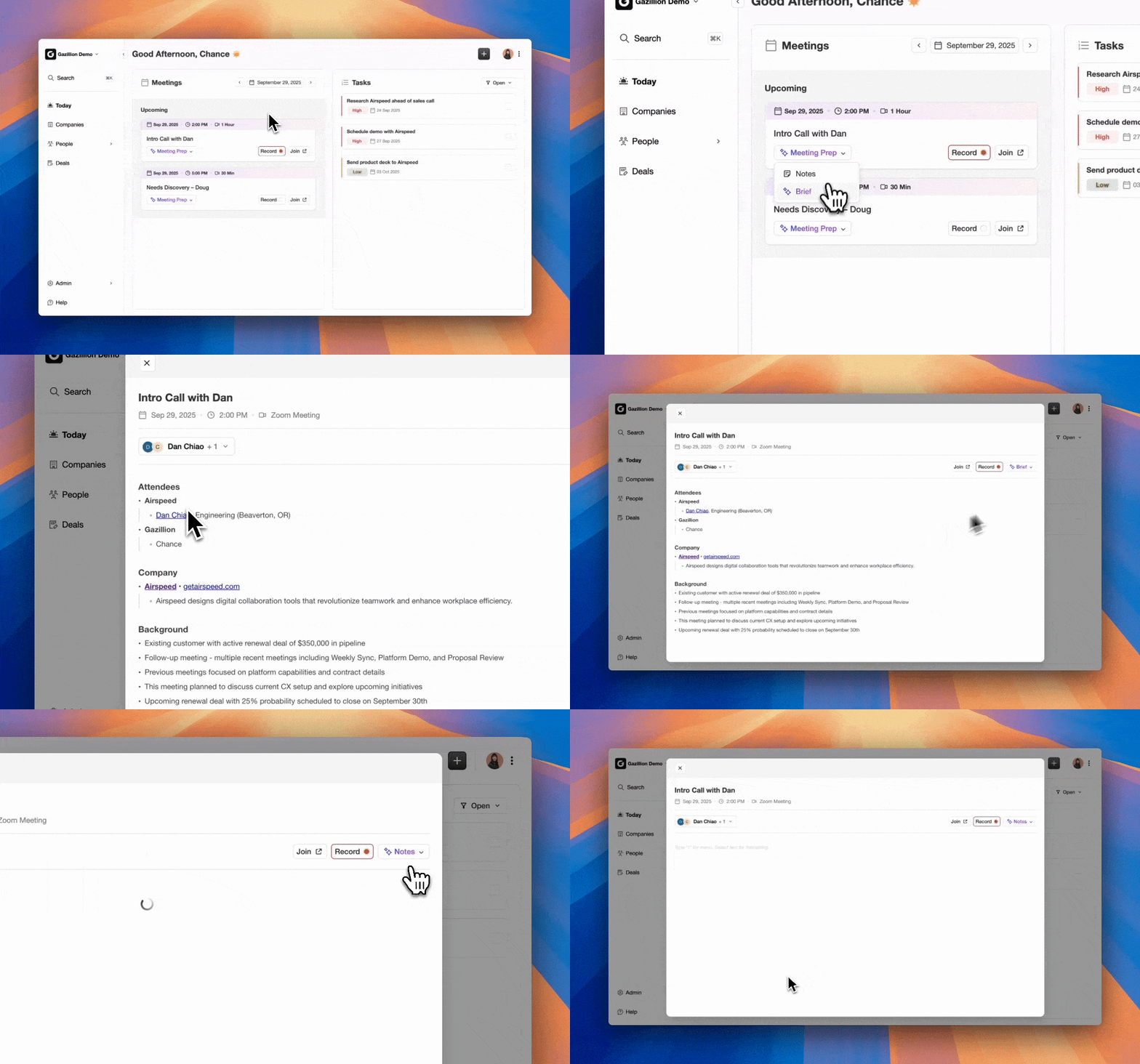
Coffee supports BANT, MEDDIC, and SPICED methodology mapping. Here are common field mappings that show how conversation insights convert into structured CRM data automatically:
- Budget confirmed → Budget field (currency) on the Opportunity
- Decision maker identified → Contact Role picklist updated to Decision Maker
- Next step committed → Next Step field and a follow-up Task with due date
- Competitor mentioned → Competitor picklist on the Opportunity
- Pain point articulated → custom Pain Points text field or MEDDIC Economic Buyer field
Coffee released improved summary templates in November 2025, customizable to match workflows and writable back to Coffee, HubSpot, or Salesforce, and expanded this in February 2026 with Custom Meeting Briefings and Summaries that let users define exact formats, from high-level executive summaries to granular technical breakdowns.
See how Coffee turns every call into structured pipeline data automatically.
Step 5: Set Automated Routing and Follow-Up Sequences
Trigger logic: When a new lead meets ICP criteria such as title, company size, and industry match from enrichment, route it to the assigned rep and enroll it in the appropriate Coffee Campaign sequence automatically.
Handoff rules: Use these rules to ensure fast, relevant follow-up without manual coordination.
- Leads from high-intent pages (pricing or demo request) → immediate Slack notification to the rep and a Task created in the CRM
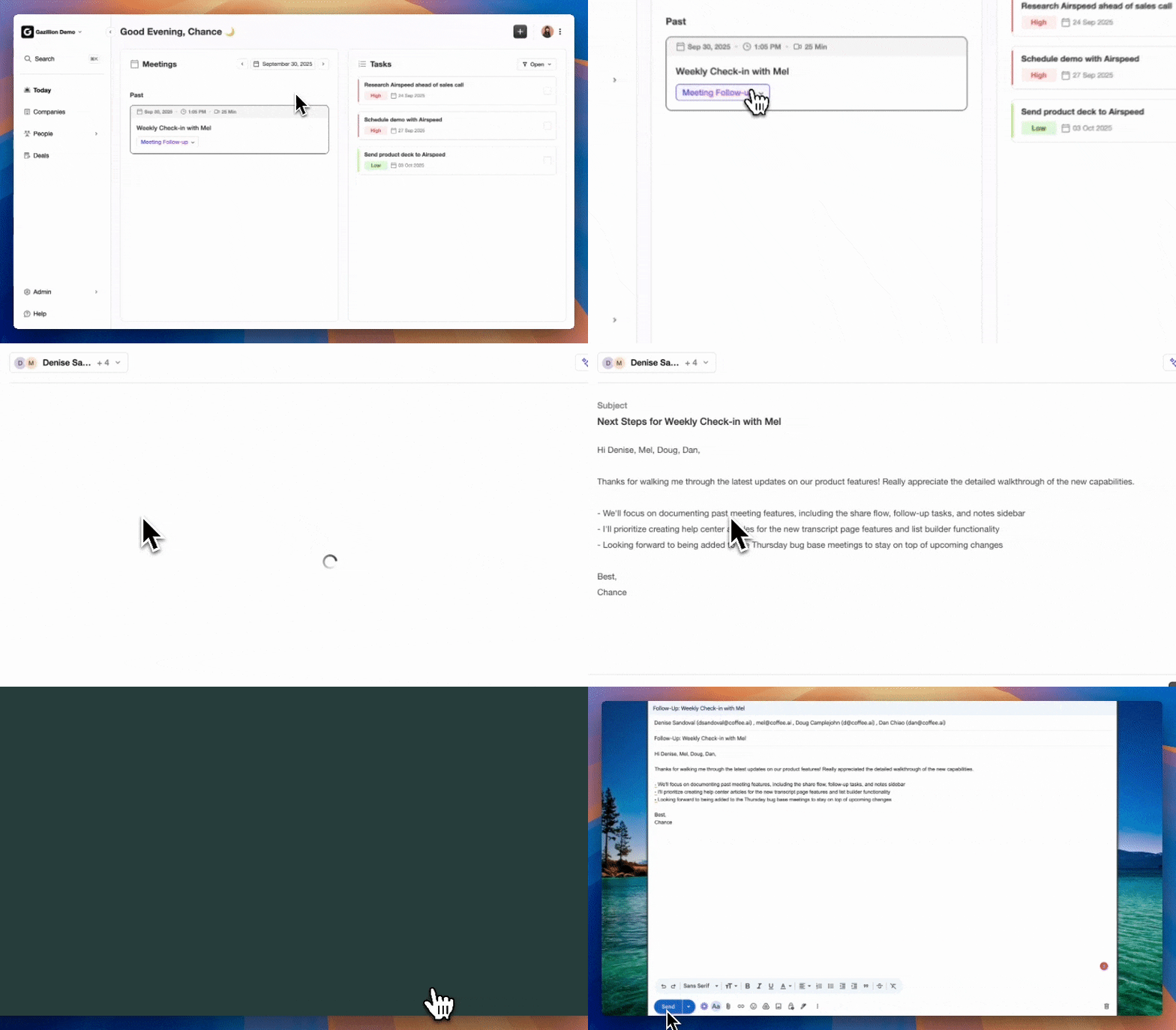
- Meeting completed with outcome set to “Interested” → follow-up email drafted by Coffee Agent for rep review and send
- Prospect replies to a sequence → stop-on-reply pauses the Campaign and the rep receives a notification to take over
The routing and follow-up automation described here directly addresses the lead response time problem discussed earlier. Faster responses, especially moving from 24+ hours to under 5 minutes, capture the 2.6x–9x conversion lift reported in multiple studies.
Step 6: Configure Pipeline Stage Triggers and Alerts
Stage-change automation: Define the specific signal that advances each stage so movement reflects real progress instead of subjective judgment.
- Discovery call completed and Next Step field populated → advance from Prospecting to Qualified
- Demo meeting logged → advance from Qualified to Demo Completed
- No activity on a deal for 7 days → alert the assigned rep and manager via Slack
- Deal in Proposal stage for 14 days with no email activity → flag as At Risk in the pipeline view
Visibility rules: Coffee’s Pipeline Compare feature visualizes week-over-week changes, including progressed deals, stalled opportunities, and new additions, without manual CSV exports. Pipeline reviews shift from data-entry interrogations to strategic discussions, which sets up the forecast accuracy improvements you measure in Step 7.
Step 7: Establish a Measurement Framework with Specific KPIs
Define baselines before launch and track these KPIs at 30-day intervals. These metrics fall into three groups: rep productivity, data quality, and business outcomes.
- Manual CRM entries per rep per week (target: reduction toward zero)
- Field completeness rate on active deals (target: 90%+)
- Lead response time (target: under 5 minutes for high-intent leads)
- Time spent selling vs. admin (target: 35%+ selling)
- Pipeline forecast accuracy (target: 15–25% improvement over baseline)
- Duplicate record rate (target: under 2%)
- Automation uptime and sync failure rate (target: 99%+)
Validate Your Automation with Data-Quality Checks
Workflow-completion signals to verify: Confirm these behaviors in production so you know automation is working as designed.
- Every customer-facing email appears as a logged activity within 5 minutes of send or receipt
- Every completed meeting has a structured summary written to the Deal record within 10 minutes of call end
- Every new inbound contact is enriched with title, company, and LinkedIn within 24 hours of creation
- No required CRM field on an active deal is blank after the Discovery stage
Automation delivers measurable improvements across several key areas. Manual CRM entries often drop from 10–20 hours per rep per week to near-zero, which saves 8–12 hours of admin time. This recovered capacity allows reps to spend a larger share of the week on selling activities. Lead response time improvements, especially moving from 24+ hours to under 5 minutes, support a 2.6x–9x increase in conversion or close rates according to multiple studies. Better data completeness and consistency typically improve forecast accuracy by 15–25% over the original baseline.
Variations: Scaling from 5-Rep to 30-Rep Teams and Choosing Your CRM Model
5–10 rep teams (Coffee Standalone): Use Coffee as the system of record. No Salesforce or HubSpot license is required. The Coffee Agent handles contact creation, enrichment, activity logging, meeting summaries, pipeline tracking, and outreach sequences natively. Setup time is measured in hours, not weeks. This path fits teams that have outgrown spreadsheets but view legacy CRMs as expensive and high-maintenance.
15–30 rep teams (Coffee Companion for Salesforce or HubSpot): Authenticate Coffee as a Companion App on top of the existing CRM instance. Coffee writes enriched contacts, structured meeting summaries, and field-mapped call data directly into Salesforce Opportunities or HubSpot Deals, including dropdowns and picklists rather than only notes fields. The Intelligence layer introduced in February 2026, described in Step 4, also applies here and lets teams define deep context on business model, ICP, and competitors for tailored AI suggestions written back to CRM fields. RevOps retains full control of Salesforce or HubSpot configuration while Coffee handles the data-entry labor.
Scaling consideration: Single-provider enrichment typically achieves 40–60% coverage, while a multi-provider waterfall enrichment pipeline reaches 85–95% coverage for firmographic, technographic, and contact data. As teams grow past 20 reps, validate enrichment coverage rates monthly and adjust sourcing rules as needed.
Frequently Asked Questions
How long does setup take?
For Coffee Standalone, most teams become fully operational within a single business day. The setup sequence is simple: connect Google Workspace or Microsoft 365 via OAuth, define your buyer persona and ICP, and let the Coffee Agent begin scanning emails and calendars to populate the CRM. For Coffee as a Companion App on Salesforce or HubSpot, the timeline depends on the complexity of existing field configurations and required-field rules. A straightforward mid-market Salesforce instance with standard objects typically takes one to three days to configure field mappings, test with sample records, and validate outputs. Teams with custom objects or complex validation rules should budget one to two weeks for a thorough RevOps-led configuration.
Who owns the workflows after launch?
Workflow ownership should sit with a named RevOps or sales ops lead before go-live, not with the entire team. This person manages field mapping rules, enrichment source configuration, routing logic, and the monthly data quality audit. Coffee’s Agent handles execution autonomously, while the human owner updates trigger logic when territories change, reps leave, or pipeline stages are redefined. Without a named owner, routing rules and field mappings drift away from the real sales process, which often causes automation failures around the six-month mark.
Is Coffee SOC 2 Type 2 and GDPR compliant?
Yes. Coffee is SOC 2 Type 2 certified and GDPR compliant. Customer data processed by the Coffee Agent is not used to train public AI models. For teams in regulated industries or those handling EU customer data, Coffee’s compliance posture satisfies the standard security review requirements at the 10–50 person SaaS scale. Teams with multi-year security review requirements or highly regulated data environments, such as healthcare or financial services, should engage Coffee’s team directly to review specific data residency and retention requirements before deployment.
How does the process change as the team grows?
The core automation architecture scales without structural changes. Email and calendar auto-logging, AI meeting scribes, enrichment flows, and pipeline stage triggers work for both small and larger teams. Governance changes as headcount grows. At 5–10 reps, one RevOps owner can manage all workflow rules manually. At 20–30 reps, teams should implement automated deduplication rules, field validation on imports, and enrichment triggers for new and updated records as ongoing processes instead of periodic projects. Coffee’s Pipeline Compare feature becomes more valuable at this scale because it surfaces week-over-week deal movement across a larger book of business without manual reporting. Teams moving from Coffee Standalone to the Companion App model as they adopt Salesforce or HubSpot can migrate with a simple re-authentication, since the field mapping logic transfers to the new system of record.
Conclusion: Put Sales Workflow Automation into Practice
Manual data entry acts as a structural tax on every rep’s selling capacity. The 7-step sequence in this guide—audit, connect, enrich, scribe, route, trigger, and measure—replaces that tax with an autonomous agent that writes accurate data into your CRM from every email, meeting, and call. Reps review the output and sell instead of entering data.
Coffee is the CRM Agent built for this outcome. Whether your team runs Salesforce, HubSpot, or needs a modern system of record from scratch, Coffee connects to your existing Google Workspace or Microsoft 365 environment and begins populating structured fields immediately. The result is accurate pipeline intelligence, reliable forecasts, and a sales team that spends its time on work that closes revenue.