Written by: Doug Camplejohn, CEO & Co-Founder, Coffee | Last updated: July 10, 2026
Key Takeaways
Coffee runs a six-step automation flow that records every sales call, transcribes it, extracts BANT/MEDDIC fields, updates the CRM, drafts follow-up emails, and posts Slack summaries without manual work.
Coffee replaces fragmented point tools by handling the entire workflow autonomously, so B2B sales teams spend far less time on administrative tasks.
The Problem Coffee Solves Across Every Sales Meeting
B2B sales reps lose a large share of their week to post-call admin instead of live selling. Coffee removes that overhead by assigning an autonomous agent to every sales meeting. The agent follows a consistent six-step flow that captures calls, structures deal data, updates systems, and keeps the team informed.
This guide walks through the readiness checklist first, then explains each step in sequence so you can deploy the full workflow with confidence.
Readiness Checklist for a Smooth Coffee Launch
Confirm these prerequisites before you activate the workflow so the agent can run end to end without friction.
CRM access: Admin credentials for Salesforce or HubSpot, or a new Coffee Standalone workspace.
Calendar integration: Google Workspace or Microsoft 365 connected via OAuth so Coffee can detect meetings automatically.
Meeting bot permissions: Bot admission enabled in Zoom, Microsoft Teams, or Google Meet settings.
Buyer-persona definitions: Documented ICP criteria (title, company size, tech stack) loaded into Coffee so methodology extraction and Suggested Leads stay aligned with your targets.
Zapier connection (optional): A Zapier link for teams that need to connect Coffee to tools that do not yet have native integrations.
Step 1: Record Every Sales Call Automatically
Purpose: Capture a complete, verbatim record of every customer conversation without relying on a rep to press record.
Inputs/Outputs: Calendar event to bot-joined call recording and raw audio file.
Systems involved: Google Workspace or Microsoft 365 calendars, plus Zoom, Microsoft Teams, or Google Meet.
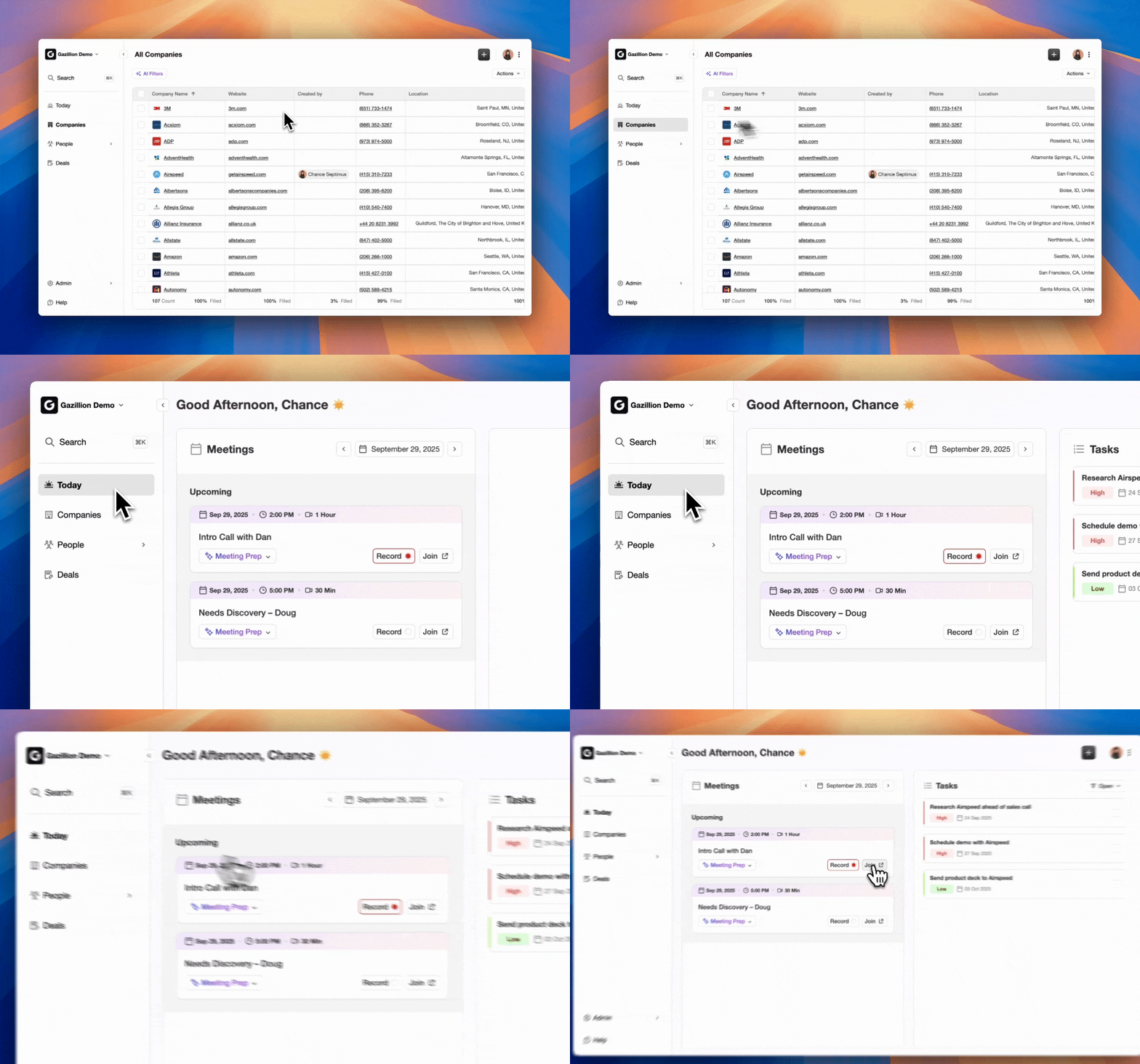
Coffee implementation: Once the calendar integration is authenticated, Coffee’s AI Meeting Bot can detect every scheduled call in real time. Because detection is automatic, no manual launch is required and the bot joins on its own. After it joins, the bot captures both sides of the conversation with speaker identification and produces a timestamped audio file that feeds directly into Step 2.
Join a meeting from the Coffee AI platform
Common pitfall: Meeting platforms often require host approval for bots. Enable “allow participants to record” or add the Coffee bot as a trusted app in your Zoom or Teams admin console before the first call, or the bot will be blocked at the door.
Step 2: Transcribe Calls and Extract Methodology Fields
Purpose: Turn raw audio into structured qualification data that can populate the CRM without a rep typing a single word.
Inputs/Outputs: Raw audio file to full transcript plus structured BANT/MEDDIC/SPICED field set.
Systems involved: Coffee’s NLP layer and the CRM field schema in Salesforce or HubSpot.
Coffee implementation: Coffee transcribes the recording and runs its sales-methodology extraction engine against the full transcript. The agent identifies budget signals, authority indicators, need statements, timeline commitments, and economic buyer references. It then maps each signal to the corresponding CRM field. The Forrester Activity Study found that the average rep burns nearly two full days per week on administrative tasks alone, and structured extraction removes a major share of that burden.
Common pitfall: Methodology fields left blank in the CRM schema cause the agent to drop extracted values silently. Map every BANT or MEDDIC field in your CRM before you activate Coffee’s extraction engine.
Structured BANT and MEDDIC Notes You Can Trust
Coffee’s agent structures notes according to BANT, MEDDIC, or SPICED, which you select at the workspace level. After each call, the agent produces an output that lists each framework component with the verbatim transcript excerpt that supports it. This gives RevOps a defensible audit trail for every qualification decision and avoids the inconsistency that appears when individual reps interpret frameworks differently. Salesforce’s 2026 State of Sales report credits AI agents with delivering 34% time savings in research for sales teams, and structured methodology extraction is a primary driver of that reduction.
Once Coffee has extracted those fields, the data needs to land in your system of record immediately. Step 3 handles that write so reps never touch a form.
Step 3: Write Deal Intelligence to Your CRM in Real Time
Purpose: Write verified deal intelligence to the system of record the moment the call ends, with no rep involvement.
Inputs/Outputs: Structured field set to updated Contact, Account, Opportunity, and Activity records in Salesforce or HubSpot.
Systems involved: Salesforce or HubSpot via native OAuth integration, plus the Coffee Standalone data warehouse.
Common pitfall: Salesforce required fields that lack a default value can cause the API write to fail. Audit required fields in your Salesforce org and assign defaults or remove the required constraint for fields Coffee cannot populate from a transcript.
Step 4: Turn Meeting Transcripts into Follow-up Emails
Purpose: Produce a personalized, send-ready follow-up email within minutes of the call ending, with clear references to commitments made during the conversation.
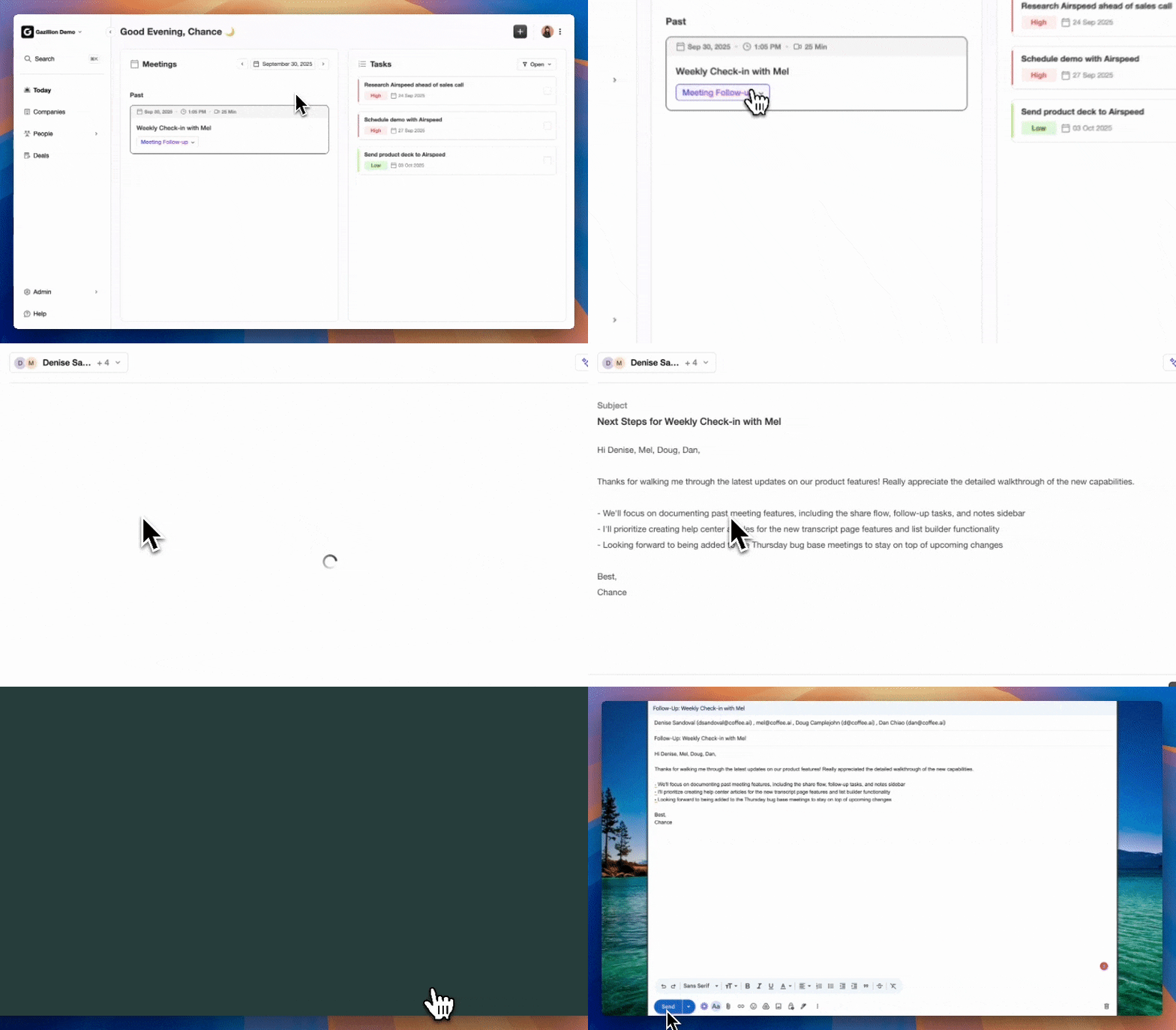
Inputs/Outputs: Full transcript plus extracted action items to a draft follow-up email in Gmail or Outlook, ready for one-click review and send.
Systems involved: Google Workspace Gmail or Microsoft 365 Outlook, plus Coffee’s generative layer.
Create instant meeting follow-up emails with the Coffee AI CRM agent
Common pitfall: Generative drafts that skip the human review step risk sending inaccurate commitments to prospects. Coffee surfaces the draft for rep approval rather than auto-sending, which preserves accuracy while removing the writing effort.
How Coffee Builds High-Quality Follow-up Drafts
The agent pulls the three most actionable moments from the transcript, usually a stated pain point, a next-step commitment, and a timeline reference. It then structures the email around those anchors. Reps receive a draft that is already personalized to the specific conversation and typically need only a quick read-through before sending. Fathom’s HubSpot integration has produced a 33% uplift in net retention, which shows the pipeline impact of consistent, timely follow-up at scale.
Step 5: Share Deal Summaries in Slack Automatically
Purpose: Notify the broader revenue team of deal developments the moment a call ends, without the rep writing a Slack message.
Inputs/Outputs: Structured summary plus extracted fields to a formatted Slack message posted to the designated channel.
Systems involved: Slack, Coffee’s notification layer, and Zapier for teams that need custom routing.
Coffee implementation: Coffee posts a structured deal summary to a configured Slack channel immediately after the CRM write completes. The message includes the deal name, key BANT or MEDDIC signals captured, next steps, and a direct link to the updated CRM record. Teams using Zapier can route summaries to deal-specific channels or trigger downstream workflows such as SDR handoff sequences.
Consistent Slack Updates for Real-time Pipeline Visibility
Real-time alerts matter, but they create lasting value only when the underlying data remains preserved and searchable. Step 6 focuses on that long-term intelligence layer.
Step 6: Keep a Searchable History for Pipeline Reviews
Purpose: Build a permanent, queryable record of every deal conversation so pipeline reviews rely on data rather than rep recall.
Inputs/Outputs: All transcripts, summaries, and field extractions to an indexed, searchable intelligence store with week-over-week Pipeline Compare views.
Systems involved: Coffee’s built-in data warehouse, the Pipeline Compare feature, and Salesforce or HubSpot for Companion App users.
Coffee implementation: Unlike legacy CRMs that overwrite fields and lose historical context, Coffee’s data warehouse preserves every version of every record. The Pipeline Compare feature visualizes week-over-week changes such as progressed deals, stalled opportunities, and new additions without a CSV export or manual slide deck. Workflow automation and AI-driven deal health monitoring can improve forecast accuracy, which shows the compounding value of clean, continuously updated pipeline data.
Common pitfall: Teams that skip the buyer-persona definition in the Readiness Checklist often see Pipeline Compare filled with low-quality records. Persona definitions drive the agent’s enrichment logic, which shapes the quality of the intelligence store over time.
Validation and Success Criteria After Launch
Use the first two weeks to confirm that Coffee runs the workflow correctly and that reps are adopting the new process.
Data-quality audit: Spot-check 10 CRM records updated by Coffee against the corresponding transcripts. BANT or MEDDIC fields should be populated with verbatim transcript evidence for at least 80% of calls where the topic arose.
Pipeline Compare baseline: Open Pipeline Compare and confirm that week-over-week deal movement appears without manual input. If deals do not appear, verify that the OAuth connection between Coffee and the CRM remains active.
Adoption signals: Monitor Slack notification volume and Gmail draft open rates. A rep who opens and sends Coffee-drafted follow-ups within 30 minutes of a call counts as a confirmed adopter. Target 80% of the team within 30 days.
Small teams of 1–20 people usually start with Coffee Standalone. In this setup, the agent acts as the system of record and handles contact creation, enrichment, meeting management, and pipeline intelligence in a single workspace. There is no legacy CRM to integrate, no field-mapping exercise, and no IT review. Founders and early sales hires connect Google Workspace or Microsoft 365, define their buyer persona, and the agent begins working immediately.
Larger small-to-mid-market teams that already rely on Salesforce or HubSpot often cannot migrate away from those systems because quotas, territories, and forecasting rules are deeply embedded. For these teams, the Coffee Companion App deploys as an intelligent layer on top of the existing instance. The agent handles the “data in” process, including recording, transcription, extraction, CRM write, follow-up drafting, and Slack notification, while Salesforce or HubSpot remains the system of record. This path avoids data migration and preserves existing configurations. Top-performing sales teams are 1.7x more likely to use AI agents than underperforming teams, and the Companion App gives established teams a fast route to that level without rebuilding their stack.
Frequently Asked Questions
How long does Coffee setup take for the full workflow?
Most teams complete the core setup in under an hour. Connecting Google Workspace or Microsoft 365 via OAuth, enabling the meeting bot in Zoom or Teams, and configuring the Salesforce or HubSpot integration each take only a few minutes. Buyer-persona definitions and Slack channel routing usually add another 15–20 minutes. The agent processes calls starting with the first meeting after setup, with no training period or data-seeding requirement.
Is Coffee SOC 2 Type 2 compliant, and how is call data handled?
Coffee is SOC 2 Type 2 and GDPR compliant. Call recordings, transcripts, and extracted data are stored securely and are not used to train public AI models. For teams in regulated adjacent industries, Coffee’s compliance posture covers the standard requirements for B2B SaaS data handling. Teams with multi-year security review requirements or HIPAA or FINRA mandates should review Coffee’s security documentation before deployment.
How deep is Coffee’s Zapier integration, and what can it trigger?
Coffee currently connects to external tools through Zapier, with deeper native integrations on the product roadmap. Through Zapier, teams can route Coffee’s structured outputs, including deal summaries, extracted fields, and follow-up drafts, to almost any downstream tool such as outbound sequencers, project management platforms, and custom Slack workflows. The Zapier layer covers most use cases for 1–50 person teams and does not require engineering resources to configure.
How does the workflow change as the team grows beyond 20 people?
Teams that scale past 20 people typically move from Coffee Standalone to the Companion App on Salesforce or HubSpot. Existing quota structures, territory assignments, and forecasting configurations remain intact in the CRM. The Coffee agent continues to handle all six automation steps, and the only change is that the system of record becomes the existing CRM instead of Coffee’s native workspace. RevOps keeps full control over required fields, validation rules, and permission sets inside Salesforce or HubSpot, while Coffee manages the data-in labor that those systems cannot perform autonomously.
What happens to deals that were already in the CRM before Coffee was activated?
Coffee’s agent enriches and updates records from the moment of activation. Historical records that predate the integration do not have transcript-backed field data, but the agent appends new activity, enrichment, and meeting intelligence to those records going forward. Pipeline Compare establishes a new baseline at activation and tracks week-over-week changes from that point, which gives teams a clean reference for measuring the agent’s impact on pipeline velocity.
Conclusion: Put Admin on Autopilot and Focus on Selling
The six-step automation flow of record, transcribe and extract methodology fields, update CRM, draft follow-up email, notify the team, and store searchable intelligence removes the post-call administrative work that consumes much of a B2B sales rep’s non-selling hours. Manual post-call work is the single largest category of time lost, and this guide has already quantified that overhead.