Written by: Doug Camplejohn, CEO & Co-Founder, Coffee | Last updated: August 27, 2026
Why This Duplicate-Free Workflow Matters
- Duplicate-free contact capture from emails and calls is the biggest operational gap for mid-market sales teams in 2026.
- The seven-step workflow turns unstructured emails and call transcripts into clean, deduplicated CRM records while saving 8–12 hours per rep weekly.
- Define identity keys and confidence thresholds first, then connect email, calendar, and phone systems so deduplication happens at write time.
- Apply qualification filters to exclude internal domains, role-based addresses, and free consumer domains before any record is created or enriched.
- Teams can schedule a live setup session to see Coffee configured against their existing phone system and CRM in a real environment.
Prerequisites and Success Criteria
Set up access and clear targets before you touch any integrations.
Confirm this access first:
- CRM admin rights to create custom fields, configure integrations, and set deduplication rules
- OAuth or API credentials for the email provider and phone system
- A test dataset of at least 10 real contacts drawn from recent emails and call recordings
Define success at the 30-day mark like this:
- Zero net-new duplicate contacts created after go-live
- 100% of meetings auto-logged within five minutes of call end
- The time savings target from eliminated manual entry
In 2026, typical CRM data accuracy remained low, with reports of only 30% accuracy overall and up to 91% of records becoming inaccurate within a year. The single largest driver of that inaccuracy is duplicate records that describe the same person under slightly different details.
Preventing duplicates at the point of capture stops that error from compounding over time. That prevention starts with defining how your system will recognize when two records refer to the same person.
Step 1: Define Identity Keys and Confidence Thresholds
Identity keys and thresholds tell your system when to enrich, when to merge, and when to pause for review.
The recommended key hierarchy is:
| Identity Key | False-Positive Risk | Recommended Action |
|---|---|---|
| Exact email (lowercased) | Low | Auto-merge safe |
| Normalized phone (E.164) | Moderate | Secondary key, review before merge |
| Domain + first/last name | Higher | Tertiary fallback, route to Needs Review |
A useful default banding for fuzzy similarity scores is 0.95–1.00 for near-certain matches safe to auto-merge, 0.80–0.95 for strong matches requiring review, and 0.60–0.80 for possible matches requiring human validation. Calibrate these bands against a labeled sample of your own CRM data before enabling auto-merge at scale.
Pro Tip: Shared identifiers such as role-based emails (info@, sales@, support@) or company switchboard phone numbers must never trigger auto-merge. Add these to an explicit deny list before any matching runs. For vanity domains where multiple individuals share a root domain, treat domain alone as a weak signal and require first and last name corroboration before flagging a candidate pair.
Step 2: Connect Email and Calendar Accounts for Automatic Capture
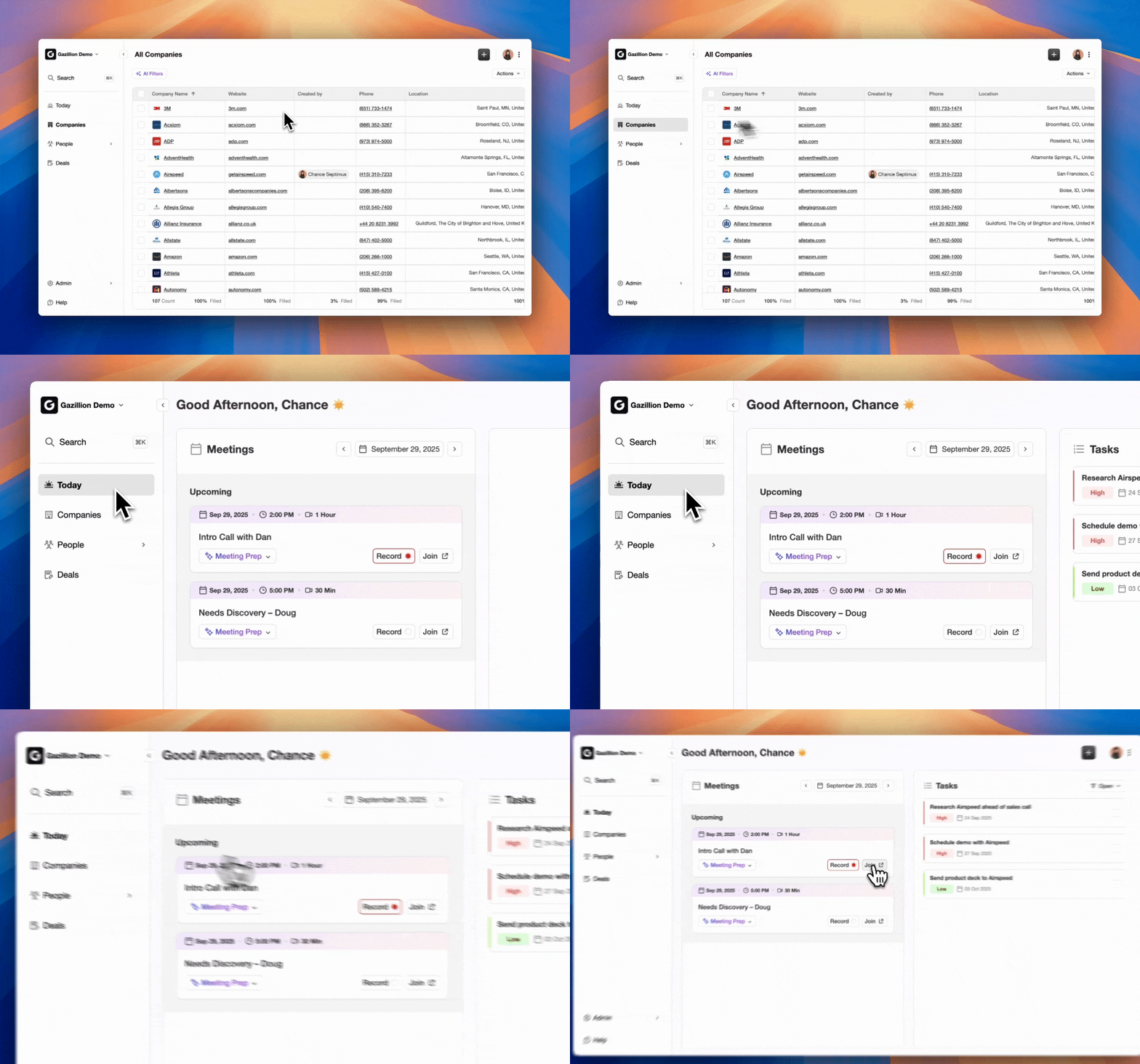
Connect Google Workspace or Microsoft 365 to the CRM using OAuth so every relevant message and meeting becomes structured data.
- Enable inbound and outbound email body parsing for contact entity extraction
- Turn on email signature parsing to populate name, title, phone, and LinkedIn URL
- Sync calendars to auto-log meeting invites as activities tied to matched contact records
A standard implementation maps the sender’s email address as the required unique identifier, with phone, job title, and company name as optional enrichment fields written to existing contact properties rather than creating new records. HubSpot’s connected-inbox automation reads email signatures to auto-populate contact properties including name, phone, and job title, while Smart CRM auto-associates logged emails to contacts, companies, and recent open deals.
Pro Tip: International phone numbers extracted from signatures frequently arrive in local format. Normalization to E.164 format must precede any matching algorithm to avoid false negatives from formatting noise. Configure the parsing layer to infer country code from the sender’s domain TLD before writing the phone value to the CRM.
Step 3: Connect Your Phone System and Ingest Transcripts
Connect your phone system so every call, summary, and transcript flows into the right CRM records automatically.
Integrate the phone system using the CRM’s native CTI connector or a supported middleware layer. Supported systems include Zoom, Microsoft Teams, RingCentral, and Dialpad. Configure the integration so every call record with timestamp, duration, direction, outcome, AI-generated summary, and recording link writes directly to the matched contact, account, and opportunity record as soon as the call ends.
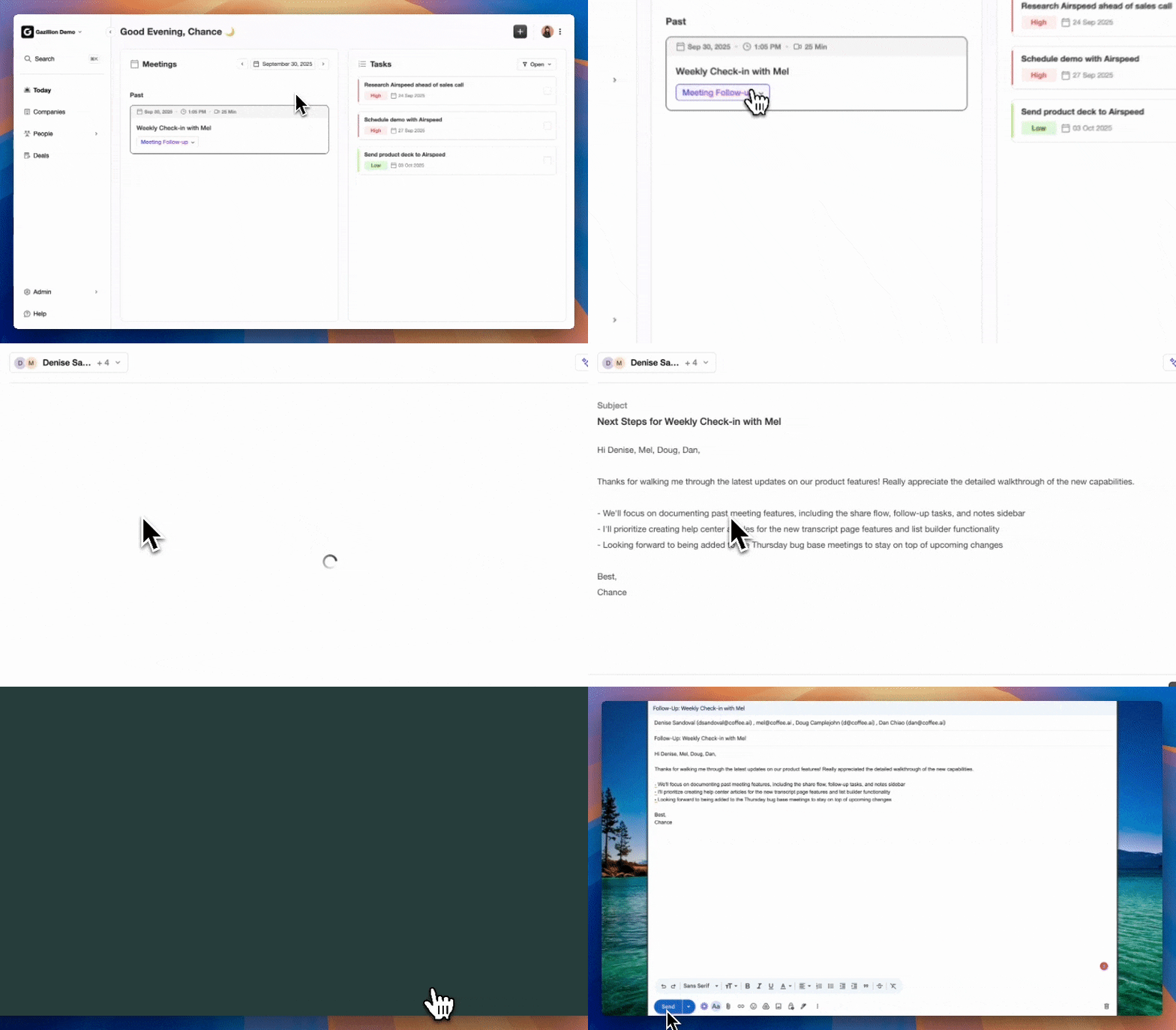
For teams not running a native CTI, Coffee supports call recording integration with tools like Fathom, Gong, and Fireflies, which covers common transcript sources without replacing the existing phone stack.
At this point, you face an architectural fork. You can build a custom AI extraction and matching layer to handle the remaining steps, or you can adopt a platform that provides this layer natively. Legacy CRMs lack built-in entity extraction and fuzzy matching, so completing steps 4 through 6 manually requires custom code or a chain of third-party tools.
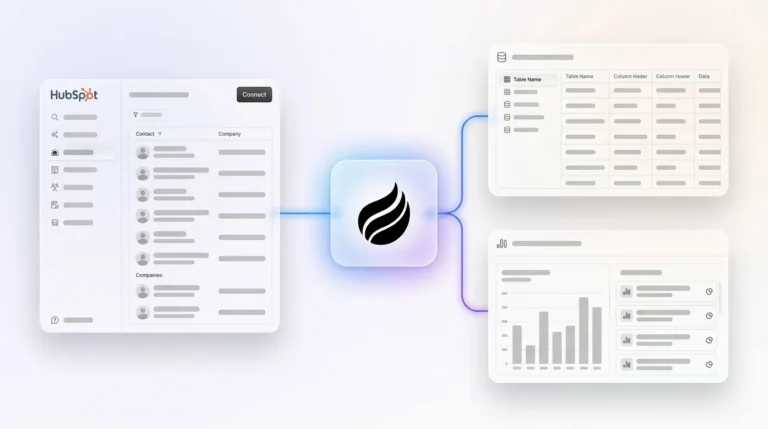
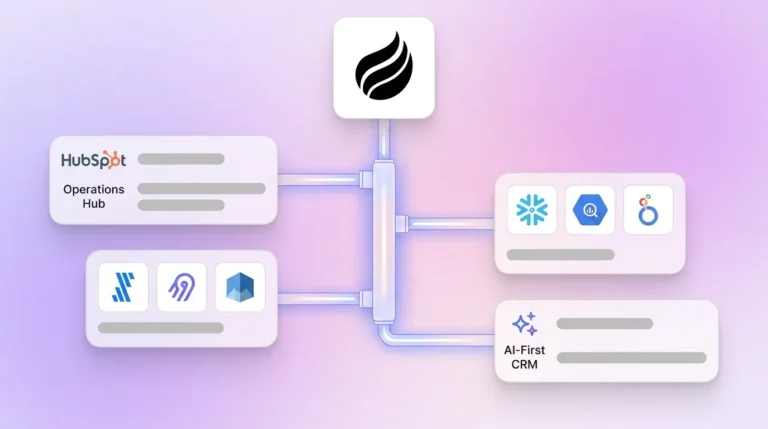
Coffee’s autonomous agent performs these steps natively. It ingests email signatures, parses call transcripts, matches against existing records, enforces deduplication rules, and writes structured data back to HubSpot, Salesforce, or Coffee Standalone without Zapier chains or custom CTI connectors. Coffee is SOC 2 Type 2 and GDPR compliant, so this automation layer fits mid-market security and compliance requirements.
Schedule a live demo to see the Coffee agent running against your existing phone system and CRM.
Step 4: Map Transcript and Signature Entities to CRM Fields
Map every extracted field to a specific CRM property so the AI output becomes usable data, not free text.
Standard field mappings across the three primary CRM targets are:
| Extracted Entity | HubSpot Field | Salesforce Field | Coffee Field |
|---|---|---|---|
| Email address | |||
| Phone (E.164) | phone | Phone | phone |
| Job title | jobtitle | Title | title |
| Company name | company | Account.Name | company |
Pro Tip: Enumeration values must match existing CRM picklist options exactly or the write fails silently. Restricted-picklist values should be coerced to the CRM’s allowed options, such as mapping an extracted phrase like “lost on price” to the Loss_Reason__c picklist value “Price,” so API writes do not fail silently. Audit every enumeration field in the schema before enabling auto-commit.
Coffee’s summary templates are customizable to match specific workflows and write structured output back to Coffee, HubSpot, or Salesforce, which removes the need to build and maintain a custom field-mapping layer.
Step 5: Implement a Three-Pass Duplicate-Prevention Ruleset
Enforce the identity hierarchy from Step 1 at write time so new data enriches the right records instead of creating clones.
The ruleset enforces the three-pass hierarchy defined in Step 1: exact email match first, then fuzzy phone match, then domain and name fallback. Each pass behaves as follows:
- Exact email match: If the incoming contact’s lowercased email matches an existing record exactly, enrich the existing record and do not create a new contact.
- Fuzzy phone match: If no email match exists but the E.164-normalized phone matches an existing record, route the pair to the Needs Review queue with both records displayed side by side.
- Domain and name fallback: If neither email nor phone matches, check domain plus first and last name. Matches above the 0.80 similarity threshold route to Needs Review. Matches below 0.60 create a new record.
Pro Tip: Explicit allow and deny lists for blocking inputs should exclude shared inboxes and generic local parts such as info, sales, and support so that normalized email or phone blocks do not create false candidates. Add these exclusions to the deny list before the first production run.
Step 6: Add Filtering Logic for Sales-Qualified Contacts
Filter out noise so only real prospects and customers enter the CRM.
A contact belongs in the CRM when they represent a potential buyer or an active customer relationship that reps need to track. Before any record is created or enriched, the pipeline must apply qualification filters to exclude non-buyers and clutter:
- Exclude internal domains, which represent colleagues rather than prospects
- Exclude role-based senders already on the deny list, which represent shared inboxes rather than decision-makers
- Exclude contacts where the only signal is a single inbound cold email with no reply, which does not indicate a relationship
- Flag contacts from free consumer domains for manual review before associating with an account record, since these may be personal addresses

Coffee’s Intelligence layer allows teams to define and store context on their ICP, product specifics, and buyer personas. The agent then applies qualification logic automatically instead of requiring manual filter configuration for each new source.
Book a 10-minute walkthrough to see how Coffee’s qualification filters map to your ICP.
Step 7: Run a 10-Record Test and Measure Time Saved
Validate the pipeline with a small real-world sample before rolling it out to the full team.
Before enabling the pipeline for everyone, validate against 10 real contacts drawn from recent emails and call recordings. Use this checklist:
- Confirm zero duplicate records were created across all 10 test contacts.
- Verify that each contact’s email, phone, title, and company fields are populated correctly.
- Confirm that call summaries and next steps are written to the correct CRM fields, not free-text notes.
- Verify that at least one Needs Review case was correctly routed to the review queue rather than auto-merged or dropped.
- Confirm that all 10 meetings are logged within five minutes of call end.
- Measure baseline manual entry time before go-live and compare against post-automation time at the 30-day mark.
Teams commonly reclaim several hours per rep per week once call capture and activity logging are automated, with post-call write-back usually the single largest time savings. At the 30-day mark, compare the rep’s logged CRM time against the pre-automation baseline to confirm the target is being met.
Advanced Techniques for a Mature Contact-Capture Pipeline
After the core seven-step pipeline runs reliably for at least 30 days, you can layer on advanced automations that build on the same data.
- Dynamic buyer-persona lists: The title, company size, and industry fields extracted during contact capture in Step 4 can trigger automatic enrollment into segmented lists. For example, contacts with “Director” or “VP” titles at companies over 500 employees can auto-enroll in an enterprise nurture sequence. If you add a data enrichment integration that appends firmographic data such as employee count and revenue, you can refine these segments further without manual tagging.
- AI-generated follow-up sequences: Route newly captured contacts directly into multi-step email sequences triggered by qualifying signals extracted from the call transcript, such as budget mentioned, decision timeline stated, or competitor named. This keeps follow-up timely and consistent without extra rep effort.
- Pipeline-compare automation: Real-time event-driven sync has replaced batch syncs as the 2026 baseline for customer intelligence, enabling activity events such as email opens and call logs to update the CRM within milliseconds rather than hours or days. Use this event stream to automate week-over-week pipeline comparison reports without manual CSV exports.
Frequently Asked Questions
How long does it take to set up automated CRM contact capture from emails and calls?
The full seven-step workflow takes 45–60 minutes when using Coffee as the AI extraction and matching layer. Teams running manual Zapier chains or custom CTI connectors typically spend 4–8 hours on initial configuration and ongoing maintenance. The largest time investment is Step 1, which covers identity keys and confidence thresholds, because those decisions govern every downstream deduplication outcome.
How does Coffee prevent duplicate contacts when the same person emails from two different addresses?
Coffee’s agent applies a three-pass identity resolution process. The primary key is the exact lowercased email address. When a contact appears under a second email, the agent checks the normalized phone number as a secondary key and the domain-plus-name combination as a tertiary fallback. If two or more independent signals match an existing record, the agent enriches the existing contact rather than creating a new one. Ambiguous cases where signals conflict or fall below the confidence threshold route to a Needs Review queue for a human decision. Role-based addresses like info@ and noreply@ are excluded from matching entirely via a deny list configured during setup.
Is Coffee secure enough for mid-market sales data?
Coffee is SOC 2 Type 2 and GDPR compliant. Data ingested by the Coffee agent is not used to train public models. For mid-market teams on HubSpot or Salesforce, Coffee operates as a Companion App that authenticates via OAuth and writes structured data back to the existing system of record, so the primary CRM’s security controls remain in effect alongside Coffee’s compliance posture.
What happens to contacts that fail extraction validation?
Any contact record where required fields, at minimum a valid email address, cannot be extracted is routed to a quarantine queue rather than written to the CRM as a partial record. The quarantine entry includes the source message or transcript excerpt, the extraction attempt, and the specific validation failure, so a RevOps administrator can inspect the root cause and either correct the parsing rule or manually complete the record. This keeps bad data out of the CRM while preserving the original source for reprocessing.
How does Coffee’s pricing work for a mid-market team?
Coffee uses seat-based pricing. Each human seat covers unlimited agent activity, with no metering on the number of contacts captured, calls transcribed, or CRM writes executed. Teams pay for the people using the system, and the agent’s labor is included. Coffee is available as a Standalone CRM for teams replacing HubSpot or Salesforce, or as a Companion App that layers the Coffee agent on top of an existing HubSpot or Salesforce instance without requiring migration.
Conclusion: Turn Every Email and Call into Clean CRM Records
A duplicate-free contact-capture pipeline is now a prerequisite for accurate forecasts, pipeline reviews, and revenue conversations. The seven steps above define identity keys first, connect sources second, map fields to structured CRM properties, enforce a three-pass deduplication ruleset, filter for sales-qualified contacts, and validate with a 10-record test before full deployment.
AI and automation tools are estimated to save sales professionals 2 hours and 15 minutes daily by automating tasks such as data entry and scheduling. Across a five-person sales team, that adds up to more than 50 hours per week returned to selling.
Coffee’s autonomous agent supplies the AI extraction and matching layer that legacy CRMs lack. It handles steps 2 through 6 natively, writes clean structured data back to HubSpot, Salesforce, or Coffee Standalone, and removes the Zapier chains and CTI connectors that create maintenance debt over time.
Get a Coffee setup session on the calendar and have the agent connected to your email, calendar, and phone system before the end of the week.