Written by: Doug Camplejohn, CEO & Co-Founder, Coffee | Last updated: July 26, 2026
Key Takeaways for Gong Call Analytics Access
- Accessing Gong analytics requires a valid login, an active workspace seat, and a Business Admin or Standard Team Member permission profile.
- The Gong Call Analytics Dashboard aggregates call data, rep activity, and pipeline signals across Insights, Engage Analytics, and Revenue Dashboards.
- Navigation paths vary by seat type: Engage Analytics needs an Engage license, while Revenue Dashboards require a Forecast seat and Dashboards permission.
- Integrations with Salesforce and HubSpot place conversation data inside CRM records so teams can build reports and workflows.
- Skip the manual Gong dashboard navigation—let Coffee surface call-performance metrics automatically.
Step 1: Log In and Confirm the Right Gong Workspace
Start by navigating to your company’s Gong URL and authenticating via SSO or direct login. After you sign in, Gong loads the workspace assigned to your user record. Tech admins manage workspace setup under Admin Center > Settings > Workspaces, and they control user assignments under Admin Center > Settings > People > Team Member Provisioning. If Gong opens the wrong workspace, ask your tech admin to update your assignment under Admin Center > Team Members. Users provisioned automatically inherit workspace assignments from the Admin Center > Team Members Provisioning configuration.
Step 2: Find the Insights, Engagement, and Revenue Analytics Menus
Use three top-level navigation items for analytics: Insights, Engagement, and Revenue. Account Boards, Deals, Dashboards, and Forecasts sit under the Revenue section. If any of these items are missing, assume a missing seat or permission profile rather than a UI bug.
Step 3: Follow the Engage Analytics Path for Activity Metrics
Access Engage Analytics by selecting Engagement from the sidebar and opening Analytics. This path is available to Tech Admins, Business Admins, sales managers, RevOps, and sales leaders who hold an Engage license. Engage Analytics surfaces dialer call outcomes, email reply rates, and flow activity. Each user only sees data for colleagues who also hold an Engage license.
Step 4: Open Revenue Dashboards from the Updated Admin Center Navigation
Revenue analytics dashboards live at Revenue > Dashboards in the updated navigation. Dashboards permissions, the renamed Revenue analytics service now split into three granular permissions, control access and are available only on Gong Forecast. Tech admins configure dashboard access under Admin Center > Settings > Permission Profiles by selecting the target profile and enabling the Dashboards permission under the Pages category. Team performance analytics live under Insights > Team for managers who focus on coaching views.
Skip the manual navigation entirely—let Coffee’s agent surface metrics without opening a dashboard.
Step 5: Connect Gong Analytics to Salesforce and HubSpot
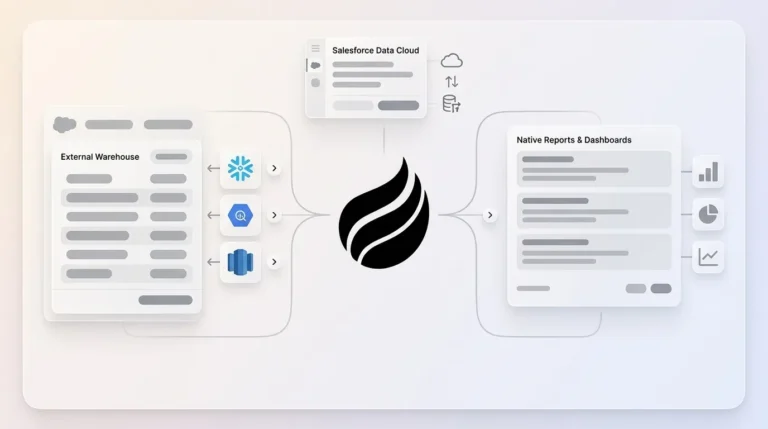
Gong for Salesforce ships as a managed package. To view conversation data inside Salesforce, users need read permissions on the Conversation object and all related custom objects. Exported Gong conversation data can power native Salesforce reports, dashboards, and workflows, including pre-defined reports on competitors and opportunity activity. Use a dedicated integration user for Salesforce, because the integration disconnects when the setup user is deactivated.
For HubSpot, Gong admins configure activity sync under Gong > Settings > CRM > HubSpot. They enable call and meeting sync, choose activity attribution, set the activity title format, and select the historical backfill window. For Gong analytics and forecasting to work correctly, HubSpot deal fields such as stage, amount, close date, owner, and pipeline must map back into Gong. This mapping lets Gong segment by CRM pipeline stage and run forecast models.
Step 6: Filter by Date and Switch Between Team and Individual Views
Inside any analytics surface, start with the date-range picker to scope data to the relevant period. After setting the range, move to the Team analytics view and toggle between Teams and Individuals tabs to switch between aggregated team metrics and rep-level stats. To drill into a specific rep, click that rep’s name to open personal stats alongside a list of relevant calls. Access to insights stats can be scoped to ALL, THEIR MANAGER’S TEAMS, PEOPLE WHO REPORT TO THEM, THEIR OWN, or SPECIFIC TEAMS, depending on the permission profile configured by the tech admin.
Step 7: Download or Share Gong Analytics Dashboards
Tech or business admins and managers can download Analytics to obtain more detailed metrics than the in-app dashboard provides. CSV exports are available from the download icon within each analytics view. Sharing a dashboard with a colleague requires that colleague to hold the same seat type and permission profile. When a user lacks Forecast or Engage seats, sending a raw CSV offers the fastest workaround. Schedule recurring exports so they align with your weekly pipeline review cadence.
If manually exporting CSVs every week describes your current workflow, a faster path exists. Automate your analytics delivery with Coffee’s agent instead of relying on download buttons.
Permission Matrix for Gong Analytics Surfaces
| Analytics Surface | Business Admin / Tech Admin | Standard Team Member | Collaborator |
|---|---|---|---|
| Insights > Team | Full access, any Gong plan | Access scoped by permission profile | No access to Insights |
| Engage > Analytics | Full access, requires Engage seat | Access with Engage seat plus three sub-permissions | No access |
| Revenue > Dashboards | Full access, requires Forecast seat | Access with Forecast seat enabled | No access |
| Revenue > Forecast | Full access, requires Forecast seat | View or edit with Forecast page permission | No access |
Troubleshooting Missing Gong Analytics Menus
| Symptom | Likely Cause | Fix |
|---|---|---|
| Engagement menu absent | No Engage seat assigned | Tech admin assigns Engage seat under Admin Center > Team Members |
| Revenue > Dashboards not visible | Dashboards permission requires Forecast seat | Tech admin enables Forecast seat and Dashboards permission in the user’s profile |
| Analytics sub-pages missing in Engage | Missing one or more of Engage Analytics: Activity, Flows, Performance permissions | Admin updates permission profile under Admin Center > Settings > Permission Profiles |
| SSO login lands on wrong workspace | Workspace assignment not configured in provisioning | Tech admin updates assignment under Admin Center > Team Members Provisioning |
| Gong canvas app missing in Salesforce | User lacks read permissions on Conversation object | Salesforce admin grants read access to Conversation object and related custom objects |
Validation Checklist for Your Gong Analytics Setup
After completing all seven steps, confirm the following:
- Call metrics appear in the correct analytics surface, either Insights > Team or Engage > Analytics.
- Date filters persist when you navigate between tabs.
- Team and individual toggles return data scoped to your permission level.
- CSV export completes without a permissions error.
- Gong conversation data appears on the relevant Salesforce or HubSpot record.
Adjusting for Team Size, Workspaces, and Custom Dashboards
Small teams with a single workspace can skip workspace-selection steps and move directly to Insights > Team. Gong workspaces can segment an instance by business unit or geographic region so different permissioning, business settings, or retention policies apply. Multi-workspace organizations should confirm that each workspace has its own permission profiles, because profiles are workspace-specific. For custom dashboard views, users with Gong Forecast receive additional out-of-the-box profiles, Business Admin – Forecast and Standard Team Member – Forecast, which add board management and Forecast page access. Admins building custom views should clone an existing profile instead of editing the default to avoid unintended permission changes across the team.
Frequently Asked Questions
How long does initial Gong analytics setup take?
For a single user with the correct seat already assigned, reaching the analytics dashboard takes under three minutes once you know the menu path. Provisioning usually creates the real delay. Seat assignment, workspace configuration, and permission profile updates each require a tech admin action and may take one to two business days, depending on your company’s IT queue. Plan for up to a week if you need a new Engage or Forecast seat approved through procurement.
Who owns dashboard permissions in Gong?
Technical admins own seat assignment and permission profile configuration through the Admin Center, which only they can access. Business admins, typically RevOps or Sales Enablement, own business settings such as trackers, deal boards, and revenue analytics views. If you need elevated access, identify your tech admin by opening your username, selecting My Settings, and scrolling to the Technical Administrators section. Email them directly from that page.
How do I escalate my role if I’m missing analytics access?
You cannot change your own role in Gong. Contact your tech admin and specify which analytics surface you need, such as Insights, Engage Analytics, or Revenue Dashboards, along with the required seat type. For Engage Analytics, request an Engage seat plus the Engage Analytics: Activity, Flows, and Performance permissions. For Revenue Dashboards, request a Forecast seat with the Dashboards permission enabled. Clear requests reduce back-and-forth and speed up resolution.
What changes as the sales org grows?
As headcount scales, multi-workspace configurations often become necessary to segment data by region or business unit. Permission profiles multiply as manager layers appear, and scoping options such as All, Their Manager’s Teams, and People Who Report to Them become critical for preventing data leakage between teams. Seat costs also scale linearly, because Engage and Forecast seats are licensed separately. RevOps leaders should audit permission profiles quarterly so departing managers do not leave orphaned access configurations.
How does Coffee eliminate the need for these navigation steps?
Coffee’s agent ingests call transcripts, CRM records, and pipeline signals automatically, then surfaces the same metrics such as rep activity, deal progression, and call outcomes without requiring users to navigate Gong’s permission-gated menus. For teams running Salesforce or HubSpot, Coffee operates as a Companion App that writes enriched insights directly back to the CRM record. RevOps leaders receive accurate pipeline intelligence and call-performance data through the agent instead of working through a multi-step dashboard workflow.
Conclusion: Replace Manual Gong Navigation with Coffee
The seven steps above describe the complete, permission-aware path to Gong call analytics in 2026. Each step introduces a possible failure point, including SSO misconfiguration, missing Engage or Forecast seats, workspace assignment gaps, and Salesforce object permission errors. For RevOps leaders and sales managers, this friction compounds every week as pipeline reviews repeat the same navigation, filter resets, and CSV exports.
Coffee removes this manual overhead by integrating directly with your existing Salesforce or HubSpot instance. Your team receives accurate pipeline intelligence without the export-and-format cycle or repeated dashboard clicks.
Replace your Gong dashboard workflow with Coffee’s agent and let it handle the analytics work for you.