Written by: Doug Camplejohn, CEO & Co-Founder, Coffee
Key Takeaways for ZoomInfo CRM Integrations
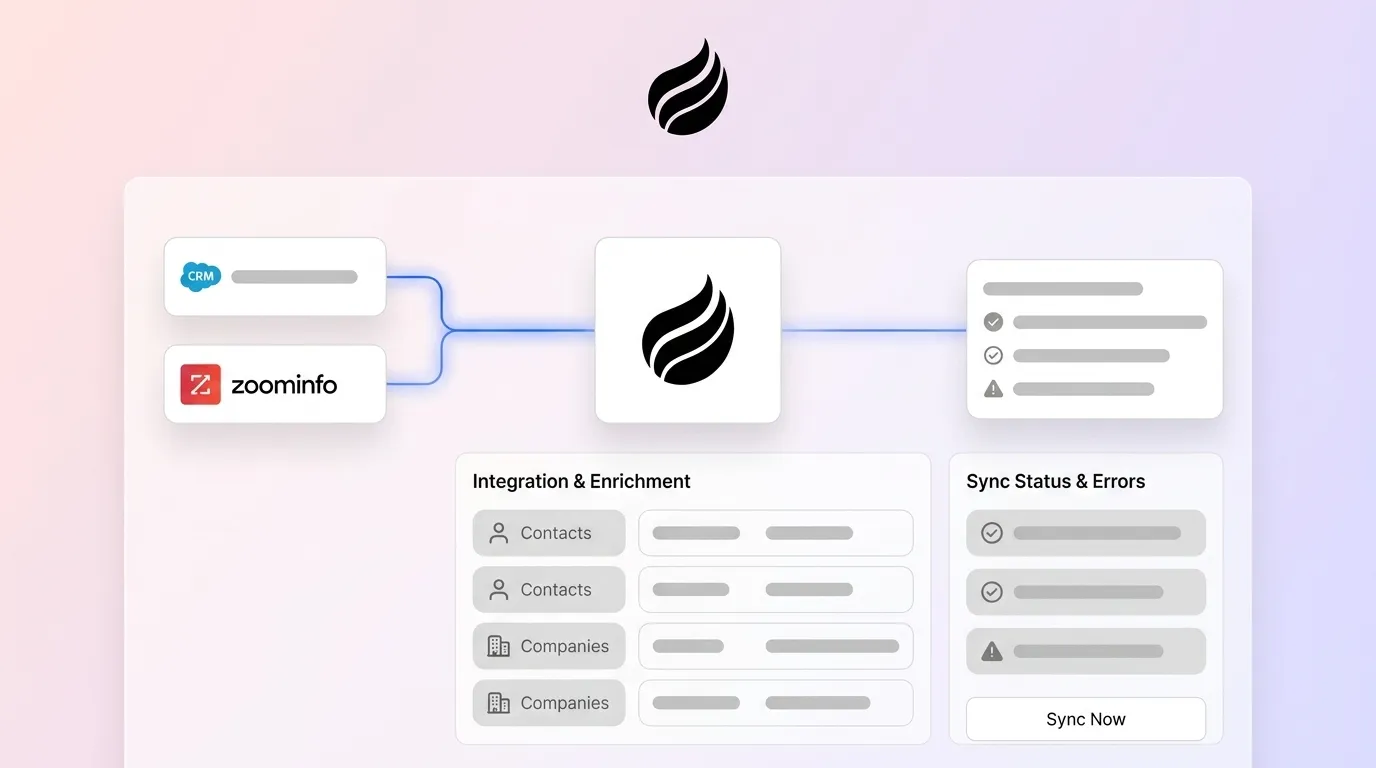
- ZoomInfo CRM integration enriches records in real time for CRMs like Salesforce, HubSpot, and Dynamics, which reduces manual lookups and improves forecast accuracy.
- Native connectors cover standard objects, but custom fields and objects often need middleware or API work, and fewer than 30% of companies run fully integrated GTM stacks.
- Common sync issues include duplicate records, permission errors, and validation rule blocks. Strong field mapping, deduplication rules, and weekly log reviews prevent most problems.
- Even well-configured integrations leave gaps. About 20–30% of CRM data becomes outdated each year, and ZoomInfo does not capture sales activities, so teams still rely on extra tools or manual entry.
- Teams that want a simpler, agent-driven setup can consolidate your stack with Coffee and bring enrichment, activity logging, and pipeline intelligence into one autonomous solution.
ZoomInfo Integrations Across Salesforce, HubSpot, Dynamics, and Zoho
ZoomInfo offers native CRM integrations with Salesforce, HubSpot, and Microsoft Dynamics featuring bi-directional sync. The table below highlights which CRMs support full bi-directional sync and which rely on limited one-way push, a key factor when you decide whether you need middleware to keep data consistent.
| CRM | Native Connector | Key Objects Synced | Sync Direction |
|---|---|---|---|
| Salesforce | Yes | Contacts, Leads, Accounts, Opportunities | Bi-directional |
| HubSpot | Yes | Contacts, Companies, Deals | Bi-directional |
| Microsoft Dynamics 365 | Yes | Contacts, Accounts, Leads | Bi-directional |
| Zoho CRM | Limited (via API/Zapier) | Contacts, Leads, Accounts | Primarily one-way push |
Native connectors handle standard objects well. Custom objects and custom fields typically require API-based integration or middleware such as Zapier or Workato, and even normalized unified API schemas share only about five fields for contacts and cannot represent custom fields like Salesforce_Region__c.
Salesforce Integration: 5-Step ZoomInfo Connection Checklist
- Authenticate. In ZoomInfo Admin, open Integrations → Salesforce and complete the OAuth flow using a Salesforce System Administrator account. Confirm the connected user has API access and that the ZoomInfo managed package is installed from AppExchange.
- Map fields. Define which platform owns each field type, with ZoomInfo owning firmographic appends and Salesforce owning opportunity stage and revenue fields, to prevent overwrites. Map standard fields first: email, first name, last name, company, phone, title, and industry.
- Set sync frequency. Choose real-time push for new records or scheduled batch enrichment, with daily runs common for SMB teams. Enable the “Auto-Enrich on Create” rule so new Leads and Contacts populate immediately.
- Test with sample records. Create five test Leads with known gaps. Trigger enrichment manually and confirm that ZoomInfo writes correct values without overwriting existing populated fields.
- Verify and monitor. Check the ZoomInfo sync log for errors. Confirm that Salesforce validation rules do not block writes on required fields, and assign an internal owner to review the log every week.
HubSpot Integration: 5-Step ZoomInfo Connection Checklist
- Authenticate. In ZoomInfo Admin, select Integrations → HubSpot and authorize via OAuth with a HubSpot Super Admin account. HubSpot is widely used among SMB CRM installations, so this path is the most common for smaller teams.
- Map fields. Standard field mappings include email-to-email, first name-to-FirstName, company name-to-AccountName, and deal stage-to-OpportunityStage. Confirm HubSpot property types match ZoomInfo output types such as text, dropdown, or number.
- Set sync frequency. Enable real-time enrichment for new contacts. For existing records, run a one-time bulk enrichment job during off-hours to avoid HubSpot API rate limits.
- Test with sample records. Create five test contacts with incomplete data. Trigger ZoomInfo enrichment and confirm that HubSpot properties update without creating duplicate records.
- Verify and monitor. Review HubSpot’s integration health dashboard. Common issues include duplicate records from weak matching rules and overwritten field values from missing source-of-truth logic, so address both before going live.
Microsoft Dynamics 365 Integration: 5-Step ZoomInfo Connection Checklist
- Authenticate. In ZoomInfo Admin, select Integrations → Dynamics 365 and connect using an account with the System Administrator or System Customizer role. Confirm that the ZoomInfo solution package is imported into your Dynamics environment.
- Map fields. Map ZoomInfo outputs to Dynamics standard entities. Use Contact fields such as firstname, lastname, emailaddress1, telephone1, and jobtitle, and Account fields such as name, industry, numberofemployees, and revenue. Custom entities in Dynamics require per-customer API configuration and are not supported by all unified API platforms.
- Set sync frequency. Configure the ZoomInfo sync schedule to match Dynamics server-side sync intervals. Avoid overlap with Dynamics background jobs to prevent timeout errors.
- Test with sample records. Enrich five test Contact records and confirm that Dynamics business rules and required-field constraints do not block the write operation.
- Verify and monitor. Use the Dynamics Plugin Trace Log to catch any ZoomInfo write failures. Assign a Dynamics admin to review errors weekly and update field mappings when the Dynamics schema changes.
Zoho CRM Integration: 5-Step ZoomInfo Connection Checklist
- Authenticate. ZoomInfo does not publish a native Zoho connector. Connect through Zapier by creating a Zap that uses ZoomInfo as the trigger app and Zoho CRM as the action app, then authenticate both with OAuth.
- Map fields. In the Zapier field mapper, align ZoomInfo output fields such as First Name, Last Name, Email, Company, Title, and Phone to Zoho CRM Lead or Contact fields. Add custom field mappings for any Zoho module-specific properties.
- Set sync frequency. Zapier runs on a polling interval, with a minimum of 1–15 minutes on paid plans. For near-real-time enrichment, use Zapier’s webhook trigger if your ZoomInfo plan tier supports outbound webhooks.
- Test with sample records. Run the Zap with five test records and confirm that Zoho receives the correct values. Check Zoho’s duplicate-prevention rules to ensure that existing records update instead of duplicating.
- Verify and monitor. Monitor Zapier’s task history for errors. Because this path relies on middleware, assign ownership to a RevOps team member who can respond quickly to Zapier task failures.
Common ZoomInfo Sync Errors and How to Fix Them
Duplicate records. Weak matching rules cause most duplicates. Configure ZoomInfo to match on email address as the primary key, with domain as a secondary key. Turn on your CRM’s native deduplication rules before you activate enrichment.
Missing activities. ZoomInfo enriches contact and company fields but does not log call or email activity natively. When activity records are missing, the gap comes from architecture, because ZoomInfo does not capture interaction history. A separate activity-capture layer must handle that work.
Permission errors. Write failures from permission errors usually mean the connected user account lacks object-level or field-level permissions. Audit the integration user’s profile in Salesforce or Dynamics, grant write access to every mapped field, then re-authenticate.
Validation rule blocks. Sync failures from validation rules or missing required fields are a common HubSpot-Salesforce challenge and affect ZoomInfo writes in the same way. Review all active validation rules on target objects and confirm that ZoomInfo always supplies a value for every required field before the record is written.
Data Quality Gaps and the Shift to Intent-Aware Enrichment
Even a correctly configured ZoomInfo integration leaves two persistent gaps. First, 20–30% of CRM data becomes outdated annually as prospects change addresses, emails, and jobs, so enriched records degrade continuously regardless of the integration’s initial accuracy. Second, ZoomInfo does not log sales activities. Calls, emails, and meeting notes require a separate tool or manual entry, and sales reps spend roughly 25% of their time, about 10–11 hours per week, on manual CRM data entry.
These gaps explain why teams are moving beyond static enrichment snapshots. AI-driven enrichment has shifted from manual copy-paste to structured extraction that writes directly into CRM fields, interpreting unstructured context from emails, notes, and transcripts before deciding what belongs in a field. This architectural change means static enrichment from a separate platform no longer meets the needs of teams that require current, activity-aware pipeline data.
Agent-Based Alternative: How Coffee Replaces a Multi-Tool Stack
The multi-tool stack that uses ZoomInfo for enrichment, a separate recorder for calls, a CRM for records, and middleware to connect them adds integration overhead, duplicate costs, and data gaps that no checklist fully removes. Companies lose an average of $12.9 million yearly due to poor data quality, and fragmented tooling plays a major role in that loss.
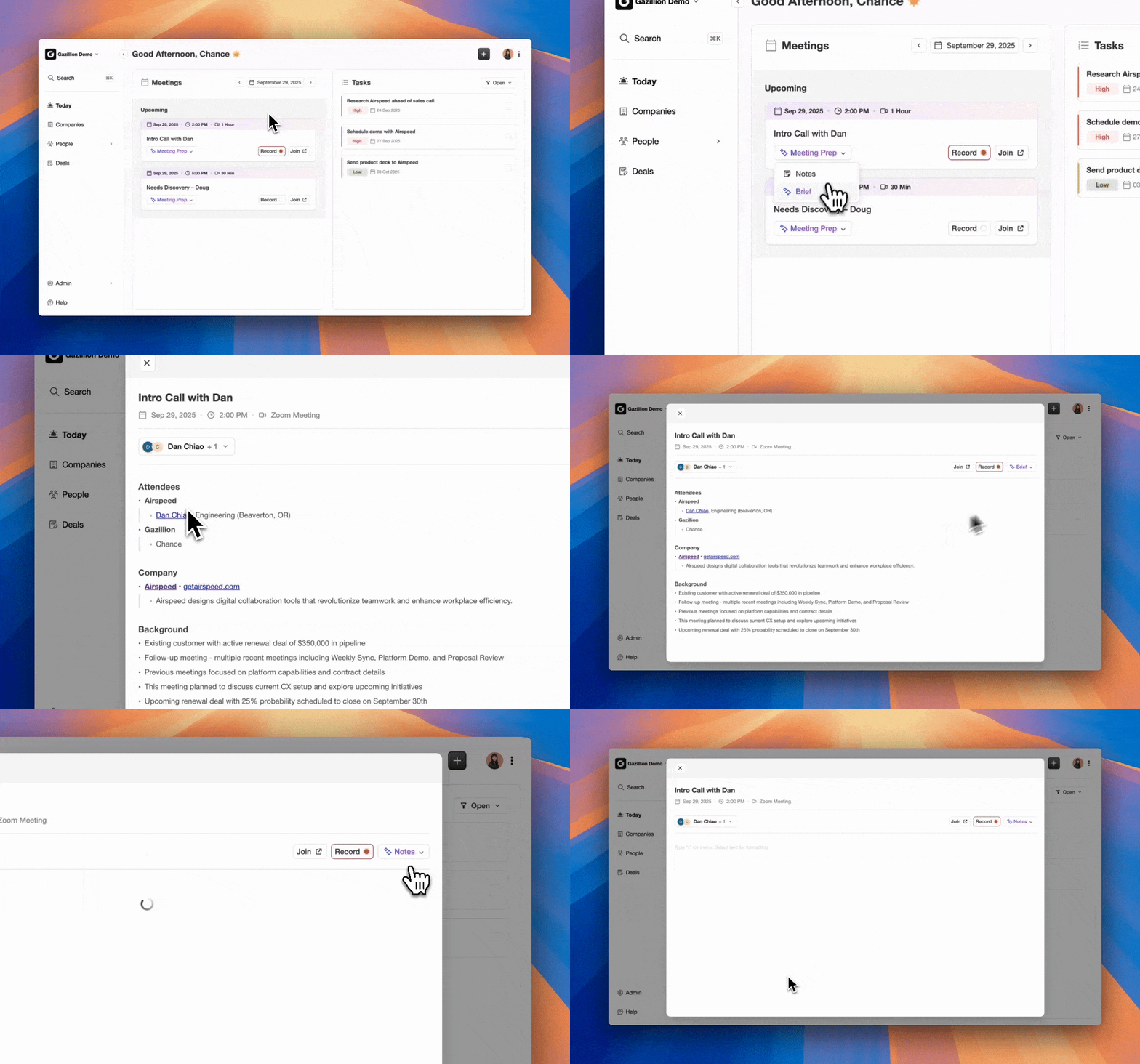
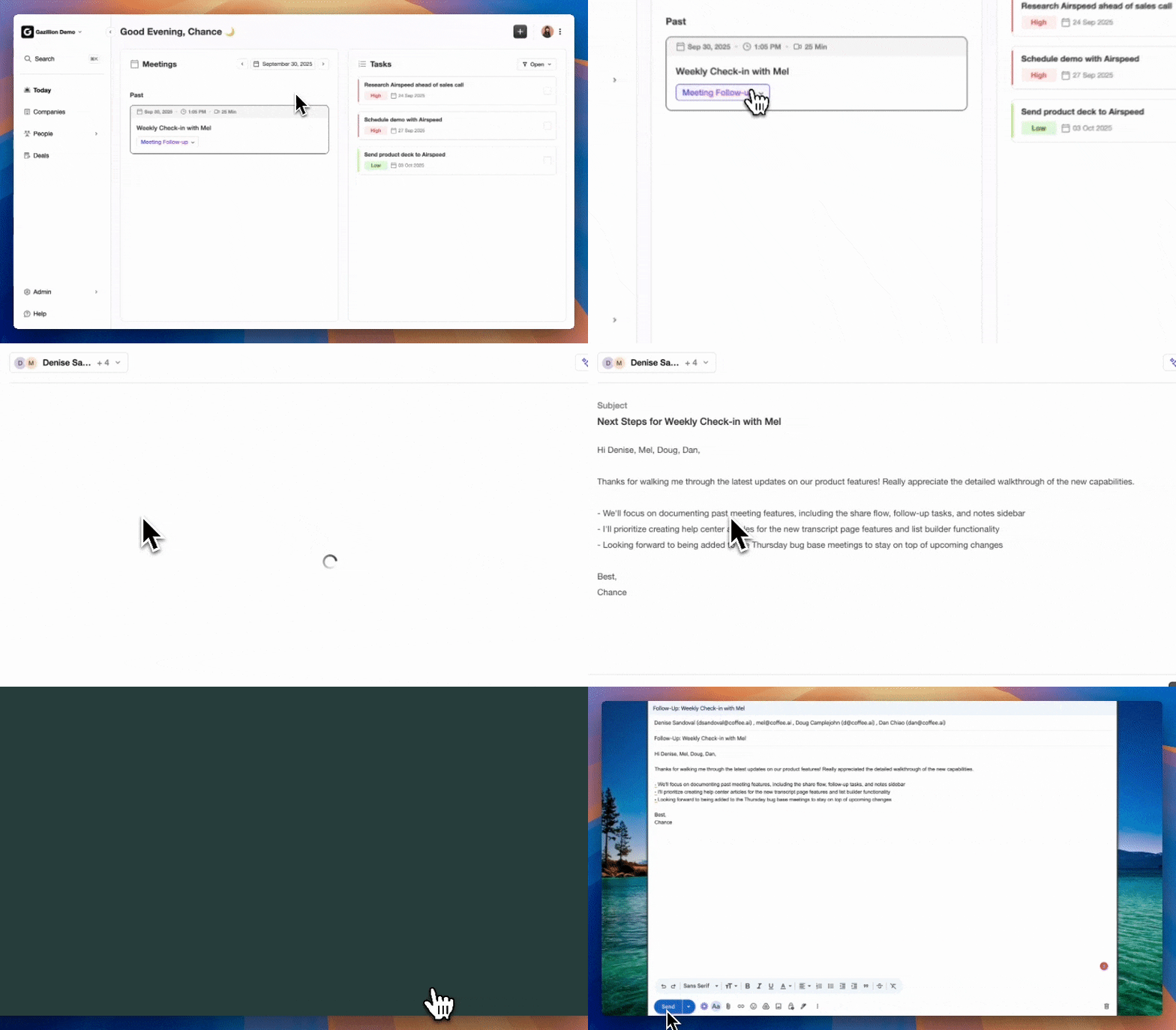
Coffee takes a different approach. The Coffee Agent works as an autonomous worker that captures contacts from email and calendar, enriches records with job titles, funding data, and LinkedIn profiles via licensed data partners, logs every activity automatically, and writes structured summaries back to the CRM. This flow removes human data entry. One agent now performs the jobs previously split across ZoomInfo, a call recorder, and manual CRM updates.
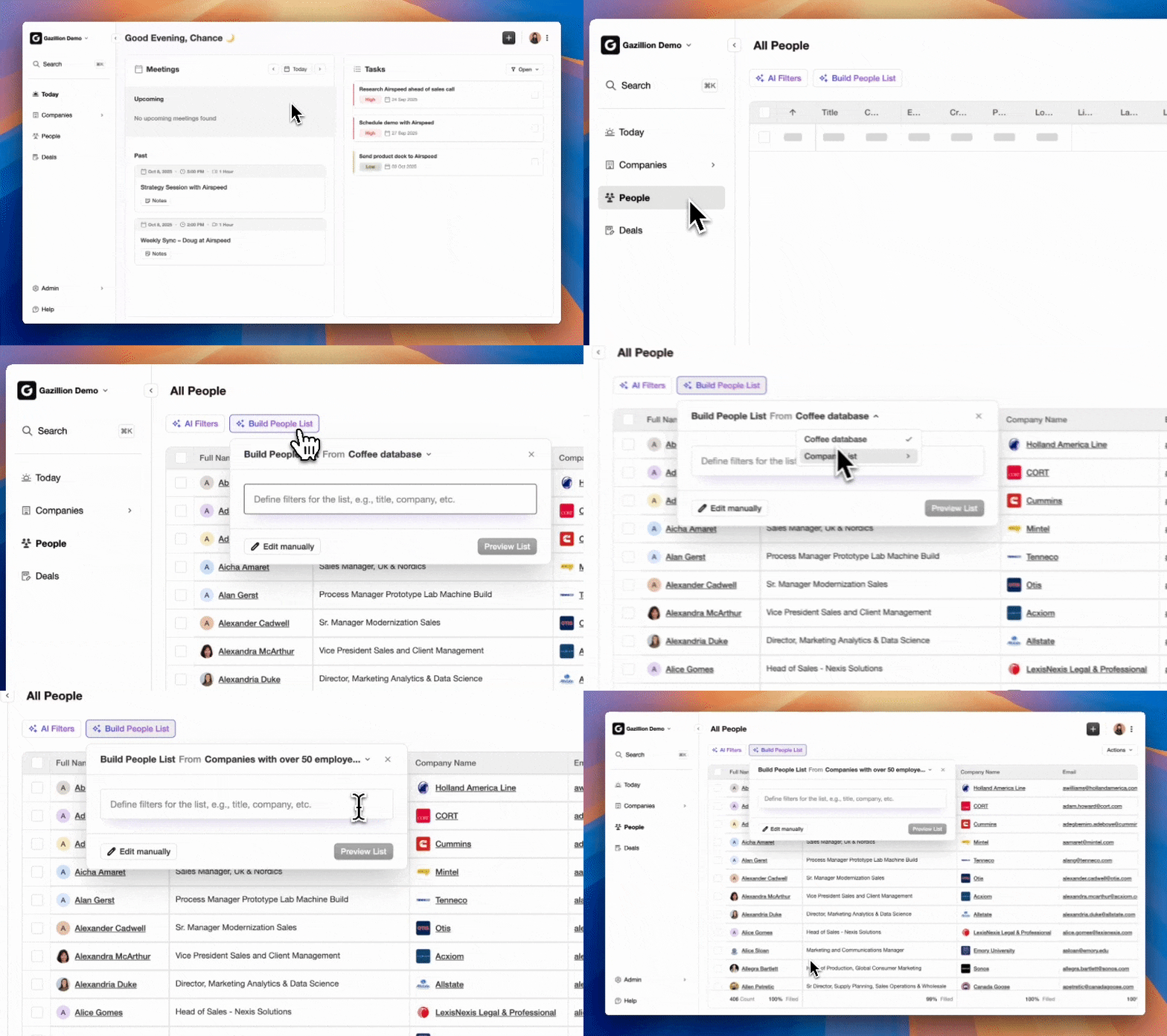
Coffee offers two deployment models depending on whether you already have a CRM investment to protect. The Companion App deploys the Coffee Agent as an intelligent layer on top of an existing Salesforce or HubSpot instance, with simple OAuth authentication that connects the agent to your current system of record. The agent then syncs data, enriches it, and writes insights back, so you keep your CRM while removing manual work. The Standalone CRM serves teams of 1–20 that have outgrown spreadsheets and want an agent-powered system of record from day one, without the overhead of Salesforce or HubSpot.

Both models are SOC 2 Type 2 and GDPR compliant. Data is not used to train public models. For security details, visit the Coffee pricing page or review the Coffee security documentation.
Replace your enrichment stack with a single autonomous agent.
Choosing Between ZoomInfo + CRM and an Agent-Led Solution
Use the checklist below to compare your current stack against each option and decide which path fits your team.
Keep ZoomInfo + CRM if:
- Your team has a dedicated RevOps engineer who maintains field mappings and monitors sync logs on a regular schedule.
- Your CRM contains heavily customized objects that depend on ZoomInfo’s enterprise-tier API access.
- Your compliance requirements mandate a specific enrichment vendor that your company already has under contract.
- A separate activity-logging tool already captures calls and emails reliably and integrates cleanly with your CRM.
Consider an agent-led solution like Coffee if:
- Reps spend more than two hours per week on manual data entry or switching between enrichment and CRM tabs.
- Pipeline forecasts feel unreliable because activity data arrives late or remains incomplete.
- Your team pays for ZoomInfo, a call recorder, and a CRM yet still sees data gaps in key deals.
- CRM adoption stays low because reps view data entry as a chore instead of a helpful workflow.
- You want enrichment, activity capture, meeting summaries, and pipeline intelligence under seat-based pricing with no credit metering.
See how Coffee handles enrichment, logging, and forecasting in one place.
Frequently Asked Questions
What field-mapping work should I finish before activating a ZoomInfo CRM integration?
Before you activate any ZoomInfo integration, define which system owns each field type. ZoomInfo should own firmographic appends such as industry, employee count, and revenue range, while the CRM should own pipeline fields such as opportunity stage, close date, and deal value. Map standard objects first, including contacts, leads, and accounts, and document every field pairing in a spreadsheet before you touch integration settings. Confirm that CRM field types match ZoomInfo output types, because a ZoomInfo numeric output cannot write into a CRM text field without a transformation step. Finally, review all active validation rules on target objects and confirm that ZoomInfo can always supply a value for every required field, or the sync will fail silently.
How is AI changing CRM data enrichment compared to traditional ZoomInfo-style integrations?
Traditional enrichment platforms like ZoomInfo append structured data such as job titles, phone numbers, and firmographics from a proprietary database on a scheduled or triggered basis. AI-driven enrichment goes further by interpreting unstructured sources such as email threads, call transcripts, and calendar events to extract and write context that no structured database contains. An AI agent can infer a projected close date from vague timing language in an email, classify the core problem a prospect described on a call, or flag a deal as at-risk based on email tone, then write all of that directly into CRM fields. The operational effect is a CRM that stays current between enrichment cycles, not just at the moment a ZoomInfo sync runs.
What is the total cost of ownership difference between a multi-tool enrichment stack and an agent-based CRM?
A typical mid-market enrichment stack includes a ZoomInfo license, a CRM license, a call recording tool, and often middleware like Zapier or Workato to connect them. Each tool carries its own per-seat or credit-based pricing, and the integration overhead requires ongoing RevOps time to maintain field mappings, monitor sync logs, and resolve errors. An agent-based solution like Coffee consolidates enrichment, activity logging, meeting recording, and pipeline intelligence under a single seat-based price with no credit metering. The cost comparison depends on your current contract values, but the hidden data quality cost mentioned earlier shrinks when a single agent maintains data quality continuously instead of relying on scheduled syncs and manual corrections.
Does Coffee replace ZoomInfo entirely, or can it work alongside it?
Coffee’s built-in enrichment, sourced via licensed data partners, covers job titles, funding history, and LinkedIn profiles at a quality level on par with ZoomInfo for most SMB and mid-market use cases. For teams that rely on ZoomInfo’s intent data or specific database depth, Coffee can run alongside ZoomInfo through Zapier while the Coffee Agent handles activity logging, meeting summaries, and pipeline intelligence. For teams evaluating a ZoomInfo renewal, Coffee’s consolidated enrichment removes the main reason to keep a separate enrichment tool, which reduces stack complexity and overall cost at the same time.