Written by: Doug Camplejohn, CEO & Co-Founder, Coffee | Last updated: July 21, 2026
Key Takeaways for Salesforce HubSpot Teams
- The native Salesforce HubSpot integration relocates data problems rather than solving them, which creates ongoing maintenance work, frequent sync errors, and high reconciliation costs for mid-market teams.
- Setup requires careful field mapping, inclusion lists, and testing, yet the connector only syncs every 5–15 minutes and does not support real-time updates or complex data transformations.
- Common failures include picklist mismatches, silent overwrites, permission errors, and duplicate proliferation that the bidirectional sync faithfully replicates across both systems.
- Native-only approaches fall short for unstructured data, activity logging, and continuous data quality governance, so an agent layer becomes necessary for reliable pipeline intelligence.
- Coffee provides the agent layer that eliminates Salesforce HubSpot integration maintenance by autonomously capturing, enriching, and writing back accurate data, and you can see how Coffee eliminates integration maintenance.
Setting Up the Native Salesforce HubSpot Integration
The native connector is included with HubSpot and Salesforce paid plans. Salesforce requires Professional edition or higher, and a dedicated integration user account helps avoid breakage if a named user deactivates.
- Prerequisites: Confirm HubSpot Professional or Enterprise and a Salesforce org with API access. To prevent sync breakage if a named user deactivates, create a dedicated Salesforce integration user (for example, hubspot@yourcompany.com) with read and write permissions on all objects to be synced.
- Install the connector: Navigate to HubSpot Settings → Integrations → Connected Apps and install the Salesforce integration. Records do not sync immediately after installation, so users must either import Salesforce records or rely on automatic sync triggers.
- Run a field mapping audit: Audit HubSpot contact properties and Salesforce Lead and Contact schemas to define sync direction, data types, and picklist rules. This work reduces post-launch issues and gives both admins a shared source of truth.
- Configure inclusion lists: Connect the field mapping work to a clear sync scope by using HubSpot active lists to control which records sync to Salesforce. Filter out test records, newsletter signups, and unqualified contacts so the integration focuses on revenue-impacting data.
- Test before go-live: Validate with 20 test records and confirm they appear in the other system within 10 minutes with correct field values. Complete this step before enabling real-time sync for production data.
- Enable and monitor: Activate the connector and review the Sync Health dashboard daily for the first two weeks. This cadence helps you catch validation rule conflicts, picklist mismatches, and permission issues early, before they affect reporting.
How Often Do HubSpot and Salesforce Sync?
The native HubSpot-Salesforce integration checks for new data to sync every 5–15 minutes. Individual record triggers such as form submissions, email events, or lifecycle stage changes can initiate an immediate sync, but the connector does not behave like a real-time alerting system.
High-volume environments with 100,000 or more records may experience slight delays during peak sync periods. Teams that expect instant updates across both CRMs should plan for this lag in their routing and reporting processes.
Salesforce HubSpot Field Mapping and Sync Rules
Sync direction options include one-way from HubSpot to Salesforce, one-way from Salesforce to HubSpot, and bidirectional, with the most recently updated value winning in bidirectional conflicts. Each mapped field requires one of four sync rules that determine which system wins when both contain data.
- Prefer Salesforce Unless Blank: Salesforce data wins except when the field is empty.
- Always Use Salesforce: Salesforce is the unconditional source of truth for that field.
- Two-Way (Most Recent Wins): The system that updated the field most recently takes precedence.
- Do Not Sync: The field is excluded from synchronization entirely.
The native connector does not support complex data transformations, requires exact 1:1 field mapping, and breaks on picklist value mismatches such as “Enterprise” versus “enterprise”. Salesforce formula fields sync via the native connector as static values and become stale in HubSpot because it lacks an equivalent calculation engine. Recommended ownership assignments are clear: HubSpot owns lead source, UTM parameters, email engagement, and lifecycle stage up to MQL, while Salesforce owns opportunity stage, close date, deal amount, and territory.
Lead vs. Contact Handling and Custom Object Support
When configuring the native integration, teams must choose to create either Salesforce Leads or Contacts from HubSpot, not both. Creating Leads risks duplicate Company records in HubSpot upon conversion if auto-create companies is enabled. Creating Contacts instead requires an associated Account in Salesforce to maintain clean company associations.
On HubSpot Enterprise plans, the native connector supports syncing custom objects between HubSpot and Salesforce, though both systems must be on Professional or Enterprise editions. Custom objects in HubSpot require manual creation and mapping in both systems before they can sync with corresponding Salesforce objects.
Inclusion lists in the native Salesforce integration support companies, tickets, and custom objects, which gives RevOps teams more precise control over which records cross systems.
HubSpot Salesforce API Calls and Rate Limits
Salesforce Enterprise edition allows 100,000 API calls per 24-hour rolling window for the native integration, with each synced record consuming 1–4 calls depending on object relationships. Syncing large volumes of contacts consumes a substantial portion of this allowance before you account for any other Salesforce integrations or automations. When the Salesforce API limit is reached, the native HubSpot-Salesforce sync halts until the limit resets the following day, which leaves teams with stale data, delayed MQL routing, and broken pipeline reports.
To prevent hitting this ceiling, the most effective mitigation is a tightly scoped inclusion list. Using a HubSpot Inclusion Segment limited to MQL-and-later contacts can significantly reduce API calls for a typical mid-market company. For databases over 50,000 records, run historical sync overnight in batches to stay under Salesforce Bulk API limits.
Common Failures and Troubleshooting
The most frequent failure modes in production Salesforce HubSpot integrations are well documented and repeatable across teams.
- Data drift and silent overwrites: The native HubSpot-Salesforce integration is bidirectional by default, which compounds errors and allows stale data to overwrite good data in either system through field mapping conflicts, sync direction ambiguity, and selective sync filter drift.
- Picklist mismatches: Picklist value mismatches are the single most frequent HubSpot-Salesforce sync error, occurring when HubSpot sends values that do not exactly match Salesforce’s predefined picklist sets.
- Permission and validation rule errors: HubSpot-Salesforce integrations experience silent sync failures when a required field, validation rule, or permission change on the connected integration user blocks record writes, often without any alert unless the error queue is actively monitored.
- Campaign data mismatches: Campaign tracking is missing or incorrect in 90% of audits, with 80% of accounts failing to capture the full lead journey from first touch through to closed deal.
- Duplicate proliferation: When duplicates exist in both HubSpot and Salesforce, the problem doubles because data quality issues travel bidirectionally through the native integration, with the sync faithfully replicating dirty data in both directions.
- Error queue neglect: Error queue neglect in the native HubSpot-Salesforce integration allows hundreds of failed syncs to accumulate because most teams do not monitor the queue regularly, leading to historical data divergence between the systems.
Native-Only vs. Agent-Augmented Approaches
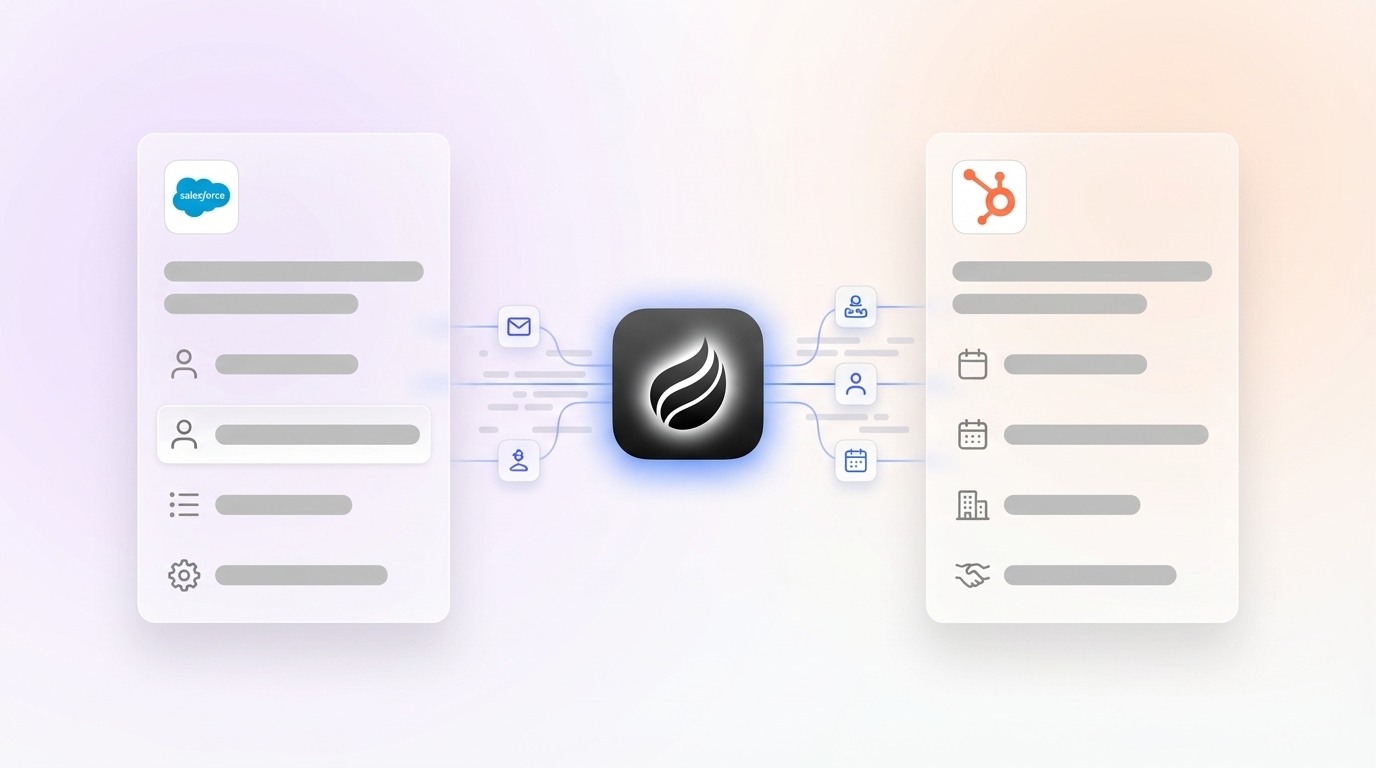
The native Salesforce HubSpot integration moves data between systems, but it does not handle the ongoing operational work required to keep that data accurate over time. The table below compares how native-only and agent-augmented configurations handle the core operational tasks that determine data reliability after the initial Salesforce HubSpot sync is live.
| Task | Native Integration Only | Agent-Augmented (e.g., Coffee) | Operational Impact |
|---|---|---|---|
| Data entry and contact creation | Manual, and sales reps spend significant time on data entry and cleanup | Agent auto-creates contacts from emails and calendars, with no rep input required | Eliminates the primary source of missing and stale records |
| Activity logging | Rep-dependent, and reps capture roughly 20–30% of sales activity data in CRM | Agent joins calls, transcribes, and writes structured summaries back to CRM automatically | Delivers complete activity history without manual effort |
| Historical context and unstructured data | Lost when fields are overwritten, and a misconfigured field mapping can overwrite good data with stale values | Agent stores structured and unstructured data such as emails and transcripts in a built-in data warehouse, so history is preserved | Enables accurate pipeline reviews and forecasting without spreadsheet exports |
| Ongoing data quality governance | Significant time spent on weekly RevOps reconciliation, with quarterly audits required | Agent continuously monitors and enriches records, so no scheduled manual audits are needed | Maintains data quality without additional headcount cost |
An autonomous agent handles both structured data such as field values, deal stages, and contact properties, and unstructured data such as email threads, call transcripts, and meeting notes. Where the native sync moves records between two passive containers, an agent actively interprets, enriches, and writes back ground-truth data, which closes the gap that manual processes leave open.
Coffee as the Companion App Layer
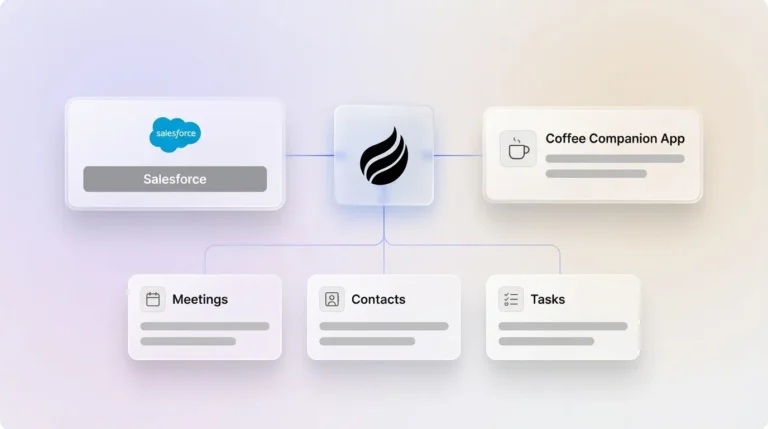
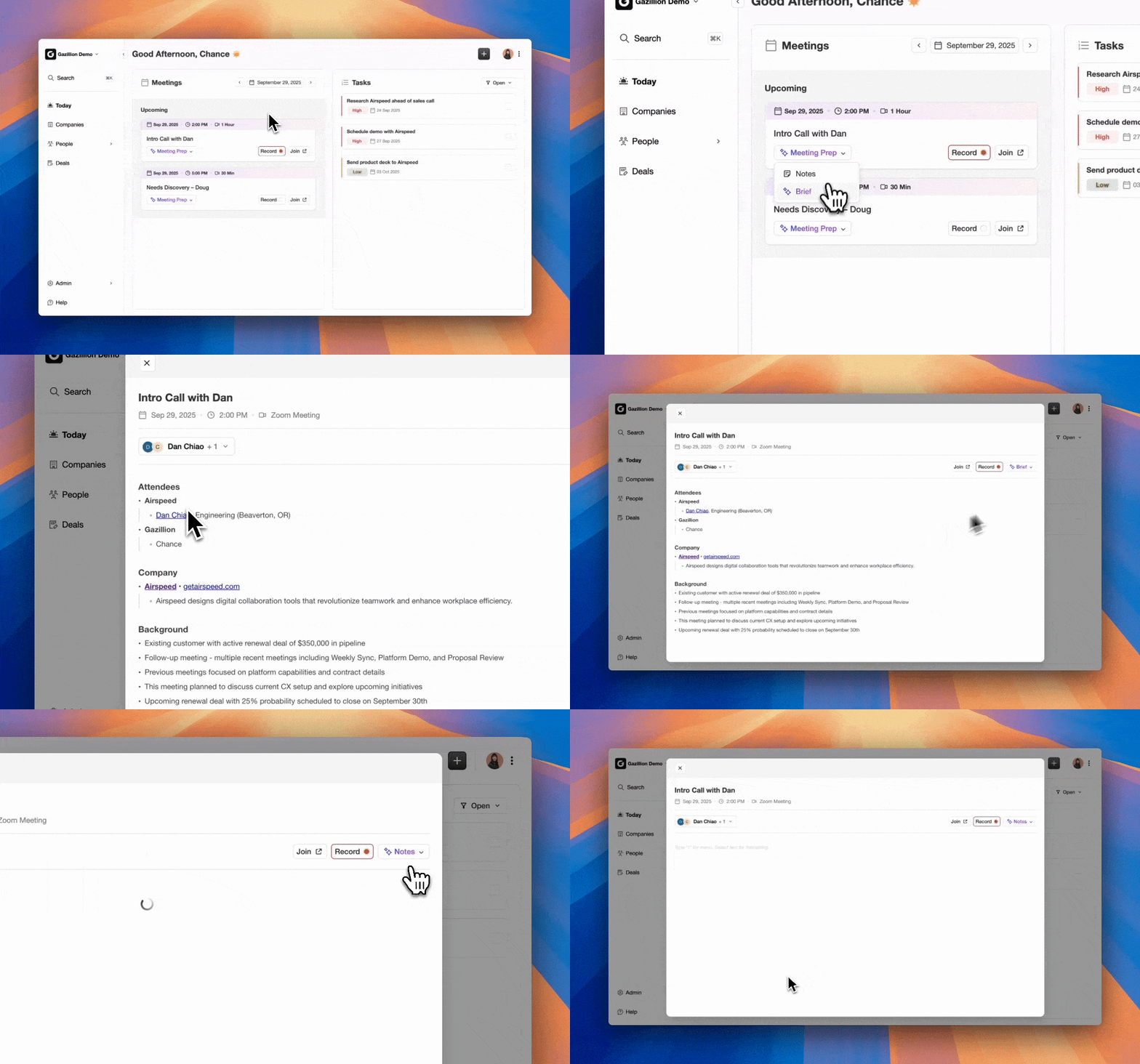
Coffee operates as a Companion App that sits on top of an existing Salesforce or HubSpot instance. After a simple authentication, the Coffee Agent begins ingesting data from connected sources such as Google Workspace, Microsoft 365, call recordings, and calendar events, and then writes enriched, structured records back to the CRM of record. The existing system remains the system of record, while Coffee handles the labor of keeping it accurate.
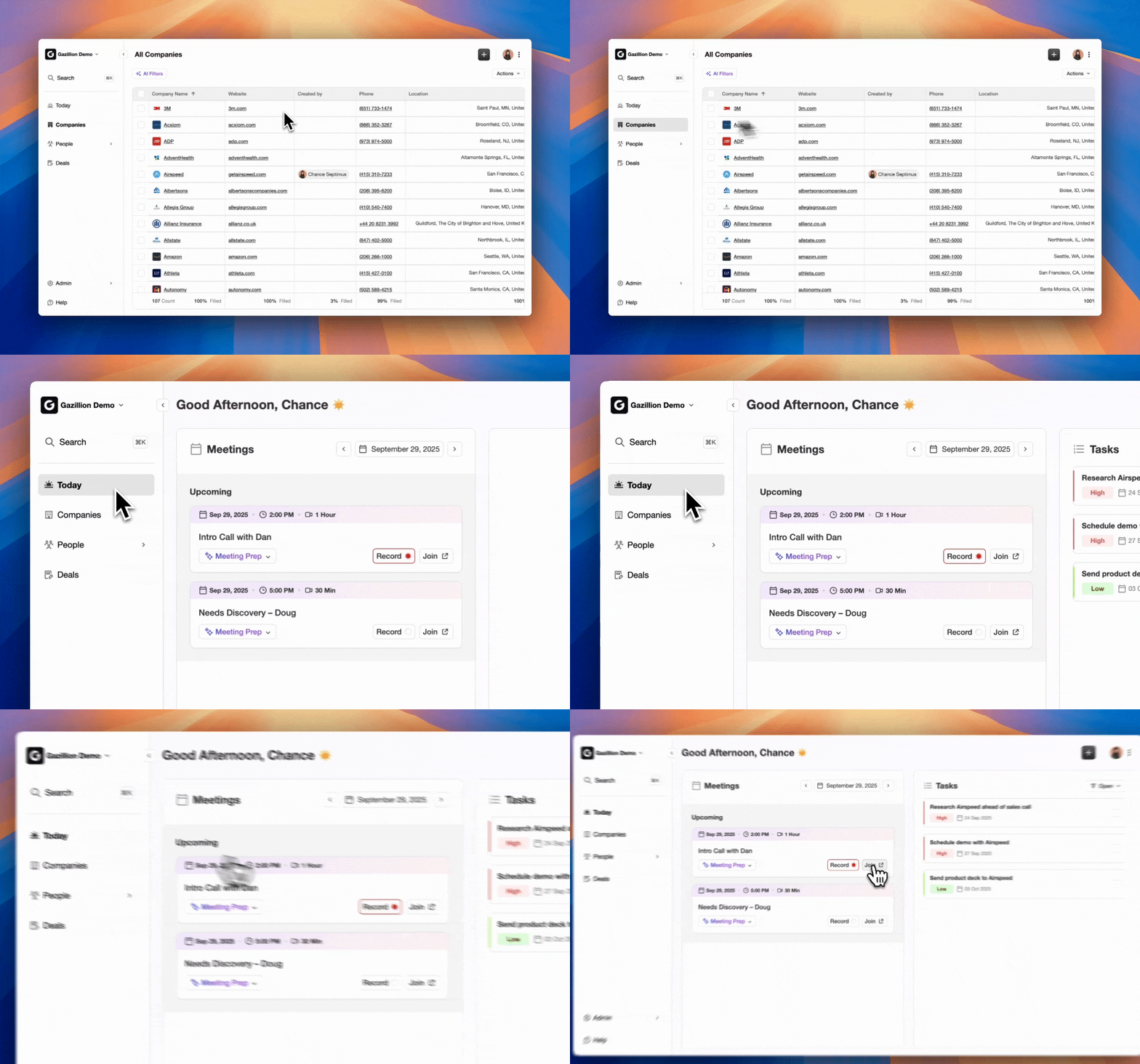
For mid-market teams running both Salesforce and HubSpot, Coffee addresses specific failure modes that the native sync cannot resolve. It captures unstructured data from calls and emails that the native connector never touches, maintains activity logs autonomously so rep adoption is no longer a prerequisite for data quality, and provides pipeline intelligence derived from a built-in data warehouse that preserves historical context even when field values change. Coffee is SOC 2 Type 2 and GDPR compliant, and data is not used to train public models.
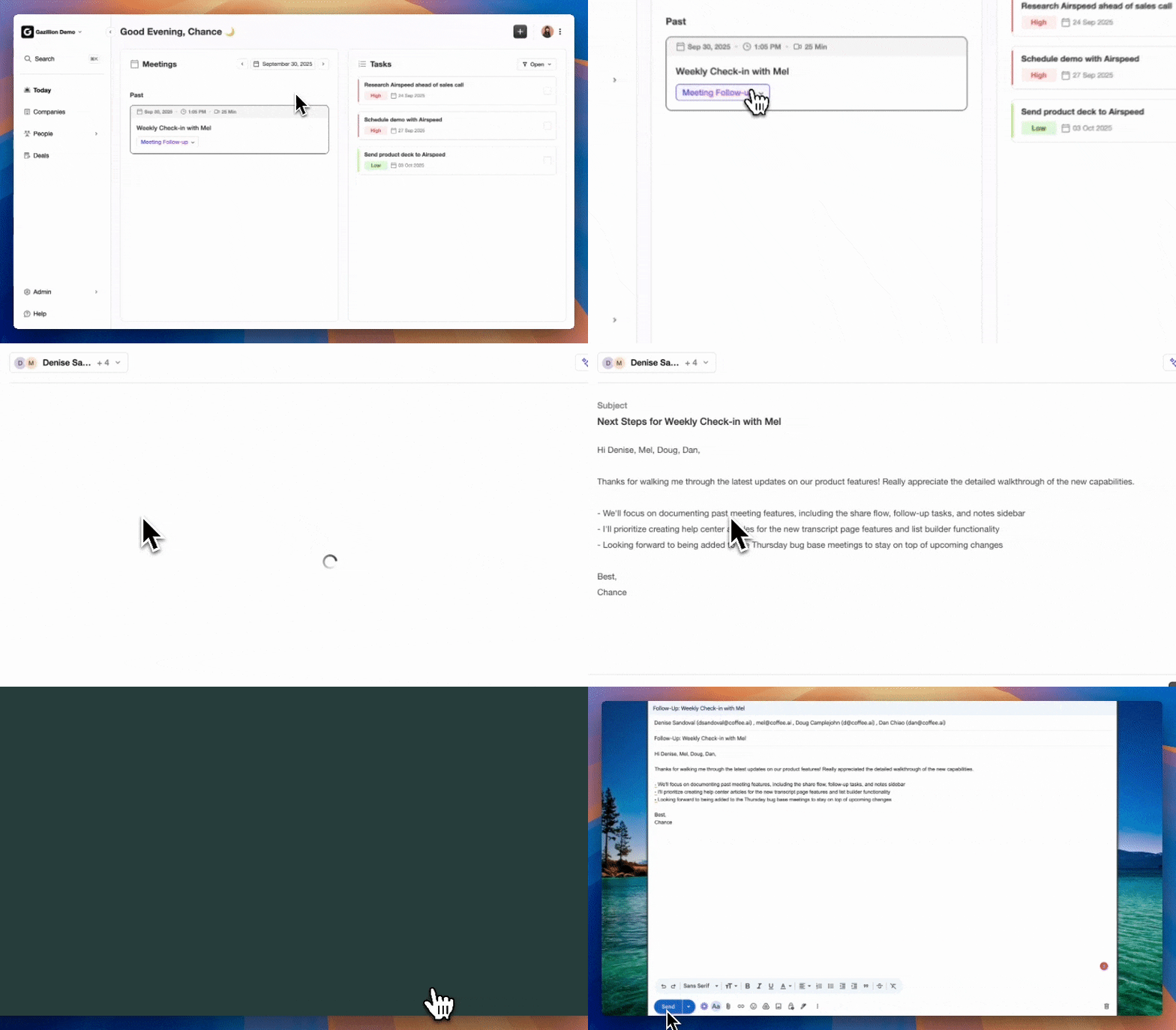
Add an agent layer to your Salesforce HubSpot integration and eliminate manual data entry, sync errors, and reconciliation costs.
Evaluation Framework for Mid-Market Teams
Mid-market RevOps and sales leaders can use a simple framework to decide whether the native Salesforce HubSpot integration is sufficient or whether an agent layer is warranted.
- Integration depth: Confirm that the native sync covers all objects your revenue process depends on, including custom objects, tickets, and activities. Custom object sync requires HubSpot Enterprise, with each object mapped and maintained individually.
- Data quality baseline: A substantial portion of enterprise CRM records contain errors significant enough to affect business decisions. Because the native sync replicates these errors bidirectionally rather than correcting them, teams must sustain weekly Sync Health reviews and quarterly field mapping audits to prevent governance from degrading over time.
- API headroom: Calculate your daily API consumption across all connected tools. Multiple integrated tools can exhaust Salesforce’s 100,000 daily API call limit quickly, so teams near that ceiling need either tighter inclusion lists or an agent layer that reduces redundant sync operations.
- Unstructured data coverage: When deal context lives in call transcripts, email threads, and meeting notes that the native sync never touches, an agent layer becomes the only practical path to capturing it without manual rep entry.
- Security and compliance fit: Confirm any agent solution is SOC 2 Type 2 and GDPR compliant and does not use customer data to train shared models, which is a non-negotiable requirement for mid-market teams handling prospect and customer data.
- Team size and adoption risk: Companies that achieve alignment in revenue processes grow 19% faster and are 15% more profitable. When CRM adoption is low because reps resist manual entry, an agent that removes the entry requirement provides a structural fix rather than a temporary workaround.
See Coffee pricing and deployment options for mid-market RevOps teams.
Frequently Asked Questions
What does the native Salesforce HubSpot integration actually sync?
The native connector syncs four core object types out of the box: Contacts mapped to Salesforce Leads or Contacts, Companies mapped to Salesforce Accounts, Deals mapped to Opportunities, and Activities mapped to Tasks and Events. Custom objects are supported on HubSpot Professional or Enterprise with explicit configuration required for each object. Campaigns sync one-way from Salesforce to HubSpot as lists, and Salesforce campaign members can only be created from HubSpot using workflows, not through direct native object sync. Historical records that predate the integration do not sync retroactively and must be imported manually.
How do HubSpot Salesforce sync rules work, and which should I use?
Each mapped field carries an independent sync rule that determines which system wins when both have a value. The four options are Prefer Salesforce Unless Blank, where Salesforce wins except when empty, Always Use Salesforce, where Salesforce is unconditional, Two-Way Most Recent Wins, where the most recently updated timestamp wins, and Do Not Sync, where the field is excluded. Best practice is to assign field ownership by team: HubSpot owns marketing-generated data such as lead source, UTM parameters, and lifecycle stage up to MQL, while Salesforce owns sales-generated data such as opportunity stage, close date, and deal amount. Shared fields like phone number and job title typically default to Salesforce on conflict. Without explicit ownership rules, simultaneous updates to the same field in both CRMs cause values to toggle back and forth on every 15-minute sync cycle.
Why do HubSpot and Salesforce keep showing different data even after integration?
Divergence after integration typically traces to four root causes. First, picklist values that do not match exactly between the two systems cause sync failures that silently drop updates. Second, field mapping conflicts arise when both CRMs are configured to edit the same field bidirectionally without a clear source-of-truth rule. Third, the dedicated Salesforce integration user may have lost permissions due to a role change, password reset, or admin modification, which causes writes to fail without visible alerts. Fourth, selective sync filter drift occurs when inclusion lists or workflow criteria change, silently excluding records and creating growing gaps between the two systems. Resolving divergence requires fixing the underlying configuration by aligning picklist values, clarifying field ownership, and restoring integration user permissions, rather than correcting individual records manually.
When is the native Salesforce HubSpot integration not enough?
The native integration is a sync tool, not a data quality tool. It moves records between two systems but cannot determine which records to trust, reconcile conflicting field values, handle duplicate accounts, or capture data that lives outside structured fields such as call transcripts, email threads, and meeting notes. Teams hit the ceiling of native-only integration when they spend significant RevOps hours on weekly reconciliation, when CRM adoption is low because reps resist manual entry, when API limits are regularly approached due to large databases or multiple connected tools, or when pipeline reporting is unreliable because unstructured deal context never makes it into the CRM. At that point, an agent layer that autonomously captures, enriches, and writes back data addresses the structural problem that the native sync cannot.
Is Coffee compatible with an existing Salesforce and HubSpot setup?
Yes. Coffee’s Companion App model is designed specifically for teams already committed to Salesforce or HubSpot as their system of record. After a simple authentication connecting Coffee to Google Workspace or Microsoft 365, the Coffee Agent begins capturing data from emails, calendars, and call recordings and writing enriched records back to the existing CRM. The CRM of record remains unchanged, while Coffee handles the data-in process so the system stays accurate without requiring manual rep entry. Coffee is SOC 2 Type 2 and GDPR compliant, and customer data is not used to train public models. Pricing is seat-based with no complex metering on agent activity.