Written by: Doug Camplejohn, CEO & Co-Founder, Coffee
Key Takeaways
- Inactivity decay lowers a deal’s engagement score after a set period without logged activity, so stale opportunities stop inflating forecasts.
- Apply decay only to the Engagement Score (0–50 points). Keep the Fit Score static and separate from time-based rules.
- Select step-down deductions for short cycles or percentage decay for longer ones, then tune thresholds with a decay table tied to your sales-cycle length.
- Accurate last-activity timestamps keep decay rules firing on the right deals. Bad data keeps phantom pipeline alive.
- Automate activity logging with Coffee so every decay rule runs on ground-truth data.
Why Accurate Last-Activity Data Matters
B2B companies struggle with forecast accuracy when last-activity data is wrong or missing. Annual B2B contact data decay rates range from 22.5–70.3%. When timestamps drift, decay rules fire on the wrong deals or never fire at all. The result is a large portion of the pipeline that looks active in reports but has not seen real engagement in weeks.
To prevent these accuracy issues, you need a solid foundation before implementing decay rules.
Readiness Checklist for Reliable Decay Rules
Confirm these prerequisites before you configure any decay logic:
- CRM admin access to create custom fields, workflows, and scheduled automations in Salesforce or HubSpot.
- Defined sales stages with documented average durations for each stage.
- A documented sales-cycle length (30-day, 60-day, or 90-day) that anchors your decay thresholds.
- A reliable source of last-activity data, either consistent manual logging or an automated activity-capture layer.
The last item matters most and is the step teams skip most often. When 30% of activities go unlogged, sales metrics become fiction and inactivity decay rules cannot reliably identify stale deals.
Let Coffee’s agent handle activity logging automatically so your prerequisites stay intact.
1. Keep Fit Score Separate from Engagement Score
Decay should never touch a deal’s fit score. Fit scores rely on static firmographic attributes such as company size, industry, revenue, tech stack, and growth stage that rarely change. Teams update these during monthly or quarterly enrichment refreshes. Decay on fit would punish a perfectly qualified prospect just because a rep skipped logging a call.
Structure your scoring model with two independent components:
- Fit Score (0–50 pts): ICP attributes such as industry match, company size, title, and tech stack. Static. No decay.
- Engagement Score (0–50 pts): Behavioral signals such as emails opened, calls logged, meetings held, and demo requests. Subject to time-based decay.
Rule: Apply decay only to the Engagement Score. A deal’s Fit Score changes only when enrichment updates a firmographic attribute.
2. Pick a Decay Method That Matches Your Cycle
Most teams use one of two practical patterns.
Step-Down (Fixed Deduction): Subtract a fixed number of points at defined intervals. This pattern is simple to configure and easy to explain to sales leadership. It works best for short cycles of 30 days or fewer where a clear active versus stale signal helps more than a gradual curve. Some teams apply point deductions after 30 days of inactivity so one old engagement spike cannot keep a dead prospect hot.
Percentage Decay: Reduce the current score by a fixed percentage each period. This pattern produces a smooth curve and keeps high-scoring deals visible longer before they drop below threshold. It suits longer cycles of 60 to 90 days where gradual signal degradation reflects reality better than a hard cutoff.
3. Build a Decay Table by Sales-Cycle Length
Use the table below as a starting configuration. Adjust thresholds after 60 to 90 days of live data once you see conversion patterns.
| Inactivity Window | 30-Day Sales Cycle (Step-Down) | 90-Day Sales Cycle (Percentage) | Trigger Action |
|---|---|---|---|
| 0–7 days | No deduction | 100% of score retained | None |
| 8–14 days | –5 pts | 75% of score retained | Internal alert to rep |
| 15–30 days | –10 pts | 50% of score retained | At-risk flag in CRM |
| 31–60 days | Score zeroed | 25% of score retained | Pipeline review required |
| 60+ days | Deal marked stale | Score drops to zero | Deal archived or closed-lost |
What Counts as Inactivity
Inactivity means no qualifying logged interaction within the defined window. A deal becomes stale when it sits in its current stage longer than expected and shows no logged activity such as email, call, or meeting in the recent period.
Qualifying activities that reset the decay clock must show real prospect engagement. These include outbound or inbound email exchanges, logged calls with a duration greater than zero, held calendar meetings, and inbound demo or contact form submissions. Each one represents a confirmed touchpoint rather than automated system noise.
4. Define Inactivity Triggers in Your CRM
Set enrollment criteria in your CRM workflow builder using AND logic:
- Deal stage is not “Closed Won” or “Closed Lost.”
- Deal stage is not in the pause list from Step 6.
- Last Activity Date is more than [threshold] days ago.
- Engagement Score is greater than 0.
Create a custom date field named Last_Qualifying_Activity_Date. Populate it only with confirmed logged interactions, not with system metadata such as “record modified.” System-generated last-modified timestamps are unreliable for decay calculations because any automation touch resets the clock.
5. Connect Decay Logic to Workflow Automation
Configure a scheduled workflow that runs daily at a consistent time.
- Use enrollment triggers for deals that meet the inactivity criteria from Step 4.
- Calculate days since
Last_Qualifying_Activity_Date. - Branch by cycle length and days elapsed using the decay table from Step 3.
- Apply the correct point deduction or percentage reduction to the Engagement Score field.
- Write a timestamp to an audit field named
Last_Decay_Applied_Date. - When Engagement Score reaches zero, set a “Stale Deal” flag and enroll the deal in a re-engagement sequence.
You can also configure a weekly batch decay workflow that runs every Monday and reduces the Engagement Score by 10% for any deal with no activity in the prior seven days. Any new qualifying activity should reset the decay clock and restore points based on the activity type.
6. Set Pause Rules for Structurally Quiet Stages
Decay must pause during stages where inactivity is structurally expected, such as legal review, procurement, or multi-stakeholder evaluation. During these stages, the deal moves through internal customer processes that do not require rep activity, so silence does not signal disengagement. Firing decay during these stages would penalize deals that are progressing through required workflows.
Add a suppression condition to the enrollment trigger and exclude deals where Stage equals “Contract Review,” “Legal,” or “Procurement.” When a deal exits a paused stage, reset Last_Qualifying_Activity_Date to today so the decay clock starts fresh instead of inheriting inactivity from the paused period.
Reset rule: Any stage change should write today’s date to
Last_Qualifying_Activity_Date. Stage movement proves active progression and should reset the decay window.
Pause Decay During Active Negotiations
Create a boolean field named Decay_Paused. Set it to TRUE with workflow when a deal enters a defined pause stage. Add Decay_Paused = FALSE as a mandatory enrollment condition on every decay workflow. When the deal exits the pause stage, set Decay_Paused back to FALSE and write today’s date to Last_Qualifying_Activity_Date. A two-phase decay pattern that holds full value through day 44, steps to 50% from day 45 to 89, then drops to zero at day 90 works well for enterprise deals with long negotiations.
7. Validate Decay Rules with Pipeline-Compare Reports
After the first two weeks of live decay rules, run a pipeline comparison report with two views. One view shows scored pipeline where Engagement Score is greater than zero. The second view shows total open pipeline. The gap between these figures represents phantom pipeline. A reported $5M pipeline may actually be closer to $3M once deals with no activity in the past 30 days are discounted. Track this variance weekly so forecast accuracy improves over time.
8. Adjust Thresholds Based on Real Outcomes
After 60 to 90 days, compare win rates for deals that triggered decay with those that did not. When high-fit deals are being zeroed before reps can re-engage, extend the inactivity window by seven days. When stale deals still appear in forecast calls, tighten the threshold.
Organizations with structured pipeline management improve forecast accuracy only when the underlying activity data stays trustworthy.
Manual Logging vs. Coffee Agent Activity Capture
The eight steps above depend on accurate Last_Qualifying_Activity_Date values. That accuracy comes from how activity data enters the CRM.
| Dimension | Manual Logging | Coffee Agent (Automated) |
|---|---|---|
| Data entry method | Rep logs after each interaction | Agent captures from email, calendar, and call transcript automatically |
| Activity capture rate | ~70% (the 30% gap mentioned earlier) | 100% of connected interactions captured |
| Timestamp accuracy | Delayed, logged hours or days after interaction | Real-time, written at interaction close |
| Decay rule reliability | Low, fires on wrong deals when logs are missing | High, fires only when genuine inactivity exists |
| Rep time cost | 71% of reps say too much time spent on data entry | 0 hours, agent handles all logging |
| Pipeline accuracy impact | Forecasts can be inaccurate on stale data | Decay rules reflect actual deal state |
Coffee Agent Setup for Accurate Decay
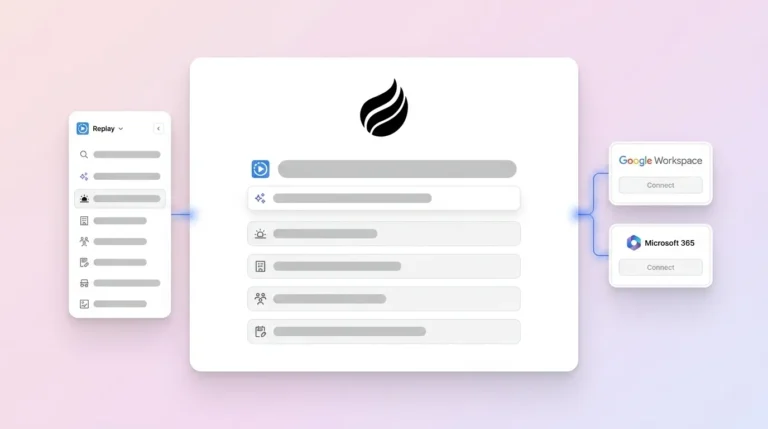
The Coffee Agent connects to Google Workspace or Microsoft 365 and starts logging every email thread, calendar event, and call transcript to the matching deal record in Salesforce or HubSpot. Reps do not need to take any action. The agent writes to the Last_Qualifying_Activity_Date field in real time, which supports the decay rules you configured in Step 4.
Teams using the Coffee Companion App on an existing Salesforce or HubSpot instance complete setup with a single authentication. The agent then syncs activity data, enriches deal records, and writes structured interaction summaries, including BANT, MEDDIC, or SPICED qualification fields, back to the primary CRM. Every decay workflow from Steps 4 and 5 now runs on ground-truth data instead of rep-reported data.
Because the agent captures call transcripts and meeting summaries, it can distinguish between a genuine qualifying interaction and an automated email bounce. This distinction prevents false resets of the decay clock that would keep stale deals artificially warm.
Coffee removes the garbage-in problem that quietly breaks most decay rules.
Validation Checklist for Ongoing Accuracy
- Weekly: Run a pipeline-compare report and confirm scored pipeline variance moves closer to actual close rates.
- Weekly: Verify
Last_Decay_Applied_Datepopulates on all eligible deals. - Weekly: Check that a high percentage of open opportunities show at least one logged activity in the recent period. Low percentages may signal stagnation.
- Monthly: Audit deals where Engagement Score equals zero but Stage is not Closed. These are phantom deals and should be closed or re-engaged.
- Quarterly: Review decay thresholds against actual win-rate data and adjust windows by plus or minus seven days as needed.
Once you validate your baseline configuration, you may need to adjust thresholds based on your specific sales-cycle length.
Variations for 30-Day vs. 90-Day Sales Cycles
For 30-day cycles, compress every threshold to match the faster pace. Flag at seven days, apply the first deduction at 14 days, and zero the score at 30 days. Discovery-stage deals average 10 to 12 days and should be flagged after 15 to 18 days with 14 days of no activity. This compression reflects the quick decision velocity in short-cycle deals.
For 90-day cycles, the longer timeline requires a different approach. Use the percentage method from Step 2 and extend the zero-score threshold to 90 days so you avoid zeroing deals that are progressing normally. Points can be reduced based on the age of the last activity. Pause rules from Step 6 become especially important in 90-day cycles where legal and procurement stages can consume 20 to 30 days without any rep-initiated activity.
Frequently Asked Questions
Who should own the decay rule configuration, RevOps or Sales leadership?
RevOps should own the technical configuration, including field creation, workflow logic, and threshold tables. Sales leadership should approve thresholds and pause-stage definitions because they know which stages structurally require silence from the rep side. Without sales leadership buy-in, teams will override decay rules that zero out legitimate deals, which defeats the purpose of the system.
How often should decay thresholds be reviewed?
Review thresholds after the first 60 to 90 days of live data, then quarterly. The first version of any scoring model rarely survives contact with real pipeline data unchanged. Segment win rates by Engagement Score band at the time of close. When deals closing at a score of 15 win at the same rate as deals at 40, thresholds are too loose. When high-fit deals are being zeroed before reps can respond, windows are too tight.
What happens to a deal’s score when a prospect re-engages after decay has zeroed it?
Any new qualifying activity such as an inbound email reply, a booked meeting, or a returned call should reset the Last Qualifying Activity Date to today and restore points based on the activity type. The deal re-enters the active scoring pool from its current Fit Score plus the points earned by the re-engagement action. It does not automatically return to its pre-decay score. The new score reflects current engagement instead of historical momentum.
Can decay rules work in HubSpot without a custom scoring setup?
HubSpot offers decay intervals of 1, 3, 6, or 12 months on a linear schedule. For more granular control such as weekly percentage decay or custom inactivity windows by sales-cycle length, you need a scheduled workflow that reads a custom Last Qualifying Activity Date field and applies point adjustments with calculated properties. The native decay tool provides a starting point. The workflow approach from Step 5 gives full control.
How does the Coffee Agent prevent false resets of the decay clock?
The Coffee Agent distinguishes qualifying interactions such as emails with substantive content, attended calendar events, and completed calls with transcripts from automated system touches such as bounce notifications or calendar invites with no attendee confirmation. Only confirmed qualifying interactions write a new timestamp to the Last Qualifying Activity Date field. This filter prevents automated outreach sequences from resetting decay on deals where the prospect has never responded, which is the most common way manual and basic automation setups create phantom pipeline.
Conclusion
Inactivity decay acts as a powerful tool for pipeline hygiene, but it stays only as reliable as the last-activity data behind it. The eight steps above give RevOps and sales leaders a complete implementation framework that includes separated fit and engagement scores, a decay table calibrated to cycle length, workflow automation with pause rules, and weekly validation checks. The framework fails the moment a rep forgets to log a call or an email goes uncaptured.
The Coffee Agent removes that failure mode. By logging every email, calendar event, and call transcript to the correct deal record in real time, Coffee ensures that every decay rule fires on accurate data. This shift turns a theoretical pipeline hygiene system into a forecast engine you can trust.
Build a pipeline where every score reflects reality with Coffee’s automated activity capture.