
Written by: Doug Camplejohn, CEO & Co-Founder, Coffee
Key Takeaways for HubSpot Contact Creation
- Contact creation is a constant, time-consuming task for RevOps and sales teams across manual entry, imports, and integrations.
- Manual and bulk methods often create incomplete records, duplicates, and hours of lost productivity each week.
- HubSpot’s native tools require human initiation and lack automatic enrichment, which limits data quality and pipeline accuracy.
- Autonomous agents remove manual steps by scanning emails and calendars to create and enrich contacts instantly.
- Eliminate manual contact creation entirely and see Coffee’s pricing and setup options today.
Why Accurate, Timely Contact Creation Matters for Your Pipeline
Accurate contact records keep your pipeline honest. When records are missing, stale, or duplicated, every downstream process degrades. Sales professionals often do not completely trust the accuracy of their pipeline data, and 72% of sales organizations report forecast accuracy below 80%. Poor data quality can cost companies a substantial portion of their revenue because inaccurate contact and pipeline data flows directly into revenue planning.
The productivity impact is just as large. Sales reps spend an average of 5.5 hours per week on CRM administration, time that compounds quickly. Thirty-two percent of sales reps spend more than one hour per day on manual data entry, which totals roughly 250+ hours per year per rep that is not spent selling. Sales reps dedicate only 35% of their time to selling, with the remaining time going to administrative tasks including data entry. Understanding which contact creation methods contribute most to this overhead, and which alternatives exist, requires examining each approach in detail.
1. Single-Contact Form in the HubSpot UI
The manual form is the most direct creation method inside HubSpot. Navigate to Contacts → Contacts → Create contact. HubSpot presents a panel that requires at minimum one of the following: First name, Last name, or Email address. Fill in the relevant fields, assign an owner, and click Create.
Two pitfalls show up frequently. Entering a contact without an email address bypasses HubSpot’s primary deduplication check. Leaving the record without an owner keeps it unrouted and easy to ignore. HubSpot uses email address as the primary unique identifier for contacts; when a new contact is created through a form, import, or integration, HubSpot checks for an existing record with the same email and updates it rather than creating a new one, but does not automatically prevent duplicates for contacts without email addresses.
Error: Duplicate Email Address
If HubSpot detects an existing record with the same email, it merges the submission into the existing contact rather than creating a new one. If the record still appears duplicated, check whether one version was created without an email address. Navigate to the duplicate, add the email, and use HubSpot’s native merge tool to consolidate.
Estimated time per contact: 3–5 minutes including field entry, owner assignment, and verification.
2. CSV Import with Field Mapping and Duplicate Handling
CSV import is the standard method for bulk contact creation after events, list purchases, or system migrations. Best-practice file setup follows these rules from HubSpot’s documentation:
- Include a header row where each column corresponds to a HubSpot property, and create custom properties in advance to ensure clean field matching.
- Include at least one of: First name, Last name, or Email, because omitting all three prevents new contact records from being created.
- To update existing contacts or avoid duplicates, include an Email or Record ID column so HubSpot can match and update records rather than creating duplicates.
- For contacts with multiple email addresses, include an Additional email addresses column and separate values with semicolons.
- CSV files containing foreign language characters must be UTF-8 encoded before import.
After upload, HubSpot’s import wizard prompts field mapping. Review every unmapped column before confirming, because skipped mapping is a common source of incomplete data. Sales and marketing departments lose significant time each year due to insufficient data, and poorly prepared import files create many of those gaps.
Error: Missing Email / Formatting Issues
Imports without an email column create records that HubSpot cannot deduplicate automatically. Date fields must follow accepted formats such as MM/DD/YYYY. Rows with formatting errors are skipped silently, so always download the post-import error report from the Import history page and remediate issues before re-uploading.
Estimated time per import batch: 30–90 minutes including file preparation, mapping, error review, and remediation.
3. HubSpot Contact API Endpoint for Programmatic Creation
The HubSpot Contacts API supports programmatic record creation for custom workflows and integrations. A minimal POST request to create a contact looks like this:
curl --request POST \ --url https://api.hubapi.com/crm/v3/objects/contacts \ --header 'Authorization: Bearer YOUR_ACCESS_TOKEN' \ --header 'Content-Type: application/json' \ --data '{ "properties": { "email": "example@domain.com", "firstname": "Jane", "lastname": "Smith", "jobtitle": "VP of Sales" } }'
Required fields mirror the UI and require at least one of email, firstname, or lastname. HubSpot applies the same email-based deduplication logic as the UI, so an existing record with a matching email is updated instead of duplicated.
Error: API Rate Limits
HubSpot enforces rate limits on API calls (100 requests per 10 seconds for Free and Starter tiers, and 150–190 for Professional and Enterprise). Bulk creation operations that exceed this threshold return 429 errors. Use exponential backoff and batch requests with the Batch Create endpoint (/crm/v3/objects/contacts/batch/create) to stay within limits, and monitor your API usage dashboard regularly.
Estimated time to implement and maintain: 8–40 hours for initial development plus ongoing maintenance per integration.
4. Automatic Creation via the HubSpot Sales Email Extension
The HubSpot Sales Chrome Extension and Outlook add-in surface a sidebar inside Gmail or Outlook. When you compose or read an email from an unknown sender, the extension prompts you to log the contact to HubSpot with a single click. The contact is pre-populated with the sender’s name and email address.
These extensions still leave gaps. They create a minimal record with no enrichment beyond what appears in the email signature. Job title, company size, LinkedIn profile, and funding data remain blank. A manual review step is still required to complete the record, assign ownership, and associate the contact with the correct company. Each rep must also install and actively use the extension, so adoption gaps create inconsistent coverage.
5. Creating a Contact Without an Email Address
HubSpot permits contact creation without an email address using the UI or API. The common workaround uses First name, Last name, and phone number or another identifier as the primary fields.
The risk from this approach is significant. As noted earlier, email-less records bypass HubSpot’s primary deduplication mechanism. Common causes of duplicate contacts in HubSpot include missing email address fields and manual contact creation without email addresses. Every email-less record becomes a likely duplicate when the contact’s email is eventually captured through a form or import. Create a workflow that flags email-less contacts for enrichment immediately after creation.
Automatic Contact Creation from Email with an Autonomous Agent
The five methods above all depend on humans to start the process. An autonomous CRM agent removes that dependency entirely.
Coffee’s Agent connects to Google Workspace or Microsoft 365 and scans emails and calendar events to identify new contacts. When a rep exchanges emails with a prospect, the agent creates the contact record in HubSpot automatically with no extension click, CSV, or developer-written API call. The agent then enriches the record with job title, company funding data, and LinkedIn profile via licensed data partners, and logs the interaction as the first activity on the record.
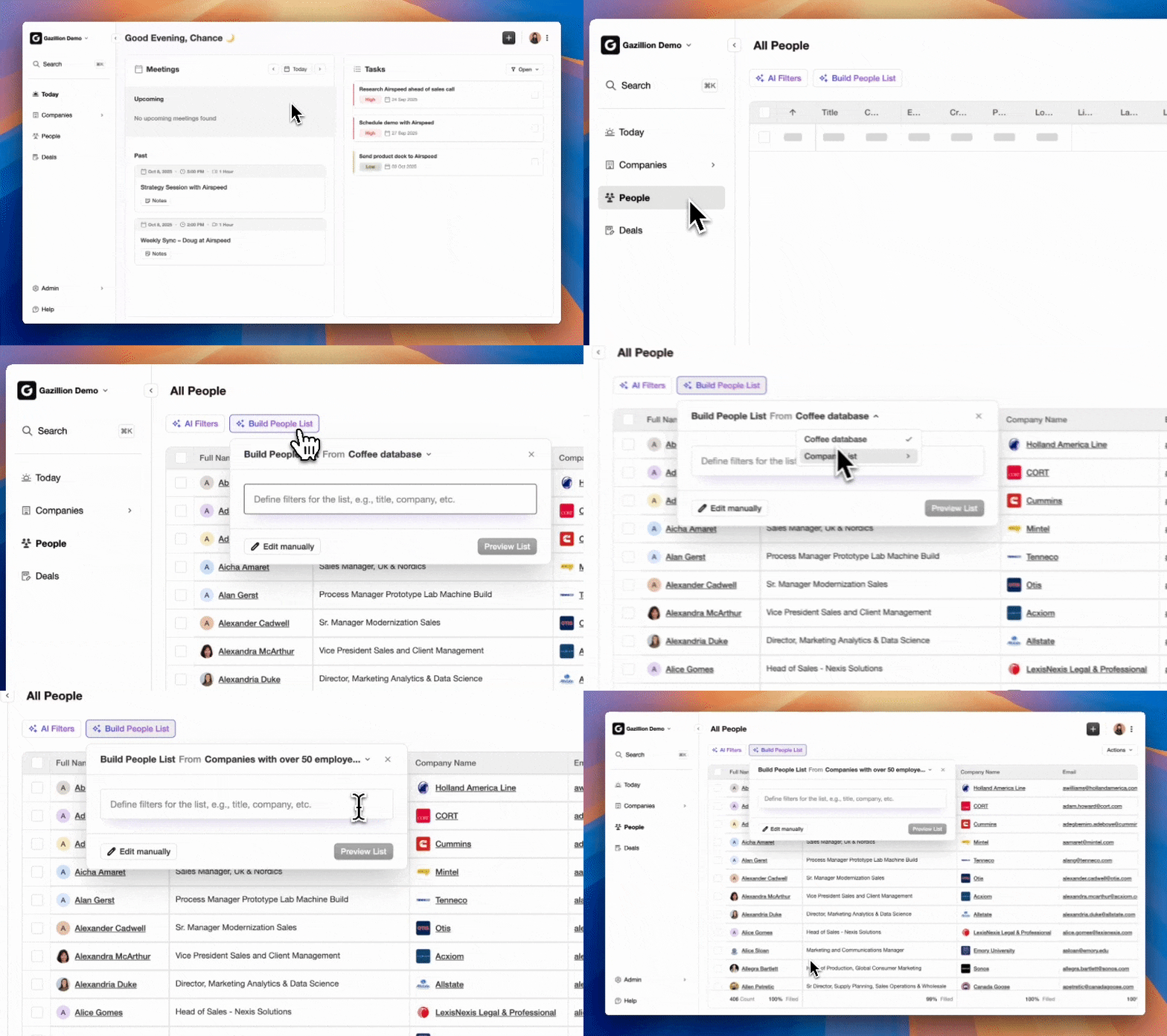
Automated data entry reduces CRM data entry time by up to 55%. CRM automation can save teams several hours per week by eliminating manual data entry and duplicate work.
| Method | Estimated Time per Contact or Batch | Enrichment Included | Deduplication Reliability |
|---|---|---|---|
| Manual UI (single contact) | 3–5 min (scales with 5.5 hrs/week average) | None | Email-based only, fails without email |
| CSV Import (batch) | 30–90 min per batch including error review | None | Email or Record ID match required, manual prep needed |
| API (developer-built) | 8–40 hrs initial build, ongoing maintenance | Only what is coded | Email-based, rate limits apply |
| Sales Email Extension | 1–2 min per contact, requires rep action | Signature fields only | Email-based, adoption-dependent |
| Coffee Agent (autonomous) | 0 min rep time, up to 55% reduction in entry time | Job title, funding, LinkedIn | Agent-managed, respects existing HubSpot rules |
Teams that want to remove manual contact creation can start a free Coffee trial and see the impact on rep time within days.
Handling Contacts Without Email Using Coffee Agent
The agent approach handles contacts without email more reliably than any manual method. When Coffee’s Agent identifies a contact through a calendar event, such as a meeting invite, it creates the record using the available identity signals like name, company domain, and meeting context. The agent then attempts enrichment to locate the email address through licensed data partners.
This process produces a more complete record than a manually entered email-less contact and associates the record with the correct company automatically. The agent flags any record it cannot fully enrich so a human can review it, instead of leaving a silent gap in the CRM.
Validation Checklist After You Change Contact Creation
Any time you change how contacts are created, run this quick validation checklist.
- Data-quality audit: Pull a contact report filtered by “Email is unknown” to identify email-less records that require enrichment.
- Duplicate scan: Use HubSpot’s native duplicate management tool (Contacts → Actions → Manage duplicates) weekly.
- Time-saved metrics: Compare rep-reported hours on data entry before and after automation. Sales automation can deliver efficiency improvements of 10 to 15 percent by freeing up time spent on administration and reporting.
- Pipeline-review accuracy: Verify that contacts created in the last 30 days have associated companies, owners, and at least one logged activity.
- Forecast trust score: Survey reps on pipeline data confidence quarterly. Baseline against the industry average trust rate as a benchmark to beat.
Small-Team vs Mid-Market HubSpot Implementations
Small teams with 1–20 reps usually start with the manual UI and the Sales Email Extension. The operational cost stays manageable at low volume, but duplicates distort the pipeline, inflate contact counts, break automation sequences, and undermine trust in the CRM. These problems compound quickly as headcount grows.
Mid-market teams running 20+ reps face a different challenge. The CSV import and API methods that worked at smaller scale now require dedicated RevOps bandwidth to maintain. A B2B company discovered duplicated contacts in their stack; by tightening sync rules and implementing a golden record strategy, they achieved a reduction in duplicates and an improvement in reporting accuracy. At mid-market scale, an autonomous agent that handles creation, enrichment, and deduplication without human input is the only approach that does not require proportional RevOps headcount increases.
Coffee operates as a Companion App on top of existing HubSpot instances with no migration required. The agent authenticates, scans email and calendar data, and starts writing clean records back to HubSpot immediately. Teams can connect Coffee to their stack and see how the agent fits their current workflows.
Frequently Asked Questions
How long does Coffee Agent setup take with an existing HubSpot instance?
Setup uses a simple authentication step that connects Coffee to your HubSpot instance and your email provider, either Google Workspace or Microsoft 365. Most teams are operational within a single session. The agent begins scanning emails and calendars immediately after authentication and starts creating and enriching contacts without additional configuration from the RevOps team.
Is Coffee SOC 2 Type 2 and GDPR compliant?
Yes. Coffee is SOC 2 Type 2 and GDPR compliant, and customer data is not used to train public models. For teams in regulated-adjacent industries or those with strict data governance requirements, Coffee’s compliance posture allows deployment without triggering a multi-year security review process.
Does the agent overwrite or respect existing HubSpot deduplication rules?
Coffee’s Agent respects existing HubSpot deduplication logic. When the agent creates or enriches a contact, it checks for existing records using the same email-based identifier that HubSpot uses natively. If a matching record exists, the agent updates it instead of creating a duplicate, and it does not override custom deduplication workflows or required field rules configured by your RevOps team.
What happens to historical contact data when the agent is connected?
Connecting Coffee does not alter or overwrite historical contact records. The agent begins working forward from the point of connection, creating new contacts from new email and calendar activity and enriching records it encounters. Existing records remain intact. Teams that want to enrich historical records in bulk can work with Coffee’s onboarding process to scope a retroactive enrichment pass.
Conclusion: Move from Manual Entry to Autonomous Contact Creation
Every standard HubSpot contact creation method, including manual UI, CSV import, API, Sales Email Extension, or email-less workarounds, requires human initiation and produces incomplete records without a separate enrichment step. The 70% of rep time consumed by non-selling activities, referenced earlier, includes administrative work and CRM updates that autonomous agents can eliminate. Manual CRM updates lag reality, and automatic capture of email, calendar, and meeting signals improves forecast timeliness while reducing rep bias.
An autonomous agent removes the initiation step entirely. Coffee scans the communication channels where contact data already exists, creates enriched records in HubSpot automatically, and respects the deduplication and field rules already in place. The result is a CRM that stays current without consuming rep time, and a pipeline that reflects reality rather than whatever was last entered manually.
Connect Coffee to your stack and remove manual contact creation from your team’s workflow for good.