
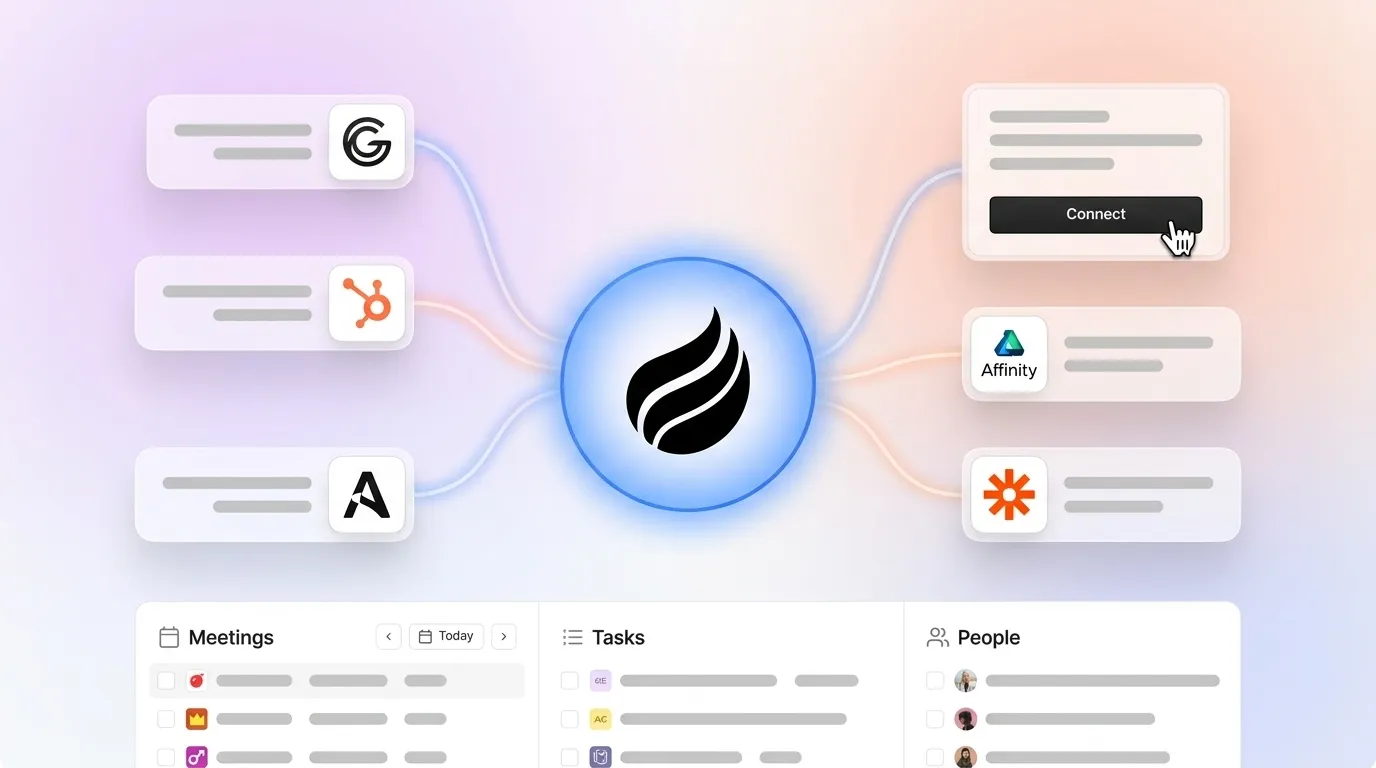
Written by: Doug Camplejohn, CEO & Co-Founder, Coffee
Key Takeaways for Granola and Coffee Users
- Granola CRM integrations send structured meeting notes into CRM records, which cuts manual copy-paste and reduces heavy admin time for reps.
- HubSpot, Attio, and Affinity use native integrations that are faster to set up and more stable, while Salesforce relies on a Zapier bridge with higher maintenance.
- Each native setup follows a five-step OAuth or API-key flow that covers object selection, field mapping, and test syncing to confirm activity lands on the right record.
- Common errors across all flows come from expired tokens, insufficient permissions, or missing required fields, usually fixed by re-authenticating or adjusting user access.
- Teams ready to eliminate sync friction entirely can explore Coffee’s autonomous agent and replace the entire Granola-to-CRM workflow.
Granola Integration Prerequisites and Setup Expectations
Confirm a few basics before you configure any Granola CRM integration. You need an active Granola account, CRM admin credentials with object-level write permissions, and a Google or Microsoft calendar connected to Granola so meetings appear automatically.
Granola provides native integration depth with HubSpot, Attio, and Affinity, so those three CRMs connect directly inside Granola settings without middleware. Salesforce remains the exception as of mid-2026, because no native connector exists and Zapier fills that gap. Native flows configure faster and stay more stable, while the Salesforce Zapier path adds authentication surfaces and polling delays that require more care.
HubSpot Native Integration Setup in Granola
- In Granola, open Settings → Integrations → HubSpot and click Connect.
- Authenticate with HubSpot OAuth. The connecting user must hold at least CRM Object Write permissions in HubSpot.
- Select the HubSpot objects Granola should write to: Contacts, Companies, and Deals.
- Map Granola note fields such as summary, action items, and next steps to the corresponding HubSpot properties. Create any needed custom properties in HubSpot before you map them.
- Save and run a test sync against a recent meeting to confirm the activity appears on the correct HubSpot record timeline.
Common errors: OAuth tokens expire based on HubSpot session settings, so a stalled sync often means the token needs a refresh. Disconnect and reconnect the integration to re-authenticate, which follows the same token-refresh pattern common to most CRM integrations and documented for expired access tokens returning invalid_grant during CRM integration. The HubSpot sync runs in one direction, because Granola writes to HubSpot and HubSpot does not push data back.
Attio Native Integration Setup in Granola
- In Granola, open Settings → Integrations → Attio and click Connect.
- Authorize via Attio OAuth. The connecting user needs workspace-level write access.
- Choose which Attio lists or record types, such as People, Companies, and Deals, should receive Granola note entries.
- Map note output fields to Attio attributes and confirm that required attributes are not set to read-only in Attio’s permission model.
- Trigger a test sync and verify that the note appears as an activity entry on the correct Attio record.
Common errors: Permission issues often block writes. Errors similar to INSUFFICIENT_ACCESS_OR_READONLY require either granting the user write access to the specific object or disabling logging for that object, which follows the same permission-scoping principle used in other CRMs. Check attribute-level permissions before you troubleshoot the connector itself.
Affinity Native Integration Setup in Granola
- In Granola, open Settings → Integrations → Affinity.
- Generate a personal API key inside Affinity under Settings → API. Affinity issues API keys per user, not per workspace, so each rep must generate and paste their own key.
- Paste the API key into Granola’s Affinity integration field and click Verify.
- Select the Affinity lists that should receive note data and map Granola fields to Affinity field types.
- Run a test sync and confirm that the note entry appears on the correct Affinity list record.
Common errors: API key scope mismatches cause most failures. If Granola returns an authorization error, regenerate the Affinity API key and confirm that the key owner has list-level write permissions. Missing field access on custom fields also blocks writes, so an admin must grant write access to those fields before you retry the sync.
Salesforce Zapier Setup for Granola Notes
- In Zapier, create a new Zap and set the Trigger app to Granola with the trigger event New Meeting Note.
- Authenticate Granola in Zapier using your Granola account credentials.
- Set the Action app to Salesforce and the action event to Create or Update Record on the Activity or Task object.
- Authenticate Salesforce. The connecting user must have API Access enabled, because
API_CURRENTLY_DISABLEDerrors resolve only when a Salesforce admin grants API Access. - Map Granola note fields to Salesforce fields and flag any required Salesforce fields.
REQUIRED_FIELD_MISSINGerrors during sync resolve when you populate those field values before retrying. - Turn on the Zap and test with a live Granola note.
Common errors: IP restrictions in Salesforce often block Zapier’s outbound calls, so a Salesforce admin must allowlist the integration’s IP addresses to resolve connection blocks. Also, incorrectly changing field mappings on an already-synced object can cause all records of that object type to stop syncing entirely. Test mapping changes in a sandbox first and promote them only after validation.
Native vs Zapier CRM Comparison for Granola (2026)
The differences in setup complexity, maintenance work, and sync reliability across these four CRM paths appear in the comparison table below. This summary highlights why native integrations remain the preferred choice when they exist and why the Salesforce Zapier route demands more ongoing attention.
| CRM | Setup Time | Directionality | Maintenance |
|---|---|---|---|
| HubSpot | ~15 min (OAuth flow) | One-way (notes tool → CRM) | Low, re-auth on token expiry |
| Attio | ~15 min (OAuth flow) | One-way (notes tool → CRM) | Low, re-auth on permission changes |
| Affinity | ~20 min (per-user API key) | One-way (notes tool → CRM) | Medium, API keys expire or rotate per user |
| Salesforce | ~45–60 min (Zapier Zap build) | One-way (Zapier trigger → Salesforce action) | High, Zapier task limits, token refresh, IP allowlisting |
The table above shows a key limitation shared by all four integration paths, because none support bidirectional sync and CRM data never flows back into Granola. AI-driven CRM processing achieves 99%+ accuracy compared to 82–85% accuracy for manual entry, which explains why even a one-way automated sync outperforms copy-paste. However, the Salesforce path carries the highest ongoing maintenance burden because Zapier adds extra authentication and polling layers.
For teams facing that maintenance overhead, Coffee’s autonomous agent eliminates the sync layer entirely by writing directly to your CRM during the call.
Replace Granola with Coffee’s Autonomous Agent
Every Granola-to-CRM flow above shares a structural flaw, because Granola captures the note, a human or Zapier step moves it, and the CRM receives an unstructured text block that still needs field-level mapping decisions. Coffee’s autonomous agent removes that architecture and handles the full journey from conversation to CRM fields.
Coffee joins the call directly on Zoom, Teams, or Google Meet and transcribes in real time, which allows it to extract structured data such as contact updates, deal stage changes, action items, and BANT, MEDDIC, or SPICED qualification fields as the conversation unfolds. Because the agent processes this data at the source, it writes directly into HubSpot or Salesforce without a middleware step and removes the sync layer that Granola-based flows depend on.
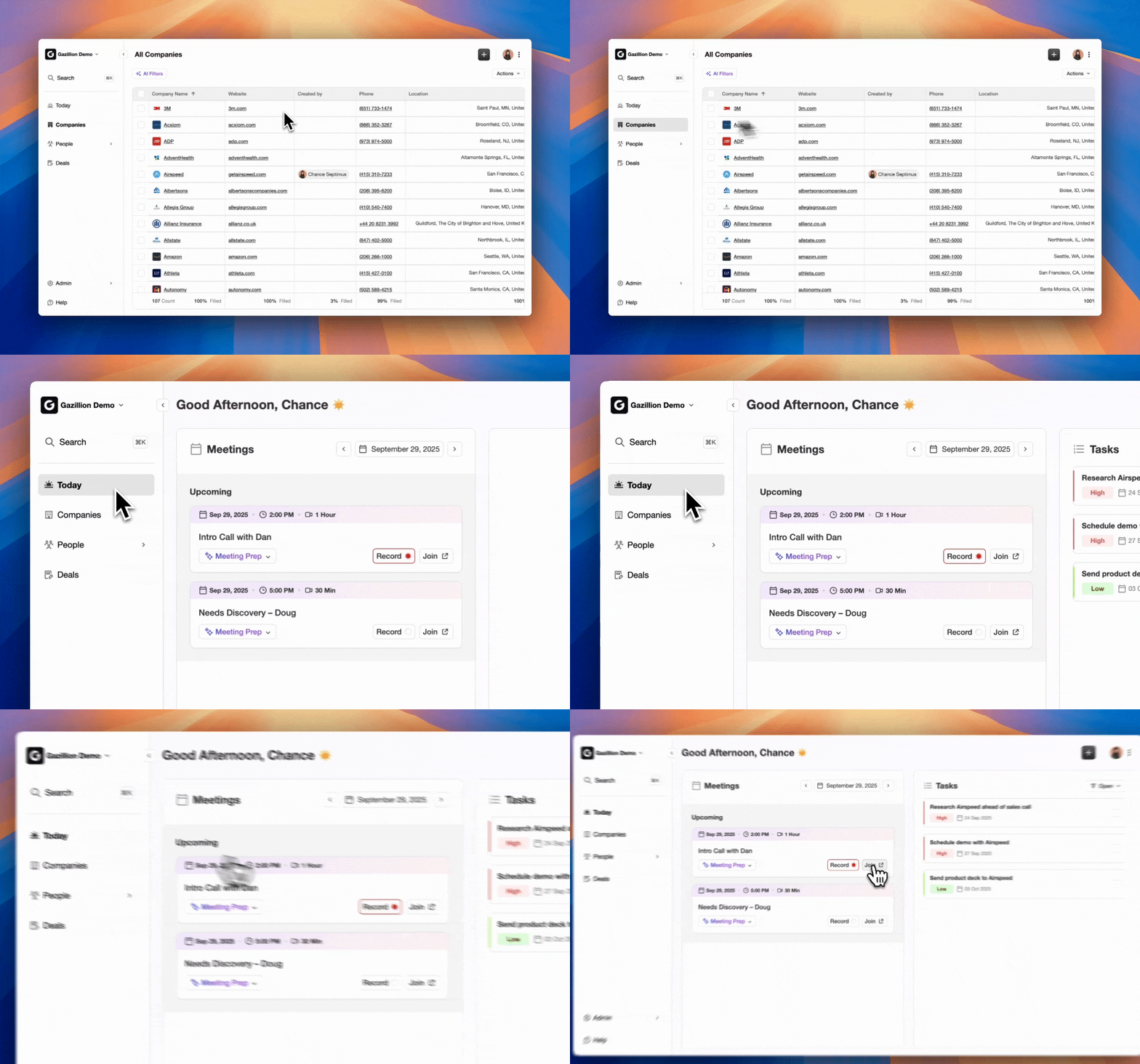
Three-step migration path from Granola to Coffee:
- Authenticate Coffee to your CRM. Connect Coffee to HubSpot or Salesforce via OAuth, then let the agent read existing records to build context.
- Retire Granola and Zapier. Disable the Granola integration and deactivate the Zapier Zap so Coffee’s bot replaces both the note-capture layer and the sync layer.
- Validate one week of pipeline data. Use Coffee’s Pipeline Compare feature to confirm that deal records reflect post-meeting updates without any manual entry.
Data and analytics leaders consistently point out that AI outputs only perform as well as their inputs. Coffee follows that principle by ensuring structured, ground-truth data enters the CRM so forecasts and pipeline reviews reflect reality. Once any integration, whether Granola-based or Coffee’s autonomous agent, goes live, the next step is confirming that data flows correctly and that your team actually saves time.
Validate Data Flow and Measure Time Saved
Run a short validation checklist after you launch any integration, whether native Granola, Zapier, or Coffee, so you can trust the data and quantify impact.
- Activity log spot-check: Open three recent CRM records for contacts who appeared in meetings and confirm that a timestamped activity entry exists with note content attached.
- Pipeline compare view: In Coffee, use the Pipeline Compare feature to review week-over-week deal changes and confirm that post-meeting stage updates appear without manual edits.
- Time-saved baseline: Sales reps spend 10–15 hours weekly on data entry and related tasks. Capture rep-reported time on CRM updates before and after the integration so leadership can see a clear ROI.
Scaling Granola or Coffee Across Reps and CRMs
Teams rolling out beyond a single rep should enforce consistent field mapping standards before expanding access, because adding or removing field mappings on an already-synced object can halt all records of that type from syncing. Document the approved mapping schema and treat it as a change-controlled artifact in your RevOps runbook.
Teams migrating from HubSpot to Salesforce mid-deployment can rely on Coffee’s Companion App model, which supports both CRMs under the same agent configuration. The agent writes to whichever system of record is active, so you avoid rebuilding Zapier Zaps or renegotiating Granola’s per-user API keys during a CRM transition.
Future-proof your meeting-to-CRM stack with Coffee before your next CRM migration.
Frequently Asked Questions
Does Granola support folder-based auto-sync so notes route to the correct CRM record automatically?
Granola offers folder-based auto-sync routing as a native feature for integrations including Slack, HubSpot, and Attio, so notes match to CRM records automatically. When a meeting includes a contact already in your CRM, Granola attempts to associate the note with that record. Teams running high meeting volumes across multiple deals with the same contacts often see incorrect associations from this matching logic. Coffee’s agent resolves that problem by reading full meeting context such as attendees, company domain, and deal stage, then writing to the correct CRM record with higher precision than attendee-matching alone.
What CRM permissions are required for the integration to write data correctly?
For HubSpot and Attio, the connecting user needs CRM Object Write permissions at minimum, covering the specific objects such as Contacts, Companies, and Deals that the integration targets. For Affinity, the API key owner must have list-level write access. For Salesforce via Zapier, the connecting user needs API Access enabled by a Salesforce admin, plus write access to the Activity or Task object and any custom fields included in the mapping. Missing permissions on a single required field block the entire sync for that record type, not just the affected field.
Where is meeting data stored, and does it leave my region?
Granola’s data residency policies follow its own privacy documentation and vary by plan. For Coffee, all data is processed in compliance with SOC 2 Type 2 and GDPR standards, and data is not used to train public models. Teams in regulated environments or with data residency requirements should confirm region-specific storage options directly with Coffee’s team before deployment.
What happens to existing CRM field values when a new note syncs?
Native Granola integrations and Zapier flows behave in an additive way by default, because they create a new activity log entry rather than overwriting existing field values on Contact or Deal records. However, if field mappings update a specific CRM property such as “Last Meeting Notes,” the new value overwrites the previous one with no version history in legacy CRM architectures. Coffee’s agent writes to a built-in data warehouse that preserves historical context, so prior meeting summaries remain accessible even after a field is updated.
Can Coffee work alongside an existing Granola setup during a transition period?
Yes. Coffee operates as a Companion App on top of HubSpot or Salesforce and can run in parallel with any existing note-taking workflow. During a transition, teams can run Coffee’s agent on new meetings while legacy Granola notes remain in the CRM. Once the team validates Coffee’s output quality over a defined period, typically two to four weeks, the Granola integration and any associated Zapier Zaps can be deactivated cleanly.
Conclusion: Move Beyond Granola Sync Friction
Native Granola integrations for HubSpot, Attio, and Affinity reduce manual effort, yet they still act as one-way pipes that depend on correct field mapping, per-user API keys, and periodic re-authentication. The Salesforce path adds Zapier complexity on top of those constraints. None of these flows remove the underlying problem, because a separate tool captures the meeting, a sync layer moves the data, and the CRM receives it passively.
Coffee’s autonomous agent collapses that architecture by joining the call, structuring the output against your sales methodology, and writing directly to HubSpot or Salesforce with no Granola account, no Zapier Zap, and no mapping maintenance. 74% of sales teams with AI are already prioritizing data hygiene to support it. The integration setup described in this guide reflects the current state, while Coffee represents the 2026 standard.
Replace your Granola sync friction with an agent that owns the entire meeting-to-CRM workflow.

