Written by: Doug Camplejohn, CEO & Co-Founder, Coffee
Key Takeaways for Automating Fathom to CRM
- Manual CRM data entry after Fathom calls wastes hours each week and hurts forecast accuracy for sales teams.
- Coffee Companion App ingests full Fathom transcripts and automatically structures them using BANT, MEDDIC, or SPICED methodologies.
- The app writes clean, mapped records directly into Salesforce or HubSpot without Zapier or manual copy-paste.
- Setup takes under 30 minutes: connect Fathom, authenticate your CRM, map fields, and enable real-time sync.
- Eliminate post-call busywork and keep pipeline data reliable. Start your Coffee account today.
Why Automating Fathom Notes to CRM Matters for Revenue
Post-call data entry is a measurable drag on revenue. Sales reps spend an average of 5.5 hours per week on CRM data entry. Salesforce’s 2026 State of Sales report provides broader context: reps spend 60% of their time on non-selling tasks, of which manual CRM entry is a significant component.
The forecasting impact is just as clear. One team reduced time spent on manual CRM updates after deploying an AI meeting assistant with deep CRM sync. That change improved CRM data accuracy and made forecasts more reliable.
Given these costs, many teams first turn to Fathom’s native integrations. Native Fathom integrations address part of the problem. On paid plans, Fathom attaches the AI-generated call summary, action items, and selected meeting content to contact records in HubSpot or Salesforce. The gap is methodology structure. Native sync does not automatically populate BANT, MEDDIC, or SPICED fields, so qualification data still requires manual entry.
Zapier templates close some of that gap, but reading or sharing a transcript still takes manual effort even with Fathom’s native Slack and Asana integrations. At the workflow level, building meeting-intelligence pipelines with Zapier or Make creates a fragile mesh of disconnected workflows that lack full business context. Zapier’s free plan is also limited to two-step workflows, which cannot handle the multi-step enrichment and field-mapping logic a structured CRM sync requires.
Prerequisites Before You Configure Coffee
Confirm these items before you configure Coffee Companion App:
- An active Fathom account (any paid plan) with at least one completed recorded call.
- Admin or CRM-admin access to your Salesforce org or HubSpot portal.
- A Coffee Companion App account. Setup requires only two authentications, Fathom and your CRM, and no middleware accounts.
Configuration for a standard single-team deployment can be completed quickly.
Create your Coffee account and have your Fathom and CRM credentials ready before you move to Step 1.
Step 1: Connect Your Fathom Workspace to Coffee
Start by connecting Fathom to Coffee. Inside Coffee Companion App, navigate to Integrations → Call Recording → Fathom. Click Connect and authenticate with your Fathom credentials.
Coffee then prompts you to select the workspace whose recordings should be ingested. Choose the workspace that contains your sales calls. A green status indicator confirms successful ingestion.
From that point, Coffee pulls completed Fathom recordings and their full transcripts into its processing layer.
Decision point: If your team uses multiple Fathom workspaces, such as one per region, connect each workspace separately. Each connection maps to its own CRM pipeline configuration in Step 3.
Step 2: Connect Coffee to Salesforce or HubSpot
Next, connect Coffee to your CRM. Navigate to Integrations → CRM and select either Salesforce or HubSpot. Coffee uses standard OAuth 2.0.
For Salesforce, grant the following scopes: api, refresh_token, and offline_access. For HubSpot, grant crm.objects.contacts.write, crm.objects.deals.write, and timeline.
Common permission error: If Coffee returns an “insufficient privileges” error after OAuth, your Salesforce profile likely lacks “Modify All Data” or the HubSpot user role lacks CRM object write access. Have your CRM admin elevate the connected user’s permissions, then retry.
Coffee released improved summary templates in November 2025 that are writable back to Coffee, HubSpot, or Salesforce. The OAuth connection you establish here also powers those downstream writes.
Step 3: Map Fathom Fields to CRM Contacts, Companies, Deals, and Activities
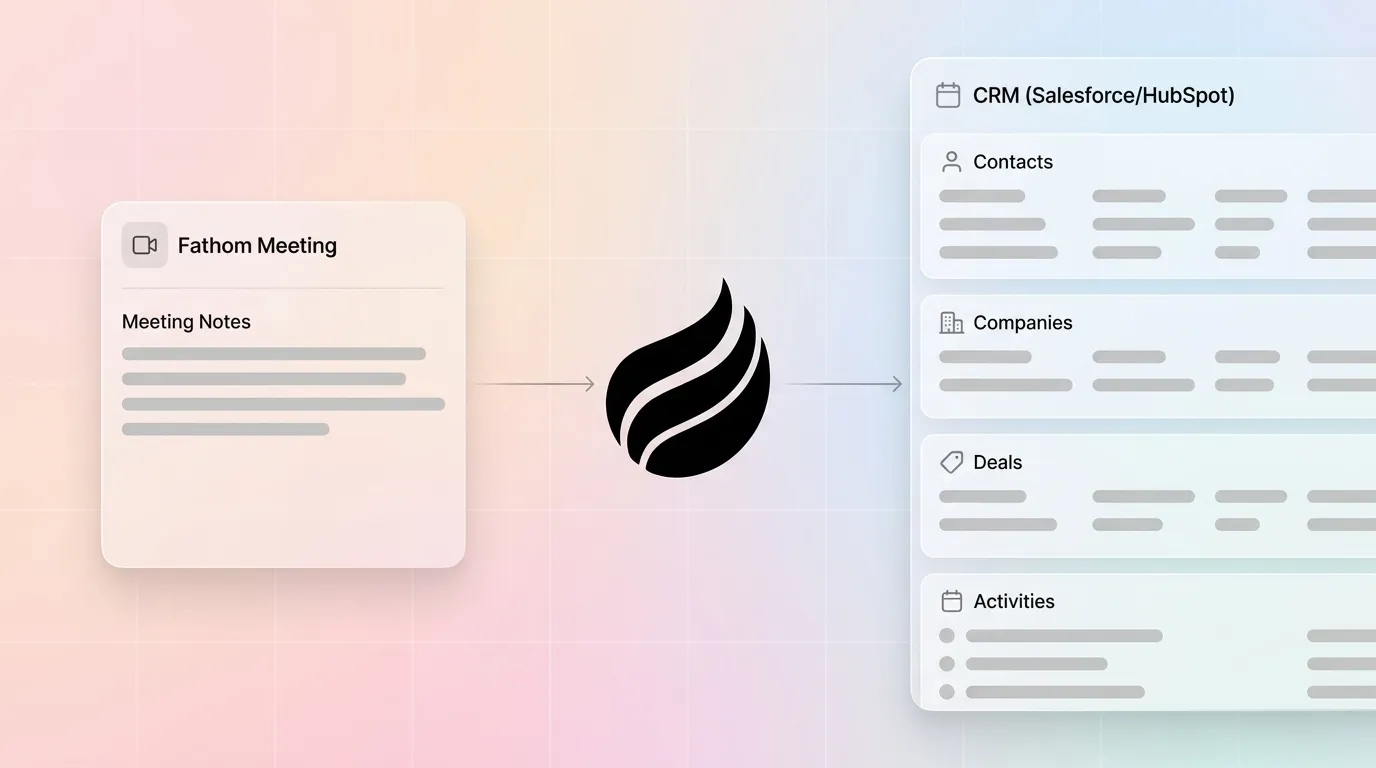
Field mapping ensures Coffee writes data to the right place. Coffee presents a field-mapping interface with four object types: Contact, Company, Deal or Opportunity, and Activity. Map as follows:
- Contact: Attendee name → Contact Name; attendee email → Contact Email; attendee title → Job Title.
- Company: Attendee email domain → Account or Company lookup.
- Deal or Opportunity: Call date → Close Date (as a signal); deal name → Opportunity Name.
- Activity: Full transcript → Activity Body; summary → Activity Description; next steps → Next Step field.
Mismatched email domains: If an attendee’s email domain does not match an existing Account in Salesforce or Company in HubSpot, Coffee flags the record for review instead of creating a duplicate. Resolve this by adding the domain as an alias on the existing Account, then re-sync.
Missing custom fields: If your CRM does not yet have BANT or MEDDIC fields, Coffee prompts you to create them. Use the field templates in the Coffee setup wizard. They match the recommended dropdown and short-text formats for mobile-friendly qualification entry.
Step 4: Turn On Methodology Templates for BANT, MEDDIC, or SPICED
Methodology templates keep qualification data consistent. Navigate to Meeting Intelligence → Methodology. Select BANT, MEDDIC, or SPICED.
Coffee’s agent reads the full Fathom transcript and extracts the relevant signals automatically:
- BANT: Budget (Confirmed / Likely / Unknown), Authority (Decision-maker / Influencer / Unknown), Need (Critical / Nice-to-have / Unclear), Timeline (≤90 days / 3–6 months / >6 months / Unknown).
- MEDDIC: Metrics, Economic Buyer, Decision Criteria, Decision Process, Identify Pain, Champion, each mapped to a dedicated CRM field.
- SPICED: Situation, Pain, Impact, Critical Event, Decision, written as structured short-text fields.
Best-practice governance recommends keeping narrative summaries in notes rather than overwriting core fields, and using draft or review workflows where the agent creates notes for human approval before syncing. Coffee’s methodology templates follow this pattern by default. The agent writes to a staging layer first, and a rep can approve or edit before the record is committed.
Required custom fields: MEDDIC and SPICED require custom fields that do not exist in a default Salesforce or HubSpot instance. Coffee’s setup wizard generates the field API names and data types. Your CRM admin must create them before you enable sync.
Step 5: Enable Real-Time Sync and Run a Test Call
Real-time sync turns the configuration into a working workflow. Toggle Real-Time Sync to ON under Settings → Sync Frequency. Coffee processes each new Fathom recording within minutes of the call ending.
To validate the full pipeline, run a test call in Fathom. A two-minute internal call works well. Then check the corresponding CRM record within five minutes. You are confirming that Coffee ingested the transcript, parsed methodology fields, and wrote cleanly to CRM.
- Activity is logged with the full transcript attached, which proves Coffee ingested the recording.
- Methodology fields are populated with extracted values, which proves the agent parsed the transcript.
- Next steps appear in the designated Next Step field, which proves action-item extraction worked.
- Contact and Company records are matched, not duplicated, which proves the deduplication logic from Step 3 is functioning.
If any field is blank, return to Step 3. Verify that the field mapping is saved and the custom fields exist in the CRM.
How Coffee Compares to Native Fathom Sync and Zapier
The table below compares the three approaches across four dimensions. All data points are cited inline.
| Dimension | Native Fathom Sync | Zapier Templates | Coffee Companion App |
|---|---|---|---|
| Setup Time | Minutes for basic sync on paid plan | Variable, manual effort still required for transcript sharing | Under 30 minutes for full methodology sync |
| Transcript Depth | Summary plus full transcript attached on paid plans | Partial data, templates create notes from AI summaries, not full transcripts | Full transcript ingested and structured, summaries written back to Salesforce or HubSpot |
| Methodology Support | Custom field mapping on Business plan only, no auto-extraction | None, Zapier cannot understand full business context for structured downstream handling | BANT, MEDDIC, SPICED auto-extracted and written to CRM fields by the agent |
| Ongoing Maintenance | Low for basic sync, manual for methodology fields | High, opaque failure diagnosis and no node-level execution visibility for multi-step flows | Agent-managed, no Zap monitoring required |
Validate Coffee’s Impact and Scale Across Teams
After the first week of live sync, run a quick audit in three areas:
- Activity logging: Every Fathom call should appear as a logged activity with a timestamp, attendees, and transcript body.
- Next-step capture: The Next Step field on each Deal or Opportunity should reflect the action item extracted from the call, not be blank.
- Pipeline Compare: Coffee’s Pipeline Compare feature visualizes week-over-week deal movement. With clean methodology data flowing in, stalled opportunities and stage regressions surface automatically, without manual CSV export.
For multi-team scaling, repeat Steps 1 through 5 for each Fathom workspace and assign the corresponding CRM pipeline in the mapping interface. Sales teams often see strong ROI on AI note-taker deployment primarily through automated CRM updates that save reps several hours per week.
Deploy Coffee across your team and roll the agent out to your full sales org in under a day.
Frequently Asked Questions About Coffee Companion App
Who should own the Coffee Companion App setup, RevOps or the sales manager?
RevOps should own the setup because it requires CRM admin permissions for OAuth scopes and custom field creation. The sales manager should help select the methodology template, BANT, MEDDIC, or SPICED, and approve the field mapping, since those decisions affect how qualification data is reported. Once configured, reps interact with Coffee only through their existing CRM, so they do not need to learn a new interface.
Is Coffee Companion App SOC 2 Type 2 and GDPR compliant?
Yes. Coffee is SOC 2 Type 2 certified and GDPR compliant. Call transcript data processed by the agent is not used to train public models. For teams with data residency requirements, confirm your specific region with Coffee’s sales team before deployment, because residency options vary by plan.
What happens if Coffee’s meeting bot misses a call or is not invited?
Coffee ingests recordings directly from Fathom, so the Coffee bot does not need to join the call independently. As long as Fathom records the meeting, Coffee pulls the transcript through the Fathom integration you established in Step 1. If Fathom itself was not present on a call, that recording is not available for sync. The prerequisite is an active Fathom recording, not a Coffee bot invite.
Does Coffee Companion App work if the team grows past 50 reps?
Coffee’s Companion App is designed for 10–50-person teams as its primary use case, but the architecture scales beyond that range. Pricing is seat-based. You pay for human seats and the agent’s labor is included without usage metering. For teams approaching or exceeding 50 reps with complex Salesforce configurations, such as custom forecasting hierarchies or territory management, contact Coffee’s team to confirm compatibility with your specific org structure before you expand.
Can Coffee Companion App sync to both Salesforce and HubSpot simultaneously?
Yes. Coffee supports connecting multiple CRM instances under a single account. Each CRM connection has its own field mapping and methodology configuration. A team running Salesforce for enterprise deals and HubSpot for SMB deals can maintain separate sync rules for each pipeline without cross-contamination.
Conclusion: Turn Fathom Recordings into Clean CRM Data
The workflow in this guide removes the manual step between a Fathom recording and a clean CRM record. AI automation reduces manual data work and frees up selling time. For a 10–50-person sales team, that shift translates directly into more time with customers and more reliable pipeline data for forecasting.
Coffee Companion App acts as the agent that handles the entire post-call workflow. It manages transcript ingestion, methodology extraction, and CRM write-back without Zapier fragility or native sync limitations.
Start your free Coffee trial and have your first Fathom call synced to Salesforce or HubSpot in under 30 minutes.