
Written by: Doug Camplejohn, CEO & Co-Founder, Coffee
Key Takeaways for Your Fathom CRM Setup
- Fathom CRM integration moves AI-generated meeting notes, transcripts, and action items into Salesforce, HubSpot, or Dynamics 365 through a five-step OAuth and field-mapping process.
- Manual syncing creates incomplete CRM histories, weakens forecasting, and wastes selling time, with 71% of reps spending excessive hours on data entry.
- Accurate field mapping, real-time sync settings, and tight permission scoping prevent sync failures and validation-rule rejections across all three CRM platforms.
- Backfilling historical calls and handling ongoing maintenance often requires tools like Zapier or n8n when native connectors are unavailable or too limited.
- For teams seeking a zero-maintenance solution, explore Coffee’s autonomous agent and replace your entire Fathom-to-CRM integration stack with a single click.
Why Manual Syncing Creates Data Debt
Sales reps who copy Fathom notes by hand create three compounding problems: incomplete activity histories, broken forecasting, and wasted selling time. 71% of sales reps report spending too much time on data entry, leaving only 35% of their time for actual selling. Every missed sync creates a gap in the CRM timeline that managers cannot recover, because legacy relational databases overwrite field values rather than preserving history.
Before you begin the integration process, confirm that your environment meets these requirements so the setup runs smoothly from the first attempt.
Prerequisites:
- Fathom account with admin or workspace-owner permissions
- CRM system-admin credentials (Salesforce, HubSpot, or Dynamics 365)
- OAuth redirect URI whitelisted in your CRM’s connected-app settings
- Custom fields pre-created in the CRM for transcript body and action-item arrays
- Middleware credentials (Zapier or n8n) if native connectors are unavailable on your plan
Step 1: Authorize Fathom to Access Your CRM
Start in Fathom’s Integrations settings and select your CRM. Each platform uses a standard OAuth 2.0 handshake.
Salesforce: Click Connect Salesforce, log in as a system admin, and approve the requested scopes: api, refresh_token, and offline_access. Fathom then creates a connected app entry in Salesforce Setup automatically.
HubSpot: Click Connect HubSpot and authorize with a Super Admin account. Required scopes include crm.objects.contacts.write, crm.objects.deals.write, and timeline.
Dynamics 365: Register Fathom as an app in Azure Active Directory, grant Dynamics CRM user_impersonation delegated permission, and paste the Application (client) ID into Fathom’s Dynamics settings.
Troubleshooting: If the OAuth callback returns a 403, confirm the redirect URI https://app.fathom.video/oauth/callback appears under your CRM’s allowed callback URLs. For Dynamics, verify the service account holds the System Customizer security role.
Step 2: Map Fathom Fields to Your CRM
Correct field mapping prevents most sync failures. Use the tables below as a starting point and adjust custom field API names to match your org.
| Fathom Output | Salesforce Field (API Name) | HubSpot Property | Dynamics 365 Field |
|---|---|---|---|
| Meeting Title | Subject (Task) | hs_meeting_title | subject |
| Transcript Body | Description (Task) | hs_meeting_body | description |
| Action Items | Custom: Fathom_Action_Items__c | Custom: fathom_action_items | Custom: fathom_action_items |
| Call Duration (min) | CallDurationInSeconds / 60 | hs_meeting_end_time delta | actualdurationminutes |
| Attendee Emails | WhoId / WhatId lookup | associations.contact | regardingobjectid |
Validation-rule fixes: Salesforce orgs with required fields on the Task object, such as a mandatory Call Outcome picklist, reject Fathom payloads that omit those values. Set a default value on the field or add Fathom’s service-account user to a permission set that bypasses the validation rule. In HubSpot, when the timeline event fails, confirm the App ID in Fathom matches the HubSpot private app token scope exactly.
Step 3: Configure Sync Direction, Timing, and Permissions
Fathom supports one-way sync (Fathom → CRM) for all three platforms. Two-way sync does not exist natively, so use middleware for that scenario. Set sync frequency to real-time with webhooks where available, or every 15 minutes as a fallback polling interval.
Assign the Fathom integration user a dedicated CRM role with write access limited to Activity, Task, and Note objects. Limiting permissions this way reduces audit-log noise and prevents the integration from modifying unrelated CRM data when a field-mapping error slips through.
Troubleshooting: When records appear in the CRM under the integration user rather than the meeting host, enable Run As Meeting Owner in Fathom’s advanced sync settings. Dynamics 365 also requires the impersonation header CallerObjectId to be set to the meeting owner’s Azure AD object ID.
Step 4: Backfill Historical Calls into Your CRM
Fathom retains call recordings and summaries based on your workspace plan, which allows you to backfill past meetings into the CRM.
- Go to Past Meetings in Fathom and filter by date range.
- Select all meetings and choose Push to CRM.
- For bulk exports exceeding 500 records, use Zapier’s Fathom trigger with a Delay step to avoid CRM API rate limits (Salesforce API call limits vary by edition and user licenses, typically starting at 100,000 per day for Enterprise Edition plus additional per license, and HubSpot’s API burst limit is 190 requests per 10 seconds for Professional or Enterprise accounts (increased from 150 in 2024)).
Troubleshooting: Duplicate activity records appear when a backfill runs against meetings already synced. Add a deduplication step in Zapier using the Fathom meeting ID as the unique key, or enable Salesforce’s duplicate-management rules on the Task object before running the bulk push.
Step 5: Test and Validate the Sync
Run a live test meeting with a colleague and confirm that the integration behaves as expected within five minutes of the call ending.
- A new Task or Activity record exists on the correct Contact and Deal or Opportunity.
- The transcript body is populated and not truncated, since Salesforce Long Text Area fields cap at 131,072 characters.
- Action items appear in the custom field, not embedded in the transcript body.
- The activity timestamp matches the meeting start time in the CRM’s local timezone.
- The meeting host is listed as the activity owner, not the integration service account.
Zapier and n8n Workarounds When Native Connectors Fall Short
When native Fathom connectors are unavailable or too limited, middleware fills the gap for teams that still need reliable CRM activity logging.
Fathom’s native connectors require a paid Fathom Teams plan. Teams on the free tier, or those needing Dynamics 365 support beyond basic activity logging, rely on Zapier’s Fathom integration or self-hosted n8n workflows.
Recommended Zapier template: Use Trigger: New Meeting Summary in Fathom → Action: Create or Update Record in Salesforce or HubSpot. Add a Formatter step to split the action-items string into a line-separated list before writing to the CRM custom field.
n8n equivalent: Use the Fathom webhook node, then a Set node to normalize field names, followed by the Salesforce or HubSpot node. n8n imposes no per-task pricing, which keeps costs predictable for high-volume orgs.
Rate-limit guidance: Batch Zapier tasks during off-peak hours when your org runs more than 200 meetings per day. HubSpot’s 190-request-per-10-second burst limit, noted earlier, is the most common bottleneck, so add a Delay by Zapier step of 100ms between records.
The Modern Alternative: Coffee’s Autonomous Agent
If the configuration steps, rate-limit workarounds, and ongoing maintenance described above feel unsustainable at your scale, Coffee offers a different approach.
Every step above requires ongoing configuration, monitoring, and maintenance. Coffee’s autonomous agent removes that overhead entirely. After a single authentication, the Coffee Agent connects to your Google Workspace or Microsoft 365, joins calls automatically, transcribes them, and writes structured summaries, action items, and next steps directly into the correct Salesforce or HubSpot records, with no field-mapping tables to maintain and no middleware to monitor.
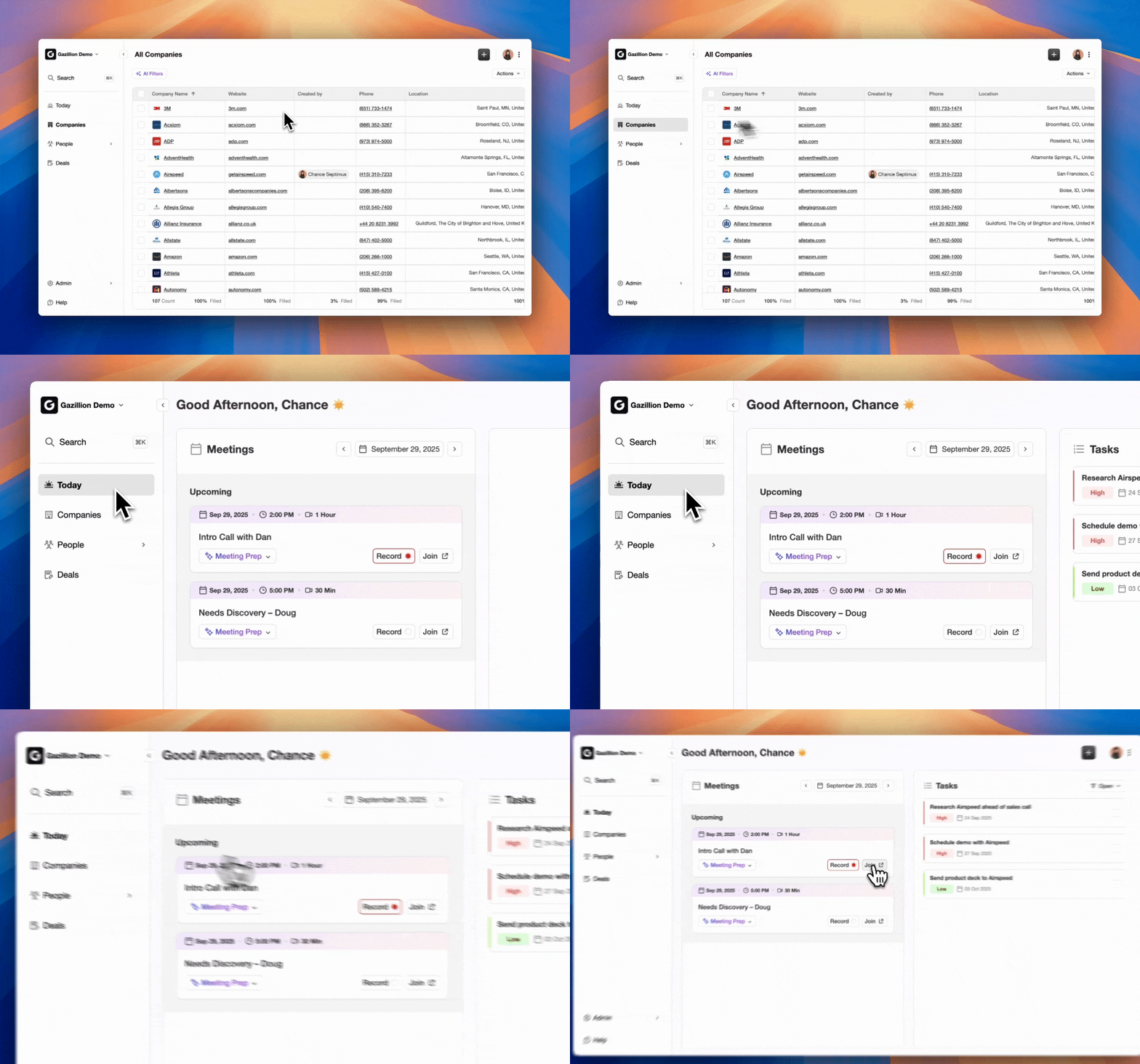
The Coffee Agent structures notes according to BANT, MEDDIC, or SPICED frameworks, which keeps qualification data consistent across every rep. It also tracks pipeline changes week-over-week through its Pipeline Compare feature, replacing manual CSV exports. Because Coffee runs on a data warehouse rather than a flat relational database, historical context never gets overwritten.
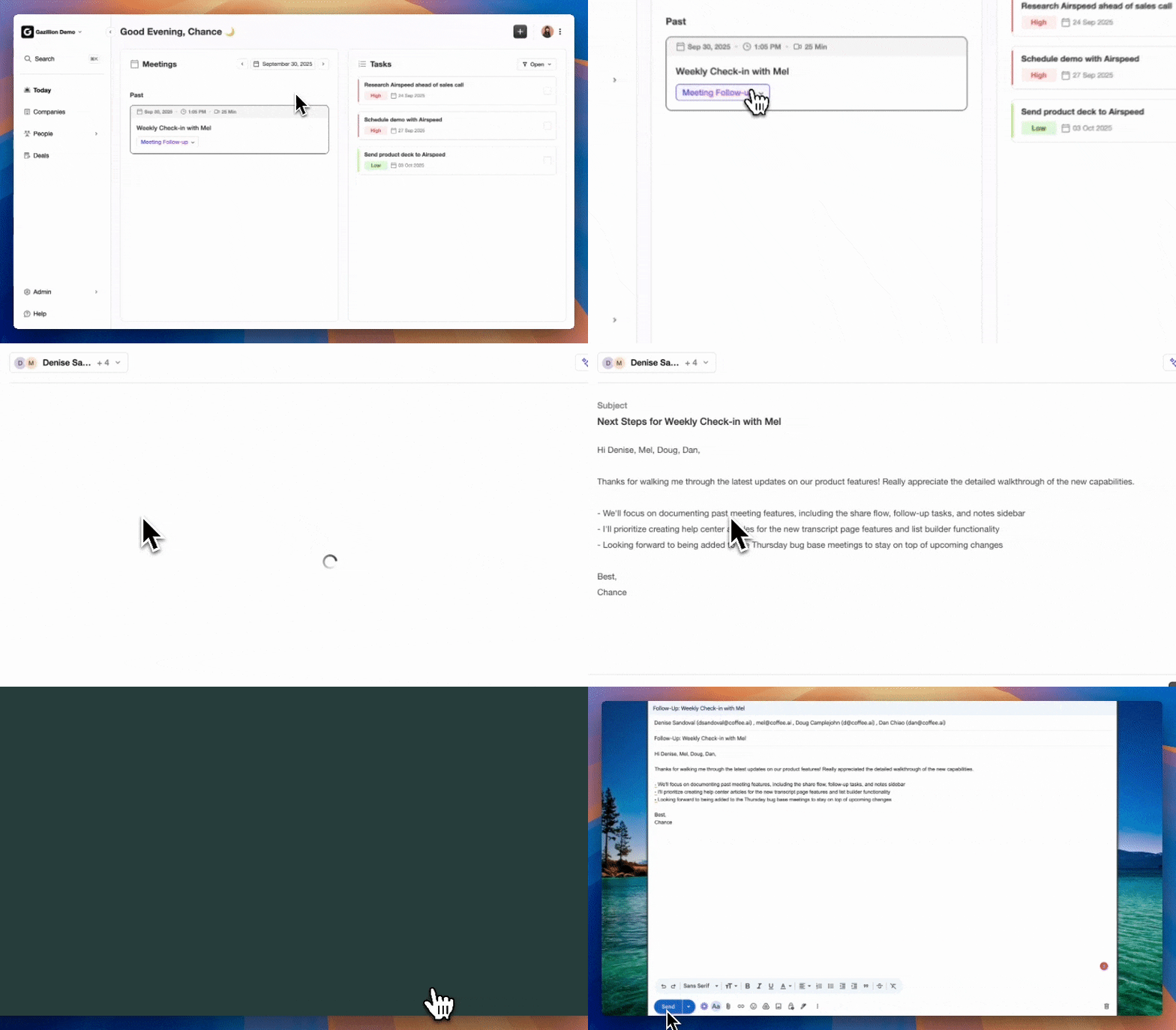
See Coffee’s pricing and replace your entire Fathom-to-CRM integration stack with a single agent.
Legacy Integration vs Coffee Agent Comparison
The comparison below highlights how setup time, ongoing effort, data quality, and cost differ between native connectors, middleware, and Coffee’s autonomous agent.
| Dimension | Native Fathom Connector | Zapier / n8n Middleware | Coffee Companion App |
|---|---|---|---|
| Setup Time | 2–4 hours (OAuth and field mapping) | 4–8 hours (zap build and testing) | Under 15 minutes (single auth) |
| Ongoing Effort | Manual fixes when CRM schema changes | Zap monitoring and error triage | Zero, agent self-maintains |
| Data Quality | Dependent on rep completing Fathom summary | Same as native, adds dedup risk | Agent-enforced, structured by sales methodology |
| Incremental Cost | Fathom Teams plan required | Zapier plan plus Fathom Teams plan | Seat-based, agent labor included |
Post-Setup Validation Checklist and Scaling Notes
- Confirm activity owner matches meeting host across 10 sample records.
- Verify no duplicate Task records exist for the same Fathom meeting ID.
- Check that transcript fields are not truncating at CRM character limits.
- Review CRM API usage logs to confirm you remain below 80% of daily limits.
- For multi-CRM environments, assign separate Fathom workspaces per CRM instance to avoid cross-org data bleed.
As headcount grows past 50 reps, the per-meeting API call volume will approach Salesforce’s daily limits. Staying under those limits requires constant monitoring of batch sizes, retry logic, and error queues, work that quickly expands into a part-time RevOps job. The zero-maintenance architecture of an autonomous agent becomes the only operationally sustainable path.
Frequently Asked Questions
What CRM permissions does the Fathom integration user need?
The integration service account requires write access to Activity, Task, and Note objects at minimum. It does not need access to Opportunity amounts, forecast categories, or user management. In Salesforce, a custom profile with object-level permissions scoped to those three objects is sufficient. In HubSpot, a private app token with CRM write and timeline scopes covers all sync operations. Granting broader permissions increases audit complexity without adding functionality.
How far back can I backfill historical Fathom calls into my CRM?
Fathom retains meeting recordings and summaries based on your workspace subscription tier. Free accounts have limited retention, while Teams accounts retain data for a longer period defined in Fathom’s current plan terms. Before running a bulk backfill, export a CSV of all past meetings from Fathom to confirm which records are available. For CRM platforms, no hard limit exists on how far back an activity record can be dated, so the constraint sits on the Fathom side, not the CRM side.
Is Coffee SOC 2 certified?
Yes. Coffee is SOC 2 Type 2 and GDPR compliant. Data ingested by the Coffee Agent is not used to train public AI models. For teams in regulated industries or those with enterprise security review requirements, Coffee’s compliance documentation is available upon request through the pricing page.
What happens when a new custom field is added to the CRM after the Fathom integration is live?
Native Fathom connectors and Zapier workflows do not automatically detect new CRM fields. A RevOps admin must manually update the field-mapping configuration each time the CRM schema changes. The Coffee Agent handles schema changes autonomously, because it writes to CRM objects through its own managed layer, so new fields are incorporated without requiring human reconfiguration.
Can Fathom sync to Dynamics 365 natively?
As of mid-2026, Fathom’s native connector list does not include a dedicated Dynamics 365 integration. Dynamics 365 sync requires either a custom Azure AD app registration paired with Zapier’s Dynamics 365 connector, or an n8n workflow using the Dynamics 365 REST API. Coffee offers native integrations with Salesforce and HubSpot.
Conclusion: Stop Syncing, Start Selling
A correctly configured Fathom CRM integration removes manual copy-paste and gives RevOps teams a reliable activity history. Every native connector, Zapier workflow, and n8n pipeline still demands ongoing maintenance that compounds as the team scales. The field-mapping tables, validation-rule fixes, and rate-limit workarounds in this guide represent real hours that could be spent on pipeline.
Coffee’s autonomous agent replaces that entire stack. One authentication, zero configuration, and a self-maintaining data layer write structured, methodology-aligned notes into Salesforce or HubSpot on every call automatically. Switch to Coffee and turn your CRM from a maintenance burden into a source of accurate pipeline intelligence.

