Written by: Doug Camplejohn, CEO & Co-Founder, Coffee | Last updated: June 27, 2026
Key Takeaways for Your CRM Agent Rollout
- Connecting an autonomous CRM agent to email, calendars, Slack, and Salesforce or HubSpot removes manual data entry and keeps records current.
- Legacy CRMs depend on reps to input data, which cuts into selling time and creates incomplete forecasts that autonomous agents fix.
- The seven-step workflow covers authentication, field mapping, meeting bots, Companion App deployment, Slack notifications, and Pipeline Compare.
- Teams that reach the 30-day zero-manual-entry benchmark free up 8–12 hours per rep each week for revenue work.
- Ready to automate your CRM workflow? See Coffee pricing and plans today.
Why an Autonomous CRM Agent Matters Now
Legacy CRMs behave like passive containers instead of active systems. Salesforce carries 25 years of architectural debt. HubSpot added a CRM onto a marketing platform instead of building a single intelligence layer from day one. Both tools assume busy sales reps will enter data consistently. They do not. Seventy-one percent of sales reps say they spend too much time on data entry, which leaves only 35% of their time for actual selling. The result is 8–12 hours lost per rep per week to administrative chores.
Fragmented point solutions make this even worse. A typical mid-market stack uses HubSpot for records, ZoomInfo for enrichment, Salesloft for outreach, and Gong for call intelligence. Reps jump between these tools and create shadow CRMs in spreadsheets and Notion where the real pipeline lives. When management pulls a forecast from the official CRM, the data is stale, incomplete, and unreliable. An autonomous CRM agent breaks this cycle by ingesting and structuring data from every source automatically, so the system of record stays current.
To put this solution in place and reach zero manual data entry, you will follow a clear seven-step integration workflow. Before you start, confirm that your environment and stakeholders are ready.
Pre-Integration Readiness Checklist for Coffee
Before beginning the integration, confirm you have admin-level OAuth access to Google Workspace or Microsoft 365. The agent needs this access to read email and calendar data reliably. You also need field-editing permissions in your Salesforce or HubSpot instance so the agent can write data back to your CRM without hitting permission errors.
Verify that your chosen agent is SOC 2 Type 2 and GDPR compliant. Coffee holds both certifications, and customer data is never used to train public models. This protects your customers and reduces security review friction. Finally, align with your Head of Sales and RevOps on which CRM fields are required versus optional in the schema. This alignment prevents field-mapping conflicts and rework during setup.
Start your Coffee trial and complete your readiness checklist in minutes.
Step 1: Select Native Connectors, Middleware, or an Autonomous Agent
Three integration approaches are available. Native connectors such as HubSpot’s Gmail sync capture a narrow slice of activity and require manual configuration for each object type. Middleware platforms like Zapier connect point solutions through trigger-action rules, but every rule needs human maintenance and breaks when an upstream API changes.
An autonomous agent like Coffee authenticates once and then continuously monitors all connected sources. It makes routing and enrichment decisions without human intervention. This agent model removes the manual stitching that makes middleware expensive and fragile at scale.
Step 2: Authenticate the Agent to Email and Calendar Sources
Go to Coffee’s connection settings and start OAuth for Google Workspace or Microsoft 365. Grant the scopes required for read access to email threads and calendar events. Coffee uses these permissions to scan existing and incoming messages, auto-create contact and company records, and log last-activity and next-activity timestamps on every deal.
After authentication, confirm that the agent shows a populated “Today” page within 24 hours. This confirms that historical data ingestion is active. If timestamps are still missing after 24 hours, recheck that calendar read scope was granted at the organizational level, not just the individual account level.
Step 3: Turn On the Meeting Bot for Zoom, Teams, or Meet
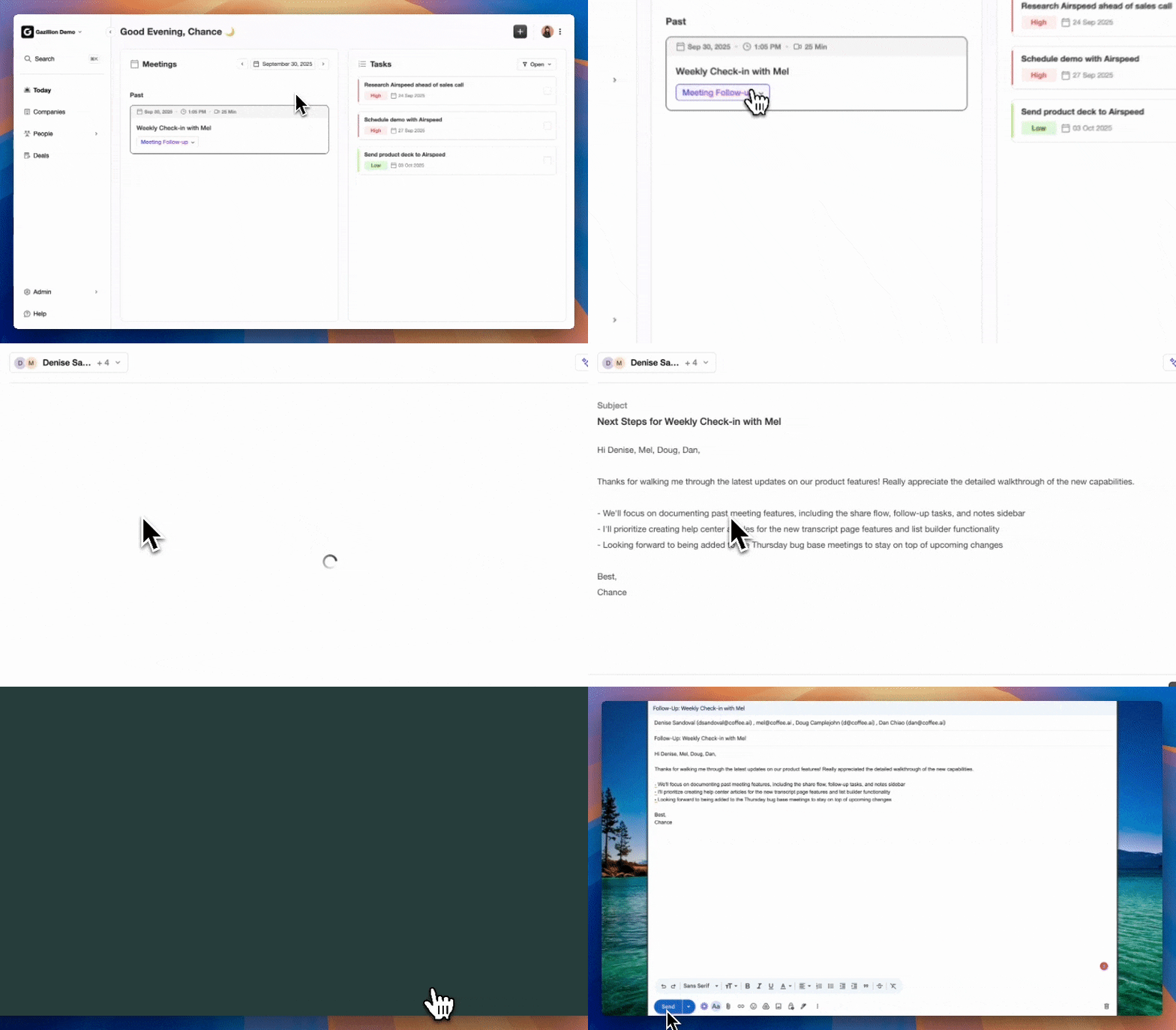
In Coffee’s meeting settings, enable the AI meeting bot for Zoom, Microsoft Teams, or Google Meet. The bot uses the calendar read access from Step 2 to detect upcoming meetings and join automatically. After each call, the bot generates a full transcript, an AI-written summary, clear next steps, and a draft follow-up email in Gmail for the rep to review and send.
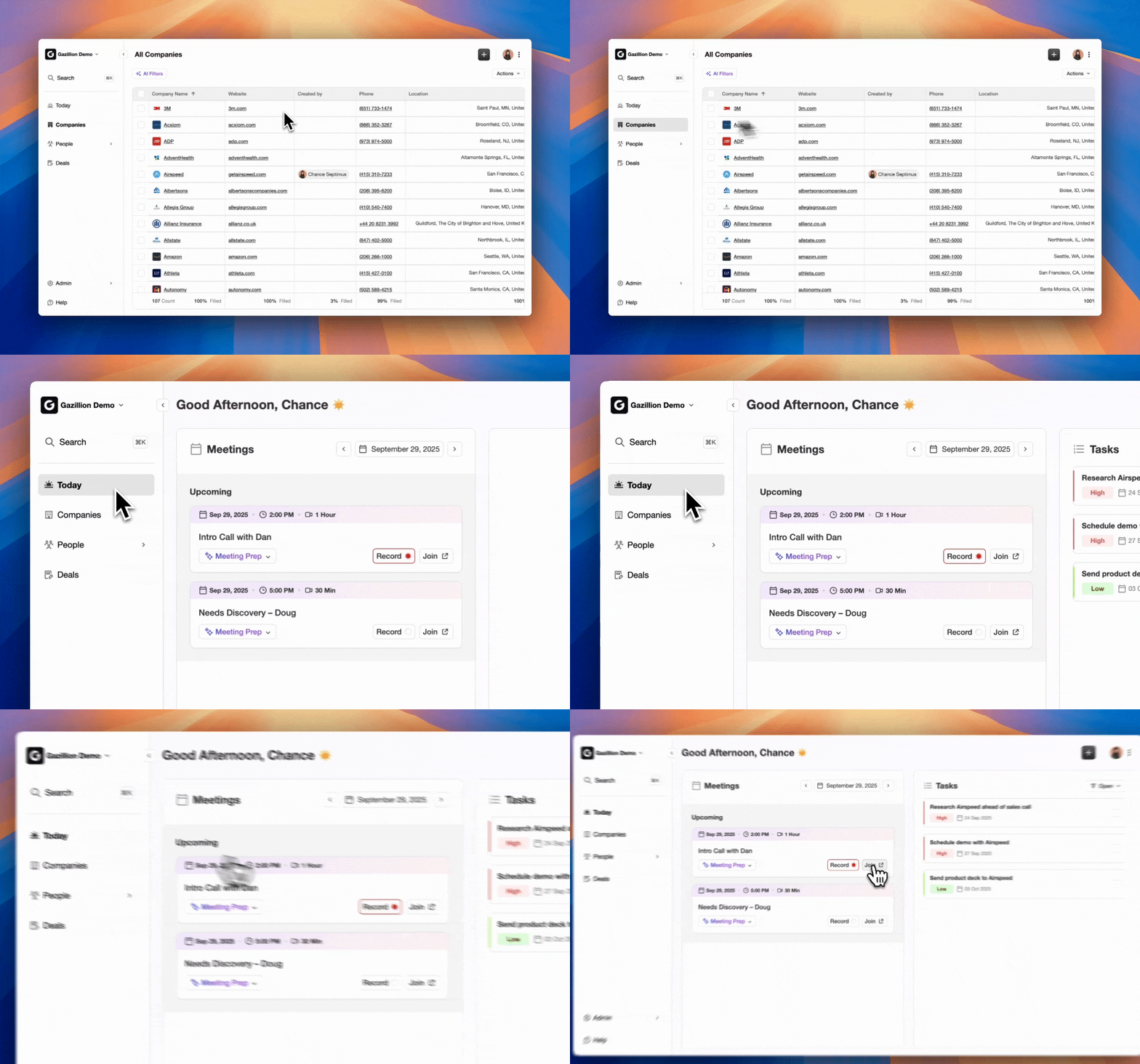
The agent writes all of this back to the associated CRM record without manual input. Confirm that bot permissions include recording consent notifications where local law requires them. Complete this review before enabling the bot in regulated regions.
Step 4: Map CRM Fields and Configure Enrichment
Open Coffee’s field-mapping interface and mark core fields as mandatory. These fields typically include contact name, company, title, email, last activity date, and deal stage. Optional fields such as LinkedIn URL, funding round, and employee count are populated automatically by Coffee’s licensed enrichment partners. This setup removes the need for a separate ZoomInfo or Apollo subscription.
Enable duplicate-contact prevention at this stage. Coffee’s agent checks for existing records before creating new ones and merges records when it finds a match above a configurable confidence threshold. Teams that skip duplicate prevention often end up with bloated CRM records in agent deployments.
Step 5: Configure the Coffee Companion App in Salesforce or HubSpot
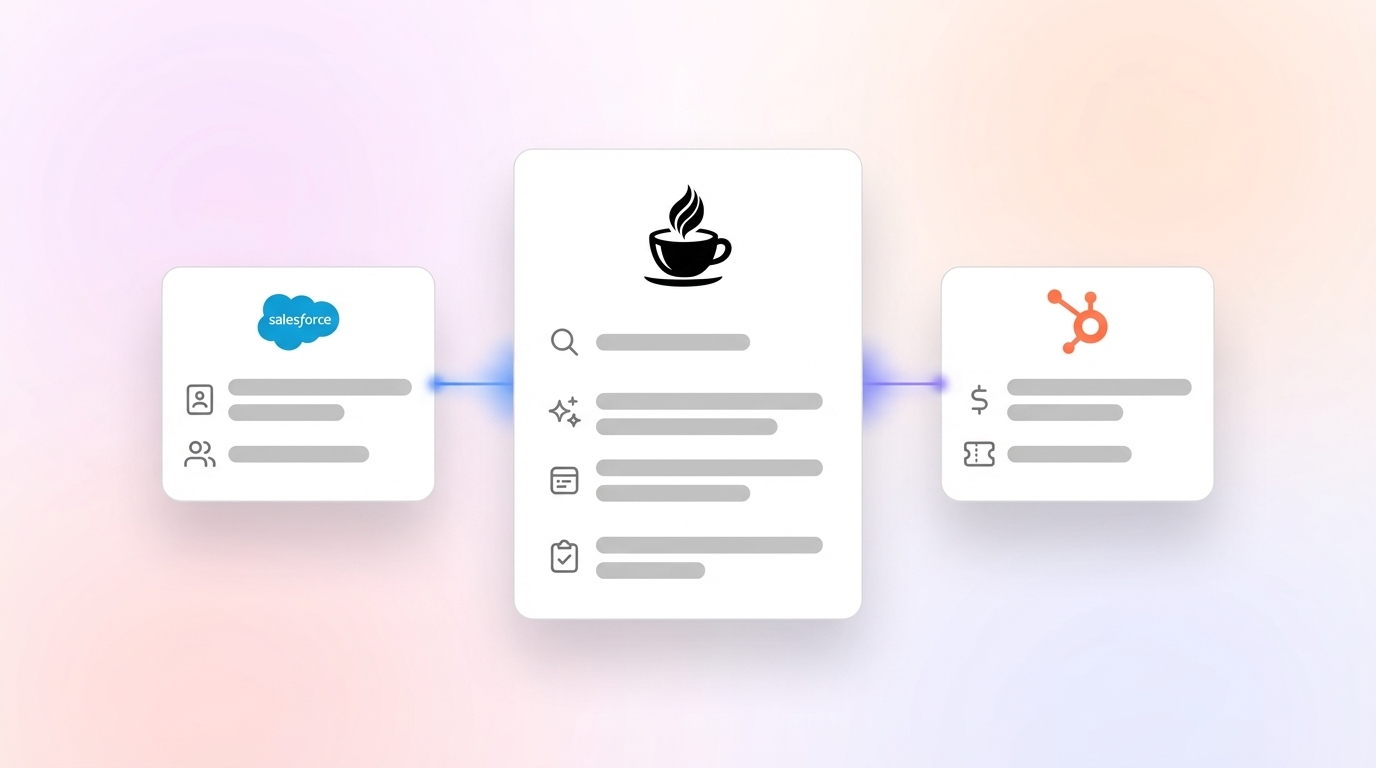
Mid-market teams on Salesforce or HubSpot use Coffee as a Companion App instead of replacing the system of record. Install the Coffee package from the relevant marketplace. Then authorize write-back permissions so the agent can create contacts, log activities, update deal stages, and generate follow-up tasks directly inside Salesforce or HubSpot.
Coffee understands Salesforce objects in depth, including quotas, forecasting fields, and required field validation rules. This knowledge keeps write-backs aligned with your existing schema and prevents sync errors. Newer agent tools without this depth often fail here when required fields are missing from the payload.
Ready to eliminate manual data entry from your Salesforce or HubSpot instance? Connect Coffee to your CRM today.
Step 6: Set Up Slack Alerts and Suggested Leads from Web Traffic
Place Coffee’s tracking pixel into the <head> tag of your company website. Coffee verifies installation and starts identifying anonymous visitors by name, title, email, LinkedIn profile, company, pages visited, time on site, and visit frequency. When a visitor matches your configured buyer persona, a real-time Slack notification appears in the designated channel.

Standalone visitor identification tools often show only a company name or a long list of employees. Coffee’s Suggested Leads feature instead recommends the two or three specific people inside the visiting company who match the buyer persona. Their LinkedIn profiles are pre-loaded for immediate outreach. With one click, you can add the prospect to Coffee with all enrichment pre-filled.

Step 7: Use Pipeline Compare for Week-over-Week Visibility
Coffee stores all captured data in a built-in data warehouse with full historical context. As soon as the Companion App layer is live, Pipeline Compare becomes available. Open the Pipeline Compare view to see week-over-week changes, including progressed deals, stalled opportunities, newly added pipeline, and deals that have gone dark.
This view replaces manual CSV exports and spreadsheet pivot tables that consume RevOps time before every forecast call. Pipeline reviews shift from data-reconciliation sessions to strategic discussions because the agent has already handled the reconciliation work.
Validate Success with a 30-Day Zero-Manual-Entry Check
At the 30-day mark, measure three signals. First, confirm zero manual activity logs. Every email, call, and meeting should appear in the CRM without a rep touching a field. Second, check for a 95% or higher enrichment match rate on new contacts created by the agent.
Third, confirm that Pipeline Compare has fully replaced the weekly CSV review. If RevOps still exports spreadsheets, a write-back permission or field-mapping gap likely exists and needs attention. Teams that hit all three signals have removed humans from the data-entry loop and can redirect those recovered hours toward selling activity.
Choose Between Standalone and Companion-App Deployments
Companies with 1–20 employees that have outgrown spreadsheets but find legacy CRMs too heavy can use Coffee’s Standalone CRM. In this model, the agent becomes the full system of record. Setup moves faster because there is no existing CRM schema to map.
Mid-market teams that rely on Salesforce or HubSpot should use the Companion App deployment described in this guide. In that model, the agent feeds the existing system instead of replacing it. Both deployment options support BANT, MEDDIC, and SPICED qualification frameworks. The meeting bot structures its notes according to whichever methodology you configure.
Teams that need custom data pipelines can access Coffee via API. This access allows scripted briefings or routing of enriched records into downstream tools.
Frequently Asked Questions
How long does full CRM agent integration typically take?
Most teams complete authentication, field mapping, meeting bot enablement, and Companion App installation within a single business day. The Slack pixel and Pipeline Compare activation add at most another hour. Historical data ingestion from email and calendar runs in the background and usually finishes within 24 hours of OAuth authorization. The 30-day benchmark period serves as a validation window to confirm that zero manual entry holds across the full team.
What security certifications does the Coffee agent hold?
Coffee is SOC 2 Type 2 certified and GDPR compliant. Customer data is not used to train public AI models. Teams in heavily regulated industries that require multi-year security reviews or custom data processing agreements beyond these certifications should consider other options, because those procurement cycles fall outside Coffee’s current enterprise offering.
How does an autonomous agent differ from Zapier-style middleware?
Middleware platforms run on explicit trigger-action rules that a human must define, maintain, and repair when upstream APIs change. An autonomous agent like Coffee makes continuous, context-aware decisions across all connected sources without rule-by-rule configuration. The agent understands that an email thread, a calendar event, and a Zoom transcript all relate to the same deal record. It then writes structured data back to the CRM accordingly. A Zapier workflow cannot match this behavior without extensive custom logic that tends to break at scale.
How does pricing work as the team scales from founder-led to 50+ reps?
Coffee uses seat-based pricing. Each human seat is billed, and the agent’s work such as data entry, enrichment, meeting transcription, and pipeline tracking is included. There is no metering on AI usage or process volume. As the team grows from a founder and two reps to a 50-person sales organization, the cost scales linearly with headcount instead of spiking based on contacts enriched or meetings transcribed.
Conclusion: Put an End to Manual CRM Data Entry
Manual CRM data entry reflects an architecture problem, not a discipline problem. Legacy systems were built before autonomous agents existed, so they lack a way to ingest unstructured data from emails, transcripts, and calendars without human help. Coffee starts from a different premise: the agent handles the work, and the humans focus on selling.
By following the seven-step integration workflow, Heads of Sales and RevOps can connect Coffee to every interaction channel their team uses. They can reach a state where the CRM stays current, enrichment runs automatically, and Pipeline Compare replaces every manual forecast export. No additional headcount is required.
Deploy Coffee for your team and end manual data entry permanently.