Written by: Doug Camplejohn, CEO & Co-Founder, Coffee
What You Will Get from This Guide
- Manual contact creation from emails burns selling time. Seventy‑one percent of reps report heavy data entry, which leaves only 35% of their day for actual sales work.
- Platform tools like Power Automate for Outlook and third-party connectors for Gmail can auto-create contacts, yet they still need setup, maintenance, and manual duplicate checks.
- Bulk CSV imports and mobile shortcuts help with one-time uploads or light usage, but they do not provide continuous automation or deep enrichment.
- AI agent automation, such as Coffee’s continuous background scanning, removes manual effort by parsing emails, enriching records, and syncing directly to CRMs like Salesforce or HubSpot.
- Teams that want to remove repetitive data entry can start a Coffee trial and let an AI agent handle contact creation automatically.
Automating Outlook Contact Creation with Power Automate
Microsoft 365 users can set up Power Automate flows that turn Outlook emails into People contacts with minimal ongoing effort.
- Open Power Automate at flow.microsoft.com and sign in with your Microsoft 365 account.
- Select Create, then choose Automated cloud flow.
- Set the trigger to When a new email arrives (V3) in the Outlook connector.
- Add a condition step to filter by folder, domain, or subject line. Without this filter, the flow captures every inbound email, including internal messages and promotional mail, which creates irrelevant contact records. Filtering keeps the automation focused on external business contacts.
- Add an action, Create contact (V2), in the Microsoft 365 People connector. Map From Name to the Display Name field and From Address to the Email field.
- Add an optional Check if contact exists condition before the create step to suppress duplicates.
- Save and test the flow with a known external sender to confirm correct behavior.
Callout — Duplicate Risk: Power Automate does not deduplicate natively. Without a pre-check condition, every inbound email from the same sender creates a new People record. Build the existence check into step 6 or use a third-party deduplication connector.
Automating Gmail Contact Creation with Connectors
Gmail still lacks a native auto-save-contact feature in 2026, so automation relies on add-ons or workflow tools.
- Install ContactsFlow (formerly Shared Contacts for Gmail) from the Google Workspace Marketplace. Its AI Auto-Updater scans incoming emails for names, emails, phone numbers, and job titles from signatures or message bodies, then creates or updates contacts directly inside Gmail.
- Alternatively, connect Gmail to a workflow tool such as Zapier or Make and set the trigger to New Email Matching Search.
- Define a search filter, for example
-from:me -category:promotions, so the trigger focuses on external business mail. - Map the From Name and From Email fields to a Google Contacts Create Contact action.
- Add a duplicate-check step using the Google Contacts Search Contacts action before the create action.
- Enable the flow and monitor the first 48 hours for false positives and unexpected matches.
Callout — Missing Enrichment Fields: Rules-based Gmail automation captures name and email address. It does not capture job title, company, LinkedIn profile, or phone number unless those fields appear in a parsed email signature. Records created this way remain incomplete for CRM use without a separate enrichment step.
Bulk Importing Email Contacts into Your CRM
Bulk import works best for migrations and large existing sender lists where per-email automation would move too slowly.
- Export your existing email contacts from Outlook (File → Open & Export → Import/Export → Export to a File → Comma Separated Values) or Gmail (Google Contacts → Export → Google CSV or Outlook CSV).
- Open the CSV in a spreadsheet tool. Remove duplicates using a deduplication formula or tool. Standardize column headers to match your CRM’s import template, such as First Name, Last Name, Email, Company, and Phone.
- Validate email format, which must contain an @ and a domain, phone format, and completeness of required fields before import. Poor data quality costs organizations an average of $12.9 million annually, with a primary cause being the lack of proper validation during automated data entry.
- Import the cleaned CSV into your CRM using its native import wizard. Map each column to the corresponding CRM field.
- Run a post-import duplicate report inside the CRM and merge or delete redundant records.
Callout — Privacy Considerations: Bulk importing contacts harvested from email threads may include individuals who have not consented to CRM storage. Poor contact data quality from automated email parsing creates compliance risks under GDPR and CCPA when inaccurate or incomplete personal information is stored in the CRM. Review your legal basis for processing before bulk import.
Saving Email Contacts on iPhone and Android
iOS (iPhone/iPad):
- Open the Mail app and tap an email from the sender you want to save.
- Tap the sender’s name at the top of the message, then tap Create New Contact or Add to Existing Contact.
- For light automation, use the Shortcuts app. Create a shortcut with the action Get Details of Email Message followed by Create Contact, then trigger it manually or via a focus filter.
- Apple Contacts syncs contacts across iPhone, iPad, and Mac via iCloud and integrates with Mail, Messages, FaceTime, and Siri for voice-driven updates.
Android:
- Open Gmail on Android, tap the sender’s profile icon, then tap Add to Contacts.
- For automation, use a tool like Tasker or the Gmail plus Google Contacts integration through Zapier’s mobile-triggered flows.
- Google Contacts syncs automatically with Gmail, Google Calendar, Google Meet, and Google Chat, providing consistent contact access across the Google Workspace ecosystem on both Android and iOS.
Mobile-native methods work well for low-volume, ad hoc contact saving. They do not enrich records or sync to CRM without extra configuration.
Each of these approaches, including platform-native automation, third-party connectors, bulk imports, and mobile shortcuts, shares a common limitation. They all require humans to configure, maintain, or trigger the workflow on an ongoing basis. The next section shows how an AI agent removes that ongoing effort.
How Coffee’s AI Agent Handles Contacts from Email
Every method above needs a person to build rules, watch for errors, or press a button. Coffee’s agent runs continuously in the background and needs no per-email action from the user.
The Coffee agent workflow for contact creation from email follows a simple sequence.
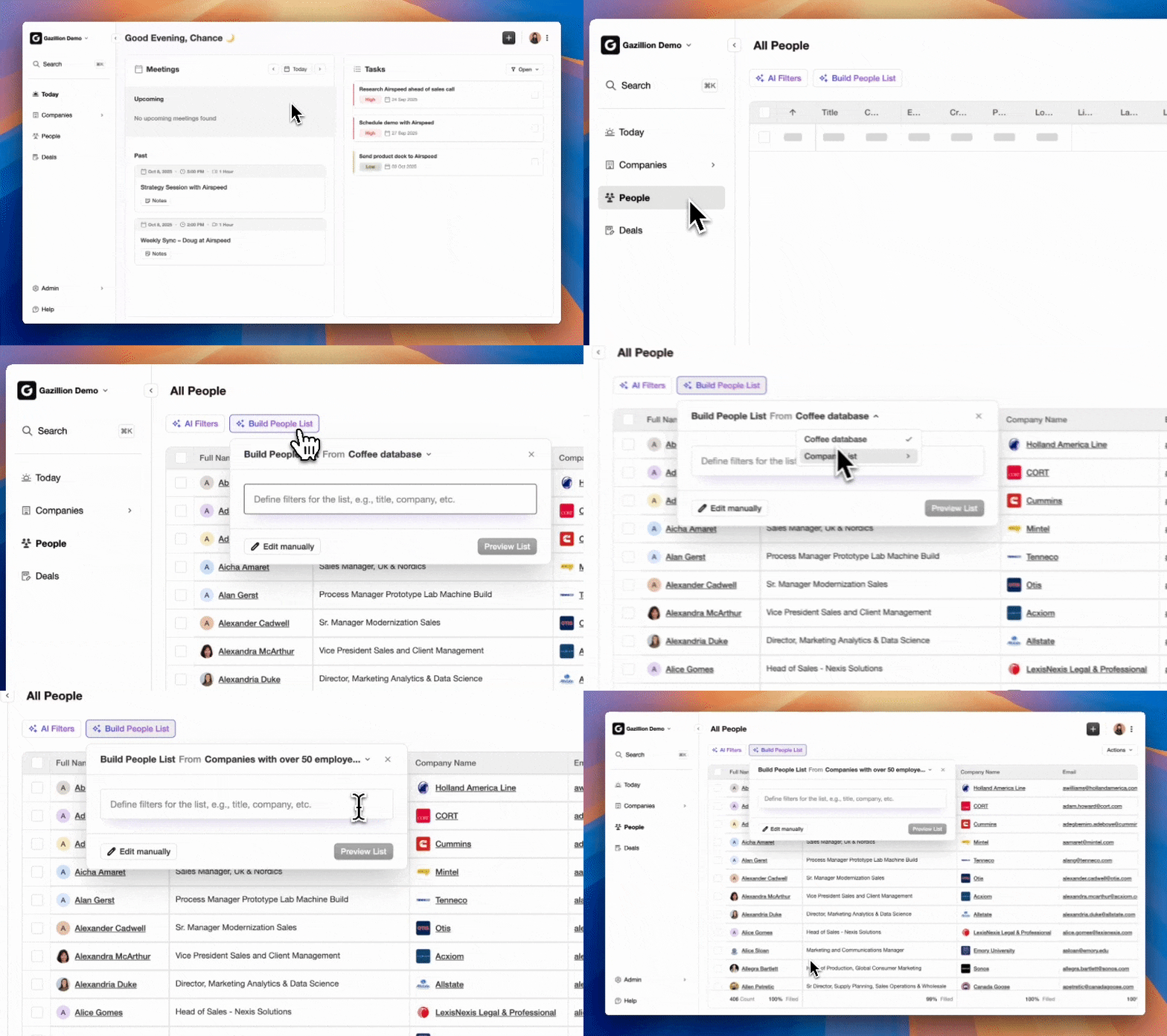
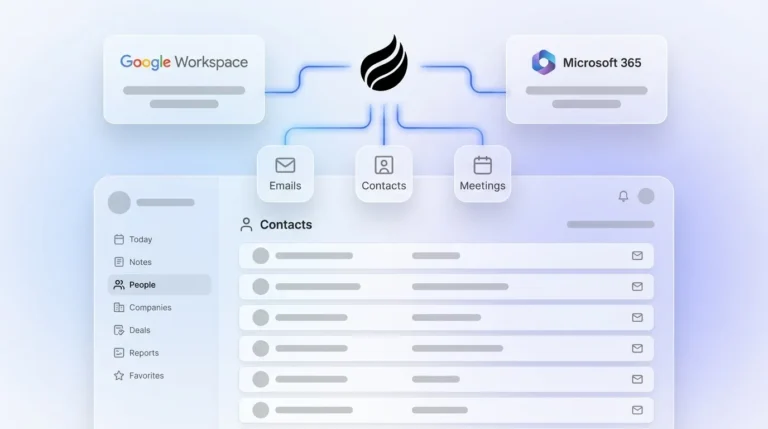
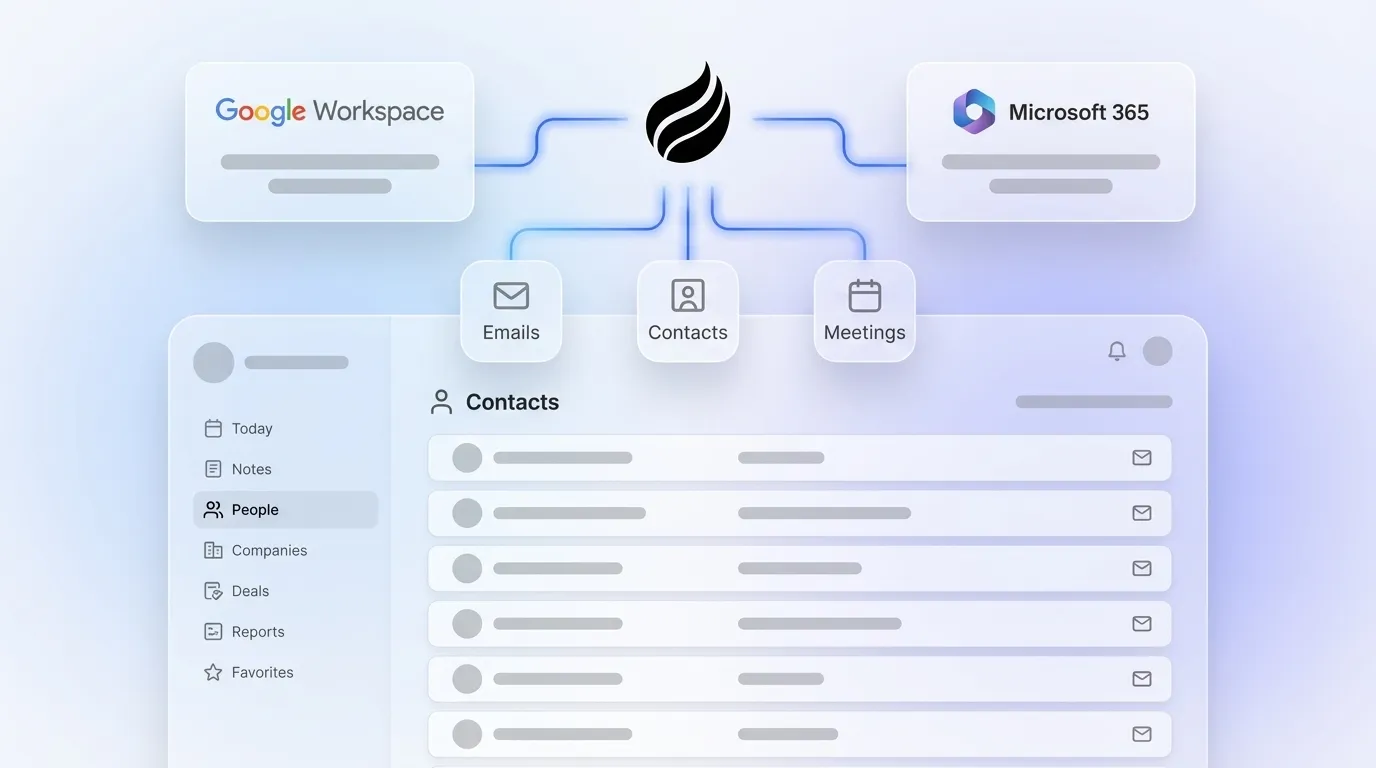
- Connect your inbox. Authenticate Google Workspace or Microsoft 365. Coffee begins scanning immediately after a single OAuth connection, with no flow builder, CSV, or Shortcuts app required.
- Parse sender and body. The agent reads email headers, including From name, From address, and Reply-To, and parses email body text and signatures to extract phone numbers, job titles, and company names that rules-based tools often miss.
- Enrich each record. The agent augments parsed contacts with role and company context, including job title, company funding data, and LinkedIn profile information from licensed data partners.
- Write back to your CRM. For teams using Coffee’s Standalone CRM, contacts are written directly into the Coffee system of record. For Salesforce or HubSpot users, Coffee’s Companion App authenticates to the existing instance and writes enriched contacts back without a separate import wizard.
- Log activity automatically. Every email interaction is logged against the contact record, which keeps last-activity and next-activity fields current without rep input.
The result is a CRM that stays populated and accurate without anyone acting as a data entry clerk. Automated lead routing shortens the time from lead capture to first sales touch compared with manual handoffs, and Coffee’s agent applies the same principle to contact creation itself.
The table below compares the four approaches covered in this article across time savings, data quality, and CRM integration. Only the agent-based approach delivers continuous enrichment and write-back without ongoing human effort.
Manual vs. Agent Automation Comparison
| Approach | Time Saved per Week | Data Accuracy | CRM Sync |
|---|---|---|---|
| Fully manual (copy-paste) | 0 hours, baseline | Human-error rate applies; see data quality impact noted in bulk import section | Manual import required |
| Rules-based (Power Automate / Zapier) | Partial, setup and maintenance time offsets gains | Name and email only, no enrichment, duplicate risk without pre-check logic | Requires field mapping per CRM, no automatic enrichment write-back |
| Bulk CSV import | One-time effort, does not handle ongoing inbound email | Dependent on export quality, requires manual deduplication and format validation | One-time sync, not continuous |
| Coffee AI Agent | Several hours per week saved on repetitive tasks, Coffee’s agent targets 8–12 hours per week across all data entry | Enriched with role and company data from licensed partners, with continuous deduplication | Continuous write-back to Coffee CRM, Salesforce, or HubSpot via Companion App |
Start your free Coffee trial and move from the manual row to the agent row in a single authentication step.
Post-Setup Validation Checklist for Any Workflow
Every automated contact creation workflow benefits from a short validation pass after launch to confirm accuracy and adoption.
- Format validation: Confirm email addresses contain an @ symbol and domain, phone numbers contain the correct digit count, and dates follow a consistent format.
- Completeness check: Track null rates and missing attributes so required contact fields do not reach the CRM partially populated.
- Uniqueness check: Detect and remove duplicate contact records using primary key constraints or deduplication logic when multiple email sources feed the same CRM.
- Consistency check: Verify that company name, domain, and contact email domain align across fields.
- Adoption metrics: Measure the percentage of new contacts created by the automation versus manually by reps. A high manual rate signals that the automation is not triggering correctly.
- Time-savings verification: Compare rep-reported admin hours before and after deployment at the 30-day and 90-day marks. SDRs burn 20–40% of their time on manual data research and bad data, and that figure should decline after a working automation is in place.
- Compliance audit: Confirm that contacts stored in the CRM have a documented legal basis for processing under GDPR or CCPA, especially for contacts parsed from bulk email exports.
Coffee’s agent runs format, completeness, and deduplication checks automatically at ingestion, which removes most of this checklist from the human workload. Try Coffee free for 14 days to see the agent’s data quality layer in action.
Frequently Asked Questions
How long does it take to set up automated contact creation from email?
Setup time depends on the method. A Power Automate or Zapier rules-based flow typically takes 30–90 minutes to configure, test, and validate, plus ongoing maintenance when email formats or CRM field mappings change. A bulk CSV import can finish in under an hour for a clean dataset, but it remains a one-time action rather than a continuous workflow. Coffee’s agent needs a single OAuth authentication to Google Workspace or Microsoft 365, with no flow builder, field mapping, or CSV preparation. The agent begins scanning and creating contacts immediately after connection, and enrichment runs in the background from day one.
Is it secure to connect my email inbox to an automation tool or AI agent?
Security posture varies by tool. For any automation that accesses email, verify that the provider holds current SOC 2 Type 2 certification, is GDPR compliant, and clearly states that inbox data is not used to train public AI models. Coffee is SOC 2 Type 2 and GDPR compliant, and customer data never trains shared models. When you evaluate rules-based tools like Power Automate or Zapier, review the data residency terms and confirm that email content processed by the flow does not persist in third-party logs beyond the transaction. Teams in regulated industries should consult legal counsel before connecting any inbox to an external automation platform.
Can automated contact creation scale as my team grows?
Rules-based automation scales in volume but not in intelligence. A Power Automate flow that processes 10 emails per day behaves the same at 10,000 emails per day, still capturing only name and email address and still requiring human review for duplicates and enrichment gaps. Agent-based automation scales in both volume and quality. Coffee’s agent handles increasing email volume without extra configuration, enriches new contacts with job title, company, and LinkedIn data, and writes records back to Salesforce or HubSpot via the Companion App as team size grows. Coffee uses seat-based pricing, so the agent’s labor is included regardless of how many contacts it creates, with no metering on processing volume.
What happens to contacts that are already in my CRM when I connect Coffee?
Coffee’s agent does not overwrite existing CRM records on connection. For Salesforce and HubSpot users, the Companion App authenticates to the existing instance and begins enriching and updating records going forward. New contacts identified from email are created as net-new records with enrichment pre-filled. Existing records are augmented as new email interactions occur, which keeps last-activity and next-activity fields current. For teams migrating to Coffee’s Standalone CRM, existing contacts can be imported via CSV before the agent takes over ongoing maintenance.
Does Coffee work if my team uses both Gmail and Outlook?
Coffee supports mixed environments that include Google Workspace and Microsoft 365. Teams where, for example, a founder uses Gmail and a sales team uses Outlook can authenticate both inbox types to the same Coffee instance. The agent scans both inboxes, deduplicates contacts across sources, and writes unified records to a single CRM. Rules-based automation often struggles here, because separate flows must be built and maintained for each email platform, and duplicate contacts from cross-platform senders remain a persistent problem.