Written by: Doug Camplejohn, CEO & Co-Founder, Coffee | Last updated: July 5, 2026
Key Takeaways
- Coffee Companion Agent turns Zoom, Teams, or Meet calls into HubSpot activities, custom-field updates, and follow-up tasks without manual logging.
- HubSpot Sales Hub Professional or Enterprise, assigned Sales seats, and enabled Call Recording, Transcription, and AI settings must be in place before rollout.
- The seven-step setup covers tier confirmation, OAuth authentication, calendar sync, BANT/MEDDIC/SPICED mapping, workflow triggers, human approvals, and live-call testing.
- Post-call workflows can update deal stage or probability and create tasks when Coffee-written properties change, while an approval gate protects forecast accuracy.
- Get started with Coffee to remove manual note-taking and capture reliable HubSpot data from every sales call.
HubSpot tiers and prerequisites for Coffee Companion
HubSpot Meeting Notetaker is available on Sales Hub Professional or Enterprise, and an assigned Sales seat is required to use Notetaker, or an assigned Service seat if opted into the Meeting Notetaker with Smart Deal Progression beta. Admins must enable the feature at the account level. The Smart Deal Progression beta is available on Sales Hub Professional, Sales Hub Enterprise, Service Hub Professional, and Service Hub Enterprise.
Before deploying Coffee Companion, confirm the following readiness checklist. Start with your HubSpot subscription and user access, then verify the technical pieces that let the bot join and process meetings:
- Sales Hub Professional or Enterprise subscription is active for your portal.
- Each rep in scope has an assigned Sales seat so Notetaker and Companion can run.
- Admin has enabled Call Recording, Transcription and Analysis, and generative AI settings in Settings.
- Google Workspace or Microsoft 365 calendar is connected so Coffee can detect scheduled meetings.
- Video licenses for Zoom, Teams, or Meet are provisioned so the bot can join calls.
- Coffee seats are provisioned for every rep in scope so coverage matches your team.
HubSpot allows up to 1,000 custom properties per object on Professional and Enterprise plans. Custom objects require an Enterprise subscription. Property types such as text, number, dropdown, or date are permanent and cannot be changed after creation, so plan your field schema before mapping. Smart Deal Progression beta is available on Sales Hub Professional, Sales Hub Enterprise, Service Hub Professional, and Service Hub Enterprise.
Install Coffee Companion and authenticate HubSpot
Step 1: Confirm HubSpot tier and prepare objects and properties. In HubSpot Settings, verify your Sales Hub edition, confirm Call Recording and Transcription and Analysis are enabled, and audit existing custom properties against your BANT, MEDDIC, or SPICED field schema. Edit property settings permissions are required to create or edit properties, so confirm your admin role before you continue. Create any missing custom text or dropdown fields now, ensuring each matches the data type required by your qualification framework (the property type warning from the prerequisites section applies here). Once your field schema is finalized, you are ready to connect Coffee to HubSpot.
Step 2: Install Coffee Companion and authenticate HubSpot. Navigate to coffee.ai, select the Companion App for HubSpot, and complete the OAuth authentication flow. Coffee requests read and write access to Contacts, Companies, Deals, Engagements, Tasks, and your target custom properties. Confirm that field-level permissions are granted for every property Coffee will write to. The output of this step is a verified connection shown in the Coffee dashboard with a green HubSpot sync indicator.
Connect calendars and enable the AI meeting bot
Step 3: Connect Google or Microsoft calendars and turn on the Companion bot. In the Coffee Companion settings panel, connect your Google Workspace or Microsoft 365 calendar using the same account tied to your HubSpot user. Then toggle the AI meeting bot on for Zoom, Teams, and Meet so it can join scheduled calls.
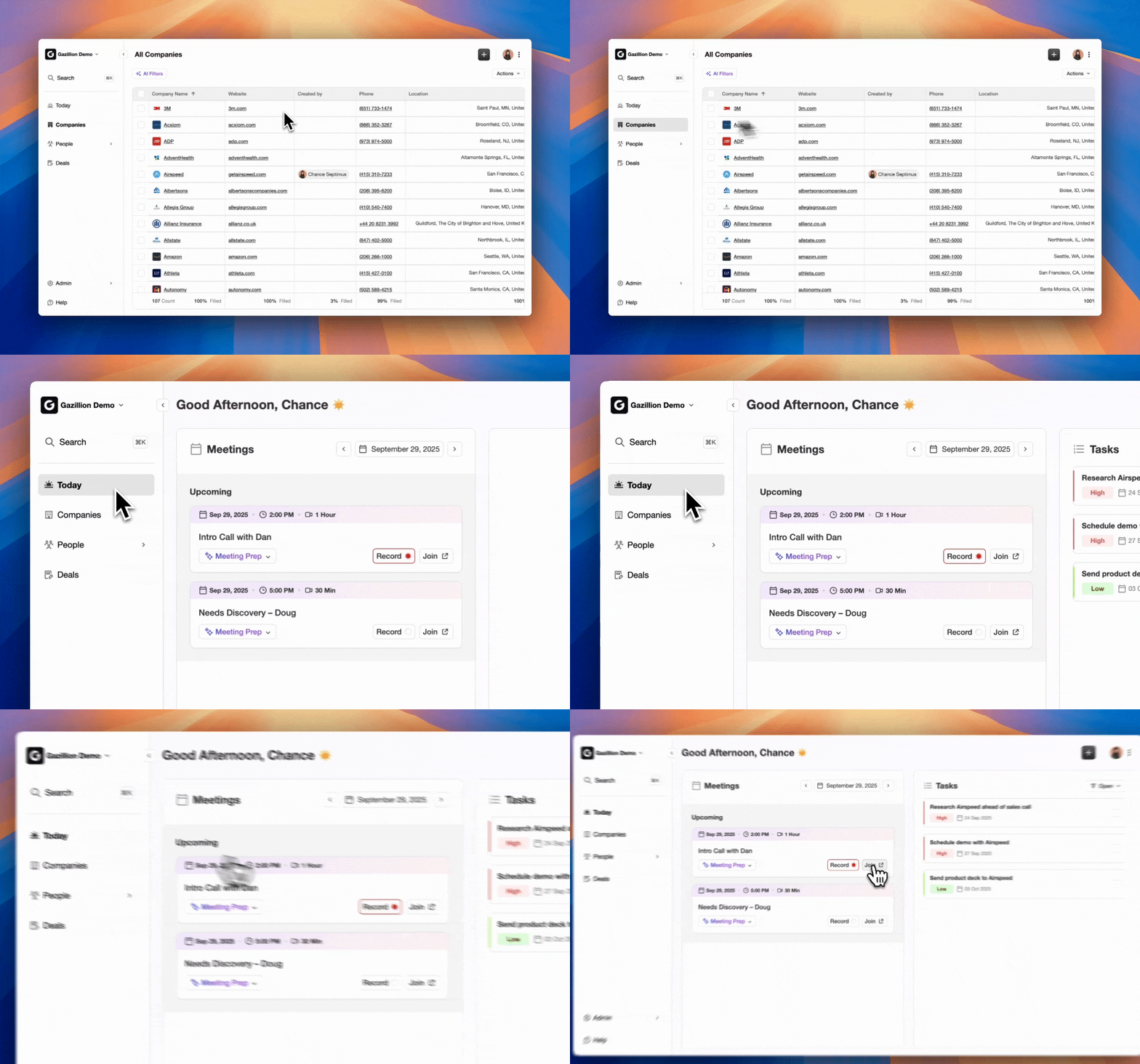
Callout — Calendar sync delays: Calendar sync can take a few minutes after initial connection. Verify the bot appears on a test calendar event before running a live call. HubSpot’s native notetaker now joins meetings at the scheduled start time and waits up to 5 minutes for the host to arrive, and Coffee Companion operates on the same calendar signal, so ensure meeting invites are finalized at least 30 minutes before the call.
Map Coffee notes to BANT, MEDDIC, and SPICED fields
Step 4: Configure note-to-property mapping for BANT, MEDDIC, and SPICED fields. In the Coffee Companion mapping interface, select each AI-extracted insight category, such as Budget, Authority, Need, and Timeline for BANT; Metrics, Economic Buyer, Decision Criteria, Decision Process, Identify Pain, and Champion for MEDDIC; and Situation, Pain, Impact, Critical Event, and Decision for SPICED. Assign each category to the corresponding HubSpot Deal or Contact custom property.
Coffee writes structured data directly to these fields after each call, with an approval gate before any commit. HubSpot’s native Breeze AI summarizes calls and drafts follow-ups but does not write structured deal or property updates from call content, and Coffee Companion fills that gap. Best practice is to start with two or three forecast-driving fields, typically deal stage, a primary qualification field such as BANT Budget or MEDDIC Economic Buyer, and a next steps field, then expand the mapping set once the approval cadence is routine.
Gotcha — Missing custom-field permissions: Mapping strategy only works when Coffee can write to the target properties. If Coffee cannot write to a property, the mapping will silently fail. A Professional or Enterprise subscription is required to add conditional logic to a property. Confirm that the authenticated HubSpot user has Edit property settings permissions and that no property is marked as restricted to Super Admins only.
Build post-call workflow triggers in HubSpot
Step 5: Create triggers that update deal probability and generate tasks. In HubSpot Workflows, build a deal-based workflow with an enrollment trigger set to a Coffee-written custom property value changing, for example when the BANT Budget field becomes known. HubSpot users can build deal-based workflows that automatically update deal stage when triggers such as booked meetings, document interactions, or task completions occur.
Once a deal enrolls, add a Set property value action to update Deal Stage or Deal Probability based on the new qualification data. Then add a Create task action assigned to the deal owner so they receive a clear follow-up prompt. Contacts must always have an associated deal; otherwise the update action in workflows will not have a record to write to. Before you activate the workflow, add conditional branches for deal type or territory so the stage progression logic matches your pipeline structure.
Important — July 31, 2026 migration: Starting July 31, 2026, meetings recorded via HubSpot Notetaker will create only a Meeting record instead of both a Call record and a Meeting record. Audit any Call-triggered workflows and rebuild them using Meeting-based triggers plus the new has transcript, transcript ID, and duration properties before this date to avoid broken automations.
Add rep review and approval before write-back
Step 6: Establish human approval before any write-back. In Coffee Companion, assign an approver for each mapped field group. After every call, the rep receives a structured summary in the Coffee review panel that shows the proposed HubSpot field updates. The rep approves, edits, or rejects each suggestion before Coffee commits the write. The biggest mistakes in post-call automation are automating writes without an approval gate, mapping to the wrong properties, and treating call summaries as stage or forecast updates.
This approval layer is the structural difference between Coffee Companion and native HubSpot Breeze. Breeze suggests updates, while Coffee Companion writes structured data only after a human confirms accuracy, which protects forecast integrity at scale. Deploy approval-gated write-back across your team and keep your pipeline data trustworthy.
Test Coffee Companion end-to-end with a live call
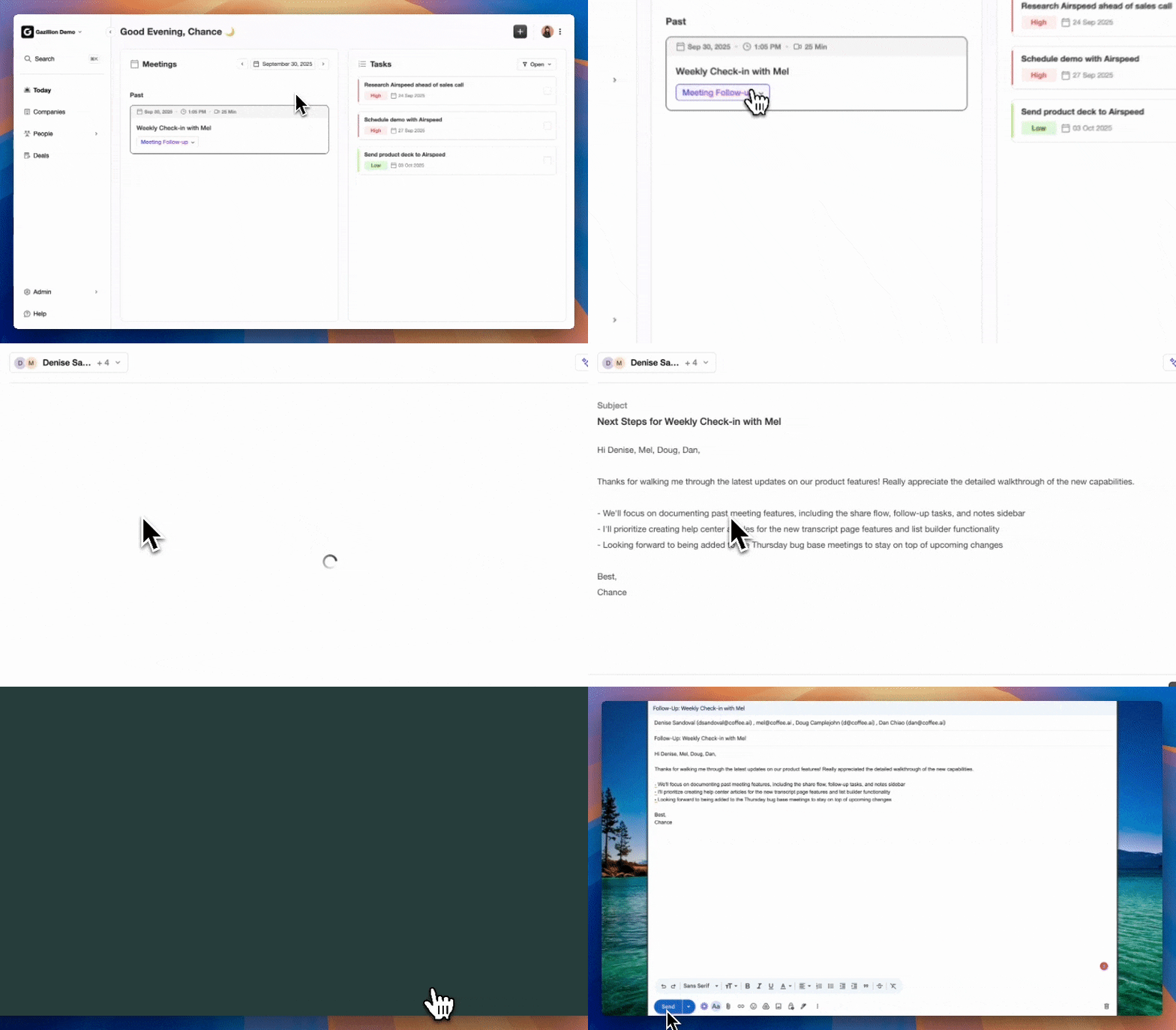
Step 7: Run a live test call and verify data in HubSpot. Schedule a 10-minute internal test call on Zoom, Teams, or Meet with a colleague whose email matches an existing HubSpot Contact record. Confirm the Coffee bot joins, records, and transcribes. After the call, review the structured summary in Coffee, approve the proposed field updates, and then verify the following in HubSpot in this order:
- Meeting record created and linked to the correct Contact and Deal so activity history stays accurate.
- BANT, MEDDIC, or SPICED custom fields populated with extracted values that match the conversation.
- Deal Stage or Probability updated by the workflow trigger based on the new qualification data.
- Follow-up task created and assigned to the deal owner so next steps are clear and actionable.
- No duplicate Call record created, which reflects the post-July 31, 2026 behavior.
For data-quality audits, compare CRM record completeness before and after a two-week pilot. AI meeting extraction improves CRM pipeline data accuracy from 58% to 91% and reduces data entry time from 2.5 hours to 24 minutes per rep per day, which shows the impact on both quality and efficiency.
Professional vs Enterprise: what changes for Coffee Companion
Sales Hub Professional supports the full seven-step Coffee Companion deployment described above, including custom property mapping up to the 1,000-property-per-object limit, deal-based workflow triggers, and the Smart Deal Progression beta. Multi-team rollouts on Professional require separate workflow configurations per team because cross-team enrollment logic is limited at this tier.
Sales Hub Enterprise adds custom objects, up to 10 per portal, custom association labels such as Decision Maker or Technical Evaluator, and Sensitive Data property settings. Custom objects in HubSpot are available only on Enterprise plans and have different API endpoints than standard objects; third-party integrations may not support them without custom development. For Coffee Companion, Enterprise unlocks mapping to custom objects for complex deal structures and enables advanced Smart Deal Progression triggers across multiple pipelines and business units simultaneously.
Frequently Asked Questions
What edition is required for Companion field mapping?
Coffee Companion field mapping to HubSpot custom properties requires Sales Hub Professional or Enterprise. The Professional tier supports mapping to all standard objects, including Contacts, Companies, Deals, Engagements, and Tasks, with up to 1,000 custom properties per object. Enterprise is required only if you need to map to custom objects or use Sensitive Data property settings. Each rep must have an assigned Sales seat in HubSpot, and the authenticated Coffee user must have Edit property settings permissions in HubSpot to create or modify the target fields.
Where is Coffee data stored?
Coffee is SOC 2 Type 2 and GDPR compliant. Call transcripts and structured field data processed by Coffee Companion are not used to train public AI models. HubSpot’s native notetaker stores meeting recordings for two years. Coffee Companion writes structured outputs, including field values, task records, and meeting summaries, directly into your HubSpot instance, so the data resides in your existing HubSpot data environment under your organization’s data governance policies.
How many custom fields can I map?
Coffee Companion can map AI-extracted insights to any custom property within the 1,000-property-per-object limit mentioned earlier, provided the authenticated user has the correct permissions. As mentioned earlier, start with a small set of high-impact fields and expand incrementally to avoid overwhelming reps during the approval workflow. Mapping too many fields at launch increases review friction and slows rep adoption.
How often should I review Companion mappings?
Review your Coffee Companion field mappings at least once per quarter, or immediately following any HubSpot property schema change, pipeline restructure, or sales methodology update. If your team shifts from BANT to MEDDIC or adds a new deal stage, the corresponding mappings must be updated in Coffee Companion before the next call cycle. Additionally, if you activate the Smart Deal Progression beta or migrate to Meeting-based workflow triggers, audit all mappings and downstream workflow enrollment criteria to confirm they reference the correct property names and object types after the change.
Conclusion: Turn every call into reliable HubSpot data
The seven-step Coffee Companion deployment, confirm tier, authenticate, connect calendars, map fields, configure triggers, add approval gates, and validate end-to-end, delivers what native HubSpot Breeze cannot: structured, human-approved data written directly to custom BANT, MEDDIC, and SPICED fields after every call. AI-assisted meeting documentation can significantly reduce the time spent on manual notes, summaries, CRM updates, and follow-up. That recovered capacity compounds across every rep, every week, and flows directly into pipeline velocity and forecast accuracy.
Manual note-taking is not a rep discipline problem; it is an architecture problem. Coffee Companion is the active agent layer that solves it. Turn every call into reliable HubSpot data without adding a single task to your team’s day.