Written by: Doug Camplejohn, CEO & Co-Founder, Coffee
Key Takeaways
- Poor source data quality, field mapping mismatches, and broken record relationships remain the top three causes of Salesforce migration overruns in 2026.
- Bulk API governor limits, delta migration gaps, and automation conflicts create mid-load failures that are expensive to reconcile.
- Post-migration sync drift and incomplete sandbox testing often surface only after go-live, which can double remediation costs.
- Each of the seven documented failures has a sandbox-tested mitigation, yet these fixes add cost, time, and coordination overhead.
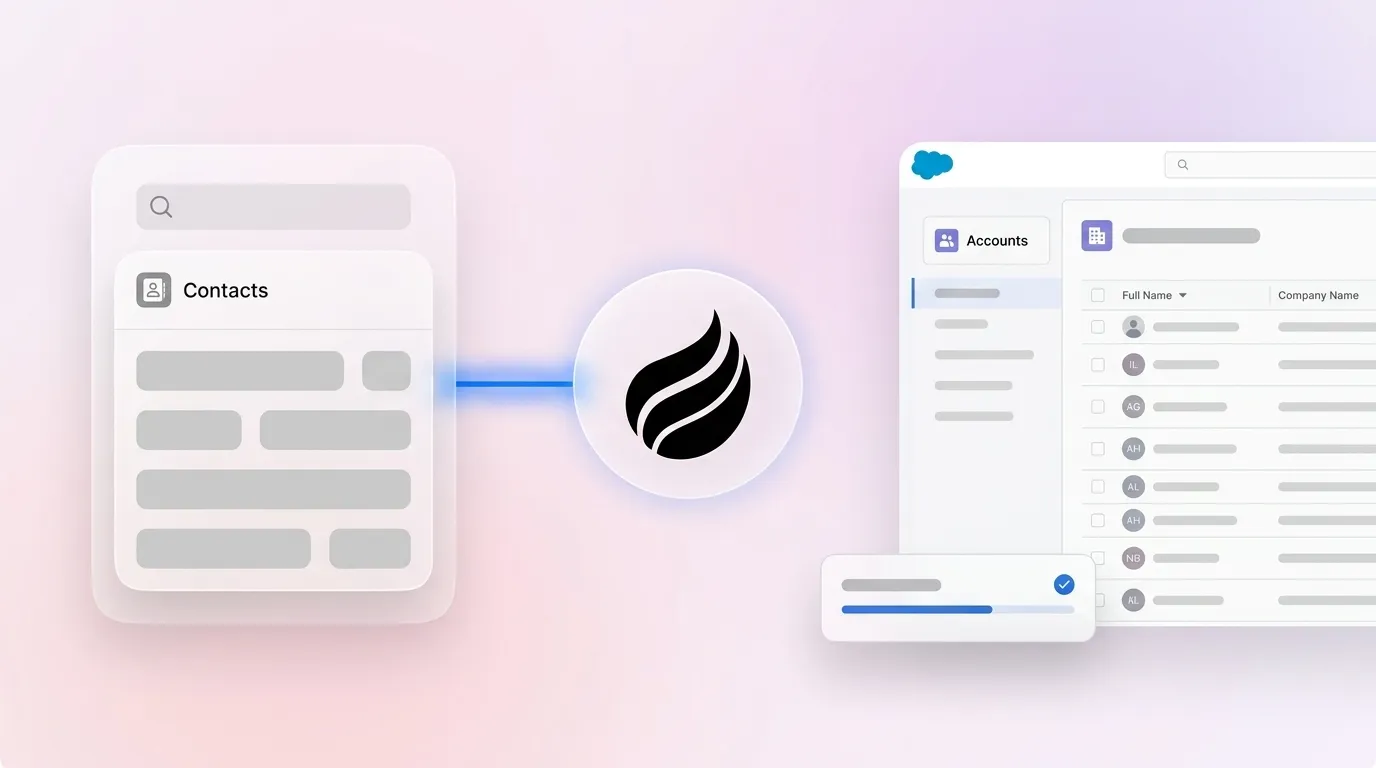
- Coffee removes the need for a full migration by deploying an autonomous agent that maintains data quality and relationships in your existing Salesforce org, so you can get started with Coffee instead of planning a cutover.
Challenge 1: Poor Source Data Quality
Problem: Dirty source data forces a binary choice at cutover, either extend the timeline to clean records or migrate corrupt data and absorb downstream costs.
Real-world symptom: Duplicate accounts, missing phone fields, and inconsistent country codes appear only after the first production load, which stops the project mid-wave.
Sandbox-tested fix: Apply the 1-10-100 rule. Fixing a data quality issue at entry costs $1, at migration costs $10, and post-migration costs $100. Run a full deduplication and field-completeness audit in sandbox before any production load. Pre-migration data quality work usually costs about one-third of post-migration cleanup, so deferral becomes the more expensive path.
Coffee tie-in: With Coffee’s Companion App, contacts auto-create and enrich from emails, calendars, and transcripts. Records enter Salesforce clean from day one, which removes the root cause of dirty source data before it builds up.
Challenge 2: Complex Field Mapping and Format Mismatches
Even when you clean the source data, the migration can still fail if field formats do not align between systems.
Problem: Source and target field types rarely match, and format mismatches such as date formats, picklist values, and currency codes cause silent load failures that are expensive to trace.
Real-world symptom: A date field stored as MM/DD/YYYY in the source loads as null in a Salesforce Date field expecting YYYY-MM-DD, which corrupts activity timelines across thousands of records.
Sandbox-tested fix: Build a field-mapping matrix in a full sandbox copy before production cutover. Use Salesforce Data Loader field-mapping (.sdl) files to lock mappings. Run a 500-record pilot load to confirm picklist acceptance and type coercion before you scale.
Coffee tie-in: Because Coffee’s agent writes structured, normalized data back to Salesforce automatically from emails, call transcripts, and calendar events, field format consistency is enforced at ingestion instead of corrected during a one-time migration.
Challenge 3: Broken Record Relationships and Missing External IDs
Once field formats align, relationship integrity becomes the next failure point.
Problem: Without External IDs on parent records, child records lose their relationship references during load. The result is orphaned contacts, opportunities without accounts, and broken case hierarchies.
Real-world symptom: Post-load reports show thousands of contacts with no Account association, which forces a second remediation load that doubles the migration window.
Sandbox-tested fix: Assign a unique External ID field to every parent object before the first load. Use Salesforce upsert with the External ID as the match key so child records resolve relationships by reference instead of by Salesforce record ID, which changes between orgs. Validate parent-child counts in sandbox before you promote to production.
Coffee tie-in: Coffee’s agent automatically associates every note, activity, and interaction with the correct account and contact in real time. Relationship integrity stays intact continuously instead of depending on a single migration event.
Maintain relationship integrity automatically — get started with Coffee.
Challenge 4: Hitting Bulk API and Governor Limits
After relationships hold together, scale becomes the next constraint.
Problem: Large-volume migrations exhaust Bulk API allocations mid-load, which creates partial failures that are difficult to reconcile without a reliable checkpoint strategy.
Real-world symptom: A 20-million-record migration stalls at hour 14 when the org hits the 100,000,000-record-per-24-hour limit, leaving the org in a split state with only half the records loaded.
Sandbox-tested fix: Use Bulk API 2.0 for all jobs exceeding 2,000 records. Start with a maximum batch size of 10,000 records. This size balances throughput against timeout risk, and you can reduce it and resubmit if a batch times out. Because Bulk API 2.0 enforces a 150 MB file size limit per job, splitting large datasets into smaller files prevents upload rejections. Monitor cumulative usage against the 100,000,000-record-per-24-hour rolling cap instead of assuming a midnight reset, since exceeding this limit mid-load halts all jobs org-wide. For post-load processing, the Spring ’26 release made Apex cursors generally available in API v66.0. You can chain Queueable jobs that process large result sets in flexible chunk sizes without the rigidity of Batch Apex. Apex cursors do not bypass governor limits, and each fetch() still counts against SOQL query and row limits, so design queries with that in mind.
| Limit / Capability | Bulk API 2.0 (Salesforce Native) | Relevant Constraint | Source |
|---|---|---|---|
| Max records per 24-hour rolling window | 100,000,000 records | Shared across all Bulk API jobs in the org, as described above | Salesforce Bulk API 2.0 Capabilities |
| Max batches per 24-hour rolling window | No per-day batch limit, limits based on total records processed | Record-based rather than batch-based | How is the daily limit in Salesforce Bulk API 2.0 calculated? |
| Max file size per ingest job | 150 MB per job | Large files must be split to avoid rejections | Salesforce Bulk API 2.0 Capabilities |
| Max records per batch (Bulk API v1) | 10,000 records | Reduce batch size if timeouts occur | Salesforce Limits Cheatsheet |
Challenge 5: Delta Migration Gaps
Once you manage Bulk API limits, you still need to handle records that change during the cutover window.
Problem: Records created or updated in the source system during the migration window are not captured in the initial load, which produces a data gap at go-live.
Real-world symptom: Sales reps discover that deals closed during the two-week migration window are missing from the new org. A manual reconciliation sprint follows and pushes back the go-live date.
Sandbox-tested fix: Freeze data entry for migrating record types during the cutover window and define a clear protocol for new records that arrive during that period, as recommended in the Pedowitz Group migration checklist. Use a timestamp-filtered SOQL query with LastModifiedDate greater than the migration start time to extract delta records. Run a second upsert load using External IDs to merge them without creating duplicates. Log the delta load separately so you can re-run it if the cutover is rolled back.
Coffee tie-in: With Coffee writing interactions back to Salesforce in real time, there is no migration window where records go unlogged. Delta reconciliation disappears because data entry happens continuously instead of in batches.
Challenge 6: Active Validation Rules and Automations Firing Unexpectedly
After you close delta gaps, hidden automation behavior often becomes the next surprise.
Problem: Validation rules and automations that were inactive or absent in sandbox activate against migrated records in production, which causes load failures and unintended downstream actions.
Real-world symptom: A billing flow triggers on every imported Opportunity and generates hundreds of erroneous invoices within minutes of the production load starting, as documented by Salesforce consultant Shivam Kapoor in his April 2026 Toptal guide.
Sandbox-tested fix: Before any data load, review all existing automations such as flows, triggers, and API connections that could fire during migration. Document which processes will be paused and identify who will approve reactivation. This pre-load audit is critical because even documented automations can activate unexpectedly during production waves, so continuous monitoring during the load is non-negotiable. Finally, coordinate with marketing, sales, and finance stakeholders before pausing any shared automation, since a flow that looks safe to disable may be business-critical to another team.
Coffee tie-in: Coffee writes data incrementally and continuously instead of in bulk waves. Automations process records at normal cadence instead of firing against thousands of records at once, which removes the surge-triggered failure mode.
Test an agent layer on your existing Salesforce org — get started with Coffee.
Challenge 7: Incomplete Validation and Sandbox Testing
As noted in Challenge 6, sandbox behavior often diverges from production, and that gap becomes most visible at scale.
Problem: Sandbox environments lack production data volumes, active integrations, and live user activity, so failures that only appear at scale go undetected until cutover.
Real-world symptom: A migration passes all sandbox tests but hits the Daily API Request Limit soft cap in production. HTTP 403 REQUEST_LIMIT_EXCEEDED errors block the load and every other API-dependent integration at the same time.
Sandbox-tested fix: Use a full sandbox, not a partial one, with a production data copy for volume testing. Simulate peak API usage by running the migration load at the same time as a synthetic replica of normal integration traffic. Monitor the rolling 24-hour API request count during the test instead of relying on point-in-time snapshots. Also note that the Winter ’26 release enforces a manual-download restriction in Setup → Data Export that allows only one export file at a time with a required 60-second wait. Use API-based tools for export workflows to avoid HTTP 429 errors during pre-migration data pulls.
Coffee tie-in: Coffee’s Companion App runs as a continuous agent layer instead of a batch migration. It never generates the API spike that overwhelms production limits, and data flows in at a steady, sustainable rate that matches real-world interaction volume.
Skip the Migration: Use an Agent Instead
For most mid-market RevOps teams, these seven failures do not represent rare edge cases. They represent the predictable cost of a batch-oriented approach to data management. Coffee’s Companion App offers a different model. You keep the existing Salesforce org, authenticate the Coffee agent against it, and let the agent handle data entry, enrichment, and relationship mapping continuously.
No cutover window. No delta reconciliation. No automation surge. The org stays live while data quality improves in place.
The table below compares the key steps of a traditional cutover with the Coffee agent deployment path.
| Step | Traditional Migration Cutover | Coffee Companion App Deployment | Risk Level |
|---|---|---|---|
| Data quality preparation | Manual deduplication and cleansing sprint that can take weeks | Agent enriches records continuously from go-live | High vs. Low |
| Automation management | Audit, pause, and reactivate flows and triggers | Agent writes incrementally, so no bulk surge that triggers automations | High vs. Low |
| API limit exposure | Up to 150M records per 24 hours consumed in burst loads | Steady-cadence writes aligned to real interaction volume | High vs. Low |
| Post-go-live drift monitoring | Daily and weekly manual audits for 30 or more days | Pipeline Compare surfaces drift automatically, week over week | Medium vs. Low |
Get started with Coffee and skip the migration entirely.
Frequently Asked Questions
How do you handle delta migrations in Salesforce?
A delta migration captures records created or modified in the source system after the initial full load. The standard approach uses a freeze on data entry for the record types being migrated during the cutover window, then a timestamp-filtered SOQL query with LastModifiedDate greater than the migration start time to extract changed records. Those records load through a second upsert job using External IDs as the match key, which prevents duplicates. The delta load should be logged separately so you can re-run it if the cutover is rolled back. Teams that cannot freeze data entry should use a staging table that queues new records during the window and flushes them into the target org after the primary load completes.
What are External IDs and why are they critical for Salesforce migrations?
An External ID is a custom field on a Salesforce object that is marked as a unique identifier from an external system. During a migration, External IDs let the upsert operation match incoming records to existing Salesforce records by a stable source-system key instead of by the Salesforce record ID, which changes between orgs and environments. Without External IDs on parent objects, child records lose their relationship references during load, which produces orphaned contacts, opportunities without accounts, and broken case hierarchies. Best practice is to create External ID fields on every parent object before the first load, populate them from the source system’s primary key, and use them as the upsert key for all later delta loads.
Should you disable all validation rules during a Salesforce data migration?
No. Disabling all validation rules removes the data integrity guardrails that prevent malformed records from entering production permanently. The correct approach identifies only the specific validation rules that conflict with the migrated data format, disables those selectively, documents each one with its business owner and a scheduled re-enable date, and runs a post-load validation report to confirm that re-enabling rules does not flag migrated records. Disabling rules globally is a common shortcut that creates a remediation backlog, because every record that entered production in a non-compliant state must be manually corrected before the rule can be safely re-enabled.
Is Coffee’s Companion App secure and compliant for Salesforce environments?
Yes. Coffee is SOC 2 Type 2 certified and GDPR compliant. Data processed by the Coffee agent is not used to train public models. The Companion App connects to an existing Salesforce org through a standard OAuth authentication flow, and the agent writes enriched data back to the org using the same API permissions already granted to the authenticated user. For mid-market teams in regulated-adjacent industries, Coffee’s compliance posture covers the most common security review requirements. Organizations in heavily regulated sectors such as healthcare or finance with multi-year security review cycles should still evaluate their specific requirements before deployment.
When is a full Salesforce data migration still justified despite the risks?
A full migration is justified when the source system is being decommissioned entirely, when contractual or regulatory requirements mandate a clean break from the legacy platform, or when the existing Salesforce org has accumulated structural debt such as deprecated custom objects, unsupported managed packages, or a schema that cannot be refactored in place. In those situations, incremental improvement becomes impractical. The seven failures in this article still apply, and the sandbox-tested mitigations remain relevant. For most other scenarios, especially mid-market teams that want cleaner data and higher CRM adoption, deploying an agent layer on the existing org delivers the outcome of a migration without the cost, timeline risk, or operational disruption.
Conclusion
The seven failures covered here, including data quality, field mapping, broken relationships, Bulk API limits, delta complexity, automation conflicts, and post-migration drift, are not theoretical risks. They are documented, recurring causes behind budget overruns and schedule slips that define Salesforce migration projects in 2026. Each one has a sandbox-tested mitigation, yet those mitigations add cost, time, and coordination overhead that compound across a full migration program. Coffee’s Companion App removes the root cause. It keeps the existing Salesforce org intact and deploys an autonomous agent to handle data entry, enrichment, and relationship mapping continuously, so the org improves in place instead of being replaced at risk. Get started with Coffee and put the migration budget back into selling.