Written by: Doug Camplejohn, CEO & Co-Founder, Coffee | Last updated: September 5, 2026
Key Takeaways
- Every contact without a company association creates a data quality gap that weakens reporting and pipeline segmentation.
- HubSpot offers three native methods for auto-association: domain matching, workflow automation, and the Associations API.
- Free email providers need special handling through domain exclusions or custom workflow logic to avoid junk company records.
- Edge cases such as shared domains or duplicate records require ongoing monitoring and hands-on cleanup.
- For teams that want zero manual data entry, Coffee automates contact-company associations end to end.
Why Automatic Contact-Company Association Matters
Accurate contact-company associations power account-based reporting, pipeline analysis, and personalized outreach. When associations are missing, the downstream consequences compound quickly. Dashboards show stale data, revenue intelligence becomes unreliable, and team trust in the CRM erodes.
HubSpot’s documentation on associating records confirms that associations are always two-way. If record A is associated with record B, record B is also associated with record A. Activities on a record’s timeline are automatically associated only with the primary company. That means a missing association affects more than one view. It cascades across reporting, lifecycle stage syncing, and activity logging.
And manual association cannot keep up. As a contact database grows from hundreds to tens of thousands of records, the problem compounds faster than any team can address it by hand.
Method 1: Turn On HubSpot’s Native “Create and Associate Companies with Contacts” Setting
This native HubSpot setting automatically creates a company record and associates it with a contact based on the contact’s email domain. When a contact with sandra@example.com is created, HubSpot matches the domain example.com to an existing company domain property. If none exists, HubSpot creates a new company record.
Follow these steps from HubSpot’s knowledge base on automatically creating and associating companies:
- Click the settings icon (gear) in the top navigation bar of your HubSpot account.
- In the left sidebar, navigate to Data Management and click Objects.
- Use the object dropdown to select Companies.
- In the Automation section, check the box labeled “Create and associate companies with contacts.”
- Choose whether to apply this retroactively to existing contacts or only to new contacts moving forward.
- Click Save.
Several critical caveats apply to this setting:
- The setting applies only to contacts created after it is enabled, unless you choose retroactive application in the confirmation dialog.
- HubSpot creates a separate company record for each unique email domain, including subdomains, so
@example.comand@info.example.comproduce two distinct company records. - If a contact already has an associated company that differs from their email domain, the existing association stays in place.
- If the HubSpot-Salesforce integration is enabled, HubSpot advises against enabling automatic association because it can create duplicate company records.
Handle Free Email Providers with Domain Exclusions
Contacts using Gmail, Yahoo, Outlook, or other free email providers do not have unique business domains. Without exclusions, HubSpot creates junk company records like “gmail.com.” Filtering out free email domains before they trigger auto-creation typically removes 40–60% of problematic sender addresses from a mixed contact list.
Configure domain exclusions with these steps:
- Navigate to Settings > Data Management > Objects > Companies.
- Below the auto-association checkbox, click “Exclude a domain from automatic association.”
- Enter domains like
gmail.com,yahoo.com,hotmail.com, andoutlook.com. - Click Save.
HubSpot allows excluding up to 1,000 domains from automatic association. When a contact uses a free email provider, HubSpot checks the contact’s Website URL property as a fallback. If no website URL exists, the contact remains unassociated.
Contacts with free email providers who have no Website URL value cannot be matched by domain or website, so they require a different approach covered in the workflow section below.
Method 2: Build Workflows for Custom Association Rules
Workflows suit teams that need to associate contacts based on criteria other than email domain, such as company name, custom properties, or custom IDs. They also work well for contacts using free email providers when you already know their company.
Use this workflow setup from HubSpot’s documentation on managing CRM record associations with workflows:
- Navigate to Automation > Workflows in your HubSpot account.
- Click Create workflow and select Contact-based.
- Set enrollment triggers, such as when a contact property changes or a contact is created.
- Add the action “Create associations” under CRM actions.
- Select the object type as Company.
- Choose the property on the contact record to match, such as Company name, and the corresponding property on the company record, such as Name.
- Set re-enrollment criteria if needed.
Keep these points in mind while building:
- Property matching is case-sensitive, so
hubspotwill not matchHubSpot. - If multiple companies match, HubSpot uses the oldest matching record.
- The “Create associations” action requires a Professional or Enterprise subscription.
- Disable HubSpot’s native auto-association setting first to avoid conflicts when using custom workflow logic.
Method 3: Bulk Associate Contacts Using Imports and the Associations API
Import-based bulk association uses HubSpot’s multi-object import to associate records by matching companies on domain or record ID and contacts on email. Import order matters: Contacts → Companies → Deals ensures proper associations when mixing new and existing records. The main limitation is that data must be carefully cleaned and mapped before import. Otherwise, duplicates and mismatches appear.
API-based association uses HubSpot’s Associations API to programmatically create associations between contacts and companies. Required OAuth scopes include crm.objects.contacts.write and crm.objects.companies.write. This approach is best for developers who need custom matching logic or one-time bulk operations. However, it requires ongoing development resources and is not a sustainable long-term automation strategy for most teams.
To compare the three methods at a glance, the table below summarizes what each is best for, its setup complexity, and its ongoing maintenance needs.
| Method | Best For | Setup Complexity | Ongoing Maintenance |
|---|---|---|---|
| Native domain matching | Simple datasets with unique business domains | Low (toggle a setting) | Low, but it does not handle edge cases |
| Workflow automation | Custom matching criteria, free email providers | Medium (build workflow logic) | Medium, requires monitoring and updates |
| Associations API | Developers needing custom bulk operations | High (requires coding) | High, requires ongoing development |
| Coffee Agent | Teams wanting zero manual data entry | Low (connect and go) | None, the agent handles everything autonomously |
Troubleshooting Common Association Problems
Scenario 1: Multiple companies share the same domain. When multiple companies share the same email domain, HubSpot’s automatic association links the contact to only one of them, and users cannot choose which company is used. Use workflows with additional matching criteria such as country or a custom property. You can also manually adjust associations after the fact.
Scenario 2: Contacts with free email providers remain unassociated. Build a workflow that matches on Website URL or Company name instead of email domain.
Scenario 3: The setting is enabled but new contacts are not being associated.
- Check if the domain is on your exclusion list.
- Verify the contact’s email domain exactly matches the company’s domain property, including subdomains.
Scenario 4: Duplicate companies are being created. When a contact submits a form via an integration like Typeform, HubSpot can create two company records: one from the company name field and another from the email domain. Disable auto-creation for specific sources, or use the duplicates manager to merge records. HubSpot’s duplicates manager compares Company Domain Name, Company Name, Country/Region, Phone Number, and Industry properties daily to surface potential duplicates.
Even with the right method in place, associations can still fail. If these edge cases are consuming too much time, the next section covers a solution that removes this manual work entirely.
The Better Way: Coffee as Your HubSpot Companion
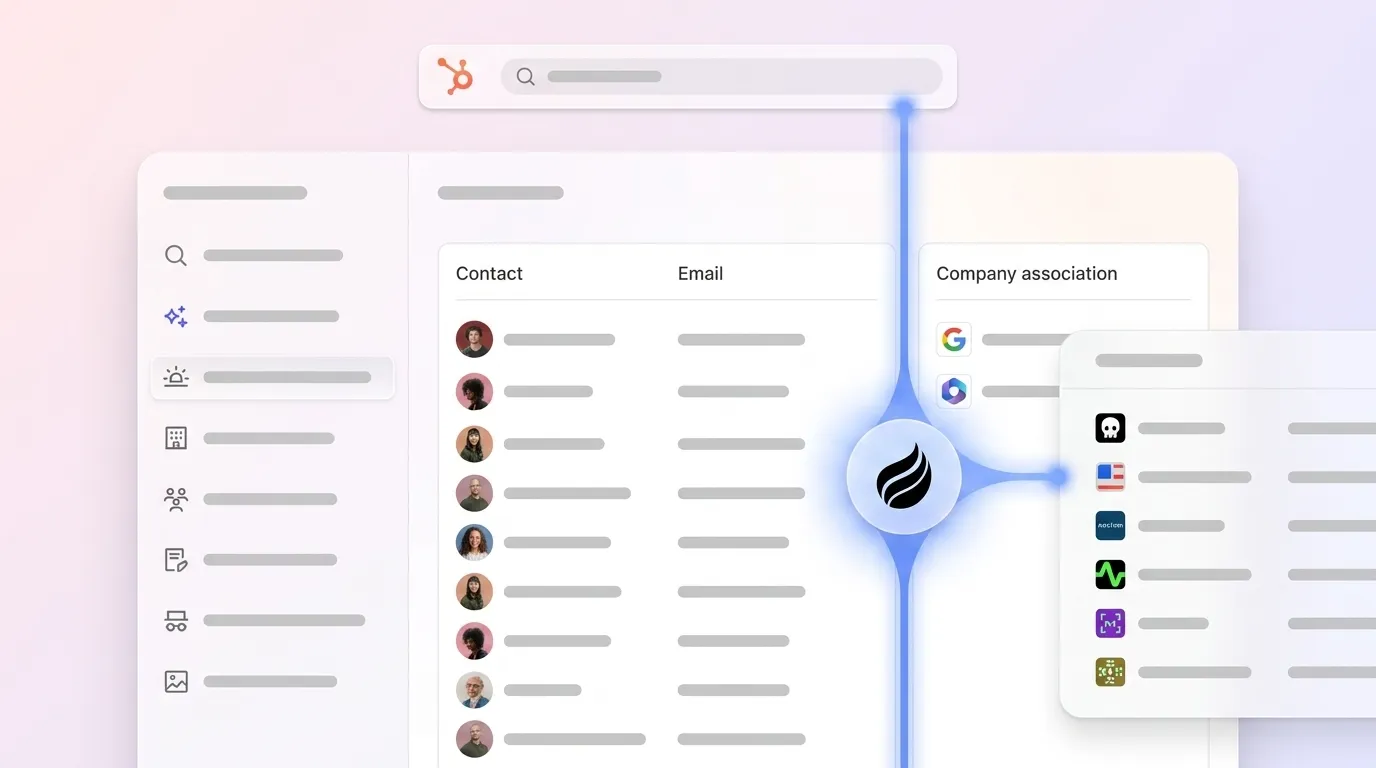
These edge cases are exactly why a growing number of teams turn to agent-based automation like Coffee. HubSpot’s native automation helps, yet it still requires manual setup and leaves tricky scenarios for admins to manage. Coffee is a CRM Agent that works on top of your HubSpot instance to automatically create, enrich, and associate contacts and companies, removing the need for manual data entry.

That solution is Coffee, a CRM Agent that understands context instead of relying only on domain matching. If a contact emails from a personal address but their signature shows a company, Coffee associates them correctly. Key features relevant to contact-company association include:
- Auto-creates contacts and companies from email and calendar data
- Automatically associates every note, interaction, and activity with the right record
- Enriches records with job titles, funding, and LinkedIn profiles
- Logs last activity and next activity autonomously
- Saves reps 8–12 hours per week on data entry
Coffee deploys as a Companion App on top of existing HubSpot installations. A simple authentication allows the Coffee Agent to sync data, enrich it, and write valuable insights back to HubSpot. This keeps the system of record accurate without human effort.

Ready to eliminate manual data entry for good? Start your free Coffee trial.
Best Practices for Ongoing HubSpot Data Quality
- Regularly audit contacts and companies for duplicates using HubSpot’s duplicates manager.
- Store only the primary corporate domain (without
https://or path parameters) on company records. - Maintain an up-to-date exclusion list for free email providers.
- Use workflows to enforce association rules for edge cases that domain matching cannot handle.
- Consider an agent-based tool like Coffee to automate data entry and enrichment continuously.
Good data in leads to good data out. Every method above improves on manual effort, and a continuously running agent addresses the problem at its source.
Frequently Asked Questions
How do I automatically associate a contact with a company in HubSpot?
Enable the native “Create and associate companies with contacts” setting under Settings > Data Management > Objects > Companies. HubSpot then matches contacts to companies based on email domain. If a matching company already exists, the contact is associated with it. If no match exists, HubSpot creates a new company record. For more complex scenarios such as contacts using free email providers or custom matching criteria, use workflows with the “Create associations” action or the Associations API for programmatic bulk operations.
Can I bulk associate contacts to a company in HubSpot?
Yes. HubSpot supports several bulk association methods. Multi-object imports allow you to associate existing records by matching companies on domain or record ID and contacts on email. The Associations API supports programmatic bulk operations with custom matching logic. Workflows can enroll large contact sets and apply association logic automatically. Native bulk editing also allows manual association of up to 100 records at a time from an index page. For teams with large, complex datasets, an agent-based solution like Coffee handles bulk and ongoing association without requiring any of these manual steps.
What happens if a contact uses a free email provider like Gmail?
HubSpot checks the contact’s Website URL property as a fallback when the email domain belongs to a free provider. If no Website URL value exists, the contact remains unassociated. To prevent junk company records like “gmail.com” from being created, add free email domains to the exclusion list under Settings > Data Management > Objects > Companies. For contacts with free email providers who still need to be associated with a company, build a contact-based workflow that matches on Website URL or Company name instead of email domain. As noted earlier, filtering free email domains removes a large share of problematic addresses.
How do I exclude domains from automatic association?
Navigate to Settings > Data Management > Objects > Companies, click “Exclude a domain from automatic association” below the auto-association checkbox, enter the domains you want to exclude, and save. You can exclude up to 1,000 domains. Common exclusions include gmail.com, yahoo.com, hotmail.com, and outlook.com. If you later remove a domain from the exclusion list and want it to trigger automatic association going forward, you must disable and re-enable the “Create and associate companies with contacts” checkbox to refresh the setting.
Does HubSpot’s automatic association work for existing contacts?
Automatic association works for existing contacts only if you select the retroactive option when enabling the setting. When you first enable “Create and associate companies with contacts,” HubSpot presents a confirmation dialog asking whether to apply the setting to existing contacts or only to new contacts going forward. Choosing “Yes” triggers retroactive processing based on existing contacts’ email addresses. Choosing “No” limits the behavior to contacts created after activation. Existing associations are never overwritten, so if a contact already has an associated company that differs from their email domain, that association remains unchanged.
Choose the Right Association Strategy for Your Data
Three methods cover the full spectrum of contact-company association in HubSpot. Native domain matching offers the simplest path for teams with clean, business-domain email data. Workflow automation handles custom matching criteria, free email providers, and scenarios where domain logic falls short. The Associations API gives developers maximum flexibility for one-time bulk operations or custom integration logic.
The decision framework stays straightforward. Simple data with unique business domains points to the native setting. Complex data or custom matching criteria points to workflows. Programmatic or one-time bulk needs point to the API. For teams that want to eliminate manual data entry entirely and ensure every contact is correctly associated without ongoing effort, Coffee provides an agent that handles association, enrichment, and activity logging autonomously on top of your existing HubSpot instance.
Stop manual data entry. See how Coffee keeps your HubSpot associations accurate.