Written by: Doug Camplejohn, CEO & Co-Founder, Coffee
Key Takeaways
- HubSpot tracking scripts capture page views, events, and form submissions so your CRM updates in real time without developer help.
- Install the script in your site’s head section, replace YOUR_PORTAL_ID with your HubSpot portal ID, and keep async and defer for reliable loading.
- Use custom JavaScript events such as trackEvent for behaviors like form submits, scrolls, and downloads to enrich lead data.
- Verify installation through the Network tab (look for a __ptq.gif 200 OK response), real-time reports, and CRM contact syncing.
- Supercharge tracking with Coffee’s AI-powered visitor identification to enrich HubSpot with named contacts and detailed context.
Why Accurate HubSpot Tracking Changes Sales Outcomes
HubSpot tracking scripts solve a core problem for SMB and mid-market teams: you cannot reliably see who visits your site or what they do without them. Sales and RevOps teams depend on accurate visitor data to prioritize outreach, score leads, and measure campaign performance. When the tracking script fails, that data never reaches HubSpot, so leads slip through the cracks and conversions go unattributed. Unverified scripts create “ghost” data that looks real but cannot be trusted. Without automation, reps fall back to manual data entry, which wastes hours and still leaves gaps in your CRM.
What You Need Before Installing the Script
Set up a few basics before you install the HubSpot tracking script. You need a HubSpot Marketing or Sales Hub account, plus access to your website so you can edit HTML or your CMS settings. Google Tag Manager is optional and helps if you manage multiple scripts across several sites.
Installation time depends on your platform and how your site is built. Simple HTML pages take a few minutes, while complex CMS setups or tag managers can take closer to an hour. One critical prerequisite is domain configuration. Add your domains as additional site domains in Settings > Tracking & Analytics > Tracking Code > Advanced Tracking so HubSpot can capture visits correctly before you proceed.
How to Install HubSpot Tracking Script: Step-by-Step
Step 1: Generate Your Tracking Code
Start in your HubSpot portal and go to Settings > Tracking Code to generate your unique script. HubSpot displays a snippet that includes your portal ID. Copy this basic tracking code:
<script type="text/javascript" id="hs-script-loader" async defer src="//js.hs-scripts.com/YOUR_PORTAL_ID.js"></script>Replace YOUR_PORTAL_ID with your actual HubSpot portal number from the Tracking Code settings page. Keep the async and defer attributes so the script loads quickly without blocking your page.
Step 2: Install in Your Website’s Head Section
Place the script in the head section of every page you want to track. For HTML sites, paste the code between the <head> and </head> tags.
For WordPress, use a header script plugin or add this code to your theme’s header template:
<script charSet="utf-8" type="text/javascript" src="//js.hs-scripts.com/YOUR_ID.js"></script>For Elementor or Webflow, add the script in the site-wide head settings. If the script does not fire consistently, add the async attribute so it loads without blocking other resources.
Step 3: Verify Your HubSpot Tracking Installation
After you place the script, confirm that HubSpot receives data from your site. Verification prevents silent failures where visits never reach your CRM. Use the checklist below to test each layer of tracking, from the browser request to the final contact record.
HubSpot Tracking Code Example With Configuration
This example shows a complete snippet that includes a basic configuration call and a specific portal ID:
<script> var _hsq = window._hsq = window._hsq || []; _hsq.push(['doNotTrack']); </script> <script type="text/javascript" id="hs-script-loader" async defer src="//js.hs-scripts.com/123456.js"></script>The first script initializes the _hsq queue and sets a configuration flag. The second script loads the HubSpot library for portal 123456 using async and defer so it does not slow down page rendering.
Advanced: HubSpot Events API and Custom JavaScript Tracking
The basic tracking code captures page views automatically. Many teams also want to track specific actions such as form submissions, scroll depth, or file downloads. Use HubSpot’s Tracking Code API methods to send these custom events from your site.
Track custom behaviors using HubSpot’s Tracking Code API methods including identify, trackEvent, and trackPageView:
// Form submission tracking _hsq.push(['trackEvent', { id: 'formSubmit' }]); // Scroll depth tracking _hsq.push(['trackEvent', { id: '50%Scroll' }]); // Download tracking _hsq.push(['trackEvent', { id: 'download' }]);Use a form submission event when a visitor completes a key form, such as a demo request or pricing inquiry. Use a scroll depth event on long pages where deep engagement matters, such as product explainers or case studies. Use a download event when visitors access gated assets like whitepapers or implementation guides.
HubSpot Tracking for SPAs, React, Vue, and Cross-Domain Sites
Single-page applications do not reload the page when routes change, so HubSpot will not see new page views by default. Trigger page views manually whenever your router changes the visible page.
_hsq.push(['setPath', '/spa-page']); _hsq.push(['trackPageView']);Call setPath with the current route, then call trackPageView so HubSpot records the new view. Repeat this pattern on every route change in React, Vue, or other SPA frameworks.
Cross-domain tracking keeps a consistent visitor ID when people move between your domains. Install the tracking code on each domain, add those domains as additional site domains in settings, and enable automatic cross-domain linking so attribution stays accurate across your properties.
How to Check HubSpot Tracking Code (Verification Checklist)
After installing the tracking code, confirm that it works correctly using three methods. Each method checks a different layer of the tracking system, from the browser request to analytics and CRM data.
| Method | Steps | Success Indicator |
|---|---|---|
| Network Tab | Inspect __ptq.gif request | 200 OK status |
| Reports | Check Traffic Analytics in near real time | Page views appear |
| CRM | Trigger test events on contacts | Leads sync with correct activity |
Success means new and existing contacts appear in your CRM with accurate attribution and behavioral data tied to their activity.
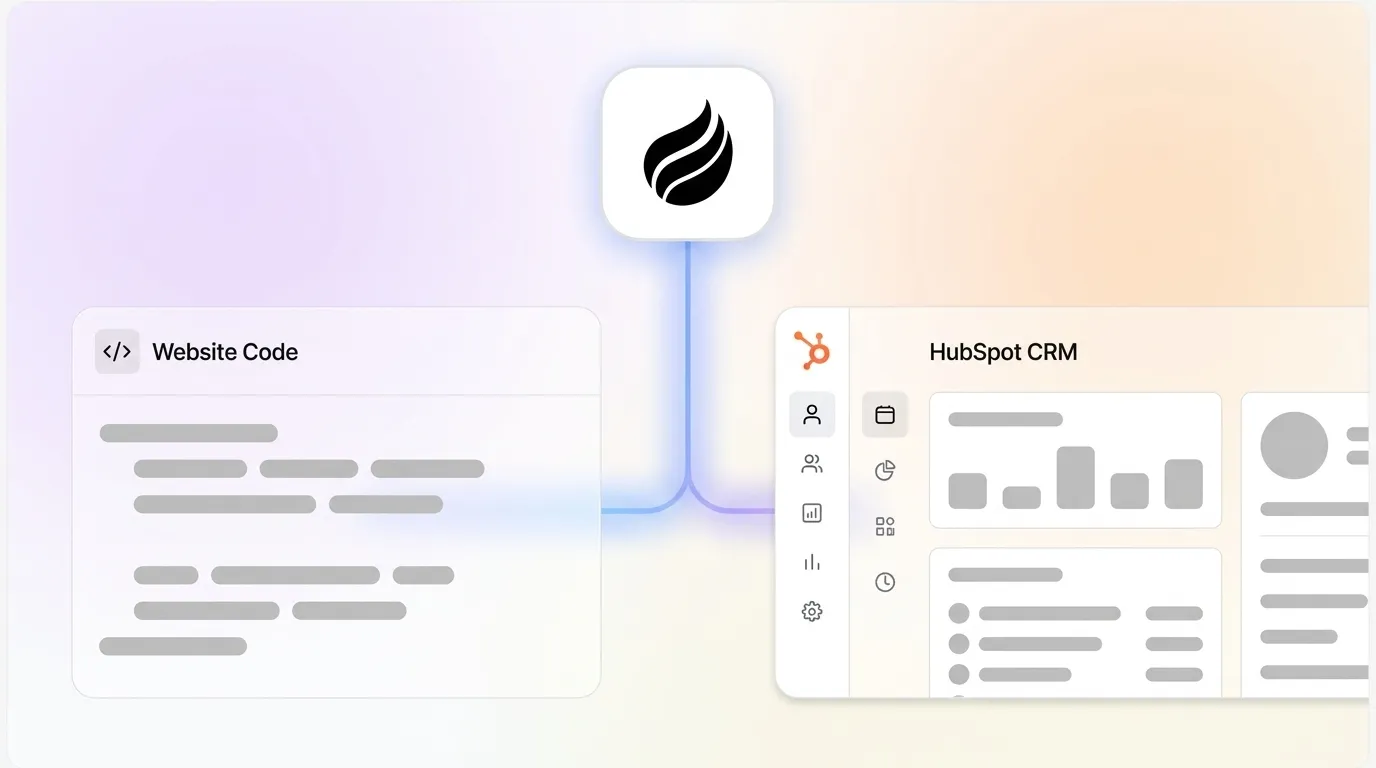
HubSpot’s tracking script captures what visitors do, but it cannot identify who they are until they submit a form. Some teams need to recognize high-intent visitors earlier and enrich them with firmographic and role data. Coffee’s agent tracking pixel adds that identification layer on top of HubSpot’s behavioral tracking.

Supercharge HubSpot with Coffee’s Agent Tracking Pixel
HubSpot’s script records behavior, while Coffee’s script identifies visitors by name before they convert. Coffee’s intelligent script auto-identifies named visitors with name, title, email, and LinkedIn profiles based on their activity. It matches visitors against your ideal customer profile to surface Suggested Leads, then pushes enriched data directly into HubSpot.

Set up Coffee by generating your pixel, installing it in the <head> alongside the HubSpot script, and authorizing the sync between Coffee and HubSpot. Once connected, Coffee creates agent logs, prepares briefings, and cuts 8–12 hours per week of manual entry for teams at tens-of-millions ARR scale. Unlike RB2B or Warmly, Coffee provides both Named Leads and Suggested Leads with AI-powered enrichment tailored to your buyer persona. Try Coffee’s agent tracking if you use HubSpot and want automated visitor identification.
Scaling Lead Routing and Nurture With Automation
Once tracking and identification work reliably, you can scale how leads move through your funnel. For B2B outbound campaigns, connect HubSpot to Zapier so new visits and events trigger lead routing workflows. Route high-intent visitors to specific owners, update deal stages, or send alerts to Slack when key accounts return.
Inside HubSpot, build custom workflows that use tracking events and Coffee-enriched fields to drive advanced nurture sequences. For example, enroll contacts who view pricing pages multiple times, then send tailored follow-ups or create tasks for sales. This combination of accurate tracking and automation keeps your pipeline moving without constant manual intervention.
FAQ
What does a complete HubSpot tracking code example look like?
A complete tracking code includes your portal ID and asynchronous loading so it does not block the page. A typical snippet looks like <script type="text/javascript" id="hs-script-loader" async defer src="//js.hs-scripts.com/YOUR_PORTAL_ID.js"></script>. Replace YOUR_PORTAL_ID with your actual HubSpot portal number found in Settings > Tracking Code.
Why is my HubSpot tracking script not working?
Common issues include missing async or defer attributes, incorrect portal IDs, or blocked requests from script blockers or firewalls. Check the Network tab for __ptq.gif requests that return a 200 OK status. Confirm that the script loads from js.hs-scripts.com and verify that your domain appears in HubSpot tracking settings.
How does Coffee compare to RB2B and Warmly for visitor identification?
Coffee focuses on agent enrichment and Suggested Leads that match your buyer persona. RB2B typically provides company-level data without detailed person records. Warmly offers person-level website visitor identification with AI-powered lead scoring and automated CRM sync, while Coffee emphasizes sales-ready lead briefings and deeper enrichment for HubSpot users.
Is Coffee SOC 2 secure for enterprise use?
Yes. Coffee maintains SOC 2 Type 2 compliance and adheres to GDPR requirements for enterprise security. These controls help protect customer data and support regulatory compliance for larger organizations.
How does HubSpot cross-domain tracking work?
Cross-domain tracking keeps the same visitor ID as people move between your domains so attribution stays accurate. Install the tracking code on each domain, add the domains as additional site domains in settings, and enable automatic cross-domain linking. Use first-party cookies so tracking remains reliable without third-party cookie support.
Conclusion
Following these steps gives you a reliable HubSpot tracking setup with custom events, SPA support, verification, and troubleshooting paths. With accurate data flowing into HubSpot, your team can trust reports, automate follow-up, and focus on conversations instead of manual logging. For teams that need to identify visitors before they convert, the Coffee integration above adds a powerful identification and enrichment layer on top of HubSpot.
Start identifying anonymous visitors and turn more of your existing traffic into qualified, sales-ready leads inside HubSpot.