Written by: Doug Camplejohn, CEO & Co-Founder, Coffee
Key Takeaways
- CRM tracking scripts can capture most anonymous B2B website traffic and often deliver roughly 2x more leads without extra forms.
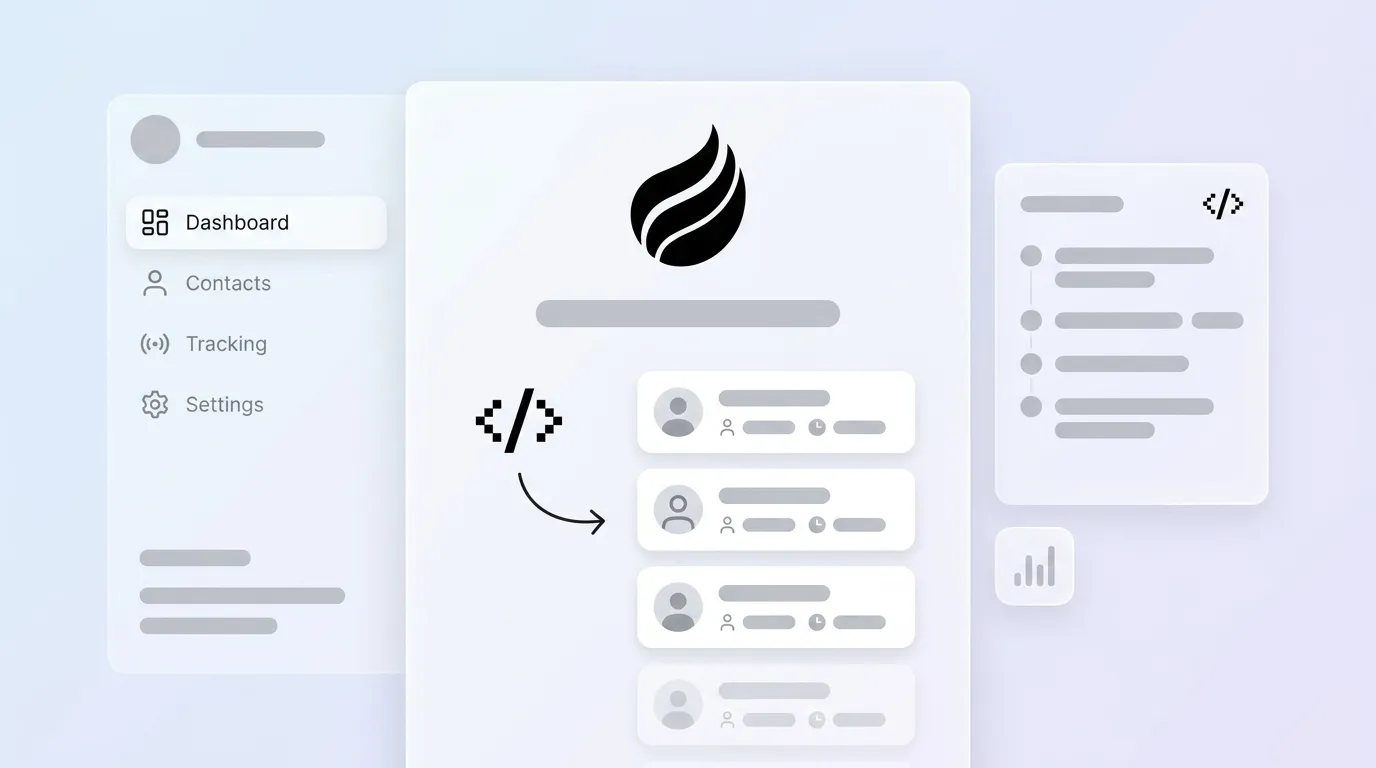
- Coffee’s AI pixel identifies individual visitors, matches buyer personas, and enriches CRM records while sending real-time Slack alerts.
- Install Coffee in seven simple steps through direct HTML, WordPress, or Google Tag Manager, with no development skills required.
- Built-in 2026 compliance covers SOC2, GDPR, and CCPA through encryption and consent banner support.
- Start identifying visitors today with Coffee’s free trial for automated lead generation.
Why CRM Tracking Scripts Matter for Revenue Operations
Revenue operations teams lose the vast majority of website traffic because they cannot identify who visits their pages, which blocks accurate forecasting and pipeline management according to industry research. Proper tracking creates “good data in,” which supports reliable revenue predictions and cleaner dashboards. To measure whether your tracking delivers that quality data, focus on three core KPIs: visitor-to-lead conversion rates targeting 1.5–5%, effective identification rates, and fast Slack notifications. AI-powered pixels outperform manual tracking on these metrics because autonomous agents remove data entry delays and reduce human error.
Setup Requirements and Built-in 2026 Compliance
Installation requires a Coffee account with a free trial option, website access through HTML, WordPress, or Google Tag Manager, and CRM integration using Standalone, Salesforce, or HubSpot. No development skills are needed for the quick setup process because Coffee handles the technical heavy lifting for you. The platform also manages compliance complexity so your team does not need legal or security expertise. Coffee’s 2026 compliance features automatically cover SOC2, GDPR, and CCPA requirements through encryption and consent banner integration.
Step-by-Step Coffee Pixel Installation Guide
Follow these seven steps to install Coffee’s tracking pixel and start identifying anonymous visitors with reliable data flowing into your CRM.
Step 1: Generate Your Pixel
Sign up or log into your Coffee dashboard and open the pixel generation section. Copy your unique tracking script: <script src='https://coffee.ai/pixel/UNIQUE_ID.js'></script>
Step 2: Install the Script
Choose your installation method and place the script where it will load on every page.
- Direct HTML: Paste the script in your website’s <head> section.
- WordPress: Use the Coffee plugin or add the script to your theme header.
- Google Tag Manager: Create New Tag, select Custom HTML, paste the script, then set an All Pages trigger.
Step 3: Verify Installation
Check your Coffee dashboard for a “Pixel Active” status. Open an incognito window, visit your website, and confirm that visitor data appears in the dashboard within a few minutes.
Step 4: Configure Personas
Create buyer personas such as “VPs of Sales at $10M+ funded companies” so Coffee’s Suggested Leads feature can highlight visitors who match your ideal customer profile.

Step 5: Connect Your CRM
Authenticate your CRM connection through Coffee’s Standalone system or the Companion App for Salesforce and HubSpot. Confirm that Coffee can create and update records inside your chosen CRM.
Step 6: Enable Notifications
Turn on Slack alerts, email drip campaigns, and LinkedIn profile surfacing so your team can engage high-intent visitors in real time.
Step 7: Run End-to-End Testing
Visit your website as a test user and verify that visitor data such as name, title, email, company, and page views appears correctly in your CRM.
Troubleshooting: If the pixel does not fire, first check for ad blockers or conflicting scripts that might block tracking. Use your browser’s Network tab to confirm a 200 OK status on pixel.js requests.
Each installation method offers different tradeoffs between ease of use and technical control. The table below compares the three approaches so you can choose the option that fits your technical environment and workflow.
| Installation Method | Pros | Cons | Setup Time |
|---|---|---|---|
| Direct HTML | Immediate firing, no dependencies | Requires code access | Quick |
| Google Tag Manager | No code changes, version control | Additional layer complexity | Quick |
| WordPress Plugin | User-friendly interface | Plugin dependency | Quick |
Manual Google Sheets Tracking vs Coffee’s CRM Pixel
Manual Google Sheets tracking depends on constant human data entry and cannot identify most visitors at the individual level. Coffee’s AI agent automates visitor naming and enrichment, which removes repetitive spreadsheet work and reduces missed opportunities. To quantify the difference between manual tracking and automated identification, the table below shows how Coffee’s pixel compares to spreadsheet-based approaches across four key operational metrics.
| Metric | Google Sheets | Coffee Pixel |
|---|---|---|
| Data Entry | Manual input required | Automatic enrichment of new records |
| Lead Conversion | 1x baseline rate | Improved conversion |
| Visitor Identification | Limited identification | Individual visitor identification capabilities |
| Setup Time | About 20 minutes | Quick setup |
Validation Steps and 2026 Compliance Standards
Once you have installed Coffee’s pixel using any of the methods above, the next critical step is confirming that everything works correctly and meets compliance requirements. Start by monitoring dashboard metrics, CRM data flow, and Slack notifications to confirm that events arrive consistently. Use the Network tab validation method described in the installation steps above to verify that the pixel fires on every page where you expect tracking.
Coffee’s compliance features include SOC2 Type 2 certification and GDPR data protection with strong security controls. These safeguards help your team respect regional privacy rules while still capturing the data needed for revenue operations. Track key performance indicators such as ROAS, cost per lead, and lead quality scores so you can measure ROI from script-generated leads and refine your campaigns over time.
Advanced CRM Tracking for HubSpot and Salesforce Teams
Advanced implementations allow you to track custom events such as form submissions, product signups, or pricing page visits. Coffee’s List Builder feature supports natural language prospect searches like “Find VPs of Sales in North America at $10M+ funded companies using Salesforce.” This capability helps sales teams move directly from visitor identification to targeted outreach.

Google Tag Manager integration supports sophisticated event tracking and conditional firing based on visitor behavior and persona matching. Revenue teams can create separate tags for high-intent pages, segment audiences by persona, and trigger different workflows for each segment.
Explore Coffee’s advanced integration features
Key Performance Indicators for CRM Tracking Scripts
Track a focused set of metrics so you can evaluate how well your CRM tracking script supports pipeline growth and sales efficiency.
- Visitor-to-Lead Conversion Rate: Aim for the conversion benchmarks mentioned earlier for identified visitors and monitor changes over time.
- Lead Response Time: Contacting leads within 5 minutes results in conversion rates more than 8 times greater than contacting between 5 minutes and 24 hours.
- Cost Per Lead: Compare script-generated leads to paid ad leads so you understand which channel delivers lower acquisition costs.
- Pipeline Attribution: Track the portion of total pipeline value that comes from identified traffic and Coffee-driven leads.
- Lead Quality Score: Route high-scoring leads to senior reps so they can focus on the prospects most likely to convert.
Conclusion: Turn Anonymous Traffic into Qualified Pipeline
Installing Coffee’s CRM tracking pixel turns anonymous website traffic into qualified leads through a simple seven-step process that fits into existing workflows. The AI agent reduces manual data entry and supports meaningful gains in lead conversion by surfacing visitors who match your buyer personas. Companies that adopt agent-led tracking gain a repeatable system for automated visitor identification, enrichment, and faster follow-up.
Set up your Coffee account and start capturing those lost leads
Frequently Asked Questions
Is Coffee’s CRM tracking script free to use?
Coffee offers a free trial that includes full access to the tracking pixel and visitor identification features. The trial lets you test the complete system, including CRM integration, Slack notifications, and AI-powered lead enrichment, before you commit to a paid plan. You can start the trial without providing a credit card.
Is Coffee’s tracking pixel compatible with Google Tag Manager?
Coffee’s tracking pixel works smoothly with Google Tag Manager and fits into existing tag setups. Create a new Custom HTML tag, paste your unique Coffee tracking script, and set it to fire on all pages. This method provides version control and avoids direct code changes to your website. Setup remains quick and includes built-in verification tools inside both Coffee and GTM.
How does Coffee compare to RB2B for visitor identification?
RB2B focuses mainly on company-level identification, while Coffee provides both individual visitor identification and AI-powered persona matching. Coffee’s Suggested Leads feature recommends specific individuals within visiting companies who match your buyer personas and includes LinkedIn profiles for immediate outreach. This approach removes guesswork when you decide which contacts to pursue inside each account.
What new features has Coffee added for 2026?
Coffee’s 2026 updates include stronger AI enrichment capabilities, more accurate persona matching algorithms, and expanded compliance features for GDPR, CCPA, and SOC2 requirements. The platform now offers deeper CRM integrations, faster Slack notifications, and richer analytics for tracking visitor-to-customer conversion paths. The AI agent also delivers more precise lead scoring and supports automated follow-up sequences that keep prospects engaged.
What KPIs should I track to measure CRM tracking script success?
Focus on visitor-to-lead conversion rates that align with the earlier benchmarks, prompt lead response times, cost per lead compared to other channels, and pipeline attribution from identified traffic. Monitor lead quality scores to confirm that the script surfaces high-value prospects for your sales team. Track sales cycle length to see whether enriched visitor data shortens deal timelines, and review customer acquisition cost and lifetime value for long-term ROI insights on script-generated leads.