Written by: Doug Camplejohn, CEO & Co-Founder, Coffee | Last updated: September 8, 2026
Key Takeaways
- BANT in Salesforce starts with custom Budget, Authority, Need, and Timeline fields on both Lead and Opportunity so data survives conversion.
- A formula field scorecard plus record-triggered Flows turns BANT inputs into a numeric score and triggers follow-up actions when prospects qualify.
- Stage-based validation rules require BANT only at key pipeline transitions, which protects data quality while keeping reps productive.
- Manual field mapping during lead conversion and consistent reporting prevent BANT data loss and reveal how qualification affects pipeline health.
- See how Coffee automates BANT capture from emails, calls, and meetings so Salesforce stays accurate with minimal data entry.
Why Operationalizing BANT In Salesforce Feels So Hard
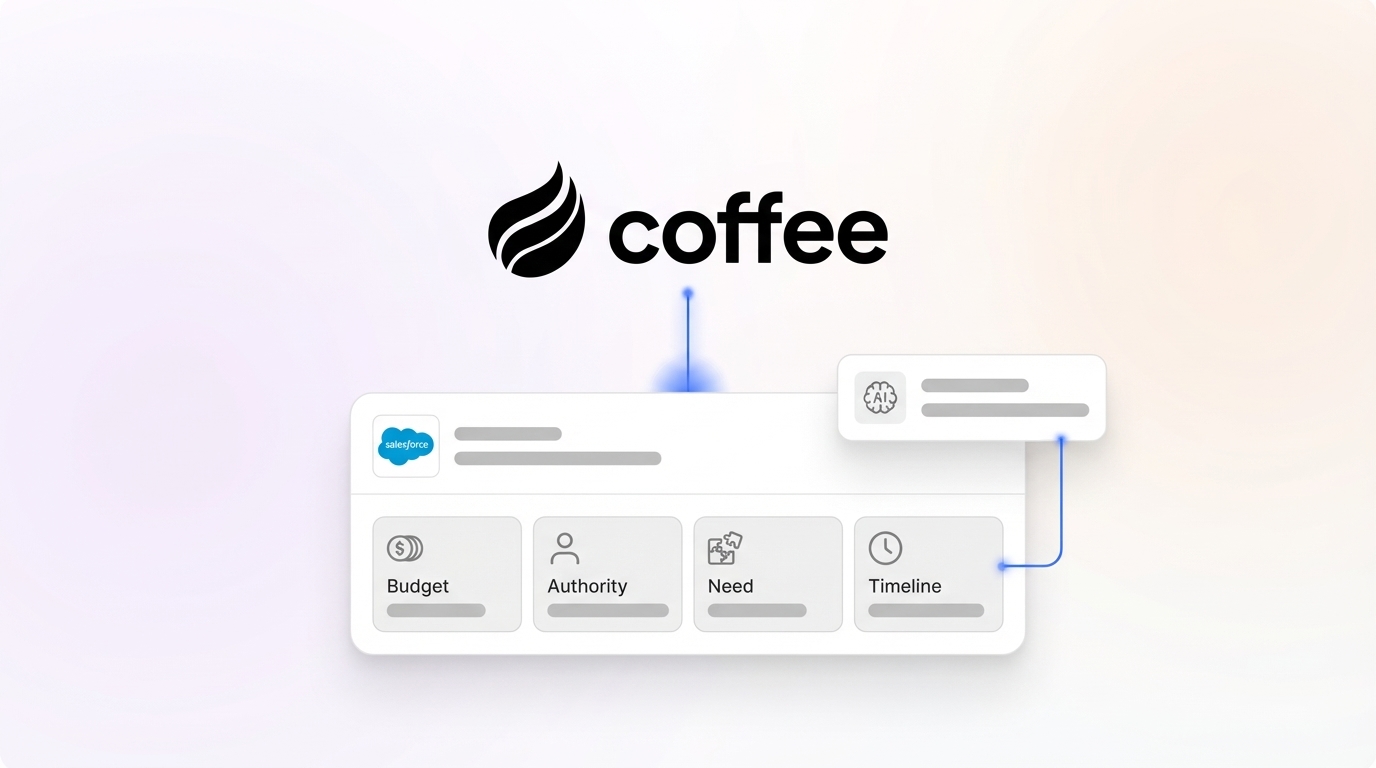
BANT stands for Budget, Authority, Need, and Timeline, yet turning that simple idea into a reliable Salesforce setup feels complex. Admins and RevOps leaders must decide which fields to create, how to automate scoring safely, and how to avoid validation rules that push reps into workarounds. This guide walks through a practical, step-by-step configuration.
Confirm a few basics before you start.
- Salesforce System Administrator access to create fields, Flows, and validation rules
- A standard Salesforce org running Lightning Experience
- Basic familiarity with the Lead and Opportunity objects
- 2–4 hours of implementation time, depending on org complexity
Configuration usually feels harder than the methodology itself. Even a flawless setup fails if reps ignore it. 76% of B2B sales reps missed quota in 2025, largely due to poor qualification. Effective BANT in Salesforce depends on the right fields, enforced at the right stage, with data captured as automatically as possible.
Step 1: Create Custom BANT Fields On Lead And Opportunity
A consistent BANT field schema on Lead and Opportunity keeps qualification data intact during conversion. Create the same four fields on both objects so every record carries the full BANT picture.
| Field Label | API Name | Type | Values |
|---|---|---|---|
| Budget Status | Budget_Status__c | Picklist | Confirmed, Estimated, Unknown, None |
| Authority Level | Authority_Level__c | Picklist | Economic Buyer, Champion, Influencer, Unknown |
| Need Urgency | Need_Urgency__c | Picklist | Critical, High, Medium, Low, None |
| Timeline | Timeline__c | Picklist | 0–30 Days, 31–60 Days, 61–90 Days, 90+ Days, Unknown |
- Navigate to Object Manager in Salesforce Setup and select Lead.
- Click Fields & Relationships → New.
- Create each field using the specifications above. Choose picklists over free-text fields because free-text invites inconsistent entries that break reporting later. See Salesforce best practices for field design for more detail.
- Repeat the same process on the Opportunity object.
- Add all four fields to your Lead and Opportunity page layouts in a dedicated section called “BANT Qualification.”
Pro Tip: Use a picklist for
Budget_Status__cwith values like “Confirmed,” “Estimated,” and “Unknown.” Free-text entries such as “yes,” “Y,” or “working on it” fragment your data and reduce report accuracy.
These fields create the foundation for BANT, and they deliver value only when populated consistently. Explore Coffee’s automated BANT capture to let the AI Agent pull BANT details from emails, calls, and calendars so Salesforce stays current with far less manual work.
Step 2: Build A BANT Scorecard With A Formula Field
A BANT score gives every opportunity a quick, numeric qualification signal. A formula field converts your picklist values into a weighted score without any custom components.
- On the Opportunity object, create a new Formula field.
- API Name:
BANT_Score__c - Formula return type: Number (0–10)
IF(ISPICKVAL(Budget_Status__c, "Confirmed"), 3, IF(ISPICKVAL(Budget_Status__c, "Estimated"), 2, IF(ISPICKVAL(Budget_Status__c, "Unknown"), 1, 0))) + IF(ISPICKVAL(Authority_Level__c, "Economic Buyer"), 3, IF(ISPICKVAL(Authority_Level__c, "Champion"), 2, IF(ISPICKVAL(Authority_Level__c, "Influencer"), 1, 0))) + IF(ISPICKVAL(Need_Urgency__c, "Critical"), 2, IF(ISPICKVAL(Need_Urgency__c, "High"), 2, IF(ISPICKVAL(Need_Urgency__c, "Medium"), 1, 0))) + IF(ISPICKVAL(Timeline__c, "0–30 Days"), 2, IF(ISPICKVAL(Timeline__c, "31–60 Days"), 1, 0))Tomba’s guide recommends a BANT weighting of Need (×3), Timeline (×2), Authority (×2), and Budget (×1), with a qualification line of 18 out of 24. Adjust the weights so they match your sales motion and deal profile.
Common Mistake: Relying only on a numeric score to gate deals oversimplifies qualification. Treat BANT as a conversation guide. A lower-scoring deal with a strong champion can matter more than a high-budget deal with no urgency.
Step 3: Automate BANT Scoring With A Record-Triggered Flow
Formula fields recalculate on their own, and Flows turn those scores into actions such as alerts or stage updates. A record-triggered Flow can update a BANT_Complete__c checkbox whenever a record crosses your qualification threshold.
- In Setup, navigate to Flows → New Flow.
- Select Record-Triggered Flow and choose the Opportunity object.
- Set the trigger to When a record is created or updated.
- Define entry criteria:
BANT_Score__cIs Changed. - Add a Decision element named “Check BANT Score.”
- Configure the first outcome:
BANT_Score__cGreater Than or Equal to 7 → setBANT_Complete__c= TRUE. - Configure the default outcome: set
BANT_Complete__c= FALSE. - Add an Update Records element that writes the checkbox value back to the triggering record.
Best Practice: Use a before-save Flow when you only update fields on the triggering record. Before-save Flows run faster and use fewer resources than after-save Flows. Also avoid DML operations inside loops by collecting records and updating them once outside the loop.
Coffee handles this Flow logic for you. Coffee’s Agent evaluates BANT criteria from real conversations such as emails, call transcripts, and meeting notes, then updates your Salesforce records automatically. You avoid building and maintaining Flow elements yourself. Learn how Coffee replaces manual Flow work for BANT scoring.
Step 4: Enforce BANT With Stage-Based Validation Rules
Validation rules keep BANT fields complete at the moments that matter. Stage-based enforcement requires BANT only when a deal moves into a qualification stage, which protects adoption while preserving data quality.
- Navigate to Object Manager → Opportunity → Validation Rules → New.
- Rule Name:
OPP_BANTRequired_QualifiedStage - Enter the following error condition formula:
AND( ISPICKVAL(StageName, "Qualified"), OR( ISBLANK(Budget_Status__c), ISBLANK(Authority_Level__c), ISBLANK(Need_Urgency__c), ISBLANK(Timeline__c) ) )- Error Message: “Complete all four BANT fields (Budget, Authority, Need, Timeline) before moving this opportunity to Qualified.”
This rule fires only when a rep attempts to move the stage to “Qualified.” Earlier saves remain unblocked. Salesforce validation best practices recommend narrow rules and bypass logic for admins and integration users.
Pro Tip: Add a custom permission named
Bypass_Validation_Rulesand assign it to System Administrators and integration users via a permission set. Add$Permission.Bypass_Validation_Rules = falseto every rule formula so bulk data loads and admin edits proceed smoothly.
Common Mistake: Requiring all BANT fields at the lead stage often hurts conversion. Enforce BANT at the opportunity stage and at the specific transition that matters most to your pipeline.
Step 5: Map BANT Fields From Lead To Opportunity
Field mapping keeps BANT data intact during lead conversion, which many admins overlook. Salesforce does not automatically map custom Lead fields to Opportunity fields, so you must configure this mapping yourself.
- Navigate to Object Manager → Lead → Fields & Relationships → Map Lead Fields.
- Select the Opportunity tab.
- Map each source Lead field to its corresponding Opportunity field:
Budget_Status__c(Lead) →Budget_Status__c(Opportunity)Authority_Level__c(Lead) →Authority_Level__c(Opportunity)Need_Urgency__c(Lead) →Need_Urgency__c(Opportunity)Timeline__c(Lead) →Timeline__c(Opportunity)
- Click Save.
Without this mapping, reps lose BANT context at conversion and must re-ask questions prospects already answered, which slows deals and frustrates buyers.
Pro Tip: Test the mapping with a sample lead before deploying to production. Convert a test lead and confirm that all four BANT fields carry over to the new Opportunity. This quick test prevents hours of troubleshooting later.
Step 6: Track BANT With Reports And Dashboards
Reporting turns BANT from a checklist into a coaching and forecasting tool. A focused dashboard shows completion rates and score distribution across your pipeline.
- Navigate to the Reports tab → New Report.
- Report Type: Opportunities.
- Add columns: Opportunity Name, Stage,
BANT_Score__c,Budget_Status__c,Authority_Level__c,Need_Urgency__c,Timeline__c, Owner. - Filter: Stage not equal to Closed Lost.
- Save and add the report to a dashboard.
Recommended dashboard components include:
- Bar Chart: Opportunities by BANT Score to show qualification distribution
- Donut Chart: Budget Status breakdown to show how many deals have confirmed budgets
- Table: Opportunities with
BANT_Complete__c= FALSE to highlight where reps skip qualification
Coffee’s Pipeline Compare feature automates this type of tracking. Coffee visualizes week-over-week pipeline changes, highlights progressed deals, stalled opportunities, and new additions, and turns pipeline reviews into strategic conversations instead of spreadsheet reviews. Watch Coffee’s pipeline views in action and see how it supports BANT reporting.
Train Your Sales Team To Use BANT Naturally
Configuration only works when reps treat BANT as part of discovery rather than a data-entry task. Training should position BANT as a way to run better conversations and stronger deal reviews.
- Start by framing BANT as a conversational discovery guide instead of an interrogation checklist. Reps can ask open-ended questions that surface budget, authority, need, and timeline details organically.
- Then show reps how BANT fields connect to real deal outcomes. Share reports that correlate BANT completion with win rates so they see the impact.
- Next, build BANT questions into call scripts and discovery templates so qualification happens naturally during every conversation.
- Finally, review BANT field completion in weekly pipeline reviews. High-attainment teams pick one methodology, mirror it in CRM fields, and run deal reviews that require evidence, not just CRM completeness reports.
Common Mistake: Treating BANT as a CRM exercise instead of a sales discipline weakens results. The discipline comes from deal reviews that require evidence, not from forcing extra clicks in picklists.
Choosing Between BANT And MEDDIC For Your Team
BANT and MEDDIC support different types of deals, and many teams benefit from using them together. The table below compares the two frameworks across three dimensions. Win rate figures come from Pitchbase’s 2026 B2B qualification frameworks guide. Each statistic reflects a different population and deal type, and the surrounding context in that guide explains the scope.
| Dimension | BANT | MEDDIC |
|---|---|---|
| Best Fit | Transactional deals, SMB, cycles under 60 days | Complex enterprise deals, committee buying, long cycles |
| Key Focus | Budget, Authority, Need, Timeline | Metrics, Economic Buyer, Decision Criteria, Decision Process, Identify Pain, Champion |
| Reported Performance Impact | 59% conversion rate increase on transactional deals when all four criteria are verified | 25% average win rate increase for teams trained on MEDDIC |
Teams handling a mix of deal sizes often use a hybrid approach. BANT acts as the initial triage filter, and MEDDIC’s Champion and Metrics work layers onto deals above a threshold such as $50K.
Conclusion: Turn BANT Configuration Into Real Qualification
BANT in Salesforce follows six clear steps: create custom fields, build a scorecard, automate with Flow, enforce with validation rules, map fields through lead conversion, and track everything with reports. You can complete this setup in 2–4 hours and end up with a working BANT system. The real impact arrives when reps apply it consistently in their conversations.
A high-functioning BANT implementation can improve forecast accuracy by 10–20 percentage points within two quarters because reps surface deal risk earlier. Reaching that outcome requires reliable data in your BANT fields, and manual entry rarely delivers that level of consistency.
Coffee’s AI Agent removes the main failure point by capturing BANT data directly from the conversations your reps already have. It eliminates manual data entry, reduces empty fields, and cuts down on chasing reps for updates. Accurate, real-time qualification data then flows into Salesforce automatically so pipeline reviews focus on strategy instead of data hygiene. Get started with Coffee today and see how the Agent can handle BANT qualification for your team.
Frequently Asked Questions
Is BANT Outdated?
BANT still works well for short-cycle, transactional deals. It fits inside sales, SMB accounts, and opportunities with cycles under 60 days, where a fast four-question filter adds value. Complex enterprise sales with many stakeholders and long cycles need more depth than BANT alone provides. Teams that handle both deal types often use BANT for initial triage and then add MEDDIC’s Champion and Metrics criteria for larger deals. Consistent application of the chosen framework improves forecasts more than the specific acronym you select.
What Sales Methodology Does Salesforce Use?
Salesforce does not enforce a single sales methodology across its platform or its internal sales teams. The platform stays methodology-agnostic, so you can configure fields, Flows, and validation rules for BANT, MEDDIC, SPICED, CHAMP, or any other framework. Salesforce’s own sales organization has used elements of MEDDIC for enterprise deals, yet the product itself remains neutral. The crucial step is choosing one methodology, mirroring its elements in CRM fields, and enforcing consistent use with stage-based validation rules and disciplined deal reviews.
Can I Implement BANT In Salesforce Without Custom Code?
Yes. Every step in this guide uses declarative tools such as custom fields, formula fields, record-triggered Flows, and validation rules. Apex code is unnecessary for standard BANT scoring and enforcement. Salesforce Flow now serves as the primary automation tool, replacing Workflow Rules and Process Builder, and it can handle BANT scoring logic, stage-based enforcement, and checkbox updates. Apex becomes relevant only for highly complex calculations, advanced integrations, or specialized error handling that exceeds Flow’s capabilities.
How Does Coffee Help With BANT?
Coffee’s AI Agent automates BANT data capture so reps do not need to update every field after each call. Coffee listens to meetings, reads emails, and scans calendars to extract BANT signals automatically. It then writes structured qualification data back to Salesforce, which keeps BANT fields accurate with almost no manual effort. Coffee customers typically save 8–12 hours per rep per week on data entry. Coffee’s Agent can also structure meeting notes according to BANT, MEDDIC, or SPICED, which keeps qualification data consistent regardless of your chosen framework.