

Key Takeaways for Salesforce Deal Progression
- Salesforce deal progression monitoring tracks velocity, stage duration, and health scores to surface bottlenecks and speed up closes.
- Native tools like Pipeline Inspection, Einstein Scoring, and Flows provide visibility but rely on manual data entry and miss unstructured data from emails and calls.
- Use 4–5 opportunity stages with clear benchmarks and enable Sales Path so reps follow a consistent, guided progression.
- AI agents like Coffee capture data automatically, log activities, and deliver real-time insights, saving 8–12 hours weekly and increasing deal velocity.
- See how Coffee’s AI agents automate these monitoring strategies to eliminate manual work and ensure predictable revenue.
Why Salesforce Deal Progression Often Breaks Down
Legacy CRM systems create a vicious cycle where poor data quality leads to inaccurate forecasts and missed opportunities. Sales reps spend only 28% of their time actively selling, with the rest lost to administrative work such as CRM updates.
Salesforce depends heavily on manual data entry. When emails, calls, and meetings are not captured automatically, deal progression turns into guesswork. Sales cycles are 32% longer than in 2021, yet most teams still lack clear visibility into why deals stall or slip.
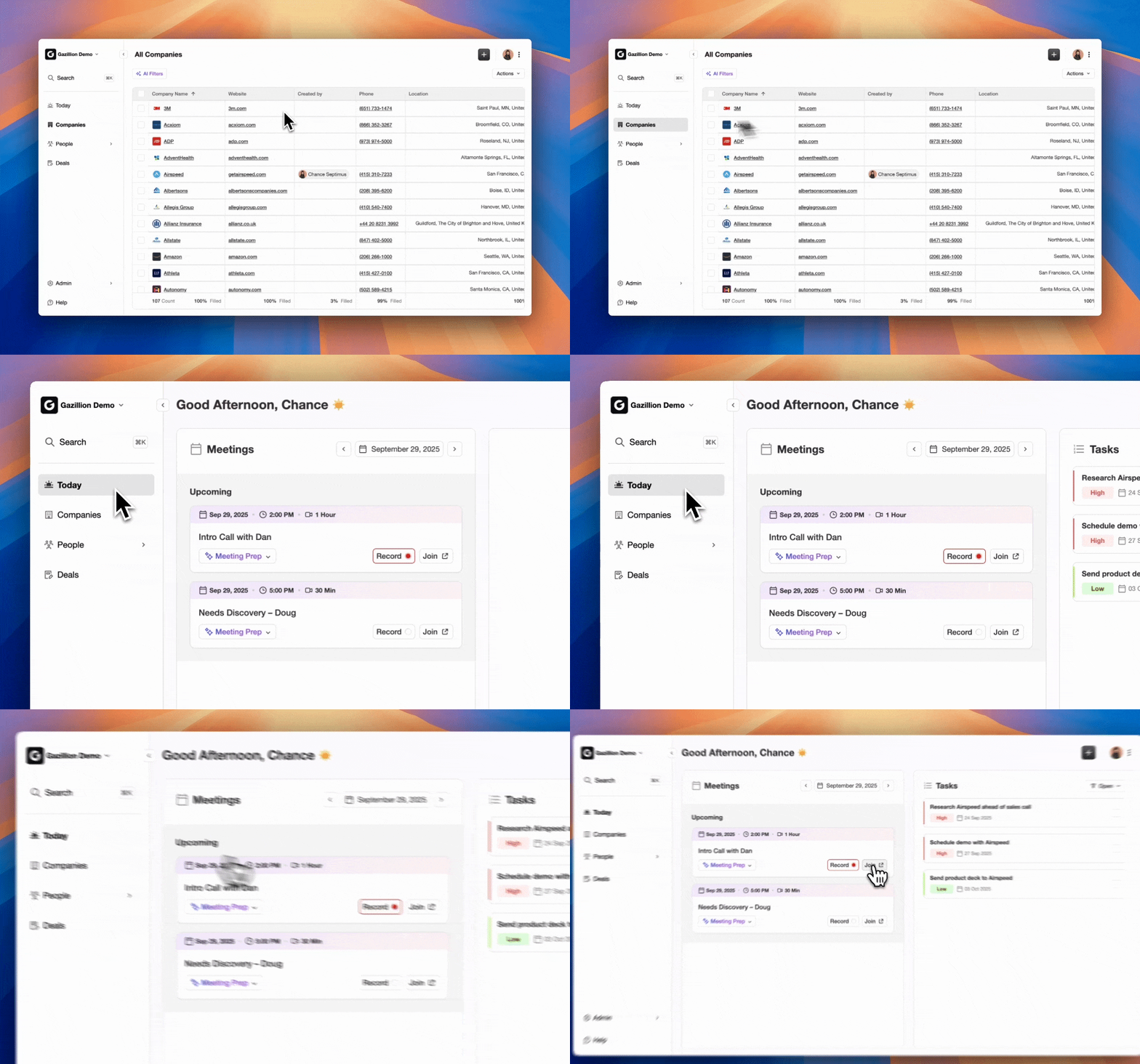
This “bad data in, bad data out” pattern pushes sales leaders toward spreadsheet exports and manual pipeline reviews. Stalled deals go undetected, forecasts miss targets, and revenue teams lose confidence in their CRM.
Preconditions for Reliable Deal Progression Monitoring
To break this cycle and establish reliable deal progression monitoring, you need a few basics in place before you start configuring Salesforce.
- Admin access to customize opportunity stages and create dashboards.
- Defined sales process using a framework such as BANT or MEDDIC.
- Clean opportunity data with accurate close dates and amounts.
- Einstein Analytics enabled so you can use predictive scoring features.
Native setup usually takes 1–2 hours to configure, while AI agent deployment activates automation almost instantly. Because this configuration directly affects sales team workflows, RevOps managers typically own the rollout and partner with sales leadership to align stages with the real buyer journey.
Native Salesforce Monitoring: Step-by-Step Setup
1. Customize Opportunity Stages and Sales Path
Gary Smith recommends limiting Salesforce opportunity stages to 4–5 active pipeline stages with clear exit criteria. Configure stages that mirror your actual sales process and keep each step distinct.
| Stage | Duration Benchmark | Best Practice | Exit Criteria |
|---|---|---|---|
| Prospecting | 7–14 days | BANT qualification | Customer agrees to Discovery |
| Discovery | 14–21 days | Needs analysis complete | Requirements documented |
| Proposal | 10–15 days | Solution mapped to needs | Pricing delivered |
| Negotiation | 5–10 days | Terms finalized | Contract ready for signature |
Turn on Sales Path in Lightning Experience so reps see stage-by-stage guidance, coaching text, and required fields directly on the opportunity.
2. Use Pipeline Inspection and Dashboards for Change Tracking
Pipeline Inspection helps you track changes since your last review. It highlights deals added, removed, pushed, or closed and surfaces patterns such as slipping opportunities and weak new pipeline.
Create dashboards that monitor key velocity metrics using the formula: V = (Number of Opportunities × Average Deal Value × Win Rate) / Average Sales Cycle Length. This metric shows how much revenue your pipeline generates per day.
3. Turn On Einstein Scoring for Deal Health Signals
Einstein Opportunity Scoring ranks deals by conversion probability. The system reviews historical win and loss patterns, engagement levels, and progression speed so you can spot at-risk opportunities early.
| Metric | 2026 Benchmark | Calculation | Alert Threshold |
|---|---|---|---|
| Pipeline Velocity | $1,847/day (Technology) | See formula above | 15% week-over-week drop |
| Win Rate | 20–25% (B2B) | Closed Won / Total Opportunities | Below 15% |
| Stage Duration | 14–21 days (Discovery) | Days in current stage | 2x average duration |
4. Configure Flows for Risk Alerts
Use Process Builder or Flow to trigger alerts when deals exceed normal stage duration or show declining engagement. Set up automated notifications for opportunities that remain in a stage beyond your benchmark timeframe.
Native flows still cannot read unstructured data from emails and calls, so activity logs remain incomplete and monitoring accuracy suffers.
Automate Deal Monitoring with Coffee’s AI Agent
Native Salesforce tools create a solid baseline, yet they miss the unstructured data that drives real deal movement. Coffee’s AI agent runs on top of your existing Salesforce instance and captures data automatically from emails, calendars, and call transcripts.
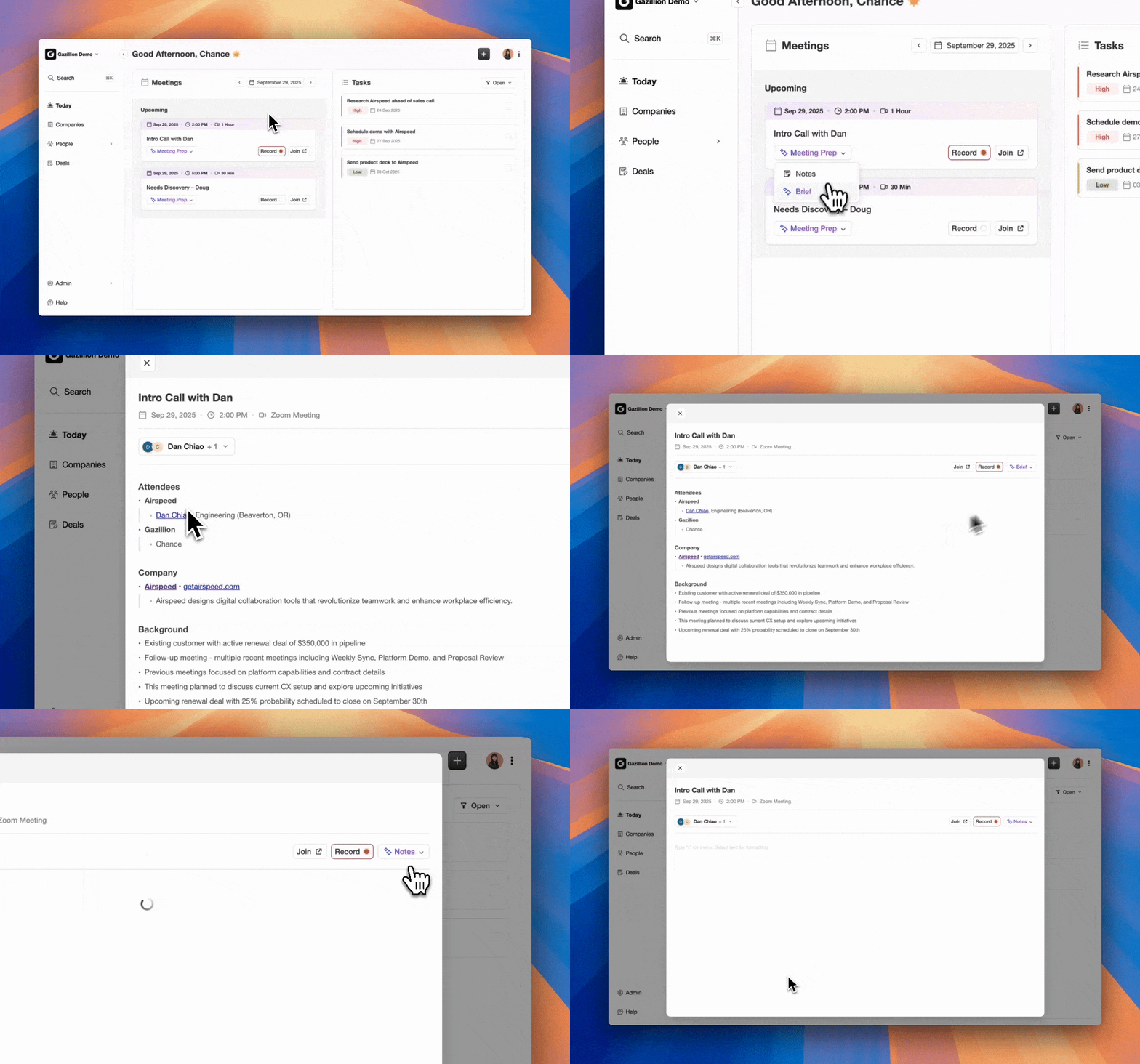
The agent creates and enriches contacts, logs activities, and generates deal summaries without manual entry. Coffee’s AI search on deals answers natural-language prompts such as “Which deals are stuck in negotiation?” and returns instant pipeline insights.
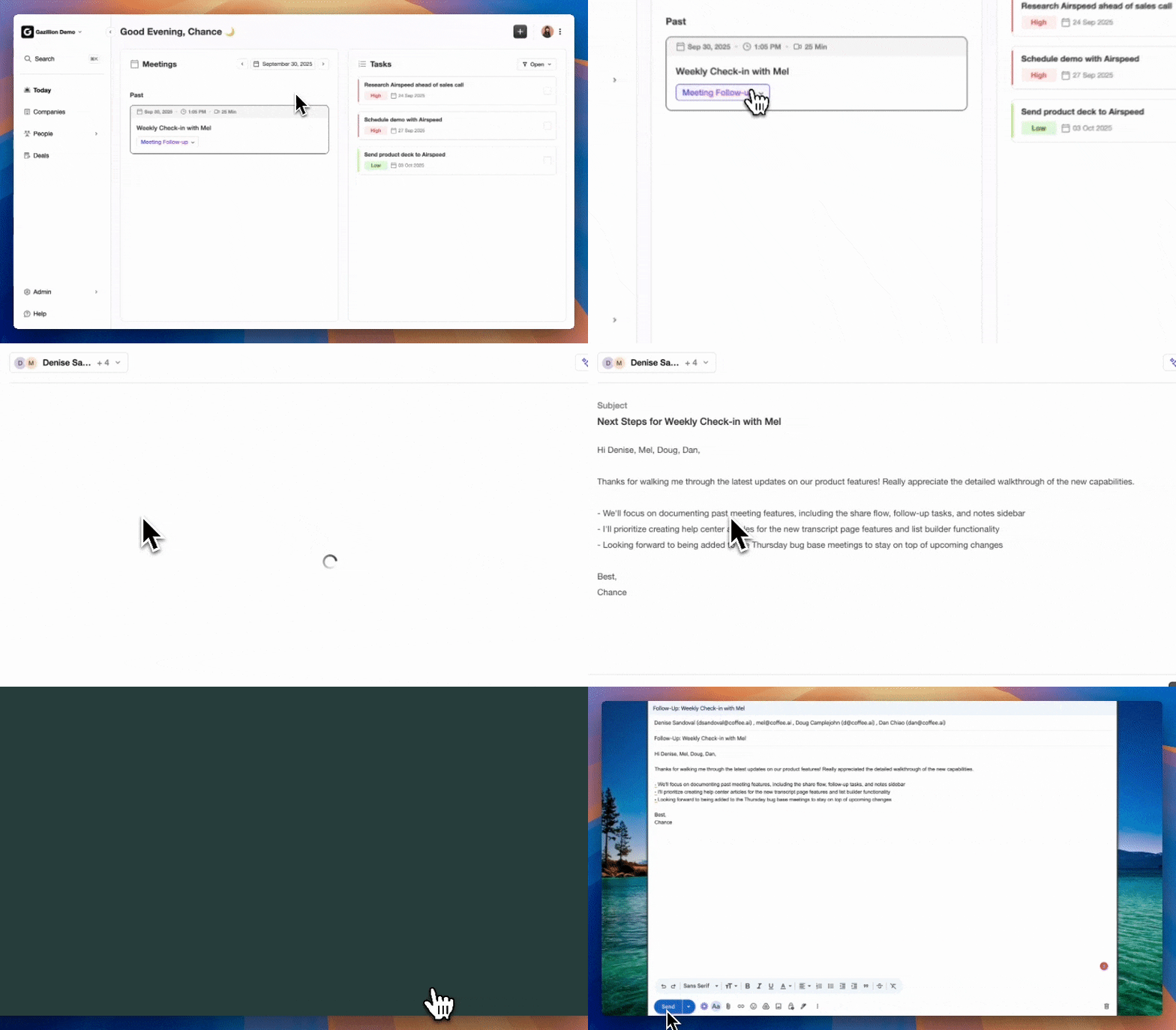
Key automation capabilities include:
- Pipeline Compare: Week-over-week progression tracking that highlights stalled, advanced, and new opportunities.
- Auto-logging: Email and meeting data flows into Salesforce automatically, without rep actions.
- Deal health scoring: AI evaluates communication patterns and engagement levels to flag risk.
- Unstructured data processing: Call transcripts and email content become searchable CRM data.
Integration uses simple authentication and meets SOC 2 requirements. Teams report saving 8–12 hours each week and achieving roughly 30% faster deal velocity through this automated monitoring.
Deploy Coffee’s AI agent to turn Salesforce deal progression monitoring from manual guesswork into automated intelligence.
Validation Metrics and Ongoing Best Practices
Effective deal progression monitoring delivers 90% data completeness and faster movement through stages. Track the following indicators to confirm your setup is working.
| KPI | Target | Measurement | Frequency |
|---|---|---|---|
| Data Completeness | 90%+ | Required fields populated | Weekly |
| Stage Velocity | Target from benchmarks above | Pipeline velocity formula | Daily |
| Forecast Accuracy | 85%+ | Actual vs predicted close | Monthly |
Run weekly pipeline reviews using automated insights, then adjust stages quarterly based on conversion data. Refine alert thresholds regularly so you reduce noise while still catching real risks.
FAQ
How do you monitor Salesforce pipeline velocity?
Pipeline velocity uses the formula described earlier: opportunities multiplied by deal value and win rate, divided by sales cycle length. Track this metric daily with Salesforce dashboards or Coffee’s Pipeline Compare feature, which calculates velocity changes week over week. Configure alerts for 15% drops so you can spot pipeline health issues early. Segment velocity by deal size, source, and rep performance to uncover specific improvement areas.
How do you automate stalled deals in Salesforce?
Create Process Builder flows that trigger when opportunities exceed average stage duration by 50%. Assign automated tasks for account executives and send email alerts to sales managers when deals stall. Native automation still focuses on CRM field changes and ignores email and call activity. Coffee’s automation improves stalled deal detection by analyzing communication patterns, engagement levels, and buyer behavior before the deal officially appears stuck.
What are Salesforce opportunity stage best practices?
Use 4–5 clear stages aligned with your buyer journey, such as Prospecting, Discovery, Proposal, and Negotiation. Give each stage specific entry and exit criteria plus duration benchmarks so reps know exactly when to move deals forward. Avoid overlapping stages and use action-oriented labels instead of vague milestone names. Enable Sales Path for coaching guidance and required field updates, while Coffee reinforces stage discipline by logging activities and updating deal status based on real buyer engagement.
What metrics indicate healthy deal progression?
Healthy pipelines show strong stage conversion rates, such as 40–50% from discovery to demo and 20–30% at negotiation. Watch average stage duration and overall pipeline velocity to confirm deals move within your benchmarks. Track days since last meaningful activity and the breadth of stakeholder coverage on each account. Coffee adds real-time health scoring by analyzing communication frequency, email response rates, and meeting attendance patterns.
How often should you review pipeline progression?
Run weekly pipeline reviews that focus on deals that stalled, advanced, or were added since the last session. Use monthly deep dives for stage conversion analysis and quarterly reviews for process changes. Coffee’s automated monitoring supplies daily insights without constant manual review and alerts managers only when intervention is needed, while still maintaining continuous visibility into deal health and progression trends.
Conclusion: Combine Native Salesforce and Coffee for Predictable Revenue
Strong Salesforce deal progression monitoring blends native tools with AI automation so you remove blind spots and accelerate revenue. Pipeline Inspection and Einstein Scoring create a solid foundation, while Coffee’s automation delivers the continuous data capture and real-time insights required for 2026 sales performance.
Start your Coffee trial today to shift Salesforce pipeline management from manual monitoring to intelligent automation that supports predictable revenue growth.