
Last updated: March 30, 2026
Key Takeaways
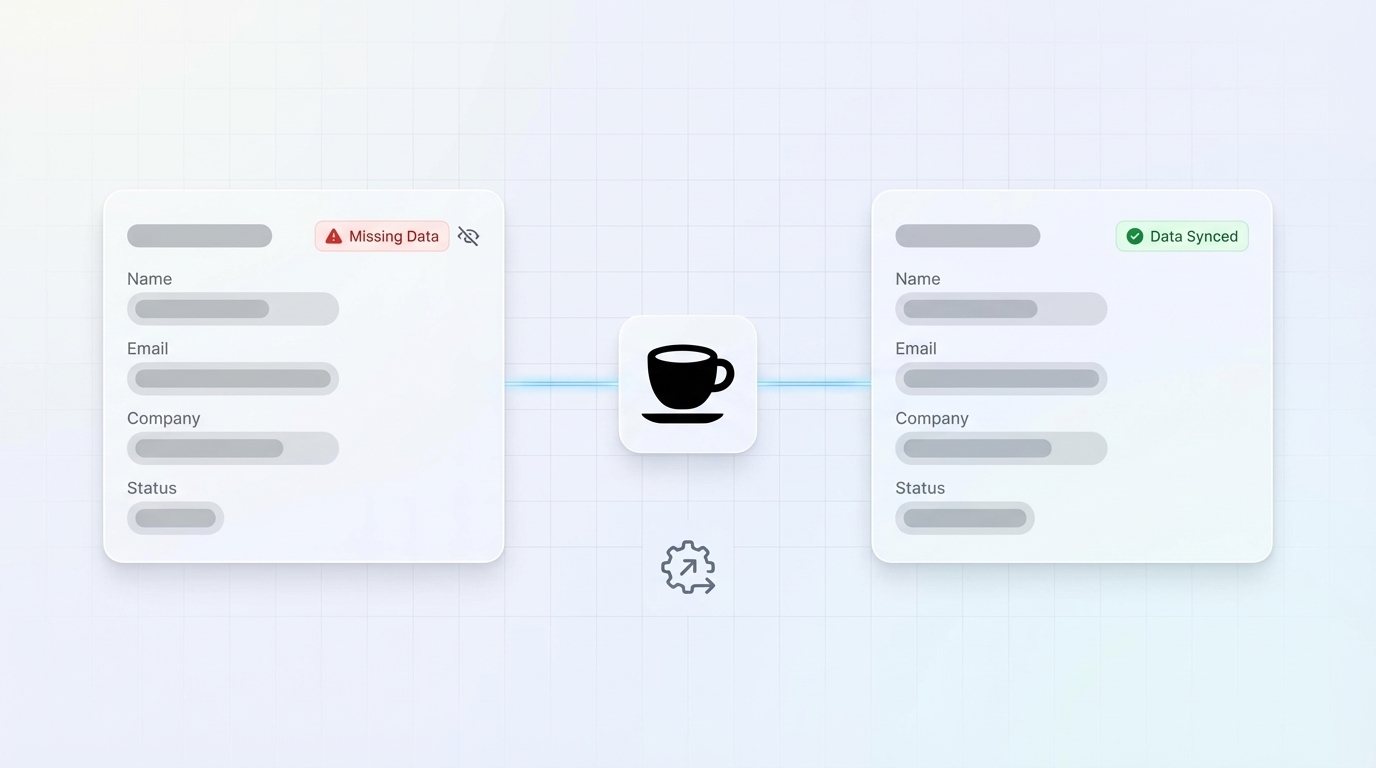
- Missing HubSpot data usually comes from manual entry gaps, sync failures, filters, deletions, and import errors, which create sales pipeline blind spots.
- Recover data in about 30 minutes with a 7-step playbook: clear filters, restore from Recycle Bin, verify syncs, review logs, bulk edit, use data quality tools, and restore from backups.
- Advanced fixes resolve stubborn sync issues, workflow conflicts, and bulk property gaps so your CRM reflects complete, accurate data.
- Coffee’s AI Agent captures data from emails, calls, meetings, and Stripe automatically, which removes manual entry and prevents future losses.
- Upgrade to Coffee today to protect HubSpot data integrity and increase sales productivity.
Why HubSpot Data Disappears in Day-to-Day Use
HubSpot data often disappears through a few predictable failure points that create blind spots in your sales pipeline. Manual entry failures represent the primary cause, because busy sales reps skip logging activities or enter contact information incorrectly. Integration sync glitches between HubSpot and email tools, calendars, or third-party applications frequently create data gaps when connections fail silently.
Beyond these active failures, filtered views and archived records often hide data that looks missing but still exists in your account. HubSpot’s 90-day Recycle Bin limits mean permanently deleted records cannot be recovered after this window. Import errors during CSV uploads or bulk operations can overwrite existing data or fail to create records, which leaves gaps across contacts, companies, and deals.
| Cause | Symptom | Quick Check |
|---|---|---|
| Manual Entry Gaps | Missing activities or contacts | Review recent email and calendar sync |
| Sync Failures | Outdated contact info | Check integration status |
| Filter or View Issues | Contacts appear vanished | Clear all filters |
| Post-90-Day Deletions | Permanently missing records | Check Recycle Bin dates |
| Import Errors | Incomplete record creation | Review import history logs |
| Workflow Deletions | Bulk record removal | Audit workflow actions |
| Permission Restrictions | Limited record visibility | Verify user access levels |
Fast HubSpot Fixes for Newly Missing CRM Data
Use these seven steps in sequence to recover missing HubSpot data within about 30 minutes. Start with the most common causes, then move into deeper troubleshooting only if needed.
Step 1: Clear Filters and Check Views
Navigate to your contacts, companies, or deals list. Active filters often hide records that match your search but fail the filter conditions, so remove all active filters by clicking “Clear all” and switch to the “All [records]” view. Hidden records usually reappear as soon as you clear restrictive filters or move away from narrow custom views.
Step 2: Restore from Recycle Bin (90-Day Window)
Navigate to your records list, then click Actions > Restore records in the upper right. Filter deleted records by date range, user, or workflow to narrow the list. Select up to 10,000 records for restoration, which often recovers most missing data when you act within the recovery window mentioned earlier.
Step 3: Verify Integration Syncs
Open Settings > Integrations and check the status of your email integrations for Gmail or Outlook. Reconnect any failed connections, then trigger a manual sync of recent activities to fill obvious gaps. Review calendar sync settings so meeting data flows into HubSpot instead of staying locked in personal calendars.
Step 4: Review Import and Activity Logs
Go to Settings > Data Management > Import to review recent import attempts. Look for failed imports or error messages that signal incomplete data transfer. Check activity logs for bulk operations that may have changed record visibility or removed data across many records at once.
Step 5: Bulk Edit Missing Properties
Use HubSpot’s bulk edit feature to fill missing property values across multiple records at the same time. Select affected records, then update critical fields like contact owner, lifecycle stage, or company information in a single action. This approach restores consistency without manual record-by-record editing.
Step 6: Use HubSpot Data Quality Tools
Open Data Management > Data Quality to find duplicates, formatting issues, and enrichment gaps. The overview page suggests recommended actions and highlights property insights so you can fix many inconsistencies automatically.
Step 7: Restore from Backup (Enterprise Only)
Enterprise users can restore CRM data from backups up to 14 days old through Settings > Data Management > Backup & Restore. Choose specific objects and properties for restoration, and confirm that these restored values will overwrite current data.
Pro Tip: Record which step fixed the issue so future recovery efforts move faster. Most recent data problems resolve in Steps 1 through 3.
Stop manual data recovery cycles permanently: Start capturing every interaction automatically with Coffee so HubSpot stays complete without extra admin work.
Advanced HubSpot Troubleshooting for Sync and Bulk Data Issues
Fix HubSpot Data Sync Issues at the Source
Persistent sync problems require a structured review of each integration’s health. Disconnect and reconnect problematic integrations through Settings > Integrations, and confirm that authentication and permissions match your current security policies. Review API rate limits and connection logs to spot repeated errors that point to systemic failures rather than isolated glitches.
Check workflow automation that might interfere with data sync. Workflows that use “Delete contact” actions can create ongoing data loss loops that remove records as soon as they sync. Disable any suspicious workflows before restoring data so recovered records do not disappear again.
Recover from a Failed HubSpot Integration Sync
Failed integration syncs usually come from expired authentication or changed permissions. Re-authorize third-party applications and confirm that HubSpot can read and write the data it needs. Beyond these basic steps, test sync behavior with a small sample of records before you enable full synchronization for the entire account.
Monitor integration health through connection status in HubSpot’s App Marketplace. Configure notification alerts for sync failures so your team can respond quickly, long before missing data affects pipeline reviews or forecasting.
Run Bulk Edits to Fill Missing HubSpot Properties
Run bulk property updates through list-based selections instead of editing individual records. Build targeted lists based on missing property criteria, then apply bulk updates to fill empty fields in a controlled way. Use HubSpot’s property history feature to confirm that bulk changes succeeded and to identify any records that did not update.
Teams that apply these advanced fixes often see about 20% improvement in deal velocity, because reps work from complete data and spend less time on manual verification.
Prevent Future Data Gaps with Coffee’s AI Agent
Coffee’s Companion App prevents missing HubSpot data by capturing every customer interaction automatically. The Coffee Agent creates and enriches contacts and companies from Gmail and Outlook emails, logs calls and meetings, and joins video conferences to generate summaries and action items.
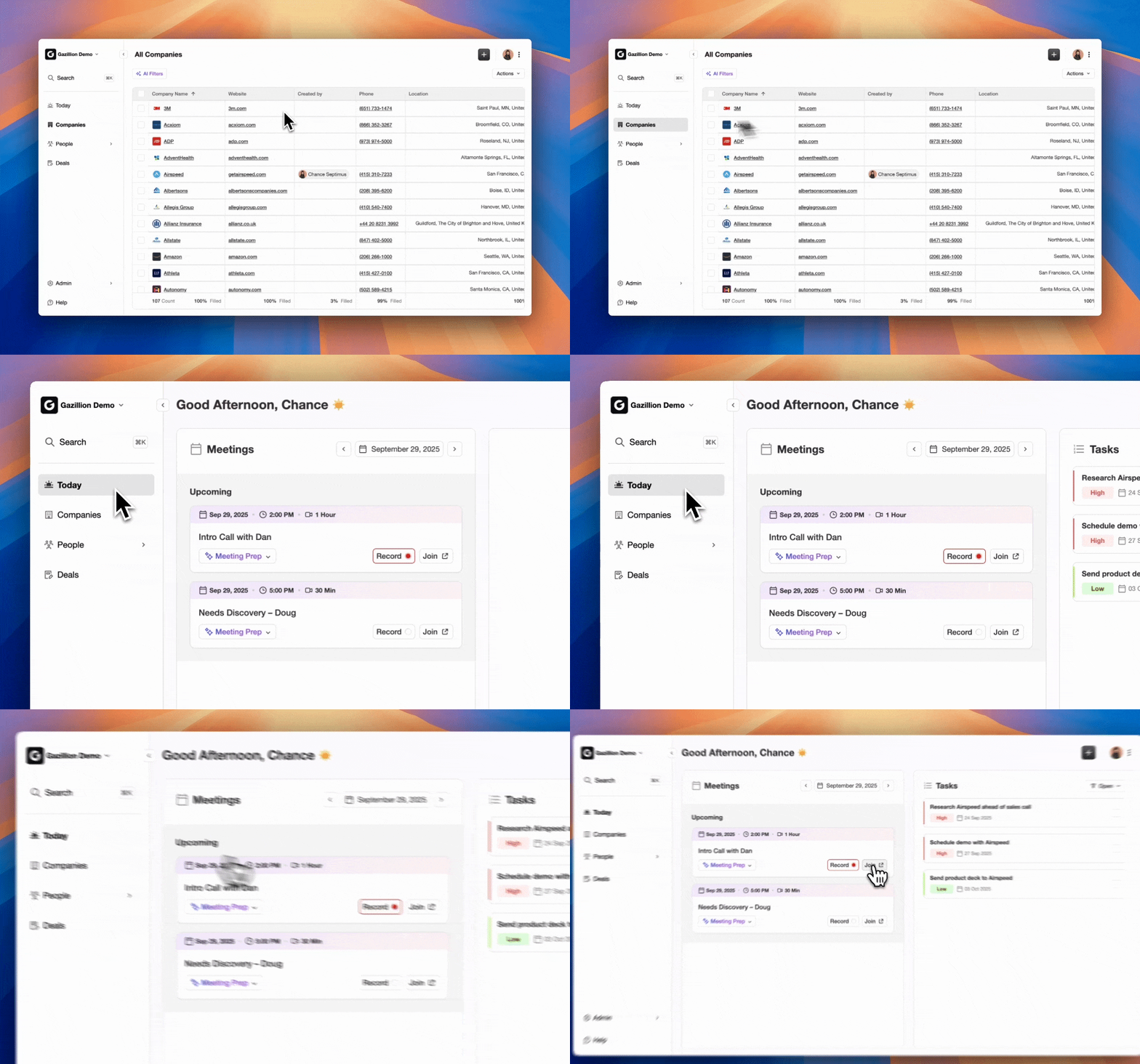
Coffee’s Stripe integration imports customers and companies, enriches them, and adds paid invoices to deals as Closed Won, which closes revenue recognition gaps that manual systems often miss. The Agent also processes unstructured data such as email content and call transcripts that traditional CRMs struggle to handle.

Simple HubSpot authentication connects Coffee to your existing instance within minutes. The Agent immediately starts capturing missed interactions, enriching incomplete records, and maintaining data quality without changing your current workflows. High-performing reps spend 20–25% more time with customers when automation handles non-customer-facing work, which directly supports higher sales productivity.
One company generating tens of millions in revenue and building custom AI solutions replaced spreadsheet-based sales management after adopting Coffee. The Agent’s automatic contact creation from Google Workspace removed manual entry, while Pipeline Compare features automated their weekly pipeline reviews. API access powered custom briefing scripts that extended Coffee’s intelligence across their entire sales process.
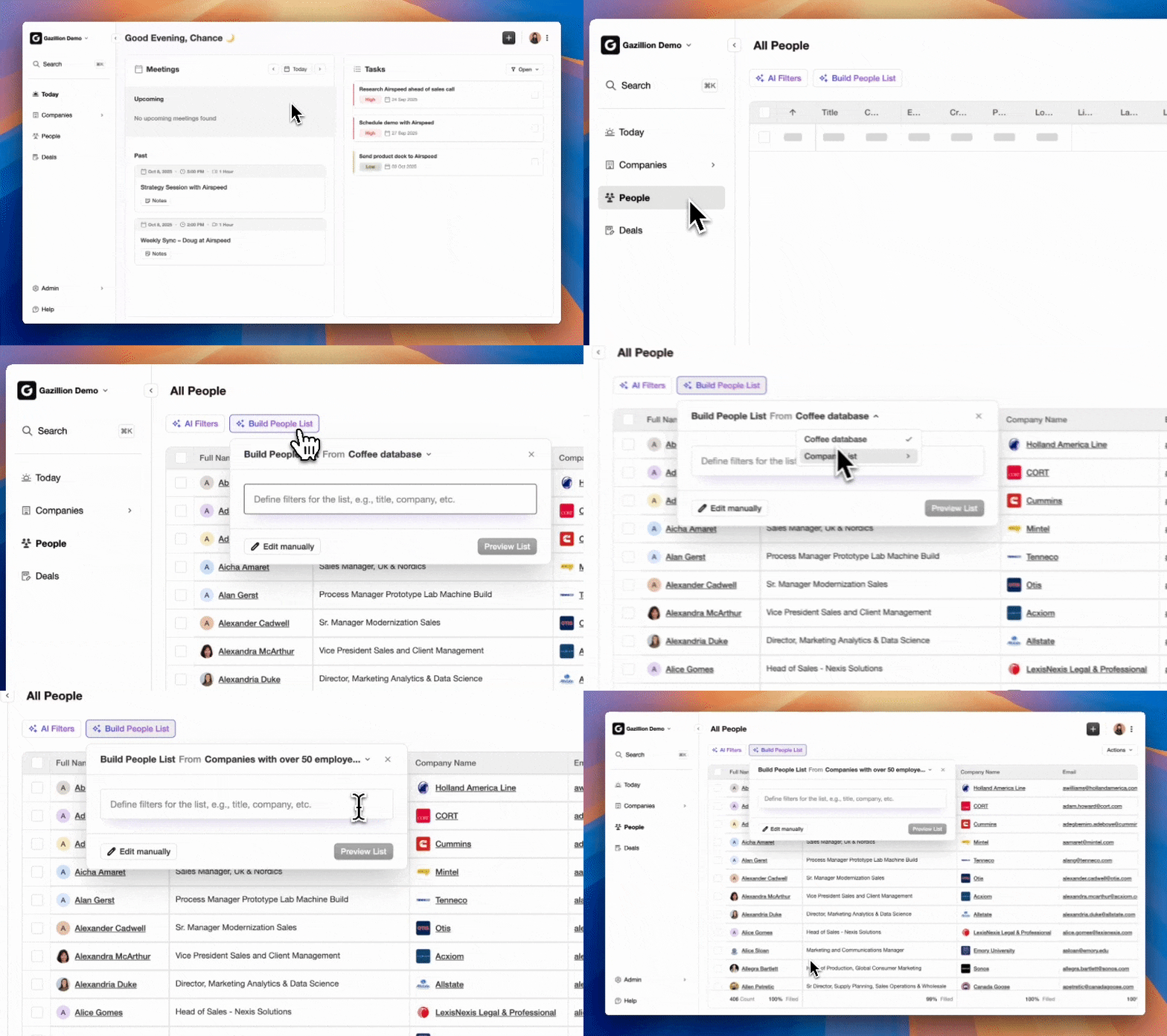
Teams can also combine Coffee’s automated data capture with HubSpot workflows to run advanced lead nurturing and deal progression on complete, reliable data sets.
Transform your HubSpot data quality for the long term: Deploy Coffee’s AI agent to keep every record accurate from the moment it enters your CRM.
When Manual HubSpot Fixes Are Not Enough
Manual data recovery provides short-term relief but breaks again as teams grow and processes expand. Coffee’s Agent solves the root problem by removing human-dependent data entry from your workflow. HubSpot’s native tools still need ongoing maintenance and monitoring, while Coffee runs autonomously to protect data integrity across every customer touchpoint.
End the cycle of missing data emergencies: Switch to Coffee for automated CRM excellence and keep your pipeline fully visible.
Frequently Asked Questions
How to restore deleted records in HubSpot
Navigate to your records list for Contacts, Companies, Deals, or Tickets, then click Actions > Restore records in the upper right corner. This opens the restore tool in a new browser tab where you can filter deleted records by date, user, or workflow. Select the records you want to restore and confirm the action. Records can be restored only within 90 days of deletion, after which HubSpot removes them permanently. The restore process recovers property values, activity history, and associations that existed at the time of deletion.
Why contacts go missing after import
Contact imports often fail because of duplicate email addresses that block new record creation, formatting errors in CSV files, missing required fields, or mapping mistakes between CSV columns and HubSpot properties. Check your import history in Settings > Data Management > Import to review error logs and pinpoint specific issues. Many failed imports require you to correct the source file, then re-import with clean formatting, proper field mapping, and clear duplicate handling rules.
How Coffee helps with HubSpot data sync issues
Coffee prevents HubSpot data sync issues by capturing and logging customer interactions before they can be lost. The Coffee Agent connects to Gmail, Outlook, and calendar systems to create contacts, companies, and activities in real time without manual sync steps. When integrated with HubSpot, Coffee writes enriched data directly into your CRM, which removes many failure points found in traditional integration setups. The Agent also joins video calls to capture meeting summaries and action items that usually depend on manual notes.
How to fix missing contacts in HubSpot
Start by checking whether filters or views hide contacts instead of removing them. Clear all filters and switch to the “All contacts” view to reveal hidden records. If contacts are truly missing, use the Recycle Bin restore feature within 90 days of deletion. For contacts that never existed because of import failures or sync issues, review your email integration settings and import logs to find the root cause. Bulk edit tools can then fill missing contact properties across many records at once. For long-term prevention, use automated contact creation with tools like Coffee that capture every email interaction without manual work.
What causes HubSpot integration sync failures
Integration sync failures usually come from expired authentication tokens, missing permissions, API rate limits, or changes in third-party application settings. Network issues and server downtime can also interrupt sync processes. HubSpot’s integration health monitoring shows connection status and error messages that help you diagnose specific causes. Regular re-authentication, permission checks, and active monitoring prevent most sync issues and reduce the risk of large data gaps.