
Key Takeaways
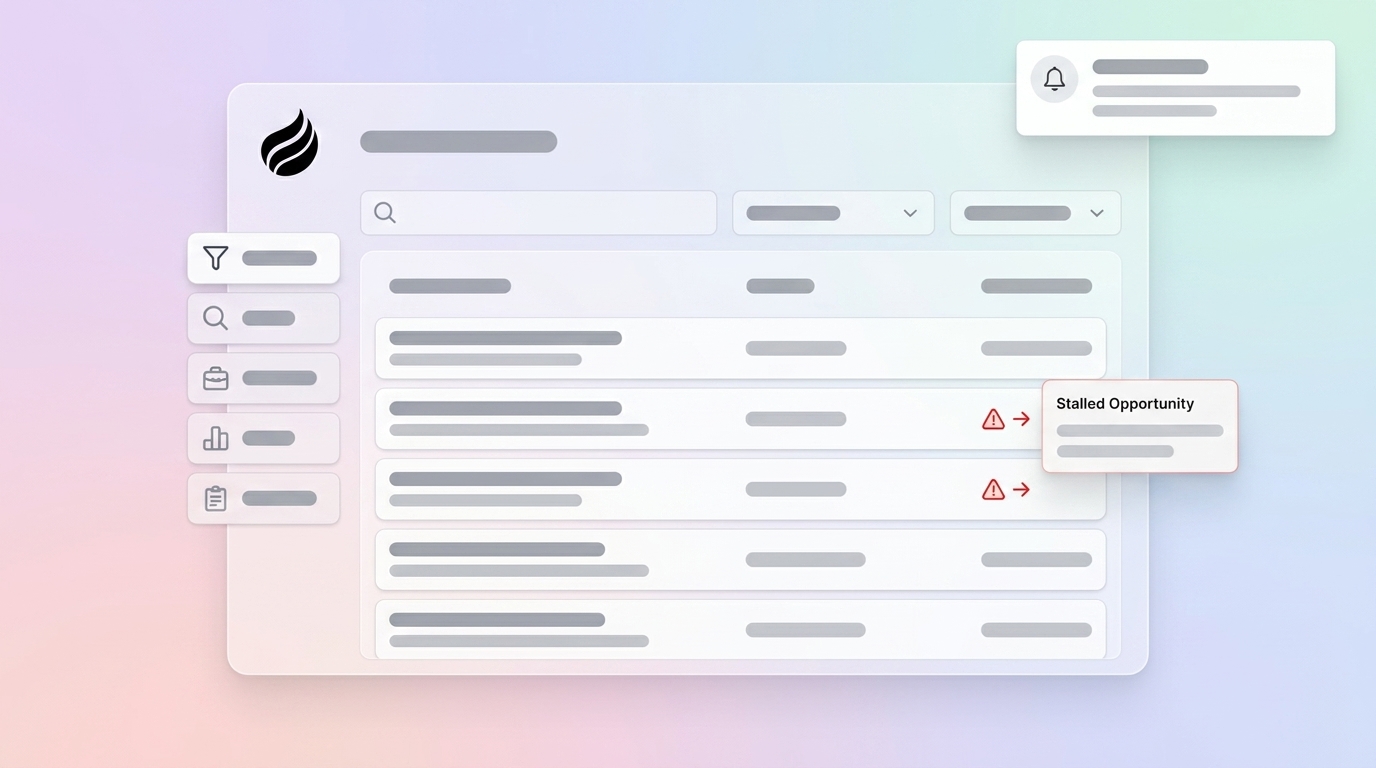
- Stalled Salesforce deals older than 30 days with no activity often represent 30–40% of your pipeline and drain revenue.
- Use reports, list views, Kanban warnings, and Einstein scoring with clear filters such as Stage Duration > 30 days and blank Last Activity.
- Spring ’26 Kanban enhancements add visual age badges so reps can spot deals that exceed stage benchmarks like 45 days in Negotiation.
- Coffee’s AI automation delivers instant Pipeline Compare, natural-language queries, and full-funnel stall detection without manual setup.
- Automate your Salesforce pipeline health monitoring and revive stalled deals effortlessly with Coffee’s AI-powered monitoring.
Why Finding Stalled Deals in Salesforce Matters
Undetected stalls quietly slow pipeline velocity and reduce revenue. 71% of sales reps waste time on data entry, leaving only 35% for selling, while deals stuck in the proposal stage for more than 21 days are 70% less likely to close. Effective stall detection depends on Salesforce admin access, opportunity history tracking, and clean stage data. RevOps managers and heads of sales typically own this process. They need accurate last activity dates and stage duration fields filled consistently across the team. With these prerequisites in place, the first step is establishing baseline visibility through a foundation report.
Step 1: Build a Stuck Opportunities Report in Salesforce
A focused stuck-opportunities report gives you a clear baseline view of stalled deals. Navigate to Reports, select New Report, and choose Opportunities as the primary object. After you select the object, apply filters for Stage Duration greater than 30 days and Last Activity Date equals blank, which isolates deals that have lingered and gone silent. To see which reps and stages stall most often, group results by Opportunity Owner and Stage Name. Add columns for Close Date, Amount, and Days in Current Stage so you can quantify revenue at risk. Finally, include Opportunity History as a related object to enable historical trending and track how long deals remain stalled.
Screenshot description: Report builder interface showing Stage Duration filter set to “greater than 30 days” with Last Activity Date filter configured as “equals BLANK”.
Common mistake: Incomplete activity logging creates false positives and hides real stalls. Coffee’s agent automatically captures email interactions, calendar events, and call records, which closes data gaps that distort stall identification.
Step 2: Use List Views and Filters for Last Activity
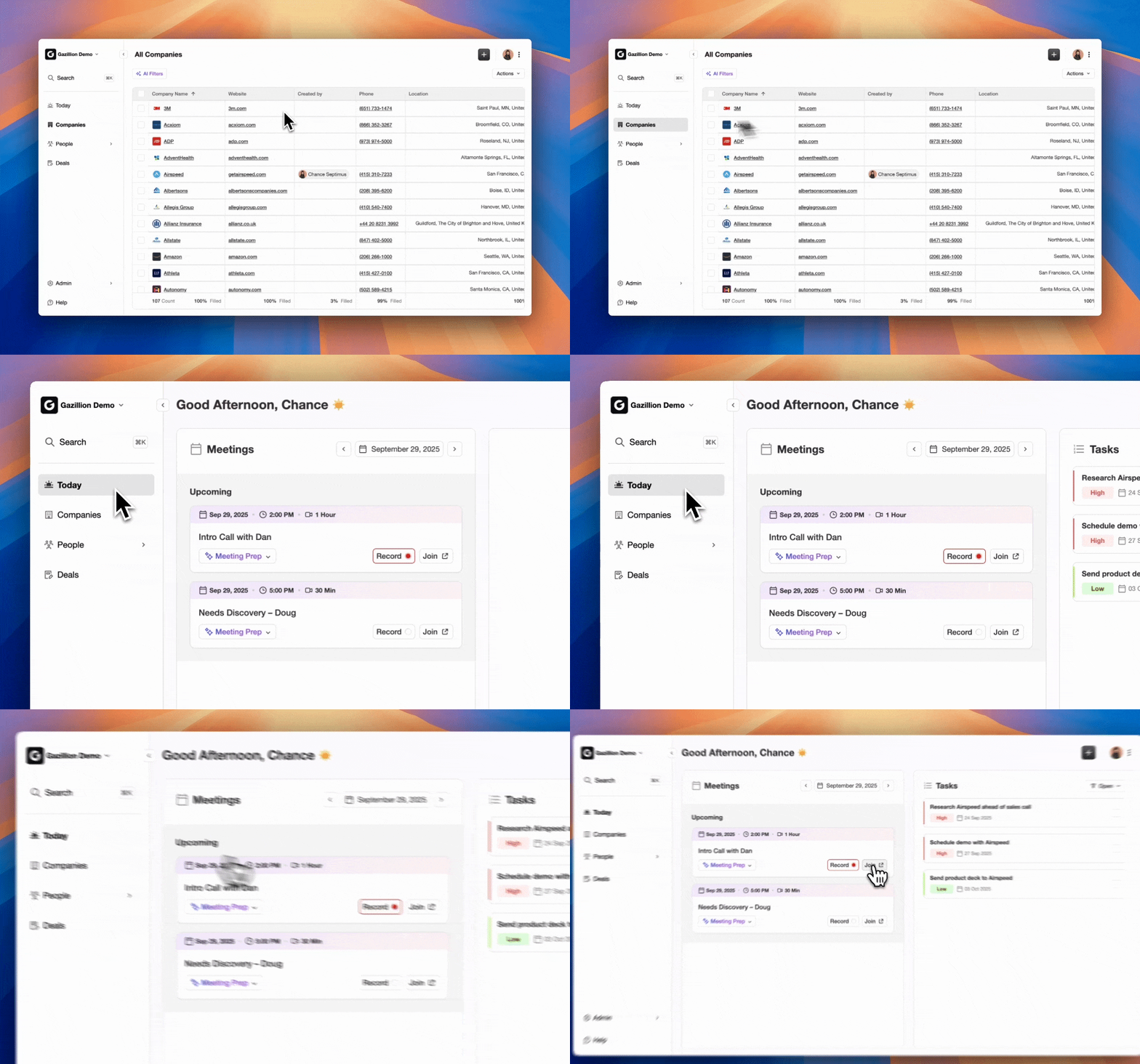
Targeted list views give reps a daily working list of stalled opportunities. From the Opportunities tab, create a new list view named “Stalled Pipeline.” Apply filters such as Last Activity Date is null OR Last Activity Date less than 30 days ago, and Close Date greater than today. Include columns for Opportunity Name, Stage, Amount, Close Date, Last Activity Date, and Days in Current Stage so reps can triage quickly. Save the view and share it with the sales team for routine monitoring during pipeline reviews.
GIF description: Applying “Last Activity Date is null” filter in Salesforce list view builder, showing dropdown selection and filter criteria configuration. This visual walkthrough helps admins and reps replicate the exact filter logic without guesswork.
Troubleshooting low adoption: Manual data entry often degrades list view accuracy. Reps skip logging calls and emails, which triggers false stall alerts and erodes trust in the view. Coffee’s automatic capture of interactions reduces this burden and keeps activity fields reliable.
Step 3: Use Kanban Board Warnings for Stalled Deals (2026 Update)
Kanban boards turn abstract stall metrics into an easy visual scan. Salesforce’s Spring ’26 release introduces the Kanban Board component for screen flows, which lets teams embed a fully functional but display-only Kanban view to visualize record progress such as opportunity pipelines. Switch your Opportunities tab to Kanban view, configure stage-based columns, and enable age badges that highlight deals exceeding duration thresholds.
Build a dashboard that combines Kanban visualization with stall metrics so leaders see both volume and risk. The new component calculates automatic warnings for opportunities lingering beyond benchmarks. The table below shows common duration thresholds by stage, and deals that exceed these timeframes should trigger immediate re-engagement efforts.
| Stage | Duration (Days) | Stall Threshold |
|---|---|---|
| Prospecting | 14 | >21 |
| Discovery | varies | >25 |
| Proposal | varies | >30 |
| Negotiation | varies | >45 |
Screenshot description: Kanban board displaying opportunity cards with red age badges on Negotiation stage deals exceeding 45-day thresholds.
Limitation: Salesforce’s Spring ’26 Kanban Board component lets reviewers change record statuses visually, but it still needs explicit flow elements to persist those changes. While Kanban boards provide visual detection, predictive analytics can identify stalls before they become visible problems.
Step 4: Add Einstein Opportunity Scoring and Coffee Automation
Einstein Opportunity Scoring uses predictive analytics to surface stall risk based on historical patterns. In Setup, search for Einstein Opportunity Scoring, enable the feature, and configure scoring factors such as stage duration, last activity age, and historical win patterns. Einstein then assigns predictive scores that help you spot opportunities likely to stall or slip.
Coffee’s Companion App turns this configuration-heavy approach into autonomous detection. Authenticate Coffee with your Salesforce instance to activate the agent’s Pipeline Compare feature. Coffee’s AI search on deals answers natural-language questions such as “Which deals are stuck in negotiation?” or “What’s closing this month?” The agent automatically flags week-over-week stalls, highlights concerning trends, and produces context-aware summaries for managers and reps.
Screenshot description: Coffee dashboard displaying Pipeline Compare view alongside Salesforce opportunity list, with highlighted stalled deals and automated insights panel.
Coffee pulls data from ZoomInfo, Gong, and email platforms, which creates a unified view of engagement and stall risk. The agent continuously monitors pipeline health and removes the need for manual report building and filter maintenance.

Automate stall detection across your entire pipeline. Try Pipeline Compare free for instant integration.
Revive Stalled Salesforce Deals Playbook
Re-engagement works best when you follow a structured qualification reset instead of a single check-in. Start by refreshing MEDDIC qualification to capture what changed: Metrics such as budget shifts, Economic Buyer changes, updated Decision Criteria, revised Decision Process, evolving Pain, and the current Champion relationship. This sequence clarifies whether the deal still fits and which blockers matter most. Automated win-back flows often achieve higher click and conversion rates than generic scheduled blasts.
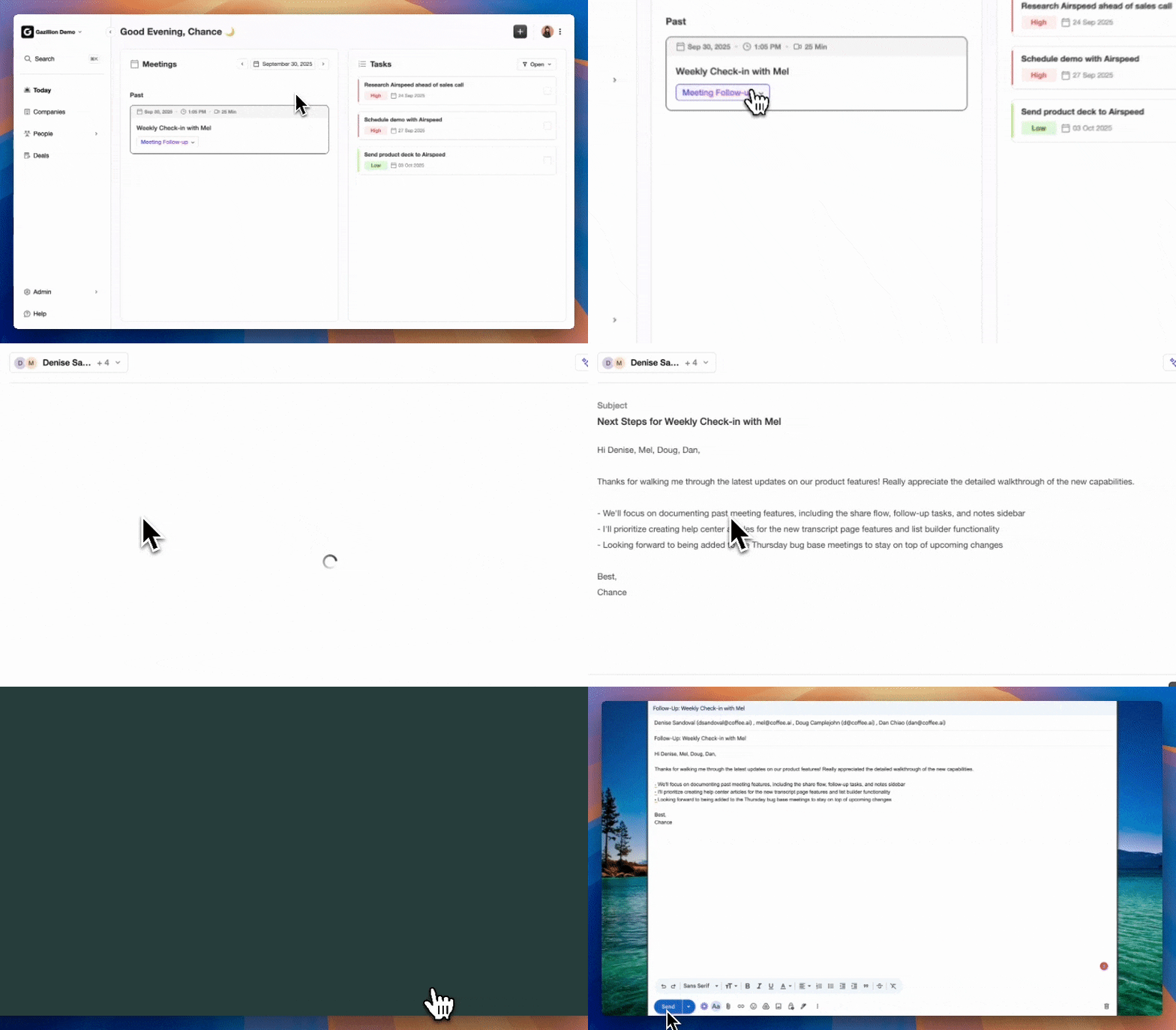
Next, run multi-touch sequences that address specific stall causes. 80% of deals require five or more follow-ups to close, yet 44% of sales reps stop after one attempt. Coffee’s agent drafts personalized follow-up emails using conversation history, meeting notes, and stakeholder preferences so reps can maintain consistent outreach without extra manual effort.
Deploy value-add touchpoints that show ongoing commitment to the buyer’s success. Start with industry insights tailored to their business challenges, then reinforce credibility with case studies from similar companies. For deals stalled on ROI concerns, send calculators pre-populated with their metrics. When you engage senior stakeholders, offer executive briefings on market trends that affect their strategic priorities. Avoid generic check-ins that signal desperation.
Validate Results and Scale Stall Detection
Validation starts with a clear before-and-after view of pipeline velocity. Calculate baseline metrics such as average days in stage, conversion rates by stage, and total pipeline value. After rollout, track reduced stage duration, improved forecast accuracy, and higher win rates. Coffee’s data warehouse supports this analysis and shows 50% faster deal progression for teams using automated stall detection compared with manual methods.
Scaling across large sales organizations requires consistent definitions and repeatable workflows. Standardize stall definitions, automate report and dashboard distribution, and train reps on re-engagement protocols. Coffee supports hundreds of reps at once and delivers personalized stall alerts plus suggested actions for each opportunity.
Conclusion: Stop Stalls Now
Four-step stall detection using reports, list views, Kanban warnings, and Einstein scoring with Coffee automation turns invisible pipeline problems into clear actions. Manual methods build foundational awareness, while Coffee’s agent adds continuous monitoring and intelligent recommendations. Teams that automate stall detection spend less time hunting for problems and more time closing revenue.
Deploy Coffee’s autonomous agent for comprehensive Salesforce pipeline management. Start your free trial today.
FAQ
How do I filter stalled accounts in Salesforce using native features?
Use opportunity reports with Stage Duration greater than 30 days and Last Activity Date equals blank to find silent, aging deals. Build list views that filter for opportunities with no activity in the past 30 days and close dates pushed beyond original targets. Turn on Kanban boards with age badges to visualize deals that exceed stage duration benchmarks. Combine these filters to create a layered view of stalls across different pipeline segments.
What’s the difference between Einstein Opportunity Scoring and Coffee for detecting stalls?
Einstein’s predictive scoring demands significant upfront investment in both licensing costs and admin time for configuration. Coffee’s agent automatically detects stalls through Pipeline Compare, supports natural-language queries, and analyzes week-over-week trends. It also merges data from multiple sources and uses its data warehouse to power AI recommendations, which removes most manual reporting work.
How can I revive deals with pushed close dates effectively?
Refresh MEDDIC qualification to understand what changed, then run multi-touch sequences with tailored value-add content. Focus on concrete business outcomes, share industry insights that match their challenges, and maintain a consistent follow-up cadence. Coffee’s agent drafts personalized re-engagement emails from conversation history and stakeholder preferences so outreach feels relevant and timely.
What are the standard Salesforce stage duration benchmarks for identifying stalls?
The table in Step 3 shows common thresholds such as 21 days for Prospecting and 45 days for Negotiation. Your specific benchmarks should reflect historical conversion data for your motion. Enterprise deals often require two to three times longer durations than SMB deals, and complex technical sales usually need extended Discovery periods. Adjust thresholds by segment so stall alerts match real buying behavior.
How do I calculate the revenue impact of stalled deals on pipeline velocity?
Use the pipeline velocity formula: (Number of Opportunities × Average Deal Size × Win Rate) ÷ Sales Cycle Length. Stalled deals extend the sales cycle and reduce win rates, which lowers daily revenue generation. Track stage-specific conversion rates and average durations to pinpoint bottlenecks. Coffee’s Pipeline Compare automatically calculates velocity impacts and highlights deals that contribute most to slowdowns, giving leaders clear data for pipeline improvements.