Written by: Doug Camplejohn, CEO & Co-Founder, Coffee
Key Takeaways for Clean, Automated CRM Data
- Manual CRM data entry wastes 8–12 hours per rep weekly and still produces unreliable data, with only 4.8% of field-collected information stored accurately.
- AI-driven automation without pre-write validation creates bad records faster than humans, so proactive validation must happen before any CRM write.
- Effective automation depends on structured capture from email, calendar, and call transcripts, followed by normalization, duplicate detection, and stage-gated validation rules.
- Teams that adopt Coffee’s agent-led approach see measurable gains in hours saved, duplicate reduction, and pipeline accuracy compared to passive connectors like Zapier.
- Eliminate manual entry and build forecasts on verified pipeline data with Coffee’s automated validation.
Prerequisites for Reliable Sales Data Automation
Confirm these foundations before you configure any automated sales data entry workflow.
- An active Google Workspace or Microsoft 365 account connected to your email and calendar, which serves as the primary source of ground-truth interaction data.
- An active Salesforce or HubSpot instance with defined field schemas, required fields identified, and at least one admin who can configure validation and matching rules.
- A documented buyer persona, including firmographic criteria such as company size, industry, and geography, which anchors duplicate matching keys and lead routing logic.
- A field inventory that maps every CRM property to an owner, a source of truth, and a freshness period. Sales operations teams must define field ownership, precedence, freshness periods, and validation rules for each field used in routing, reporting, lifecycle transitions, and customer communication.
- A designated exception queue with a named owner and SLA for records that fail validation so rejected data is reviewed instead of silently discarded.
Step 1: Capture Email, Calendar, and Call Signals
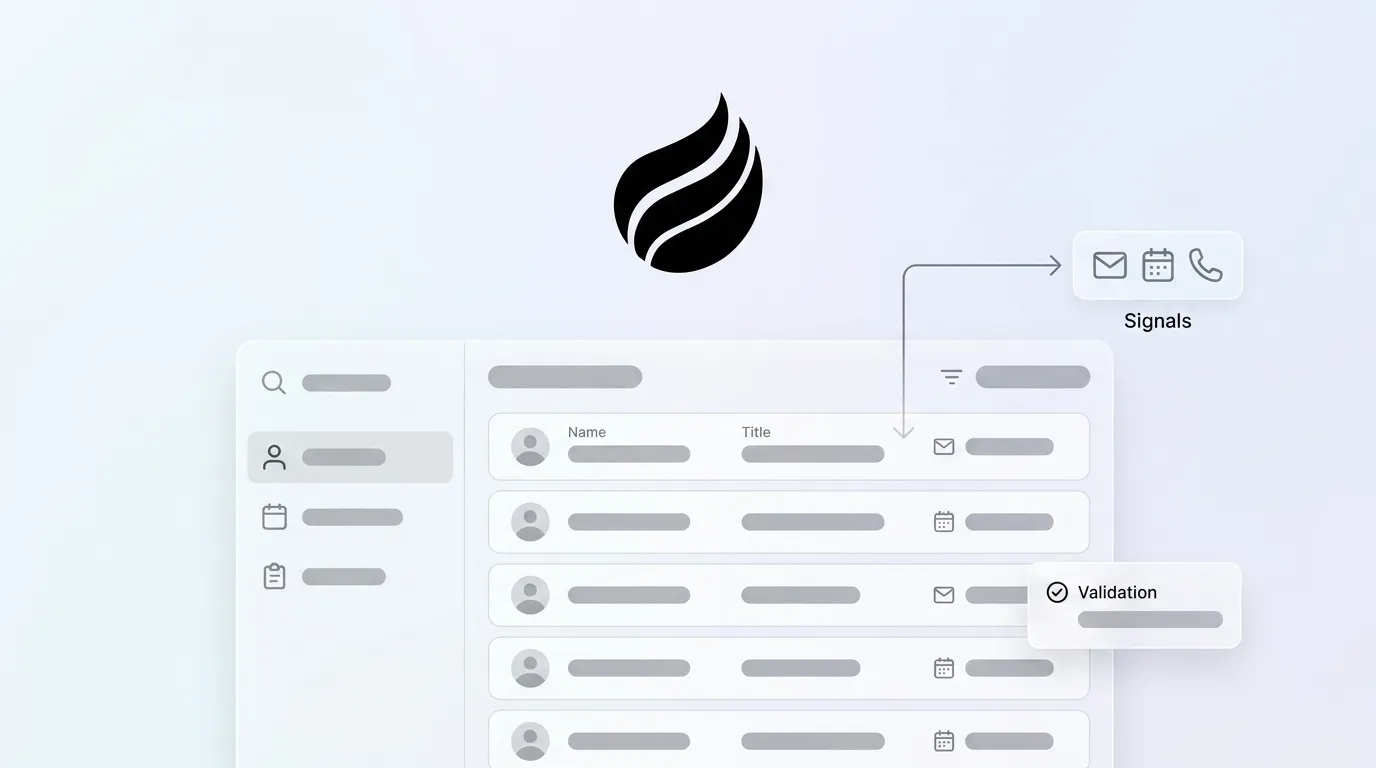
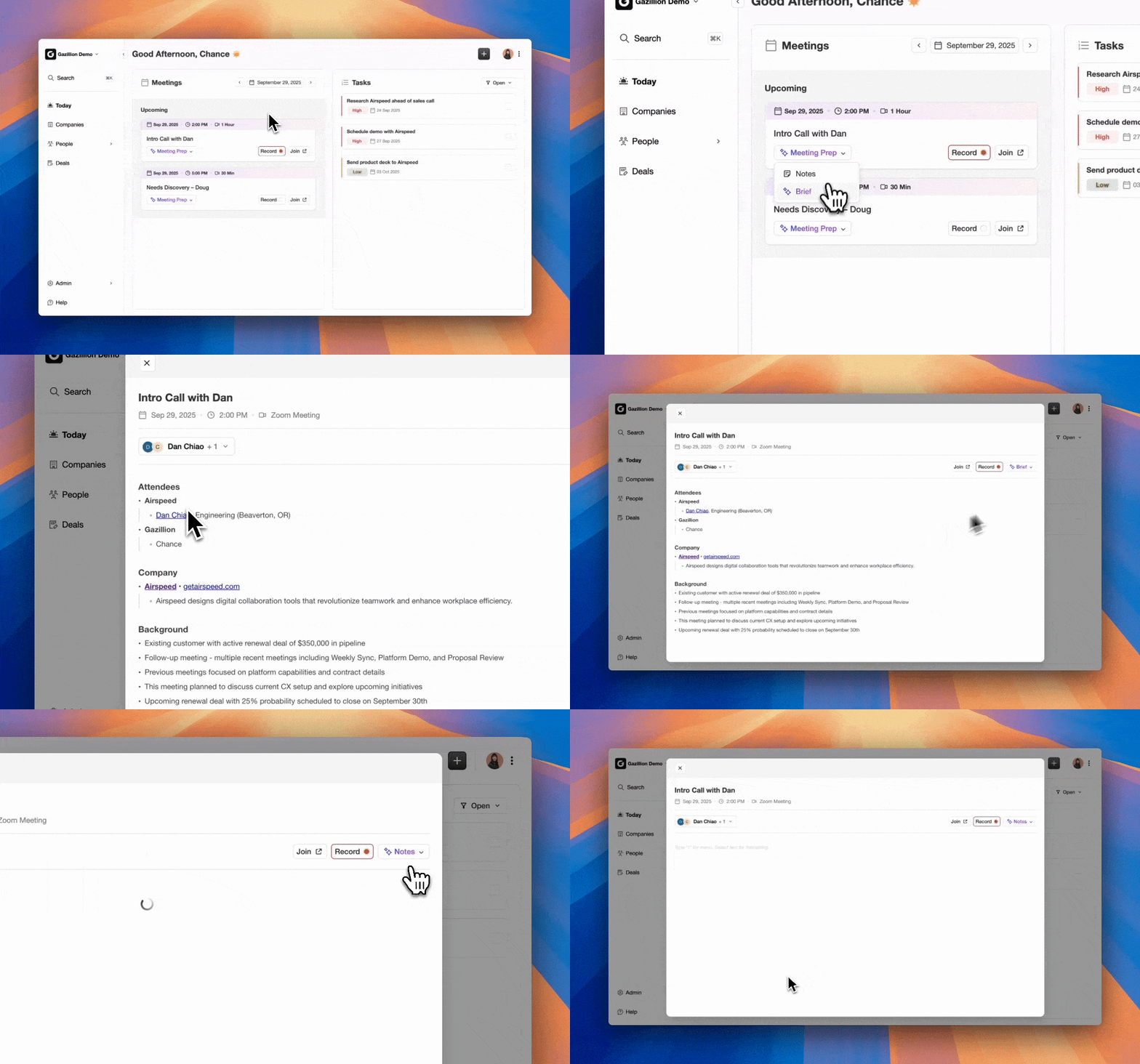
The agent first ingests every interaction signal from connected sources. Coffee connects to Google Workspace or Microsoft 365 on authentication and immediately scans emails and calendar events to auto-create contacts, companies, and activities. For call data, Coffee expanded call recording options in January 2026 via Zapier integration with tools like Fathom, Gong, and Fireflies, plus a Desktop app for MacOS, Windows, and Linux.
Several issues commonly appear at this capture stage.
- Missing domains: Emails from personal addresses such as gmail.com or yahoo.com cannot be reliably matched to a company record, so the agent should flag these for review instead of creating orphaned contacts.
- Transcription noise: Independent benchmarks show real-world word error rates for sales-call audio at 8–12% for Whisper Large-v3, with Gong’s transcription accuracy estimated at 85–90% on clean audio and lower with jargon or poor quality. The agent must treat transcript content as a signal to validate, not a fact to write directly.
- Consent gaps: Twelve US states require all-party consent for call recording, including California, Florida, Illinois, and Washington, and GDPR requires consent or a documented legitimate-interest balancing test. Confirm recording consent before you enable call capture.
Step 2: Extract and Normalize Sales Fields
Raw signals from emails, calendar invites, and call transcripts arrive as unstructured text. The agent’s extraction layer converts these signals into structured field values that can be validated and written to CRM objects.
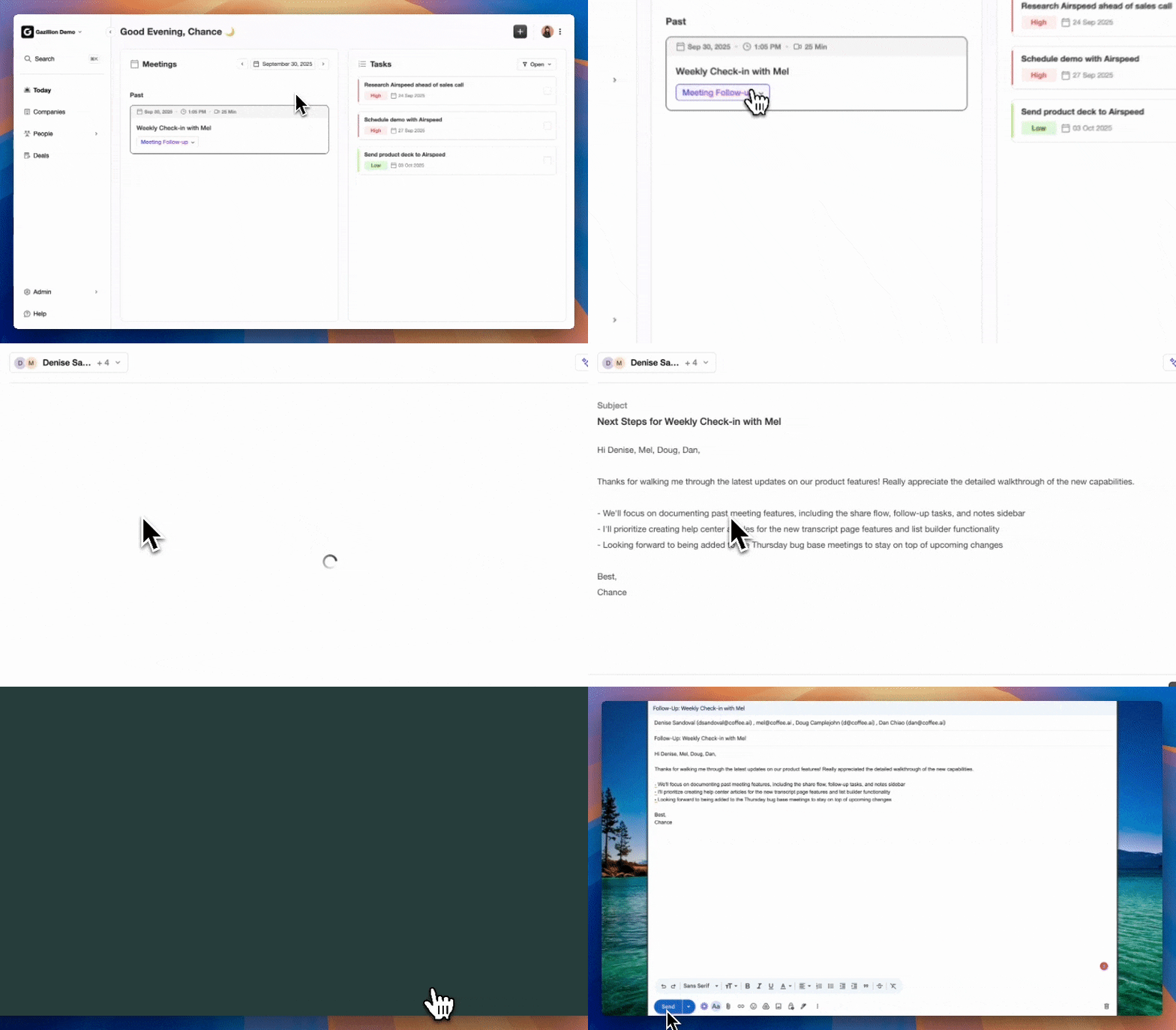
AI tools for sales calls extract specific fields such as budget, timeline, decision-maker, next steps, competitor mentioned, and pain point from conversation content and write them into Salesforce, HubSpot, or Pipedrive automatically. Coffee’s agent applies BANT, MEDDIC, or SPICED frameworks to structure call summaries before any data reaches the CRM, which keeps qualification fields consistent across every deal.
Beyond framework-specific fields, the agent also applies universal normalization rules to keep data consistent.

- Phone numbers standardized to E.164 format.
- Country and state fields mapped to ISO codes.
- Job titles cleaned of jargon and standardized (for example, “VP of Sales” becomes “Vice President, Sales”).
- Company names normalized to legal entity names with emojis and special characters removed.
- Name casing corrected automatically (for example, “john smith” becomes “John Smith”) before CRM insertion.
Step 3: Validate Every Record Before Writing
Pre-write validation turns automation from a passive connector into a proactive agent. Validation must happen before any record is written to Salesforce or HubSpot, not after.
Duplicate detection: Exact-key matching alone misses an estimated 30–40% of real duplicates in CRMs, while fuzzy matching with algorithms such as Jaro-Winkler for names and phonetic codes recovers the near-misses. Coffee’s agent checks for existing records using email domain, normalized company name, and LinkedIn URL before creating any new record. High-confidence matches are flagged for auto-merge, and lower-confidence matches route to the exception queue.
Required-field enforcement: Stage-gated validation rules work better than globally required fields because they apply only when a deal advances, when the supporting data should exist, which prevents placeholder values that distort average deal size and pipeline metrics.
Methodology tagging: Coffee’s Custom Meeting Briefings and Summaries, launched in February 2026, let users define exact formats and focuses, from high-level executive summaries to granular technical breakdowns. These formats ensure BANT or MEDDIC fields are populated from call content before the summary is written back to Salesforce or HubSpot.
Step 4: Write to CRM with a Full Audit Trail
Once a record passes validation, the agent writes it to the appropriate CRM object with a complete audit trail defined in your field inventory. Every attempted CRM change must preserve the old value, proposed value, evidence, workflow version, and result so validation decisions remain fully auditable.
Salesforce: Coffee’s Companion App maps extracted fields to standard and custom Opportunity, Contact, and Account fields. Permission sets are respected, so the agent writes only to fields the authenticated user can edit. Salesforce validation rules run on every insert and update, including bulk operations and API calls, which blocks bad automated entries before they reach the database. Coffee’s writes are designed to pass these rules, not bypass them.
HubSpot: The Companion App maps to Deal, Contact, and Company properties. Coffee’s improved summary templates, released in November 2025, are customizable to match workflows and writable back to Coffee, HubSpot, or Salesforce, which gives RevOps full control over which fields receive agent-written values.
After every write, the agent reads the record again to confirm the value stored correctly and routes any permission failures or partial writes to the named repair queue.
Step 5: Track Pipeline Accuracy and Time Saved
Automation without measurement creates false confidence, so track these metrics weekly.
- Hours saved per rep: Target the 8–12 hours mentioned earlier and track this metric weekly. Confirm that reps reinvest reclaimed time into prospecting and deal progression instead of additional administrative work.
- Duplicate rate: Target under 2%. Best-in-class duplicate rates of 1% or lower are achievable and already met by 22% of organizations through structured prevention and detection.
- Week-over-week pipeline variance: Target under 5%. Coffee’s AI search on deals, released in January 2026, answers natural-language questions such as “Which deals are stuck in negotiation?” or “What’s closing this month?” This supports pipeline reviews based on agent-verified data instead of rep-reported estimates.
- CRM adoption rate: Target above 90%. When reps no longer handle data entry, they stop avoiding the CRM.
- Critical completeness rate: Track the percentage of records with all stage-required fields populated each month and set a floor of 95%.
Validation Checklist for New Automated Writes
Run this checklist before you enable automated writes for any new object type or field set.
- Configure duplicate detection with email exact match plus fuzzy name-and-domain matching for both same-object and cross-object scenarios such as Lead-to-Contact and Contact-to-Contact.
- Enforce required fields at the stage level, not globally, to avoid placeholder values on early-stage records.
- Tag BANT or MEDDIC methodology fields from call transcript extraction before any CRM write.
- Validate close dates as future dates for all open opportunities. A validation rule that blocks an open opportunity from saving with a close date in the past should be the first rule implemented because it removes the most common source of forecast distortion.
- Name, assign, and define SLAs for an exception queue that receives records failing any validation gate.
- Enable an audit trail so every write logs old value, new value, source, and agent workflow version.
- Enable post-write verification so the agent reads the record after write and routes failures to the repair queue.
Passive Connectors vs. Proactive Coffee Agents
The table below compares connector-style tools such as Zapier and Parseur with Coffee’s agent-led approach across four dimensions that matter for automated sales data entry. All figures are cited inline.
| Dimension | Zapier / Parseur (Passive Connectors) | Coffee Agent (Proactive) | Why It Matters |
|---|---|---|---|
| Structured + Unstructured Data | Structured fields only (form submissions, spreadsheet rows), with no native parsing of email body text or call transcripts | Unifies structured fields and unstructured sources such as email body, calendar context, and call transcripts into one validated record | Unstructured data accounts for over 80% of enterprise data, so connectors that ignore it miss the majority of deal signals. |
| Pre-Write Validation | No native validation before write, so bad records enter the CRM and require post-entry cleanup | Applies duplicate detection, required-field enforcement, and methodology tagging before any CRM write | 76% of organizations say less than half of their CRM data is accurate and complete, and validation at write time provides the only reliable control. |
| Audit Trail | Zap history logs trigger and action events but does not record old field values, proposed values, or validation outcomes per record | Logs old value, proposed value, evidence source, workflow version, and post-write verification result for every write | Key governance checkpoints for agentic workflows include audit trails for every agent action and data lineage tracking to maintain CRM data quality during automated logging. |
| Deduplication | Relies on exact-match filters configured manually per Zap, and cross-object matching such as Lead-to-Contact requires custom multi-step logic | Uses fuzzy matching on email domain, normalized company name, and LinkedIn URL with built-in cross-object matching, auto-merging high-confidence matches and routing lower-confidence matches to a review queue | With 92% of organizations reporting duplicate records, the gap between exact-match filters and fuzzy matching determines whether automation reduces or multiplies the problem. |
Replace passive connectors with Coffee’s proactive agent that validates every record before it writes.
Salesforce Playbook for Coffee’s Companion App
Use this configuration sequence when you deploy Coffee’s Companion App on a Salesforce instance.
- Authenticate and scope permissions: Grant the Coffee agent a dedicated integration user with a permission set that allows read and write on Contact, Account, Opportunity, and Activity objects, and nothing else. Reference custom permissions rather than profile names in validation rules, because profile names can be renamed while custom permissions survive renames and can be granted via permission sets.
- Map fields: Align Coffee’s extracted fields to your Salesforce schema. Standard mappings include Contact (First Name, Last Name, Email, Phone, Title, Account), Opportunity (Name, Stage, Close Date, Amount, Next Step), and Activity (Subject, Description, Activity Date). Map BANT and MEDDIC tags to custom text fields on the Opportunity object.
- Enable duplicate rules for the API channel: Most organizations leave API enforcement off by default, which allows duplicates to enter through integrations that bypass UI checks entirely. Enable Block rules for exact email matches on Contacts and Leads and Alert rules for fuzzy name matches.
- Configure stage-gated validation rules: Require Close Date in the future, non-negative Amount, and non-blank Next Step only when a deal advances past the defined qualification stage. Use ISNEW() and ISCHANGED() guards so rules do not block legacy records during bulk updates.
- Verify Companion App write-back: Run a dry-run output that shows proposed changes, reasons, and source links before you enable live writes for each object type.
HubSpot Playbook for Coffee’s Companion App
Follow this parallel configuration sequence for HubSpot deployments using the Companion App.
- Authenticate and scope permissions: Use a dedicated private app token scoped to CRM objects such as contacts, companies, deals, and engagements with write access, and avoid personal user tokens.
- Map fields: Map Coffee to Contact (First Name, Last Name, Email, Phone, Job Title, Associated Company), Deal (Deal Name, Pipeline, Deal Stage, Close Date, Amount), and Engagement (Meeting notes, Call summaries). Write BANT and MEDDIC tags to custom deal properties.
- Configure property validation: Implement a stage-advancement rule where deals cannot advance from Discovery to Proposal Sent unless required fields such as Deal Amount, Close Date, Deal Type, Next Step, and primary contact email are complete.
- Enable duplicate detection: HubSpot’s default duplicate detection for contacts compares First Name, Last Name, Email address, Phone number, and Company Name, and for companies it compares Company Domain Name, Company Name, Country or Region, Phone Number, and Industry. Supplement these checks with Coffee’s pre-write fuzzy matching to catch variations that HubSpot’s native tool misses.
- Set staleness alerts: Configure HubSpot workflows to create follow-up tasks automatically for deals with no activity logged for 14 days and to flag deals whose Close Date has passed without an update. Coffee’s activity logging keeps the “last activity” field current, which reduces false staleness alerts.
Scaling Coffee from 5 Reps to 50 Reps
The validation architecture scales linearly with headcount because the agent, not the rep, performs the data entry work. As teams grow from 5 to 50 reps, focus on these scaling considerations.
- Permission set governance: As rep count grows, maintain one integration user per system instead of per rep to avoid permission drift and audit complexity.
- Exception queue SLAs: A queue manageable by one RevOps analyst at 10 reps requires a defined rotation or tooling at 50 reps. Set SLAs such as a 48-hour review window and monitor queue aging weekly.
- Duplicate rule maintenance: Governance owners should retire obsolete fields and test rules quarterly, because a rule set designed for 10 reps may create excessive blocks at 50 reps as deal volume increases.
- Migration to Standalone CRM: Teams that outgrow Salesforce or HubSpot complexity can migrate to Coffee’s Standalone AI-First CRM, where the agent manages the system of record entirely. The same field mappings, validation rules, and audit trail logic carry over, which removes re-implementation work.
Frequently Asked Questions
How long does Coffee’s Companion App setup usually take?
Most teams complete authentication, field mapping, and initial validation rule configuration in a single session. Coffee connects to Google Workspace or Microsoft 365 on authentication and begins capturing interactions immediately. The Salesforce and HubSpot Companion App integrations are designed for RevOps teams familiar with their CRM schemas, so no custom development is required. The main time investment is defining your field inventory and exception queue ownership before you enable live writes, which remains a one-time setup task.
Is Coffee SOC 2 Type 2 and GDPR compliant?
Coffee is SOC 2 Type 2 and GDPR compliant. Data processed by the Coffee agent is not used to train public models. For teams operating in US states with all-party call recording consent requirements, including California, Florida, Illinois, and Washington, Coffee’s call capture features should be configured with appropriate consent workflows before activation.
Why choose Coffee’s native integration instead of a Zapier workflow?
Zapier-style connectors move structured data between systems on a trigger-action basis. They cannot parse unstructured sources such as email body text or call transcripts, apply pre-write validation, perform fuzzy duplicate detection, or maintain a field-level audit trail. Coffee’s agent handles all of these steps natively. A Zapier workflow that fires on a form submission and creates a HubSpot contact has no mechanism to check whether that contact already exists under a slightly different name, whether the email domain matches an existing account, or whether the deal stage requires additional fields before the record becomes usable for forecasting. Coffee’s agent performs all of these checks before writing a single field.
How do Visitor Identification and Lead Finder affect the workflow?
Both features feed into the same validated data pipeline. Visitor Identification converts anonymous website traffic into named prospects, including name, title, email, LinkedIn profile, pages visited, and time on site, and surfaces them with Suggested Leads matched to your buyer persona. When a rep adds a visitor to Coffee, all enrichment is pre-filled and the record passes through the same duplicate detection and validation rules before it reaches Salesforce or HubSpot. Lead Finder works in the same way, because lists built from natural-language searches live directly in Coffee alongside every other record, ready for enrichment and CRM sync without CSV exports or manual entry.
What happens to records that fail validation?
Records that fail any validation gate, such as missing required fields, duplicate matches above the review threshold, or unresolvable domain conflicts, route to a designated exception queue instead of being discarded or force-written to the CRM. The queue is visible to the named RevOps owner, includes the reason for rejection and the source evidence, and carries an SLA for review. This approach preserves potentially valuable leads while keeping the CRM clean. Teams receive Slack or email notifications when records enter the queue so exceptions are resolved before they age out of relevance.
Conclusion: Let the Agent Handle the Data Entry
Manual sales data entry in 2026 reflects an architecture problem rather than a workflow problem. Few field sales teams have fully automated CRM data entry, yet the tools to do it correctly already exist. The real gap lies in validation. Zapier moves data and passive connectors trigger actions, but neither checks whether the data is accurate, deduplicated, or complete before it reaches your forecast.
Coffee’s agent captures structured and unstructured data from every interaction, normalizes and validates it before any write, and maintains a full audit trail in Salesforce or HubSpot. This produces a CRM that reps trust because they did not have to fill it in and a forecast that leadership can act on because the underlying data was verified at the point of entry.
Let Coffee handle your data entry so your team can focus on closing.