Written by: Doug Camplejohn, CEO & Co-Founder, Coffee
Key Takeaways
- 71% of sales reps lose selling time to manual data entry, and automatic call logging into Salesforce or HubSpot restores that time and keeps pipeline data current.
- The standard 2026 workflow uses a five-step capture-match-push process with a third-party bot such as Fireflies, but this architecture carries ongoing maintenance and compliance risks.
- Key configuration steps include enabling recording, connecting the CRM via OAuth, mapping participants to records, setting field updates, and validating synchronization to avoid gaps or duplicates.
- Bolt-on bots introduce internal-call leakage, data-quality drift, privacy exposure, and manager-visibility gaps that native CRM agents avoid entirely.
- RevOps teams ready to eliminate sync maintenance can get started with Coffee and replace their bolt-on stack with a single native CRM agent.
Prerequisites and Readiness Checklist for Fireflies
Confirm access and permissions before you configure any third-party bot for CRM call logging.
- CRM admin rights: Required to create custom fields, configure OAuth connections, and set auto-create rules in Salesforce or HubSpot.
- Calendar integration: Google Workspace or Microsoft 365 admin access is needed to authorize bot attendance at calendar-invited meetings. Participant email addresses from calendar invite data are matched to Salesforce Opportunity, Account, Contact, or Lead records, and the transcript is logged to the matched record’s Activity Timeline.
- Meeting platform permissions: Host-level or account-level recording permissions on Zoom, Microsoft Teams, or Google Meet.
- Edit Task permission in Salesforce: The Edit Task permission is required to create task records for call logging.
Ownership is typically split between RevOps for field mapping, object rules, and data quality, and IT for OAuth authorization, permission sets, and SSO configuration. Align on required CRM fields such as summary, transcript URL, action items, call duration, and disposition before you begin setup.
Step 1: Turn On Recording and Transcription in Fireflies
Start in the Fireflies dashboard, then open Integrations and connect your calendar for Google or Microsoft 365. Enable the AskFred bot to auto-join meetings based on calendar invites. For Zoom, grant Fireflies access through the Zoom Marketplace OAuth flow. For Microsoft Teams and Google Meet, authorize access through the respective admin consoles.
Confirm that recording is enabled for both external and internal calls. Many teams leave internal-call recording disabled, which creates gaps in activity history for internal deal reviews and handoff calls. Set the bot join behavior to “all meetings” or define domain-based exclusion rules for calls that should not be recorded, such as HR or legal. Run a test meeting and verify that a completed transcript appears in the Fireflies library before you move to CRM connection.
Step 2: Connect Fireflies to Salesforce or HubSpot
Open Integrations in Fireflies and select either Salesforce or HubSpot, then connect through OAuth 2.0. For Salesforce, the authorizing user must have API Enabled, Edit Task, and the relevant object-level read and write permissions. For HubSpot, the OAuth scope must include crm.objects.contacts.write, crm.objects.deals.write, and timeline at minimum.
After authorization, Fireflies confirms the connected org. Many teams skip connection validation and jump straight to field mapping, then discover later that the OAuth token expired or lacked the required scope. Wait until the connection status shows active and a test sync returns a 200 response before you configure mapping. Confirm with your Salesforce admin whether Sales Engagement cadence automation is a requirement before you finalize the integration method.
Step 3: Configure Participant Matching and Object Mapping
Fireflies matches meeting participants to CRM records using email addresses pulled from calendar invites. Understanding this matching hierarchy matters because it controls where your call data lands in the CRM and where gaps appear when participants use non-corporate email addresses. The table below shows the standard mapping logic and the fallback behavior when no exact match exists.
| Participant Email Match | CRM Object (Salesforce) | CRM Object (HubSpot) | Fallback Rule |
|---|---|---|---|
| Matches existing Contact | Contact + related Opportunity | Contact + associated Deal | Log to Contact only |
| Matches existing Lead | Lead record | Contact (HubSpot has no Lead object) | Log to Lead only |
| Domain matches Account | Account Activity Timeline | Company Timeline | Log to Account only |
| No match found | Auto-create Lead (if enabled) | Auto-create Contact (if enabled) | Unmatched queue |
The most common failure point is mismatched email domains, such as a prospect using a personal Gmail address instead of a corporate domain. Define a clear fallback rule for unmatched participants before you enable auto-create, so you avoid orphaned records and messy queues.
Step 4: Set Auto-Create Rules and Field Updates
Configure which fields Fireflies writes to after each call. These mappings control what information your sales team sees in the CRM activity timeline. Incomplete mappings mean reps lose access to transcripts or action items and must return to the Fireflies interface. The table below shows recommended field mappings that keep all call intelligence available inside your CRM.
| Fireflies Output | Salesforce Field | HubSpot Property |
|---|---|---|
| AI Summary | Task Description | Note Body / Activity Note |
| Full Transcript URL | Custom URL Field on Task | Custom Text Property on Activity |
| Action Items | Task Subject or custom field | Task Title |
| Call Duration | Call Duration (standard field) | Duration (standard property) |
| Sentiment Score | Custom Number Field | Custom Number Property |
Enable auto-create for net-new Contacts or Leads only when your data governance policy allows it. Without this safeguard, the bot creates duplicate records whenever a prospect switches between personal and corporate email addresses. After you configure auto-create, set internal-call exclusion rules using internal email domain filters to prevent internal standup calls from generating CRM activity records that pollute pipeline reporting with non-customer-facing activity.
Step 5: Verify Sync Health and Handle Exceptions
Run a live test call with a known CRM contact and review the results. After the meeting ends, confirm that the task record appears on the correct Contact, Lead, or Opportunity within the expected sync window, which is typically 5 to 15 minutes for Fireflies. Spot-check three fields: summary accuracy, transcript URL validity, and object association correctness.
For ongoing validation, run a weekly pipeline compare report that cross-references calls logged in Fireflies against task records in the CRM. Manual call logging requires time per attempt, so any gap in automated logging directly becomes unlogged calls. Use this escalation path for sync failures: check OAuth token expiry first, then verify field-level permissions, then review Fireflies webhook logs.
Limitations of Bolt-On Meeting Bots in 2026
The five-step workflow outlined above successfully logs calls to your CRM, but only when every variable remains controlled. In practice, bolt-on bots introduce four categories of ongoing operational risk that grow as your team scales.
Internal-only calls: Bots configured to join all calendar-invited meetings record internal calls unless you maintain explicit exclusion rules. As team structures change, those rules require continuous updates and frequent audits.
Data quality drift and maintenance: AI-generated summaries from meeting bots still require a human review pass for action items and sensitive information, transcription accuracy degrades without ongoing tuning of custom vocabulary, and meeting data must be deliberately pushed into CRMs through explicit field mapping rather than flowing automatically, which means bolt-on bots demand continuous configuration and oversight instead of functioning as true automation.
Privacy and compliance exposure: Many enterprise legal teams reject external meeting bots because they create data sovereignty risks and force sales reps to address privacy concerns at the start of calls.
How a Native CRM Agent Handles Call Logging
Coffee’s agent performs the same capture-match-push workflow described above, but it runs inside Salesforce or HubSpot instead of through a separate vendor layer. After you connect Coffee to an existing Salesforce or HubSpot instance via OAuth, the agent scans emails and calendars to auto-create and enrich Contact and Company records. When a call occurs, Coffee’s AI meeting bot joins, records, and transcribes the conversation, then writes the structured output such as summary, action items, transcript, and next steps directly to the matched CRM object with no ongoing field mapping maintenance.
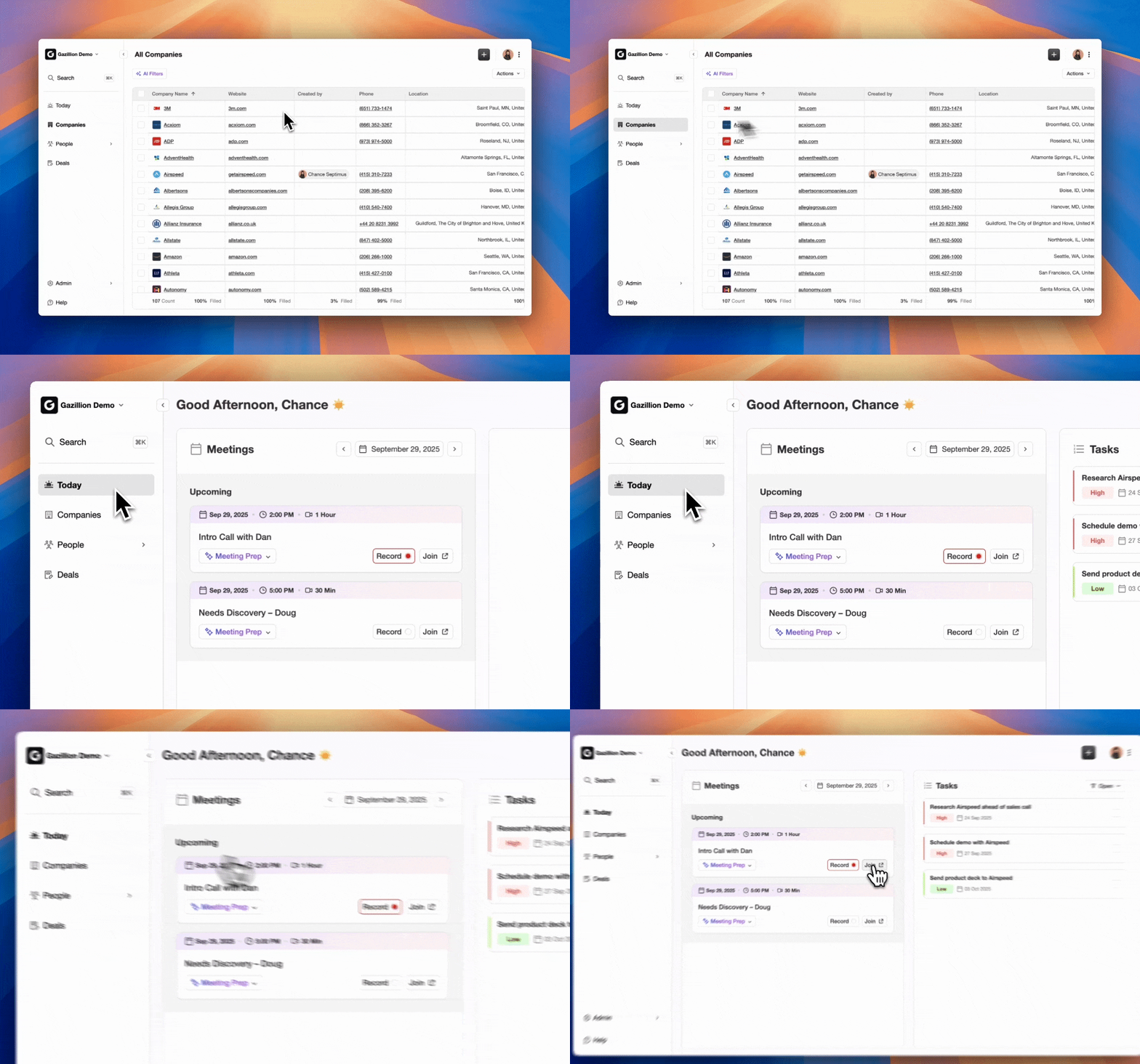
This architectural difference matters for RevOps teams. Native CRM AI uses the same data model, security model, and user interface with no integration work required, while third-party tools depend on external syncing and separate contracts. Coffee removes the separate Fireflies contract, the Zapier middleware layer, and the recurring playbook tuning cycle. Platforms that require extra connectors increase the number of potential failure points in synchronization chains between CRMs, call recorders, and analytics systems.
Coffee also structures call notes according to BANT, MEDDIC, or SPICED frameworks automatically, which keeps qualification data consistent in the CRM on every call. For teams scaling from 10 to 50 reps, this consistency compounds over time. Pipeline compare reports become reliable, forecast rollups reflect ground truth, and coaching conversations rely on complete data instead of small samples.
Get started with Coffee and replace your bolt-on bot stack with a single native agent.
Frequently Asked Questions About Fireflies and Native Agents
How long does initial Fireflies-to-CRM setup typically take?
A straightforward setup that covers calendar connection, OAuth authorization, and basic field mapping usually takes one to two hours for an experienced RevOps admin. Configuring participant mapping rules, exception handling for internal calls, and validation across multiple object types typically adds another two to four hours. Ongoing tuning of playbooks and vocabulary for acceptable transcription accuracy extends the total time investment over several weeks. Teams with complex Salesforce permission structures or custom objects should budget extra time for field-level security review.
What permissions are required for automatic call logging?
In Salesforce, the authorizing user needs API Enabled, Edit Task, and read and write access to the Contact, Lead, Opportunity, and Account objects. Without Edit Task, the integration can place calls but cannot create task records. In HubSpot, the OAuth scopes must include contact and deal write permissions plus timeline access. Calendar admin permissions in Google Workspace or Microsoft 365 are also required to authorize bot attendance at meetings. IT and RevOps should align on permission set ownership before they begin the OAuth flow.
How are phone calls handled when no calendar invite exists?
Fireflies relies on calendar invite data to identify participants and match them to CRM records. Calls placed directly from a dialer or mobile phone without a corresponding calendar event fall outside this matching mechanism and are not logged automatically. Teams using high-volume outbound dialers need a separate CTI integration that uses the Salesforce Open CTI saveLog() method or HubSpot’s calling SDK to log those calls. Coffee’s agent addresses this gap by scanning email and calendar activity together and logging last and next activity autonomously, even when no formal calendar invite exists.
What is the recommended migration path from a third-party bot to a native CRM agent?
Begin with an audit of all active field mappings, playbook rules, and object association logic in the existing bot configuration. Document every mapping manually, because these configurations do not export automatically. Run both systems in parallel for two to four weeks and compare logged activity records to validate parity. After the native agent matches or exceeds logging completeness, disable the bot’s CRM write permissions and cancel the separate subscription. Confirm that historical transcript data has been exported or archived before you terminate the third-party account, because access to historical records usually ends with the subscription.
Conclusion: Choosing a Sustainable Call Logging Strategy
The five-step capture-match-push workflow of enabling recording, connecting the CRM, configuring object mapping, setting field-update preferences, and verifying synchronization provides a functional architecture for automatic call logging. It works when teams maintain it carefully. The operational cost comes from ongoing maintenance such as playbook tuning, OAuth token management, exception handling for unmatched participants, and managing a separate vendor contract.
For RevOps teams deciding whether that maintenance overhead is justified, the evaluation is straightforward. If the goal is accurate, complete CRM data with minimal administrative burden, a native CRM agent that performs the same workflow from inside the system of record removes every bolt-on failure point. AI-native workflows reduce after-call work to near-zero, with wrap-up times dropping to seconds. The 71% of sales reps losing selling time to manual data entry, mentioned at the start of this article, represents the cost of tolerating incomplete logging. That lost productivity becomes the operational tax of bolt-on architectures.