Written by: Doug Camplejohn, CEO & Co-Founder, Coffee
Key Takeaways for Connecting ChatGPT and HubSpot
The native HubSpot connector for ChatGPT lets you ask conversational, read-only questions about live CRM data without CSV exports or manual reports.
Setup requires a paid OpenAI plan, HubSpot admin permissions, and careful scope selection that respects existing user access levels.
Well-structured prompts can surface stalled deals, forecast discrepancies, and activity gaps, but the connector cannot ingest unstructured data or enforce custom validation on writes.
Limitations include no custom-object support, no bulk automation, and mandatory re-authentication after any permission change, so it functions as a query tool rather than a full automation layer.
What You Need Before You Connect ChatGPT to HubSpot
Confirm these requirements before you start the setup process:
HubSpot account: The connector is available to all HubSpot customers across every subscription tier, including Free, Starter, Professional, and Enterprise.
OpenAI subscription: Users must hold a Pro, Plus, Team, Enterprise, or Edu OpenAI paid plan. The free ChatGPT tier does not support the connector.
Admin access: A Super Admin or a user with App Marketplace permissions must complete the initial connection.
Data-use policy review: Confirm your organization’s data governance policy permits CRM data to be processed through OpenAI’s infrastructure before proceeding.
Regional note: Feature availability may vary by region.
Step 1: 2026 Admin Setup and Permission Control
A Super Admin or user with App Marketplace permissions must connect the HubSpot connector for ChatGPT for the first time and select the allowed permissions. Follow these steps:
Log in to HubSpot and navigate to Settings → Integrations → App Marketplace.
Search for HubSpot Connector for ChatGPT and select the listing.
Click Install app. You will be redirected to OpenAI to authorize the connection.
In the permission selection screen, choose which object types and scopes to expose. Consider configuring Write tools to Needs Approval so ChatGPT must request confirmation before creating or updating records.
If your organization uses ChatGPT Team or Enterprise, a ChatGPT workspace admin can approve the updated HubSpot app for the entire workspace by clicking “Enable for workspace” via the Admin Console in the ChatGPT App Directory.
[Screenshot placeholder: HubSpot App Marketplace search result for “ChatGPT Connector” with Install button highlighted]
Permission ownership and revocation rules affect how you plan rollouts and handle future changes, so use this table to see who controls each setting and what happens after users connect:
Permission Type
Who Sets It
Can It Be Revoked After Users Connect?
App Marketplace access
Super Admin
is controlled by a toggle switch in account settings that super admins can turn on or off to manage users’ ability to install apps from the HubSpot Marketplace
Object-level read scopes
Super Admin at install
Set at install, changes may require reconnection
Write (Needs Approval)
Super Admin at install
Requires uninstall and reinstall to change
Org-level uninstall
Super Admin
Does not remove user-level access, each user must uninstall individually
Step 2: User Connection Flow Inside ChatGPT
After admin setup, each user connects their own ChatGPT session to HubSpot:
Open ChatGPT and navigate to the Connectors or Plugins panel (interface label varies by plan).
Locate HubSpot and click Connect.
Complete the OAuth flow using your HubSpot credentials.
Non-admin ChatGPT users must explicitly select all necessary permissions to access write actions, newly added objects, and engagement history, because the connector does not inherit admin-level scope grants automatically.
Before selecting permissions, make sure you are running the latest version of ChatGPT, since older versions may not expose all available scopes or connector capabilities.
The connector automatically respects existing HubSpot user permissions, so ChatGPT can only access the same CRM data the authenticated user is permitted to view. During scope selection, prioritize the object types your team queries most often to minimize API overhead and simplify troubleshooting:
Enable only the object types your team actively queries (contacts, deals, companies, tickets).
Avoid enabling engagement data if your account has Sensitive Data turned on, because the connector cannot access engagement data when this setting is active.
Custom objects are not available through the connector, so limit scope to standard objects.
[Screenshot placeholder: Scope selection checklist with contacts, deals, and companies checked]
With scopes configured, you can now confirm that ChatGPT reaches your live HubSpot data correctly.
Step 4: First Successful Prompt Test Against Live Deals
Run this prompt to confirm the integration is returning live data:
“List my five most recently modified open deals in HubSpot, including deal name, current stage, associated company, and close date.”
Expected output: a formatted list of five deals pulled directly from your HubSpot pipeline. If the connector returns an error, move to the Troubleshooting section below. Attribution for any create or update actions is recorded in the HubSpot Audit Log to both the individual user and the connector itself.
Best ChatGPT Prompts for Common HubSpot RevOps Tasks
HubSpot advises that prompts should identify the exact data source by name and describe the relevant field names and property types to reduce ambiguity. The table below applies that principle to common RevOps use cases, and each template specifies the object type, filter criteria, and expected output format to keep responses precise:
Use Case
Prompt Template
Expected Output
Pipeline health
“Show all open deals over $50K that have not had activity in the last 14 days.”
Stalled deal list with last-activity date
Deal-stage analysis
“How many deals are currently in the Proposal Sent stage, and what is their combined value?”
Count and aggregate deal value by stage
Activity gaps
“Which contacts associated with deals closing this month have no logged call or email in the past 7 days?”
At-risk contact list for outreach prioritization
Forecast reconciliation
“Compare the close dates on all deals in the Commit forecast category against today’s date and flag any that are overdue.”
Overdue deal list with days-past-close-date delta
Limitations of the Native ChatGPT–HubSpot Connector
Read and write capabilities: The HubSpot connector for ChatGPT provides access to standard CRM records including contacts, companies, deals, tickets, and their associations, and supports creating and updating those records. Write actions require explicit admin enablement and user confirmation.
Bulk operations: The connector has limits on the number of records that can be created or updated at a time.
Validation rules: Custom validation rules may not be enforced when creating or updating records.
No delete permissions: The connector has no delete permissions for any HubSpot objects, including contacts, companies, deals, and engagements.
Object support: Beyond the core CRM objects, the connector also accesses engagements (calls, emails, meetings, tasks, notes) and transactional objects such as products, line items, invoices, orders, carts, and segments, but does not support custom objects or unstructured data.
Re-authentication required on scope changes: Any change to permitted scopes requires the admin to uninstall and reinstall the connector, after which all users must re-authenticate.
Sensitive Data blocks engagement access: If Sensitive Data is enabled in the HubSpot account, the ChatGPT connector cannot access any engagement data.
These constraints are by design for a query-layer tool. When your team needs data written back automatically from call transcripts, meeting summaries, or enrichment sources, a dedicated agent layer becomes necessary.
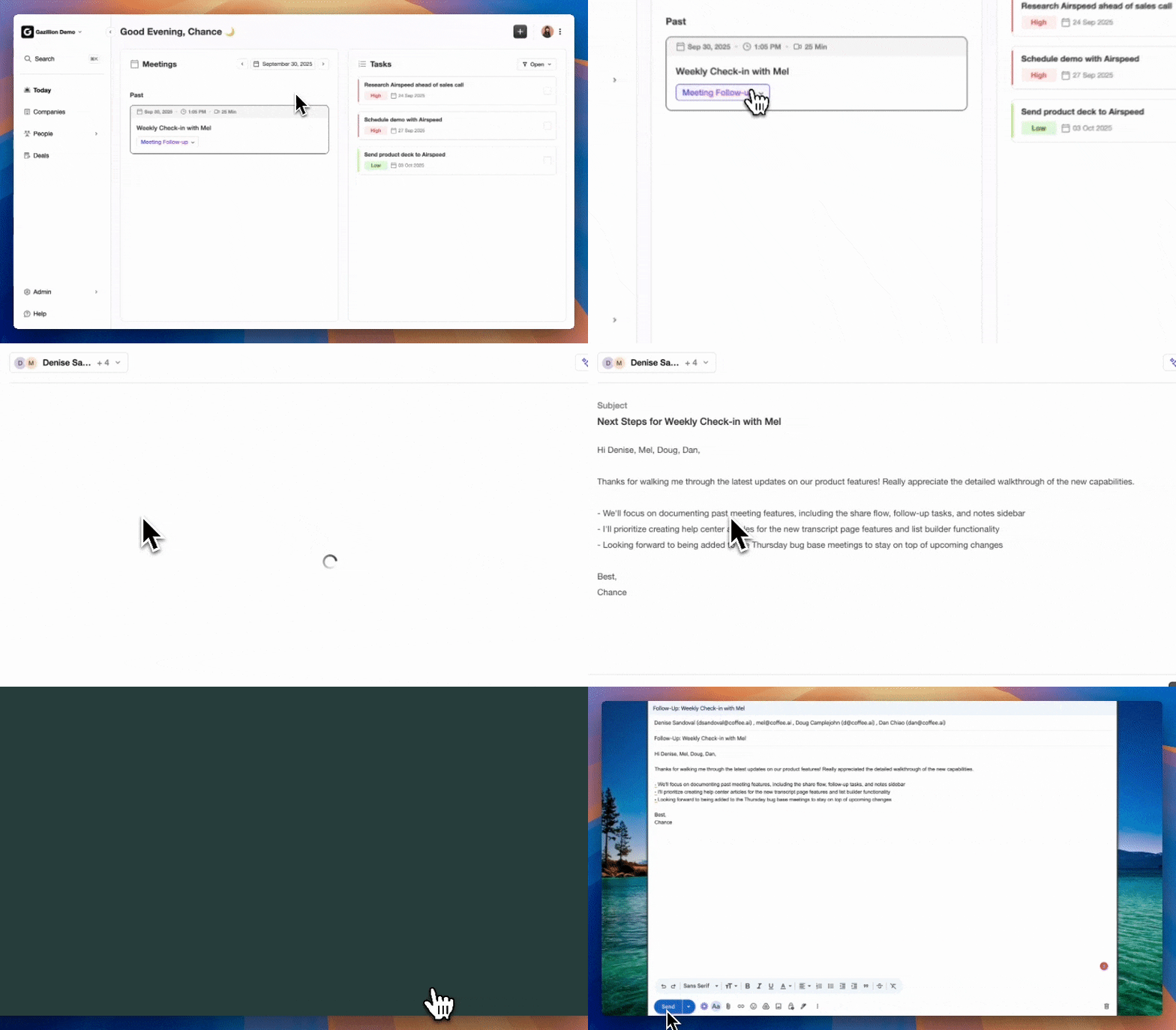
Create instant meeting follow-up emails with the Coffee AI CRM agent
To clarify where the native connector’s query-only design ends and an agent-based automation layer begins, the following section maps each capability side-by-side.
Coffee vs. Native Connector: Where the Agent Layer Matters
The native connector answers questions about HubSpot data. Coffee’s agent changes HubSpot data automatically, bidirectionally, and without manual input. This difference matters for teams whose pipeline accuracy depends on data captured from calls, emails, and calendars rather than manual field updates.
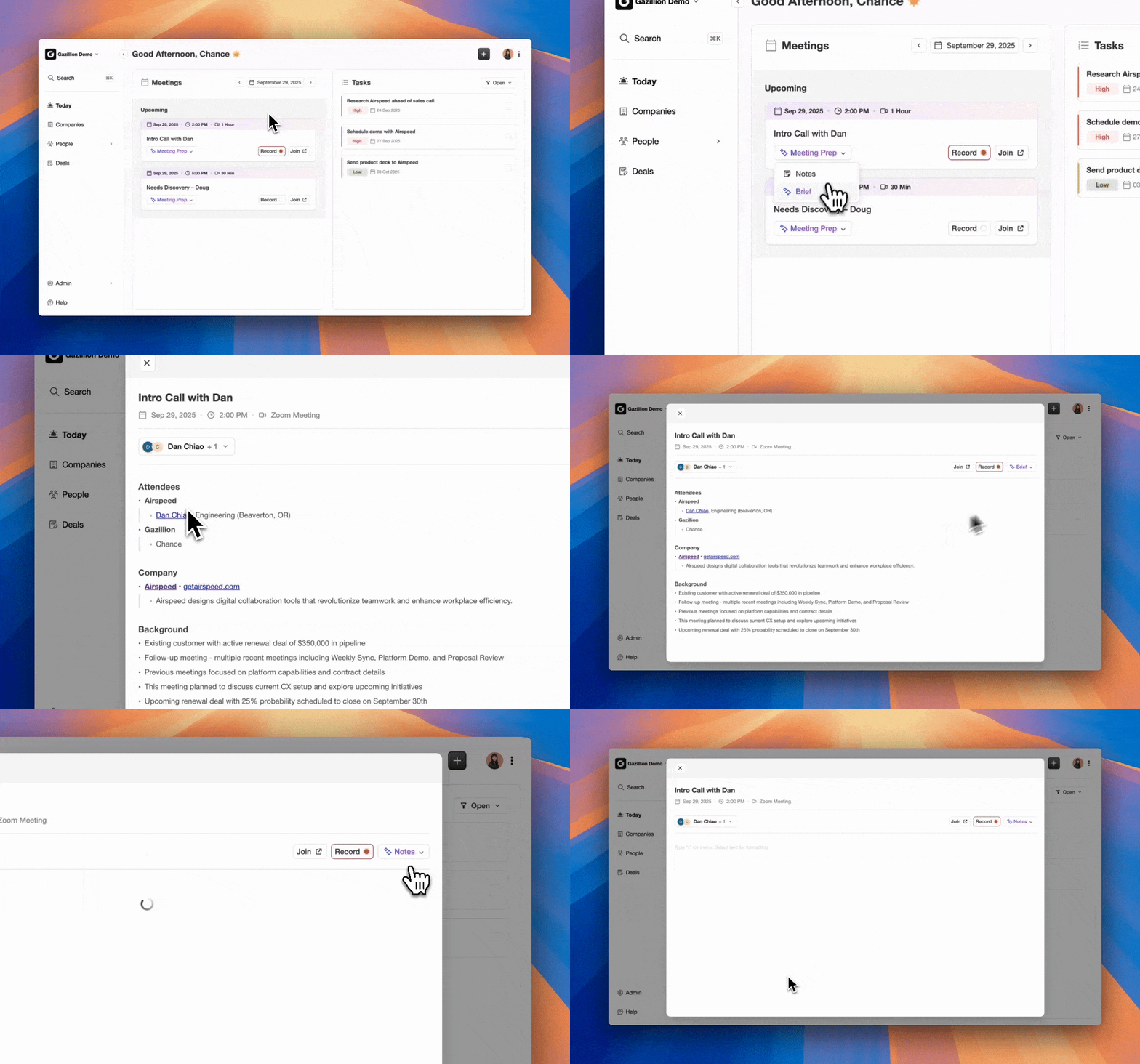
Automated meeting prep with Coffee AI CRM Agent
The table below maps each capability so you can decide whether your team needs a query tool or a write-back automation layer:
Capability
ChatGPT Native Connector
Coffee Agent (HubSpot Companion)
Notes
Read HubSpot records
Yes, standard objects only
Yes, standard and enriched objects
Coffee reads and enriches simultaneously
Write back to HubSpot
Limited, max 10 records, Needs Approval mode recommended, no custom validation
Troubleshooting Common ChatGPT–HubSpot Connector Errors
OAuth authorization error: The most common cause is a mismatch between the HubSpot account used during admin setup and the account used during user authentication. Log out of both HubSpot and ChatGPT, clear browser cookies, and restart the OAuth flow from the ChatGPT connector panel.
Scope-mismatch warning: If ChatGPT returns a message indicating it cannot access a specific object type, the admin likely did not enable that scope during initial setup. A Super Admin or user with App Marketplace permissions must uninstall and reconnect the connector, then select the updated permissions. Each user must then reconnect their individual session.
Rate-limit message: All functionality of the HubSpot connector for ChatGPT is subject to HubSpot’s API usage limits and guidelines. If you encounter rate-limit errors during high-volume querying, space requests across sessions or reduce the frequency of bulk queries.
Engagement data unavailable: If Sensitive Data is enabled in the HubSpot account, the ChatGPT connector cannot access any engagement data. This is a platform-level restriction and cannot be overridden at the connector level.
Validation Checklist for Your New Connection
Run a deal-list prompt and confirm the returned records match what is visible in HubSpot’s pipeline view.
Verify that deal stages, close dates, and associated companies are current, not cached from a previous session.
Confirm that users without access to specific pipelines in HubSpot cannot retrieve those records through ChatGPT.
If write actions are enabled, check the HubSpot Audit Log to confirm attribution is recording correctly to both the user and the connector.
Test an engagement query (calls, notes) to confirm Sensitive Data settings are not blocking expected data.
Frequently Asked Questions About the Connector
Does the ChatGPT–HubSpot connector require a paid HubSpot plan? No. The connector is available to all HubSpot customers regardless of subscription tier, including Free accounts. The requirement is on the OpenAI side: users must hold a paid OpenAI plan (Pro, Plus, Team, Enterprise, or Edu). The connector itself carries no additional subscription cost.
Is my HubSpot data sent to OpenAI for model training? OpenAI’s enterprise and team plans include data privacy protections that exclude conversation data from model training by default. You should review OpenAI’s current data processing terms for your specific plan tier before connecting production CRM data. HubSpot routes connector requests through the appropriate regional data center, and EU-hosted accounts route through the EU data center to respect data residency preferences.
Are there limits on how many prompts I can run against HubSpot data? Yes. All connector functionality is subject to HubSpot’s standard API rate limits. Heavy querying, especially bulk lookups across large contact or deal lists, can trigger rate-limit responses. OpenAI’s own usage limits for your plan tier also apply. For teams running frequent, automated queries, an agent-based solution like Coffee is better suited because it operates on a dedicated data pipeline rather than on-demand API calls.
Can the connector scale across a large sales team? The connector scales in terms of user count, but each user must authenticate individually and is bound by their own HubSpot permission set. Administrative overhead increases with team size because scope changes require a full uninstall-reinstall cycle followed by re-authentication from every user. For teams beyond a handful of users, the permission management burden becomes significant. Coffee’s Companion App for HubSpot is designed for small-to-mid-market teams and handles data synchronization at the account level rather than requiring per-user configuration.
What happens to data written back to HubSpot through the connector? Any create or update action executed through the connector is attributed in the HubSpot Audit Log to both the individual user and the ChatGPT connector. However, the connector does not enforce custom validation rules, so pipeline stage validations and association label validations are bypassed. Teams with strict data governance requirements should keep Write tools set to Needs Approval and audit the log regularly to catch any records created outside standard validation workflows.
Conclusion: When to Use the Connector and When to Add Coffee
The native ChatGPT–HubSpot connector delivers strong value for conversational CRM queries, such as pulling deal lists, summarizing contact activity, and running ad-hoc pipeline checks without a CSV export. For teams that need read-only access to standard HubSpot objects, the setup process described above is straightforward and the connector is free to use with any paid OpenAI plan.
The connector’s ceiling is also clear. It cannot ingest unstructured data from calls or emails, cannot enforce custom validation on writes, cannot track pipeline changes continuously, and requires manual re-authentication whenever permissions change. Teams that rely on accurate, self-maintaining CRM records, where data enters automatically from every customer interaction, need an agent layer that operates beyond the query interface.
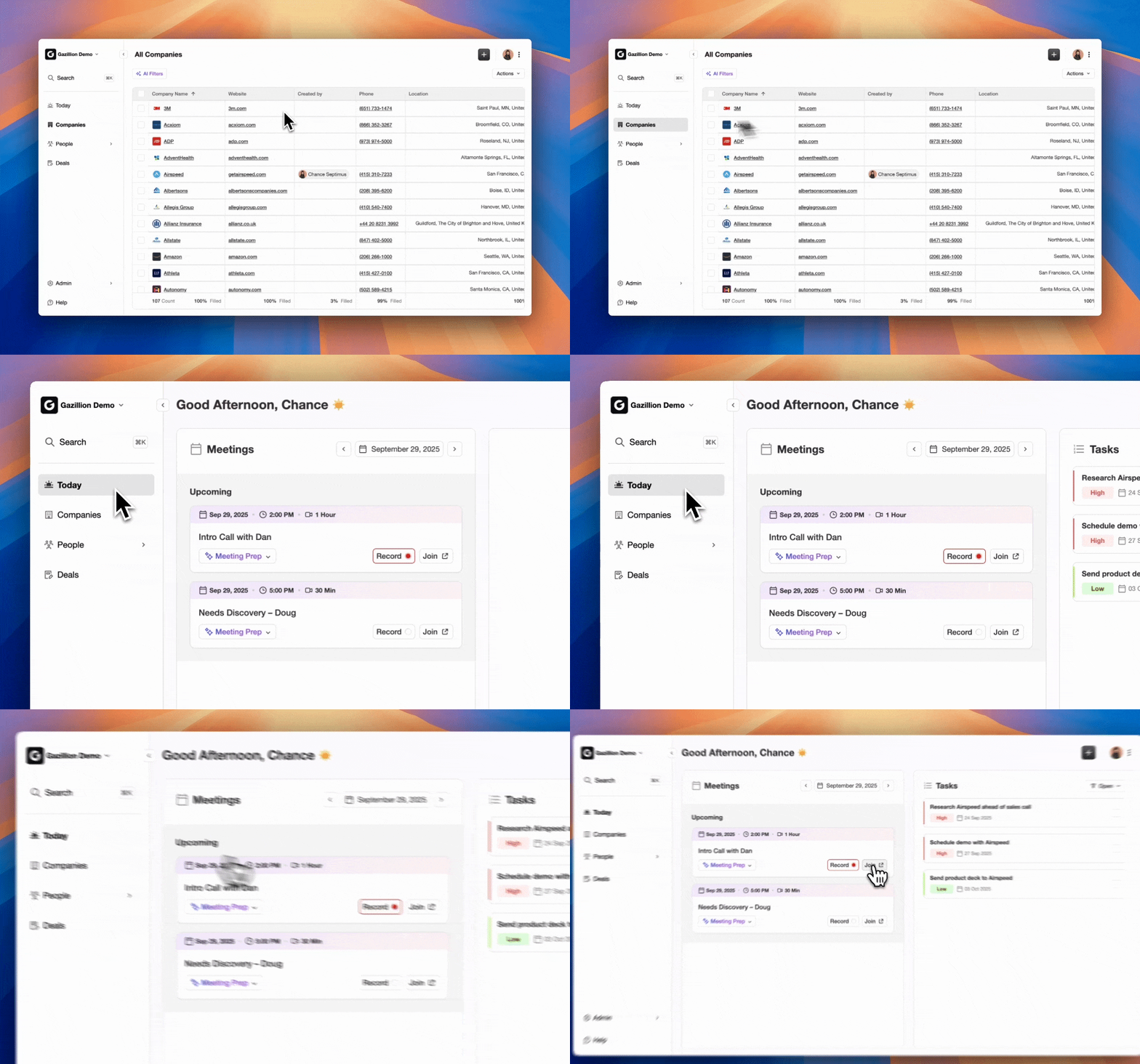
Join a meeting from the Coffee AI platform
Coffee’s HubSpot Companion App fills that gap. The Coffee Agent captures data from emails, calendars, and call transcripts, writes enriched records, summaries, and activity logs back to HubSpot automatically, and delivers continuous pipeline intelligence without manual input or CSV exports. It acts as the automation layer that converts passive HubSpot records into an accurate, active system of record.