Written by: Doug Camplejohn, CEO & Co-Founder, Coffee
Key Takeaways
- Manual copy-pasting of Fathom call summaries wastes selling time and can corrupt CRM pipeline data.
- Native Fathom integrations with Salesforce and HubSpot require Business-level plans and correct OAuth permissions to stay reliable.
- Zapier or Albato help free-plan users or non-Salesforce/HubSpot CRMs connect Fathom, but they add ongoing maintenance work.
- Most sync failures come from revoked tokens, missing permissions, or CRM validation rules that block data writes.
- Teams can avoid setup headaches and maintenance costs by letting Coffee handle Fathom CRM sync automatically.
Decision Guide: Pick Your Fathom CRM Setup
| Current Stack | Timeline | Recommended Route |
|---|---|---|
| Salesforce, Business plan | Can configure this week | Native Fathom–Salesforce integration |
| HubSpot, any paid plan | Can configure this week | Native Fathom–HubSpot integration |
| Any CRM, free Fathom plan | Need sync by Friday | Zapier or Albato automation |
| Salesforce or HubSpot, data quality problems | Want zero maintenance | Coffee Agent (Companion App) |
| No CRM yet | Starting fresh | Coffee Standalone CRM |
Salesforce Setup: Native Fathom Integration
Fathom’s native Salesforce integration is available only on its Business plan ($25/user/month, minimum two users). This setup attaches call summaries and transcripts to Salesforce records, creates action items, and syncs data to matching records automatically.
- Verify prerequisites. The Salesforce user who authorizes Fathom must have edit permissions on Contact, Account, Opportunity, and Task. The most frequent cause of “insufficient privileges” errors is a missing API Enabled system permission on that user profile or permission set.
- Connect via OAuth. In Fathom Organization Settings, open Integrations and select Salesforce. Fathom then runs the standard Salesforce OAuth 2.0 flow.
- Configure field mapping. Fathom handles custom field mapping automatically and does not require manual exports or complex setup. For Deal View mappings, confirm that the Fathom template uses only H3 or H4 headings for mappable sections and that target Salesforce fields are Long Text Area or single-line Text type and remain editable.
- Run a test call. Fathom matches external meeting attendees to Salesforce records using the attendee email address stored on the Contact record. Use a known test contact so you can confirm the match.
- Confirm sync scope. Fathom syncs meetings from the user’s connected calendar. Closed-Won and Closed-Lost Opportunities stay excluded from sync, so only open Opportunities receive deal-level data.
If sync issues appear after setup, permissions and token health cause most failures.
Error: INSUFFICIENT_ACCESS_OR_READONLY — The connected Salesforce user lacks edit access on Contact, Account, or Opportunity. Add the API Enabled permission to the user profile or permission set, then reconnect.
Error: Broken OAuth token — Token revocation immediately halts all CRM data flow. Reconnect the OAuth token in Fathom Organization Settings before you investigate any other sync failure.
HubSpot Setup: Native Fathom Integration
Fathom’s HubSpot integration syncs meeting summaries, action items, and deal insights into associated HubSpot contact or deal records automatically.
- Connect the integration. In Fathom Settings, select HubSpot under Integrations and complete OAuth authorization for your HubSpot portal.
- Configure the sync. The integration writes content to HubSpot without extra configuration, so most teams can accept the default behavior.
- Verify contact and deal matching. Fathom matches on the external attendee email address. Confirm that every prospect has a matching HubSpot contact with the correct email before the first live call.
- Run a test call and inspect the timeline. After the call processes, open the matched HubSpot contact and confirm that the summary and action items appear as a logged activity.
Duplicate contact creation — When an attendee email does not match an existing contact, HubSpot may create a net-new record. Audit new contacts weekly and merge duplicates with HubSpot’s native deduplication tool.
Zapier and Albato: Fathom CRM Automation
Zapier works well when no native integration exists or when you connect Fathom to a CRM outside Salesforce and HubSpot. Coffee expanded call recording options in January 2026 through Zapier integrations with tools including Fathom, Gong, and Fireflies.
- Create a new Zap. In Zapier, select Fathom as the trigger app and choose the “New Recording” or “Call Completed” event.
- Authenticate Fathom. Connect your Fathom account using the API key from Fathom Settings under API Access.
- Select the action app. Choose your CRM, such as Salesforce, HubSpot, or Pipedrive, and select an action like “Create or Update Contact” or “Log Activity.”
- Map fields. Map Fathom output fields, including summary, action items, transcript URL, and attendee emails, to matching CRM fields. Add a filter step to skip internal-only calls.
- Choose trigger mode. Albato, a Zapier alternative, supports scheduled syncs (hourly, daily, or custom) and webhook triggers that fire instantly when a chosen event occurs. Zapier offers similar webhook and polling options, and webhook mode usually keeps latency under two minutes.
- Test and activate. Run the Zap with a recent Fathom recording and confirm that the CRM record updates correctly. Turn the Zap on only after this test passes.
Teams that want a no-code alternative often choose Albato. Albato offers a free plan for the Fathom–HubSpot integration, and its Migration Mode can transfer historical Fathom data to HubSpot from any past timeframe.
Skip the Zapier setup entirely, and get started with Coffee.
Troubleshooting Common Fathom CRM Sync Failures
Start with connection health, then check permissions, and finish with data and matching rules when a sync produces no record, an error, or incomplete data.
- OAuth token revoked: Confirm the connection remains active in Fathom Organization Settings, and follow the token troubleshooting guidance in the Salesforce section above.
- INSUFFICIENT_ACCESS_OR_READONLY: Verify the connected user has the permissions described in the Salesforce setup section above.
- FIELD_CUSTOM_VALIDATION_EXCEPTION: A Salesforce validation rule blocked the write. Audit recent rule changes on Contact, Account, Opportunity, and Task objects.
- INVALID_CROSS_REFERENCE_KEY: A missing or inaccessible related record is referenced.
- TERRITORY_MANAGEMENT_EXCEPTION: The user lacks territory access on the target record.
- STRING_TOO_LONG: Content exceeds the field character limit. Fathom truncates mapped summary content that exceeds Salesforce’s default 32,000-character Long Text Area limit.
- Attendee not matched: Fathom matches on the attendee email address, so confirm that the email exists on a single Contact or HubSpot contact.
- Calendar scope: Fathom syncs only meetings from the user’s connected calendar, so off-calendar calls will not appear.
- No Salesforce log entry: If nothing appears in Salesforce logs, send an example call URL to help@fathom.video for backend log inspection.
Validation Checks Before You Go Live
Run a short validation pass before you call the integration production-ready so you protect both data quality and rep time.
Begin with basic sync behavior. Every test call should create a logged Task or Activity on the matched Contact within five minutes of call processing. Timestamps on those activities must reflect the actual call time rather than the sync time.
Next, confirm data integrity. Check that the test did not create duplicate Contact or Deal records and that action items appear as separate tasks instead of hiding inside the summary body.
Finally, protect your pipeline history. Pipeline history on existing open Opportunities should remain intact and unmodified. Closed-Won and Closed-Lost Opportunities should show no new activity from the test run.
On the productivity side, 71% of sales reps report spending too much time on data entry, leaving only 35% of their time for selling. A validated Fathom CRM integration gives some of that time back by removing post-call manual logging.
Scaling Fathom Integrations Across Your Team
SMBs on Fathom’s free plan rely on Zapier or Albato for automation, because native bidirectional Salesforce sync requires the Business plan. As headcount grows beyond 20 reps, field mapping complexity and Zapier task volume both rise, and the cost of maintaining automation logic grows with them.
Mid-market teams that run Gong or Chorus alongside Fathom face a data-consolidation problem, because each tool writes its own activity records and produces duplicate logged calls on the same Contact or Opportunity. This happens because Fathom’s Salesforce integration syncs call summaries as Notes and creates separate Task records for call activities and action items, but it does not update deal fields or provide analytics that could detect and merge existing Gong or Chorus entries. As a result, Gong or Chorus data does not merge with Fathom data automatically, so RevOps teams must add deduplication logic or consolidate on a single recording tool before they scale.
Agent Alternative: Zero-Setup CRM Sync
Native and Zapier paths both depend on human oversight. OAuth tokens expire, Zapier tasks fail silently, field mappings break when CRM admins rename objects, and new reps need manual onboarding. Coffee’s autonomous agent removes that maintenance work.
Coffee operates in two modes. As a Standalone CRM, the Coffee Agent ingests Fathom transcripts directly and builds the system of record without manual configuration. As a Companion App on top of an existing Salesforce or HubSpot instance, the agent captures call data, enriches it, and writes accurate summaries, action items, and field values back to the primary CRM, all without Zapier, OAuth management, or field-mapping spreadsheets.
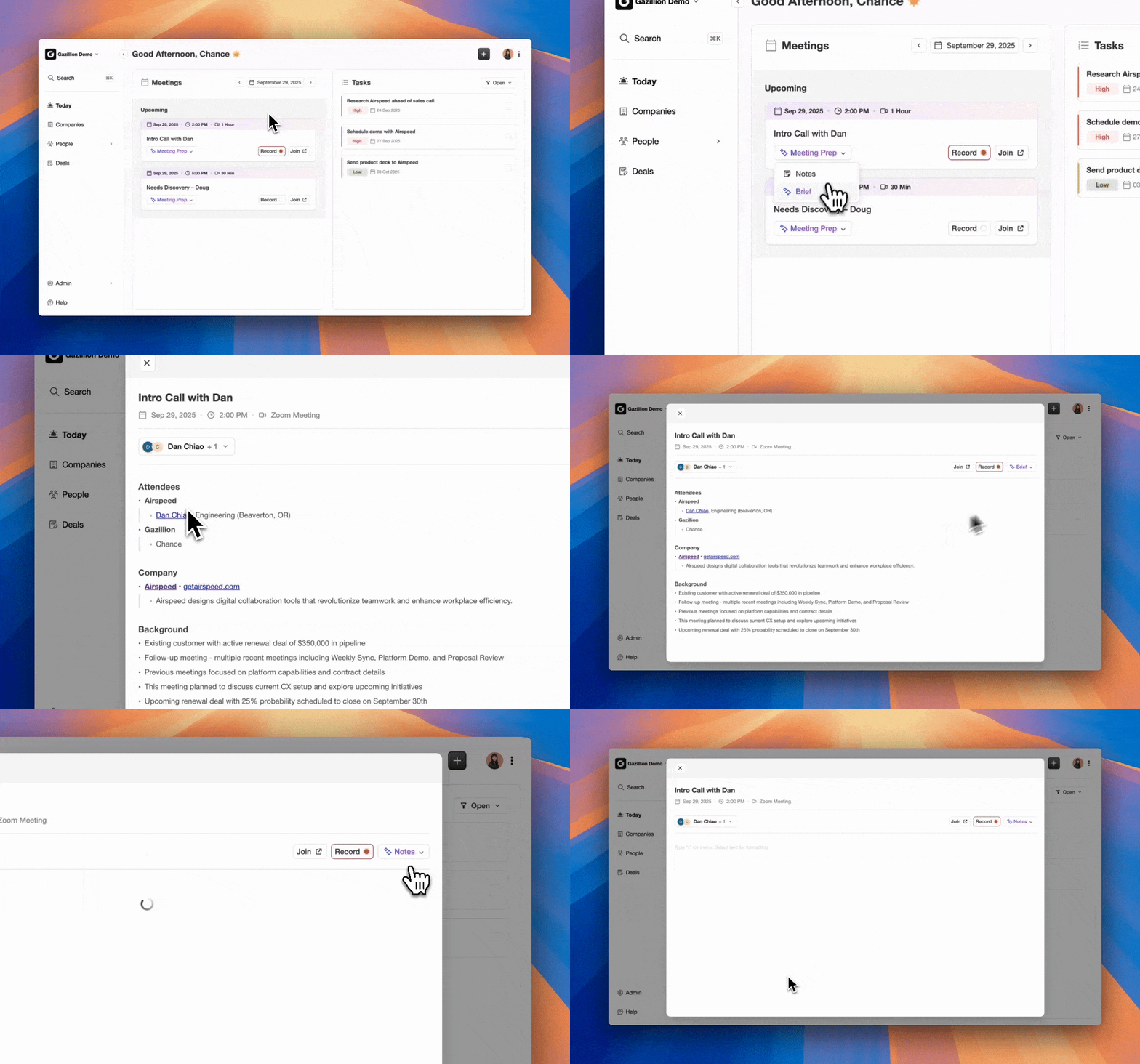
Coffee released improved summary templates in November 2025, customizable to match workflows and writable back to Coffee, HubSpot, or Salesforce. The agent structures notes according to BANT, MEDDIC, or SPICED automatically so consistent qualification data enters the system on every call. Pipeline Compare then surfaces week-over-week deal changes without manual CSV exports.
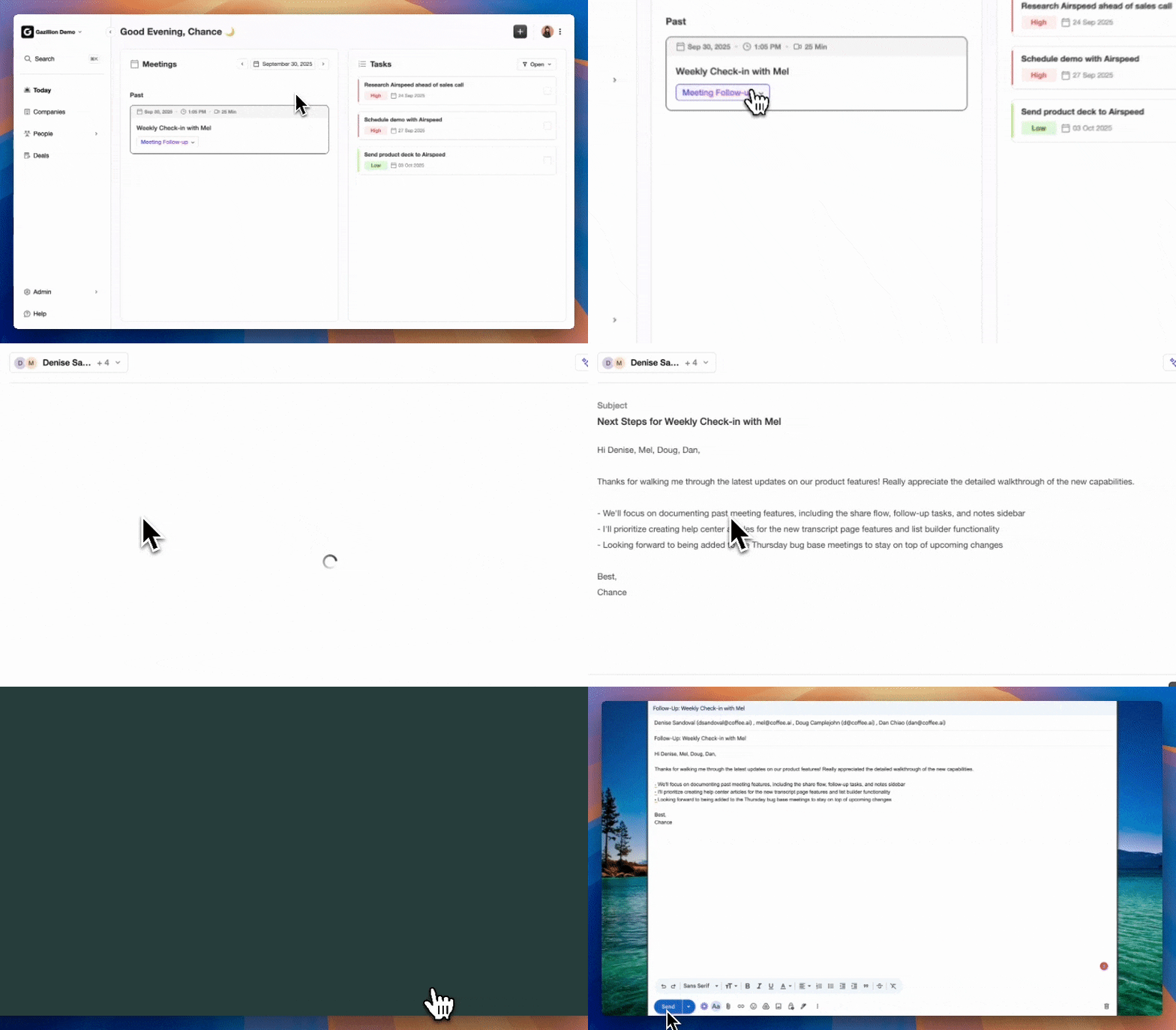
RevOps teams that feel tired of debugging sync failures late on a Friday can switch to Coffee and have a working setup by Monday morning.
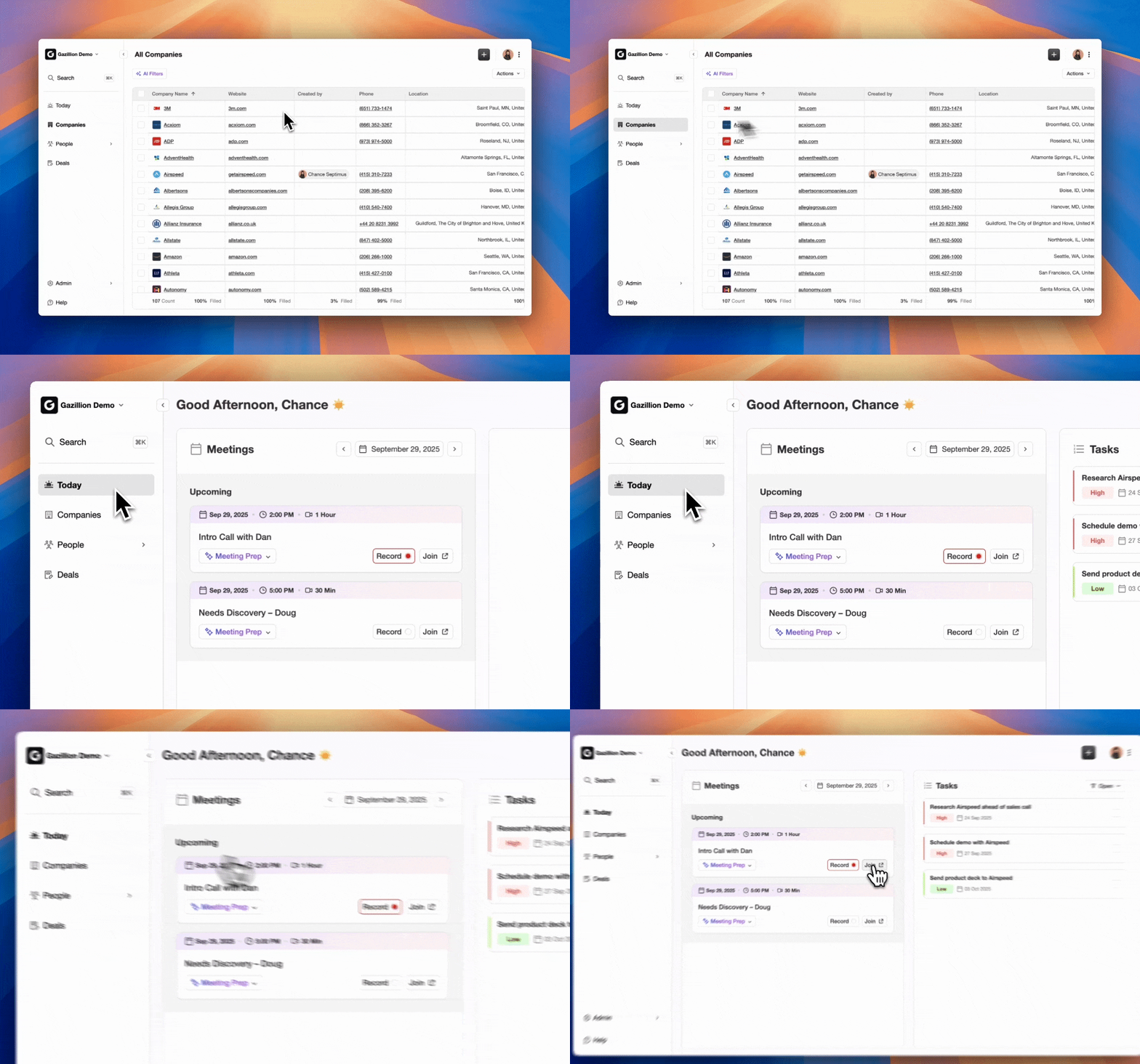
Get started with Coffee, and skip field mapping entirely.
Frequently Asked Questions
Who owns and maintains the Fathom CRM integration after setup?
With native Fathom integrations, the Salesforce or HubSpot admin who authorized the OAuth connection effectively owns it. When that person leaves or their permissions change, the token breaks and syncs stop silently. Zapier automations belong to whoever created the Zap, which creates the same single-point-of-failure risk. With Coffee, the agent manages the connection autonomously, so there is no token to babysit and no Zap owner to reassign when someone leaves the team.
Is Fathom CRM integration secure and GDPR-compliant?
Fathom uses standard OAuth 2.0 for CRM connections and presents itself as privacy-focused. AI meeting assistants still capture sensitive data, including customer details and strategic plans, and process that data on third-party servers. Regulated industries face extra risk because recordings that sync to CRM records can create HIPAA and GDPR exposure, especially around consent and data retention. Coffee is SOC 2 Type 2 and GDPR compliant, and customer data never trains public models, which makes it a defensible option for security-conscious RevOps teams.
How does the cost of a Zapier-based Fathom integration compare to Coffee?
A Zapier-based setup includes Fathom plan costs, such as the Business plan at $25/user/month for native Salesforce sync, plus Zapier task costs that scale with call volume. It also includes the hidden labor cost of maintaining field mappings and debugging failures. Coffee uses straightforward seat-based pricing, so you pay for human seats and the agent’s labor comes included with no metering on processes or LLM usage. For teams where a RevOps manager spends even two hours per month maintaining Zapier automations, Coffee usually delivers a lower total cost of ownership.
Can Fathom backfill historical calls into my CRM after I connect the integration?
Fathom does not support automatic backfill of historical calls after you connect or reconnect Salesforce. Individual calls can be synced retroactively with the manual “Sync to CRM” button on each recording, but no bulk historical import exists. Albato’s Migration Mode offers a partial workaround for HubSpot by transferring historical Fathom data from a selected past timeframe. Coffee avoids this limitation because the agent builds a continuous data warehouse from the point of connection forward, and the Pipeline Compare feature tracks all changes from that baseline.
What happens to Fathom sync if a Salesforce admin changes validation rules or field types?
Any change to Salesforce validation rules, restricted picklists, record-type requirements, or Territory Management assignments can silently block Fathom writes even when the OAuth connection looks healthy. The failure appears as a FIELD_CUSTOM_VALIDATION_EXCEPTION or TERRITORY_MANAGEMENT_EXCEPTION in Salesforce logs. RevOps teams need to audit these configurations whenever a Salesforce admin makes structural changes. Coffee’s agent monitors the write layer continuously and surfaces data-flow issues proactively instead of waiting for a rep to notice a missing activity log days after a call.
Conclusion
Native Fathom integrations with Salesforce and HubSpot work reliably when teams meet and maintain prerequisites. Zapier and Albato extend coverage to other CRMs and free-plan users. Both paths still require a human to own the connection, watch for failures, and update field mappings as the CRM evolves, which creates ongoing overhead for RevOps teams.
Coffee’s autonomous agent removes that overhead. It captures Fathom call data, enriches it, and writes accurate records into Salesforce, HubSpot, or Coffee’s Standalone CRM without OAuth babysitting, Zapier task limits, or manual field mapping. Teams gain clean pipeline data, consistent qualification notes, and forecasts that match reality.
Get started with Coffee and let the agent manage your CRM data from day one.