Written by: Doug Camplejohn, CEO & Co-Founder, Coffee
Key Takeaways for Direct Visitor-to-Salesforce Logging
- Up to 98% of B2B website visitors leave without filling out a form, so most pipeline intent never reaches Salesforce.
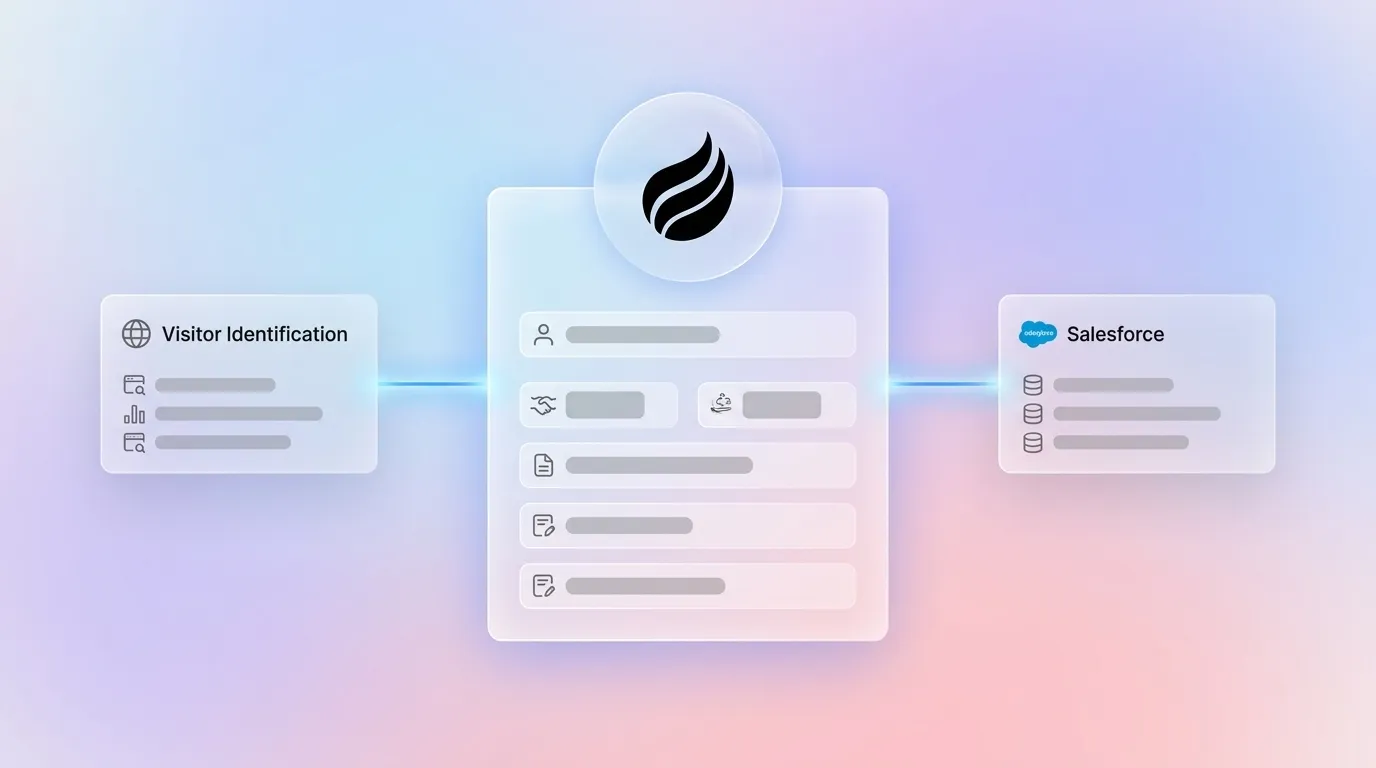
- Coffee’s Visitor Identification pixel and Companion App automatically identify anonymous visitors and write enriched records directly to Salesforce Leads, Contacts, Accounts, and Activity objects without Pardot.
- The 5-step implementation covers pixel installation, real-time enrichment, Salesforce OAuth authentication, field mapping, and data-quality validation in under an hour.
- RevOps and sales teams reclaim hours previously lost to manual data entry while gaining person-level identification rates of 5-40% on US traffic.
- Turn anonymous traffic into logged Salesforce leads today with Coffee.
Why Anonymous Traffic Is a RevOps Problem You Can Fix
Most B2B traffic never becomes a known lead. The average B2B website converts only 2% to 3% of traffic into known leads through form fills, and 60% to 80% of B2B forms are abandoned before completion. Reps end up running outbound blind, targeting cold lists while warm, high-intent visitors browse pricing pages and disappear.
The operational cost compounds quickly. Sales reps already spend only 35% of their time selling, with the remainder consumed by manual data entry and administrative work. Workflow automation can deliver several hours saved per week per rep by eliminating repetitive manual tasks, which returns that time directly to pipeline-generating activity. When you pair this reclaimed time with visitor identification technology that can reveal the companies behind 20-65% of anonymous US B2B traffic, reps gain both the time and the qualified leads needed to focus on actual selling.
For RevOps leaders, the downstream effect is equally damaging. Salesforce records stay incomplete, forecasts drift from reality, and pipeline reviews become interrogation sessions rather than strategic conversations. A direct visitor identification system that writes to Salesforce automatically closes this gap and keeps your CRM aligned with real buyer behavior.
Readiness Checklist Before You Install Coffee
Confirm a few basics before you start installation so setup runs smoothly from pixel to Salesforce.
- Salesforce admin access, required to authorize the OAuth connection and configure object permissions.
- A live website with the ability to edit the
<head>tag directly or via a tag manager such as Google Tag Manager. - Google Workspace or Microsoft 365, used by Coffee to authenticate and enrich contact records from email and calendar signals.
- Defined buyer personas, including job titles, seniority levels, and industries that Coffee uses to power its Suggested Leads feature and filter noise from high-volume traffic.
Step 1: Install the Coffee Visitor Identification Pixel Across Your Site
Start by installing the Coffee pixel on every page so Coffee can see and identify your traffic. Navigate to the Visitor Identification section inside Coffee and copy the auto-generated JavaScript snippet. Paste it inside the <head> tag of every page on your site, either directly in the HTML template or via a tag manager firing on all pages.
Once the pixel is live and receiving traffic, Coffee verifies installation automatically and sends a Slack notification confirming the pixel is receiving events. If the confirmation does not arrive within 15 minutes, check that the script fires before any consent-management platform blocks third-party tags. Then confirm the domain entered in Coffee matches the live domain exactly, including subdomain structure.
Callout: Fixing Domain Validation Errors
The most common installation failure is a mismatch between the domain registered in Coffee and the domain serving traffic (for example,www.example.comvs.example.com). Register both variants in Coffee’s domain settings to prevent dropped sessions.
Step 2: Turn On Real-Time Visitor Identification and Enrichment
After the pixel starts collecting traffic, Coffee’s identification engine begins resolving anonymous sessions. Person-level identification, including full name, job title, email address, and LinkedIn profile, maps directly to CRM contact and activity fields. This approach goes beyond traditional tools that rely only on company-level IP matching.
Coffee’s Suggested Leads feature focuses your team on the right people inside each account. Where tools like RB2B surface raw people lists or company names only, Coffee applies your defined buyer persona to recommend the two or three specific individuals inside a visiting company most worth contacting. LinkedIn profiles appear alongside these suggestions so reps can start outbound immediately. Coffee delivers the person-level identification rates discussed earlier, which provides the data volume needed for reliable CRM enrichment at scale.
Step 3: Connect the Coffee Companion App to Salesforce with OAuth
The next step connects Coffee’s enrichment to your CRM so identified visitors become Salesforce records automatically. Inside Coffee, navigate to Integrations and select Salesforce. Click Connect and complete the standard OAuth flow, where Coffee requests only the object-level permissions required to read and write Leads, Contacts, Accounts, and Tasks.
No custom Salesforce packages or managed metadata changes are required. Once authenticated, Coffee maps its enriched visitor fields to the following Salesforce objects:
| Coffee Field | Salesforce Object | Salesforce Field |
|---|---|---|
| Full Name | Lead / Contact | FirstName, LastName |
| Job Title | Lead / Contact | Title |
| Email Address | Lead / Contact | |
| Company Name | Lead / Account | Company / Name |
| LinkedIn URL | Lead / Contact | LinkedIn__c (custom) |
| Pages Visited | Task / Activity | Description |
| Visit Timestamp | Task / Activity | ActivityDate |
| Visit Duration | Task / Activity | Description (appended) |
Step 4: Map Fields and Set Up Smart Activity Logging
Field mapping ensures Coffee’s enrichment lands in the right Salesforce fields every time. In Coffee’s field-mapping interface, confirm each enriched attribute routes to the correct Salesforce field. For teams using custom Lead fields, map Coffee’s enrichment output to those custom API names directly.
Next, configure the activity logging rule so Salesforce Tasks capture meaningful visit behavior instead of noise. Create a Salesforce Task on every qualifying visit, and set minimum thresholds such as two or more pages viewed or 90 or more seconds on site to filter bot traffic and low-intent sessions.
Callout: Avoiding Required-Field Conflicts
Salesforce Lead records often enforce required fields such as Company, Last Name, or Phone that Coffee may not always resolve from a single visit. Configure a default fallback value, such as “Unknown” for Phone, to prevent record-creation failures. Review your Salesforce Lead validation rules before enabling automatic writes.
Native integrations that sync data automatically without manual exports or engineering work are the standard for best-practice visitor identification stacks. Coffee’s Companion App meets this standard by writing directly to Salesforce objects in real time rather than batching exports.
Step 5: Confirm Data Quality and Quantify Time Saved
Validation confirms Coffee is writing clean, useful data into Salesforce. Build a Salesforce report filtered to Leads created by Coffee in the past 30 days. Verify that Title, Email, and Company fields are populated at the rates expected from enrichment. Then cross-reference the Activity timeline on a sample of records to confirm visit data is logging correctly against the right Lead or Contact. The Salesforce report becomes the ground-truth check that confirms Coffee’s automation is working as designed and replacing manual re-entry.
Next, measure the impact on your team’s time. Track rep hours reclaimed by comparing pre- and post-Coffee manual entry time. Companies using marketing automation see a 14.5% increase in sales productivity, and the time saved from automation compounds across every rep on the team.
Pardot vs. Coffee: Direct Agent Logging Compared
| Dimension | Pardot / Account Engagement | Coffee Companion App |
|---|---|---|
| Setup Time | Days to weeks (tracker domain validation, DNS configuration, Salesforce connector setup) | Under 60 minutes (pixel install and OAuth) |
| Manual Effort | High, and shallow integrations requiring manual CSV exports defeat the purpose of visitor identification | None, because Coffee writes directly to Salesforce objects automatically |
| Enrichment Depth | Form-fill dependent; anonymous visitors receive no enrichment without a cookie match | Person-level enrichment mapped to Salesforce fields, including full name, job title, email, phone, and LinkedIn profile |
| Real-Time Logging | Batch sync, where activity logging depends on Salesforce connector sync frequency | Real-time Salesforce writes with Slack routing to account owner |
Scaling Coffee and Handling Edge Cases
Multi-property deployments stay organized when each domain is registered separately in Coffee’s Visitor Identification settings. Each domain generates its own pixel, and enrichment data flows into the same Salesforce instance with a source-domain field appended to the Activity record for attribution reporting.
Form-fill visitors and anonymous visitors follow different paths so your CRM stays clean. When a visitor completes a form and already exists as a Salesforce Lead or Contact, Coffee matches on email and appends visit activity to the existing record rather than creating a duplicate. Integration safeguards including duplicate-record checks and automatic retry logic are essential for maintaining data integrity, and Coffee applies these checks on every write.
Slack routing keeps notifications relevant for each rep. Configure routing by territory, account owner, or persona match. High-fit visitors that match your defined buyer persona and visit pricing or demo pages route to the assigned rep in real time. Lower-intent visits route to a shared RevOps channel for weekly review instead of generating individual rep notifications.
Frequently Asked Questions About Coffee Setup and Scale
How long does full setup take?
Most teams complete pixel installation, Salesforce OAuth authentication, field mapping, and initial validation in under an hour. The pixel begins identifying visitors immediately after Coffee confirms installation. Salesforce records start populating within the first active session on your site. Teams with complex Salesforce validation rules or multi-domain deployments should budget additional time for configuration review.
Is Coffee SOC 2 Type 2 and GDPR compliant?
Yes. Coffee is SOC 2 Type 2 certified and GDPR compliant. Visitor data is not used to train public AI models. For teams operating under GDPR, a cookie consent banner should be in place before the pixel fires to ensure compliance with data protection requirements in applicable jurisdictions. Coffee’s data handling documentation is available on request for security review processes.
What happens when team size or Salesforce complexity grows?
Coffee’s seat-based pricing model keeps the agent’s labor aligned with your team size without per-process or per-API-call metering. As Salesforce complexity grows, with additional required fields, custom objects, or territory rules, Coffee’s field-mapping interface accommodates custom API names and conditional routing logic. Teams with advanced Salesforce configurations, such as multiple record types or complex lead assignment rules, can configure Coffee to respect existing assignment logic rather than overriding it.
How does Coffee handle tracker-domain validation errors?
As noted in Step 1, domain mismatches are the primary cause of validation errors. Register both the root domain and the www subdomain variant in Coffee’s settings. If the pixel confirmation notification does not arrive within 15 minutes of installation, verify that no consent management platform is blocking the script before it fires, and confirm there are no Content Security Policy headers restricting third-party JavaScript execution. Coffee’s support team can diagnose pixel receipt issues directly from the installation dashboard.
Conclusion: Close the Gap Between Traffic and Salesforce Pipeline
The gap between website traffic and Salesforce pipeline is not a data problem. It is an automation problem. Legacy Pardot workflows require DNS configuration, manual field mapping, and batch syncs that leave reps chasing stale data. Coffee’s Visitor Identification pixel and Companion App close that gap in under an hour by writing enriched, person-level records directly to Salesforce in real time without manual entry and without adding another fragmented point solution to the stack.
Every anonymous visitor who matches your buyer persona becomes a named, logged, actionable Salesforce record. Every rep reclaims hours previously lost to data hygiene. Every pipeline review becomes a conversation grounded in accurate, agent-maintained data.