Written by: Doug Camplejohn, CEO & Co-Founder, Coffee
Key Takeaways for Automatic Visitor-to-CRM Sync
- B2B companies lose millions each year from unidentified website traffic and incomplete CRM data that never reaches sales teams.
- A 7-step automated workflow using Coffee’s agent layer converts anonymous visitors into enriched, deduplicated CRM records without Zapier or manual entry.
- Real-time alerts, persona-based lead suggestions, and one-click outreach actions reduce rep time spent on data verification and speed up pipeline response.
- Direct API writes to Salesforce or HubSpot plus built-in deduplication and enrichment keep CRM records accurate and complete at scale.
- Unlock the full power of automatic visitor-to-CRM sync, get started with Coffee today and turn every website visit into actionable pipeline.
Why Automatic Visitor-to-CRM Sync Matters for Revenue Teams
Sales reps lose productive hours when they verify contact information, chase bounced emails, and leave unreturned voicemails. The average B2B company loses $12.9 million per year due to bad CRM data, and B2B contact data decays at 22.5% per year as professionals change jobs, titles, and email addresses.
The average CRM contains 10–30% duplicate records, and 76% of organizations report that less than half of their CRM data is accurate and complete. Fragmented point solutions, such as a pixel tool, a separate enrichment vendor, and a Zapier workflow stitching them together, compound the problem. Each handoff introduces latency, mapping errors, and maintenance overhead. Up to 98% of B2B website visitors leave without filling out a form, so most buyer intent signals stay invisible to teams that rely on form fills alone.
An agent-driven workflow closes these gaps by handling identification, enrichment, deduplication, and CRM writing in a single automated loop. Before you begin implementation, ensure your environment meets the technical and organizational requirements below.
Prerequisites and Readiness Checklist for Coffee Setup
Review this checklist to confirm you can deploy the workflow smoothly. Meeting all five criteria helps you complete setup quickly and avoid common blockers.
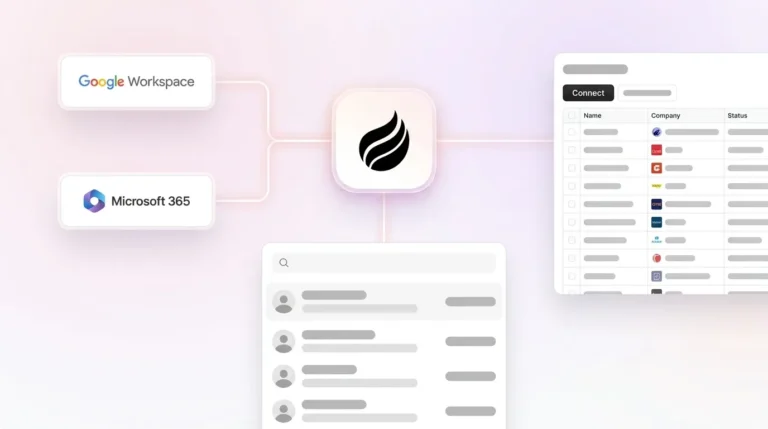
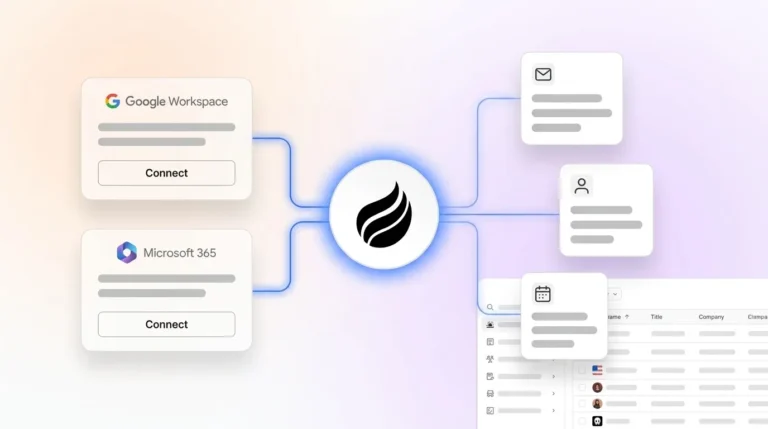
- Google Workspace or Microsoft 365 account with admin access (required for Coffee’s agent to connect email and calendar data streams)
- Admin rights in Salesforce or HubSpot, including permission to create custom properties, objects, and workflow triggers
- A live website with access to edit the
<head>tag (via CMS, tag manager, or direct code access) - Defined buyer persona: industry, company size, seniority level, and target job titles
- Slack workspace or email inbox designated for real-time visitor alerts
Teams that meet all five criteria can complete initial setup efficiently. Ready to begin? Start your Coffee setup now and have your first visitor identified within the hour.
Step 1: Install the Visitor Identification Pixel and Confirm Activity
Install the Coffee pixel in the right place so every visit is captured. Coffee generates a custom JavaScript snippet from within the platform. Paste this script into the <head> tag of every page on the site, not the <body> tag and not a footer include.
Placement in the <head> ensures the pixel fires before page content renders and captures visitors who bounce quickly. Common placement mistakes include loading the script via a tag manager with a consent-conditional trigger that fires only after cookie acceptance, which suppresses identification for a significant share of traffic, and placing it on landing pages only rather than site-wide.
To confirm you have avoided these errors, check Coffee’s dashboard, which displays a verification status within minutes of installation. If the pixel is not confirmed active within 15 minutes, the most likely culprit is Content Security Policy headers that block third-party scripts.
Recommended: annotated screenshot of the Coffee pixel snippet and the verification confirmation screen.
Step 2: Configure Real-Time Notifications and Enrichment Sources
Configure alerts and enrichment next so reps see visitor activity in real time. Once the pixel is verified, choose where alerts surface. Coffee supports Slack channel routing and email notifications.
Route alerts to the account owner or territory rep, not a shared inbox that no one monitors closely. Alert speed and routing are operationally critical, because data is wasted when notifications land in an unused dashboard instead of reaching the rep immediately.
Coffee connects to licensed enrichment partners to resolve visitor IP signals into named contact data such as full name, job title, work email, LinkedIn profile URL, company name, industry, employee count, and funding stage. IP-based identification alone reaches 30-65% accuracy for US B2B traffic at the company level. Combining IP intelligence with behavioral fingerprinting pushes accuracy to 65-80% for B2B visitors at the company level, which is why Coffee uses both methods in its enrichment workflow.
Recommended: annotated screenshot of the Slack alert configuration panel and enrichment source toggle.
Step 3: Map Incoming Fields to CRM Objects and Custom Properties
Clean field mapping keeps enriched visitor data usable inside your CRM. In Coffee’s mapping interface, assign each enrichment field to its corresponding CRM object:
- Contact object: first name, last name, job title, work email, LinkedIn URL, phone
- Company object: company name, domain, industry, employee count, revenue range, funding stage
- Activity object: pages visited, time on site, visit date, first vs. returning visit flag, intent signal score
HubSpot’s single-database model simplifies this mapping because marketing, sales, and service data share a unified schema. Salesforce environments with custom record types and validation rules require additional field-level configuration. Coffee’s agent handles both natively and removes the need for a middleware layer.
Recommended: annotated screenshot of the field mapping interface showing Contact, Company, and Activity columns.
Step 4: Let the Agent Create or Update Contacts, Companies, and Activities
Activate Coffee’s autonomous record management so the agent keeps your CRM current. With fields mapped, turn on the agent to check for existing records before writing.
If a matching Contact or Company exists in Salesforce or HubSpot, the agent updates the record and appends the visit activity. If no match exists, it creates new records with all enrichment pre-filled. Duplicate detection runs against email address, domain, and LinkedIn URL at the same time.
This step replaces the Zapier or Make bridge that most teams use to connect visitor identification tools to their CRM. Shallow CRM integrations that require manual CSV exports defeat the purpose of automatic visitor identification and enrichment syncing. Coffee writes directly to Salesforce or HubSpot through an authenticated API connection, so you avoid intermediary tools and ongoing mapping maintenance after initial setup.
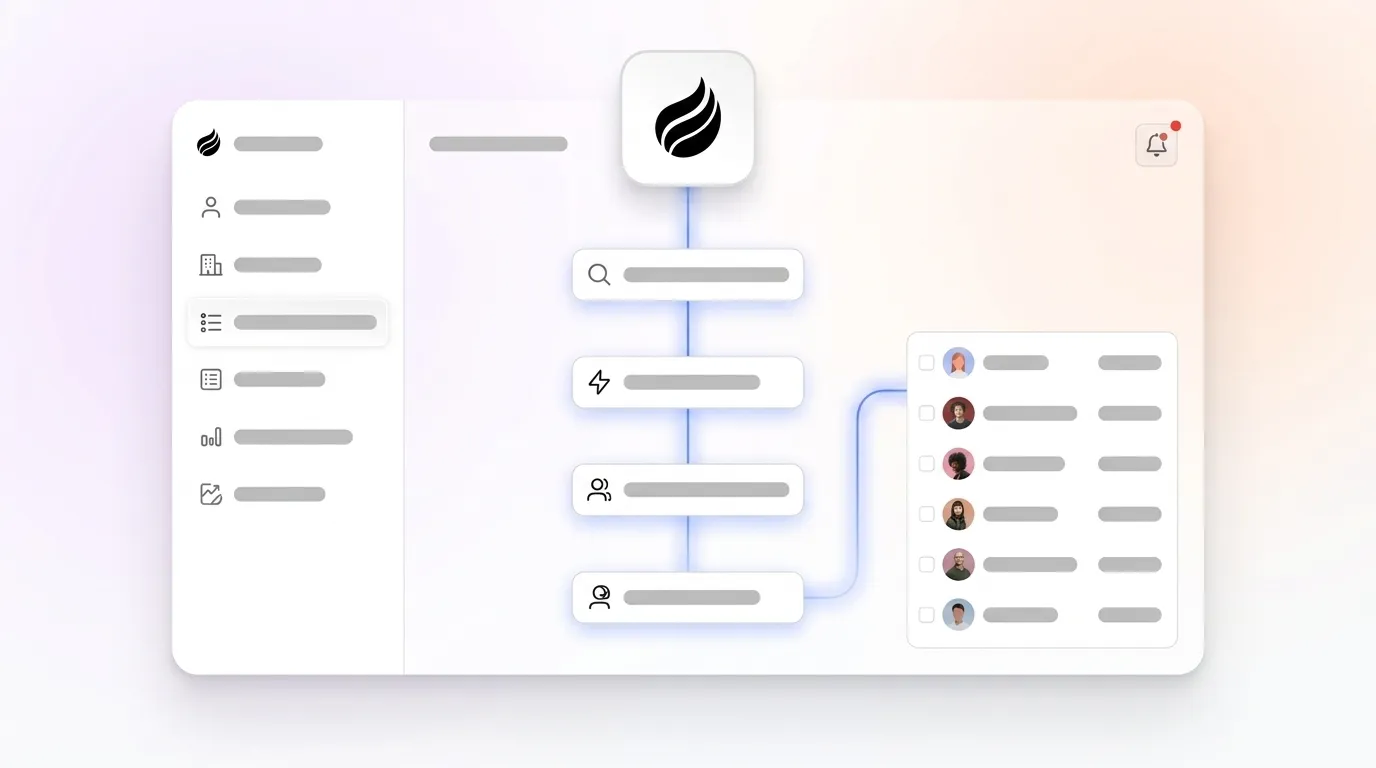
Recommended: workflow diagram showing pixel → enrichment → deduplication check → CRM write path.
Step 5: Use Suggested Leads to Focus on the Right People
Suggested Leads helps reps focus on the people most likely to buy. Most visitor identification tools surface either the company name or an undifferentiated list of employees.
Coffee’s Suggested Leads feature applies the buyer persona configured during setup to recommend the specific two or three individuals inside a visiting company who match the target profile by seniority, function, and title. The panel also surfaces their LinkedIn profiles for immediate outbound action.
Configure the persona filter by selecting target job titles, seniority levels, and department functions. The agent cross-references the visiting company’s employee data against these parameters and ranks contacts by fit score. Contact data from visitor identification tools identifies likely relevant decision-makers within the organization rather than the exact individual browsing, so persona-based filtering becomes essential for prioritizing outreach correctly.
Recommended: annotated screenshot of the Suggested Leads panel showing persona filter settings and ranked contact output.
Step 6: Set Up One-Click Outreach Actions for Faster Follow-Up
One-click outreach turns visitor insights into immediate action. Coffee surfaces enriched visitor records with pre-populated outreach options.
From a single record view, a rep can send a LinkedIn connection request, trigger an email draft generated from the visitor’s page history and enrichment data, or enroll the contact in an outbound sequence. These actions happen without switching tools or copying data between platforms.
Email drafts reference the specific pages the visitor viewed, the company’s firmographic profile, and any prior CRM activity. This context produces relevant first-touch messages. LinkedIn connection requests use the pre-resolved LinkedIn URL from enrichment, which removes manual profile searches. All outreach actions log back to the CRM Activity object automatically.
Recommended: annotated screenshot of the one-click outreach panel within a Coffee visitor record.
Step 7: Validate Data Quality and Measure Pipeline Impact
Run a structured audit so you catch issues early and prove impact. Run a data quality audit 14 days after activation to catch issues before they compound.
Start by checking for duplicate Contact or Company records created during the rollout window, because duplicates distort all downstream metrics. Next, verify that Activity records contain all required fields, since incomplete activity logs make accurate engagement measurement impossible. Finally, review enrichment fill rates across name, title, email, and LinkedIn URL fields to confirm the workflow delivers complete contact data. Automated enrichment workflows can help achieve strong field completion rates, so use this as a benchmark for Coffee’s output against your CRM.
Track pipeline metrics next. Primary metrics include lead response time from visit to first outreach, lead-to-opportunity conversion rate for visitor-sourced contacts, and pipeline velocity for deals that originate from visitor identification. Secondary metrics include rep time saved on manual data entry, with a benchmark of 8–12 hours per week per rep, and CRM record completeness scores week over week.
Recommended: annotated screenshot of Coffee’s data quality dashboard and pipeline attribution view.
Validation, Adoption Signals, and Time-Saved Metrics
A successful deployment produces measurable signals within the first 30 days. The following adoption benchmarks show that the workflow functions correctly and delivers value to your team.
- Pixel firing on 100% of site pages, verified via Coffee’s installation dashboard
- CRM records created or updated by the agent exceeding records created manually by reps
- Slack or email alerts acknowledged and actioned within 24 hours of delivery
- Suggested Leads accepted or dismissed, with acceptance rates above 60% indicating strong persona configuration
- One-click outreach actions initiated from Coffee records, with a target of at least one action per qualified visitor alert
As discussed earlier, bad CRM data erodes roughly 12% of revenue annually, but every week the agent runs without manual intervention, that cost compounds in reverse. Records stay current, enrichment fills gaps, and reps spend time selling instead of verifying data. See how much time your team can reclaim and explore Coffee’s pricing and ROI calculator.
Scaling Coffee from Standalone CRM to Companion App Mode
Coffee scales with your go-to-market stack as your team grows. Teams that adopt Coffee as a standalone CRM for early-stage operations can later migrate to Companion App mode when they invest in Salesforce or HubSpot.
In Companion App mode, Coffee’s agent operates as an intelligent layer on top of the existing system of record. It handles data ingestion, enrichment, visitor identification, and activity logging, while Salesforce or HubSpot retains all reporting, forecasting, and compliance workflows.
HubSpot implementations for mid-market teams typically complete in 8–12 weeks, while Salesforce implementations for mid-market companies typically take 3-9 months. Coffee’s Companion App authentication connects to either platform in minutes via OAuth, with no professional services engagement required for the agent layer itself. The 7-step visitor identification workflow described above runs identically in both deployment modes.
As team size increases, persona filters, alert routing rules, and field mappings scale without rebuilding the workflow. New territories, product lines, or CRM record types are added through Coffee’s configuration interface, not through new integration builds.
Frequently Asked Questions
How long does initial setup take?
Initial setup completes far faster than most traditional systems. Most teams take between 2 and 6 weeks from order to full operation to complete setup of a new commercial coffee machine. Installing and verifying the Influence pixel takes approximately 2 minutes, which provides a useful comparison for the pixel portion of Coffee’s setup.
Configuring enrichment sources, alert routing, and field mappings takes longer and depends on CRM complexity. Activating Suggested Leads and one-click outreach requires extra time to configure the buyer persona filter. Teams running Salesforce with custom record types or complex validation rules may need additional time for field mapping, but Coffee’s agent handles the CRM write logic natively without a developer or external consultant.
Is Coffee SOC 2 Type 2 and GDPR compliant?
Coffee meets modern security and privacy standards. Coffee is SOC 2 Type 2 certified and GDPR compliant. Data processed by the Coffee agent is not used to train public AI models.
Coffee works with licensed enrichment partners who provide Data Processing Agreements, and the platform supports privacy policy transparency requirements and opt-out mechanisms consistent with GDPR, CCPA, and related state privacy laws. Organizations in heavily regulated industries such as healthcare or finance with multi-year security review requirements should evaluate Coffee’s compliance documentation directly with their legal and security teams before deployment.
What is the pricing model?
Coffee uses a simple seat-based pricing model. Teams pay for human seats, and the agent’s labor, including visitor identification, enrichment, CRM sync, activity logging, and suggested leads, is included without extra metering on AI usage or automated processes.
There are no per-enrichment charges or workflow execution fees. Full pricing details are available at coffee.ai/pricing.
How does the workflow change as the team grows?
The core 7-step workflow stays consistent as headcount increases, which keeps operations predictable. Alert routing rules can be updated to assign visitor notifications to specific reps by territory, account tier, or product line.
Persona filters can be duplicated and modified for new buyer segments. Teams that outgrow Coffee’s standalone CRM can activate Companion App mode to layer the agent on top of an existing Salesforce or HubSpot instance, preserving all existing CRM configuration while adding the agent’s automated data-in capabilities. Larger RevOps teams can use Coffee’s API access to script custom briefings and reporting outputs on top of the agent’s data.
Conclusion: Turn Anonymous Traffic into Pipeline Automatically
Anonymous B2B website traffic represents an untapped pipeline asset, not a permanent data gap. The 7-step workflow outlined here, which includes pixel installation, enrichment configuration, field mapping, autonomous record creation, persona-based lead suggestions, one-click outreach, and data quality validation, converts that asset into named, enriched, CRM-synced contacts without manual effort from the sales or RevOps team.
Coffee’s agent handles every step between pixel hit and outreach-ready CRM record. It writes directly to Salesforce or HubSpot, eliminates duplicate records, fills enrichment gaps, and surfaces the exact two or three people inside a visiting company worth contacting, all without Zapier, CSV exports, or data entry. Turn your anonymous traffic into pipeline and start your free trial today.