Written by: Doug Camplejohn, CEO & Co-Founder, Coffee
Key Takeaways for Non-Admin Salesforce Migrations
- Non-admin Salesforce migrations can run with API Enabled, Create/Edit/Read, and object-scoped View All instead of full Modify All Data or Manage Users.
- Permission sets can target only the objects you need and can be revoked right after migration to reduce security exposure.
- Data Loader, SFDMU, and the Data Import Wizard all support non-admin workflows when paired with the minimum permission set in this guide.
- A repeatable seven-step workflow with External IDs, load sequencing, dry-run validation, and file handling preserves relationships without admin help.
- Coffee keeps Salesforce data continuously clean and removes recurring migrations; see pricing and start your free trial today.
The Problem: How Missing Admin Rights Slow Everyday Salesforce Migrations
Most Salesforce migration documentation assumes the operator holds System Administrator rights. In practice, RevOps leads and power users at small-to-mid-market companies are routinely denied Modify All Data and Manage Users, which are the two permissions that unlock the broadest migration tooling. This gap creates stalled sandbox seeding, blocked org consolidations, and escalation queues that can delay projects by days or weeks.
The downstream cost is data-quality debt. When a migration cannot be completed cleanly, teams fall back on partial CSV exports, manual copy-paste, and shadow spreadsheets. Large relational-data migrations between Salesforce orgs can hit API rate limits, storage quotas, and processing timeouts, and without admin access to adjust those limits, non-admin users must run smaller, more frequent batches. Each batch introduces another chance for inconsistency. The cycle repeats every quarter, accumulating lookup mismatches, orphaned records, and stale ownership fields that corrupt forecasting and pipeline reporting.
The Solution: Narrow Permission Sets for Safe Salesforce Migration Without Admin
The root cause of these escalation delays is the assumption that migrations require Modify All Data. In reality, a much narrower permission set, scoped to specific objects and revocable after the migration, is enough for most non-admin workflows. The table below defines the minimum permission set for a dedicated Migration User profile. Assign these via a custom Permission Set rather than modifying a shared profile, so the elevated access can be revoked immediately after migration completes.
| Permission | Scope | Required For | Notes |
|---|---|---|---|
| API Enabled | User | All tool-based migrations | Required by Data Loader for every operation |
| Create | Object-level (per object) | Insert / Upsert new records | Grants ability to insert records |
| Edit | Object-level (per object) | Update / Upsert existing records | Required for update and upsert operations |
| Read | Object-level (per object) | Export source data | Required to access records for export |
| Delete | Object-level (per object) | Delete operations | Hard-delete additionally requires Bulk API Hard Delete permission |
| View All (object-scoped) | Object-level | Reading records not owned by migration user | Substitute for Modify All Data, scoped to specific objects only |
| Modify All (object-scoped) | Object-level | Updating or deleting records not owned by migration user | Narrower than org-wide Modify All Data, request per object |
Below is a minimal JSON permission set snippet that you can deploy via Salesforce CLI (sf project deploy start) to provision the Migration User without touching the System Administrator profile.
{ "PermissionSet": { "label": "Migration User - Non-Admin", "objectPermissions": [ { "object": "Account", "allowCreate": true, "allowRead": true, "allowEdit": true, "allowDelete": false, "viewAllRecords": true, "modifyAllRecords": false }, { "object": "Contact", "allowCreate": true, "allowRead": true, "allowEdit": true, "allowDelete": false, "viewAllRecords": true, "modifyAllRecords": false }, { "object": "ContentVersion", "allowCreate": true, "allowRead": true, "allowEdit": false, "allowDelete": false, "viewAllRecords": true, "modifyAllRecords": false } ], "userPermissions": [ { "name": "ApiEnabled", "enabled": true } ] } }Choosing Non-Admin Migration Tools: Wizard, Data Loader, SFDMU, Inspector
Four tools cover the majority of non-admin migration scenarios. The Data Import Wizard is the most accessible. It runs entirely in-browser, supports Accounts, Contacts, Leads, Solutions, and custom objects up to 50,000 records, and requires the “Import Custom Objects” (or equivalent Import permission) plus Create access on the target object. It cannot handle relational upserts using External IDs across multiple objects in a single pass, which limits its use for complex org migrations.
Data Loader fills this gap for relational work. Data Loader supports insert, update, upsert, delete, and export operations without System Administrator access, provided the Migration User profile grants the permissions outlined in the table above. Salesforce Data Loader is recommended for loading up to 5 million records total (as a suggested maximum per file) and supports External ID-based upserts, which makes it the standard choice for relational migrations. Bulk API 2.0 mode can help with larger data volumes.
SFDMU (Salesforce Data Move Utility) extends Data Loader capability with declarative JSON configuration, automatic relationship resolution, and support for polymorphic lookups. It relies on standard API and object permissions, so it works well for non-admin org-to-org migrations where relationship sequencing would otherwise require manual ordering of multiple CSV loads.
Salesforce Inspector, a browser extension, is useful for ad-hoc field-level inspection and small record queries but is not appropriate for bulk migration. It respects the running user’s permissions and surfaces only records within the Migration User’s Read access scope, which makes it a useful audit tool before committing to a full load.
These tools often support standard insert, update, or upsert operations without Modify All Data. Some operations, such as mass delete, may still require additional permissions.
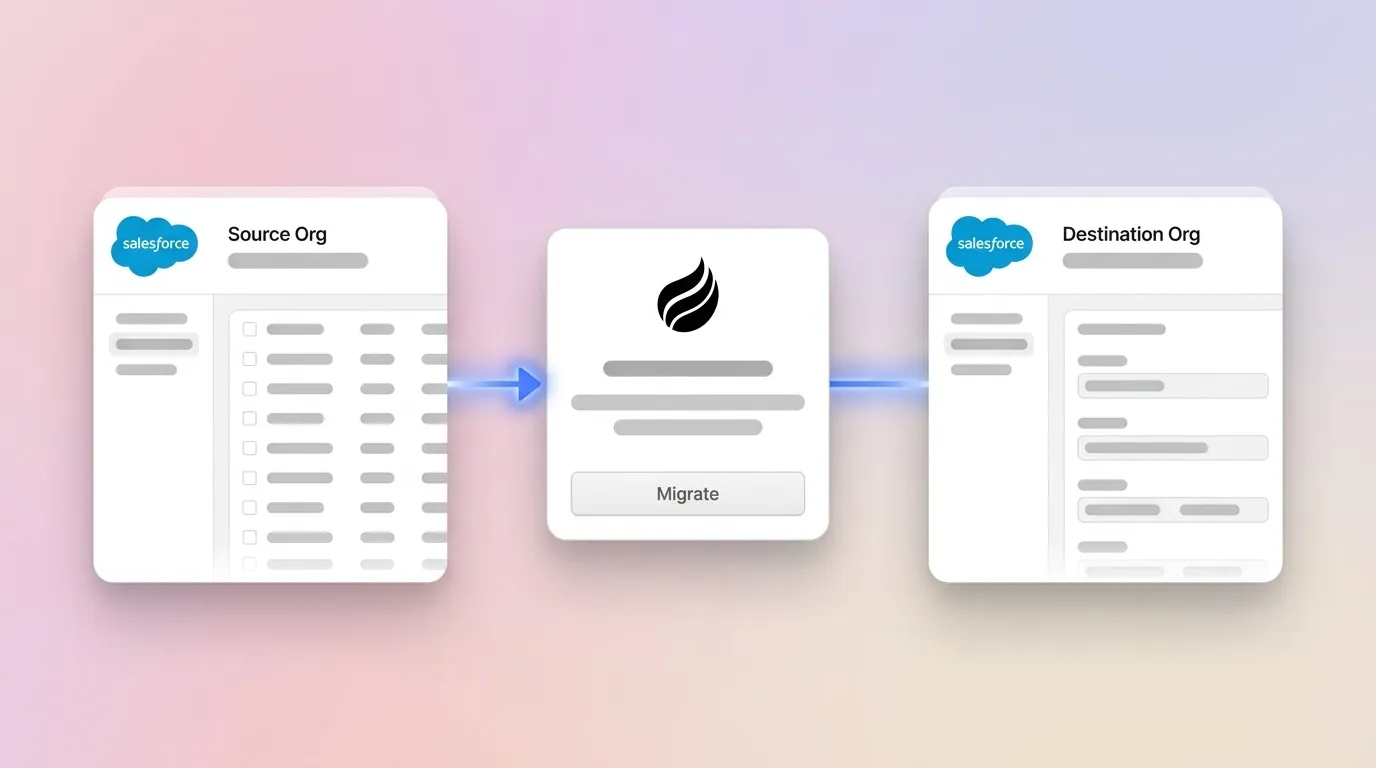
Org-to-Org Salesforce Migration: Seven-Step Non-Admin Workflow
- Assign External IDs. Before exporting from the source org, identify or create an External ID field on every object that participates in a lookup or master-detail relationship. Lookup relationships require External IDs to reconnect records such as accounts linked to multiple contacts or opportunities tied to custom objects when loading objects separately.
- Sequence the load order. Export and load parent objects before child objects. A standard sequence for a sales org is: Users (map to existing target users), then Accounts, Contacts, Opportunities, Opportunity Contact Roles, Cases, and custom objects. After loading, verify that the relationships mentioned in step 1 survived the migration intact.
- Map CSV columns to API field names. Use Salesforce Inspector or a SOQL query to retrieve the exact API names for every field. Map source CSV headers to target API names in Data Loader’s field-mapping file (.sdl) or SFDMU’s export.json. Mismatched field names are a leading cause of silent data loss in non-admin migrations.
- Run a dry-run upsert. Execute the upsert against a sandbox first. Review the success and error CSV files Data Loader generates. Errors referencing “INSUFFICIENT_ACCESS_ON_CROSS_REFERENCE_ENTITY” indicate the Migration User lacks View All on a related object. Resolve this by adding scoped View All to the permission set.
- Handle file and attachment records separately. Do not include ContentVersion binary data in the main CSV load. Use the dedicated file-migration workflow described in the next section.
- Batch large loads. The typical DML statement limit is 150 statements per transaction in Salesforce. To stay within this limit while also managing daily API quotas, split files into chunks below 150 records and schedule loads during off-peak hours when other integrations are not consuming API calls.
- Validate post-load. Run SOQL count queries on each object in the target org and compare against source counts. Spot-check five to ten records per object for field accuracy and relationship integrity.
Salesforce File Migration Without Admin: ContentVersion and ContentDocumentLink
Salesforce stores files using a layered model: Attachment (legacy, ID prefix 00P), ContentDocument (ID prefix 069), ContentVersion (ID prefix 068, stores binary data), and ContentDocumentLink (junction object for parent associations and sharing). Non-admin users cannot migrate file binaries via CSV because VersionData in ContentVersion is not accessible in usable form via CSV exports. A REST API query-and-POST approach is required.
The correct sequencing keeps relationships intact. Load all parent records first. Then POST ContentVersion records, which auto-create the ContentDocument records. After that, insert ContentDocumentLink records that reference the new ContentDocument IDs and the target parent record IDs. A missing parent record causes ContentDocumentLink creation to fail; serializing the process so relational data is loaded before files is the documented workaround.
Target-org sharing restrictions can block file link creation for restricted records; the recommended step is to audit permissions before migration and run a permissions comparison. Without admin access to override sharing rules, the Migration User must hold at least Read access on every parent record to which a ContentDocumentLink will be created.
To avoid duplicate uploads on retry, use an external identifier or the source ContentDocument.Id to detect already-migrated files. For large volumes of files, per-file API calls can consume daily limits, so Bulk API 2.0 batching is often used. Verify the migration by matching source versus target ContentDocument counts, total file sizes, per-record file samples, and sharing visibility for sampled records.
Post-Migration Data Quality: Using an Autonomous CRM Agent to End Recurring Migrations
The workflows above solve the immediate problem of moving data without admin rights. They do not solve the underlying cause of recurring migrations, which is data that degrades continuously because humans are relied upon to enter, update, and maintain it. Automated workflows in AI-enhanced CRM capture information at the point of work, reducing administrative burden while improving data quality and eliminating the need for later manual corrections or migrations.
Coffee’s autonomous CRM agent addresses this at the source by shifting from reactive migration to continuous maintenance. Instead of waiting for data to degrade and then moving it in bulk, Coffee captures interactions from emails, calendars, and call transcripts as they happen, structures them into CRM-ready fields, and writes them back to Salesforce automatically. AI-powered CRM software can automate data management operations such as customer data entry, data mapping, and data cleansing to speed up these tasks while minimizing the risk of inconsistencies. This continuous update cycle prevents the primary migration triggers, such as stale records, orphaned contacts, and missing activity logs, from accumulating in the first place.
For teams already committed to Salesforce, Coffee operates as a Companion App. A lightweight authentication connects the Coffee Agent to the existing org, and the agent handles the “data in” process continuously. Embedded AI can analyze data from multiple sources and turn live signals into guidance, updating CRM records automatically and moving organizations from periodic manual data movement to continuous, event-driven CRM maintenance. The result is a Salesforce instance that stays clean without admin intervention, quarterly CSV exports, or repeated migration cycles.
Deploy your autonomous CRM agent and keep your Salesforce data accurate without manual migrations.
Frequently Asked Questions
What is the difference between “Modify All Data” and object-scoped “Modify All” in Salesforce?
Modify All Data is an org-wide permission that grants unrestricted create, read, edit, delete, and transfer access across every object in the org, including system objects. It is typically reserved for System Administrators. Object-scoped Modify All is a narrower permission that grants the same level of access but only on a specific object, such as Account or Opportunity. For non-admin migrations, requesting object-scoped Modify All on the specific objects involved is the correct approach. It satisfies the operational requirement without exposing the migration user to org-wide data risk.
Can I seed a Salesforce sandbox without admin rights?
Yes, with conditions. Sandbox creation and refresh are admin-only actions, but loading data into an already-provisioned sandbox does not require admin rights. If an admin creates a blank sandbox and assigns the Migration User profile to your account within it, you can use Data Loader or SFDMU to load records using the same minimum permission set described in this guide. The key constraint is that the sandbox’s sharing model and permission sets must mirror the configuration you have tested against, or you may encounter access errors that do not appear in production.
Why do External IDs matter for non-admin migrations specifically?
When admin rights are unavailable, you cannot use Salesforce’s internal record IDs from the source org to establish relationships in the target org, because those IDs change between orgs. External IDs are custom fields marked as unique identifiers that you control. By populating an External ID field on parent records before loading child records, you can use Data Loader’s upsert operation to match and link records by a value you define, such as a legacy system ID or a UUID, rather than relying on Salesforce-generated IDs that do not transfer. Without External IDs, every relational load requires a manual lookup step to remap parent IDs, which is error-prone at scale.
What happens to approval history records during an org migration without admin access?
ProcessInstance and ProcessInstanceStep are system-managed, read-only objects that Salesforce populates only when an actual approval event occurs. They cannot be directly inserted during a migration regardless of permission level. The practical workaround for non-admin users is to create a custom object, commonly named Legacy_Approval_History, with fields for approver name, step status, comments, date acted, and original actor, plus a lookup relationship to the parent record. Export the approval data from the source org via Data Loader and import it into the custom object in the target org. Records that were in a pending approval state at migration time must be re-submitted for approval in the target org, which resets the approval clock.
How does Coffee prevent the need for future Salesforce migrations?
Coffee prevents future migrations by maintaining Salesforce data quality continuously instead of allowing it to degrade between projects. As discussed in the Post-Migration Data Quality section, the agent captures and structures interactions automatically, which eliminates the stale records and missing relationships that trigger migration cycles. For RevOps teams at small-to-mid-market companies, this means fewer escalations, fewer CSV exports, and no recurring migration cycles.
Stop the migration cycle before it starts and review Coffee pricing to start your trial.