Written by: Doug Camplejohn, CEO & Co-Founder, Coffee
Key Takeaways
- Manual contact creation drains 20–30% of a sales rep’s week and costs organizations millions in lost productivity and bad data.
- Native HubSpot tools only populate properties on existing contacts and cannot create new records or handle shared inboxes.
- Zapier-style integrations can create contacts and companies but require ongoing maintenance, break with API changes, and scale poorly with volume.
- Coffee’s Companion App agent auto-creates contacts, companies, and activities from email and calendar with zero ongoing maintenance or field mapping.
- Eliminate manual contact creation from your team’s workflow today and see Coffee’s pricing and start your trial.
Readiness Checklist Before You Start
Confirm a few basics before you configure any method so your automation has a clean foundation.
- HubSpot admin access (Account Access permissions required for AI settings)
- Gmail or Outlook accounts connected to HubSpot at the user level
- Required contact and company properties defined in HubSpot with consistent field naming
- Existing duplicate detection rules reviewed and documented
- A shared inbox strategy decided, with clarity on whether team email addresses route through Conversations or an external agent
Establishing how contact and account data will be standardized across systems before building automation workflows is essential, because inconsistent field mapping and duplicate records will undermine even well-designed automations, no matter which method you choose.
With these prerequisites in place, you can now review the three methods for auto-creating HubSpot contacts from email. Each method below includes setup steps, capabilities, and limitations so you can choose the right fit for your team.
Method 1: Native HubSpot Conversations Inbox and Forwarding Rules
Setup steps:
- In HubSpot, navigate to Settings → Inbox → Inboxes and connect your Gmail or Outlook account.
- For shared team email, add the address as a team email channel inside the Conversations Inbox.
- Enable the forwarding address under Settings → General → Email to log externally received emails to the CRM.
- Navigate to Settings → General → Email and toggle on Fill contact details from emails with HubSpot AI. Account Access permissions are required.
- Wait up to ten minutes for the feature to begin scanning new emails after activation.
What this does: HubSpot’s AI feature populates contact properties such as first name, last name, phone number, job title, city, state, country, and others from email signatures and body text. It can scan emails logged via the forwarding address in addition to emails sent directly to a connected personal inbox.
Limitations: This feature focuses on filling in missing details on existing contacts and has several constraints. It does not scan emails sent to team email addresses, so it cannot support a complete shared-inbox workflow. It only scans a contact’s first email response and will not retroactively process historical emails. It only updates properties that are empty and have never been updated by a user, so it will not overwrite or correct stale data. It cannot create new contact records, so it will not help if the sender is not already in your CRM.
Troubleshooting callout: If contacts are not being created at all, this method is not the cause because native HubSpot does not auto-create contacts from email. Duplicate contacts typically arise when the same sender emails multiple reps who each have separate connected inboxes. Missing company associations are expected, since this method includes no company-creation logic.
Method 2: Zapier / Make-Style Integrations
Typical trigger-action sequence:
- Create a new Zap or scenario with the trigger New Email in Gmail/Outlook or New Email Matching Search for filtered intake.
- Add a HubSpot action, Search Contact, using the sender’s email address to check for an existing record.
- Add a conditional path. If no contact exists, proceed to Create Contact. If one exists, proceed to Update Contact.
- Map sender fields such as name, email, and company domain to the corresponding HubSpot contact properties.
- Add a second HubSpot action to create or associate a Company record using the sender’s domain.
- Optionally log the email as an Activity on the contact timeline.
- Test with sample data and then activate the workflow.
Maintenance and cost considerations: Zapier removes manual copy-paste work when everything runs smoothly. Zaps often break when HubSpot or Gmail updates their APIs, when field names change, or when email formats deviate from the expected pattern. Each failure requires manual diagnosis and repair. Costs scale with task volume, so high-email-volume teams can exhaust plan limits quickly. Shared inboxes require additional routing logic, which increases complexity and maintenance.
Troubleshooting callout: The most common failure points include mismatched field mappings after a HubSpot property rename, duplicate contacts created when the search step returns no match because of case sensitivity, and Zaps silently failing when the connected Gmail account’s OAuth token expires.
Both native HubSpot and Zapier-style integrations require tradeoffs, either limited functionality or high maintenance overhead. The third method removes both constraints by using an autonomous agent that handles contact creation, enrichment, and activity logging without ongoing configuration.
Method 3: Coffee Agent Companion App for HubSpot
Installation and configuration:
- Navigate to coffee.ai and create an account, then select the Companion App for HubSpot.
- Authenticate your HubSpot instance via OAuth. Coffee requests read and write access to Contacts, Companies, and Activities.
- Connect your Google Workspace or Microsoft 365 account to grant the Coffee Agent access to your email and calendar data.
- Configure your buyer persona and any contact property preferences inside the Coffee dashboard.
- Let the agent begin scanning immediately, with no Zap steps, no field mapping, and no ongoing configuration required.
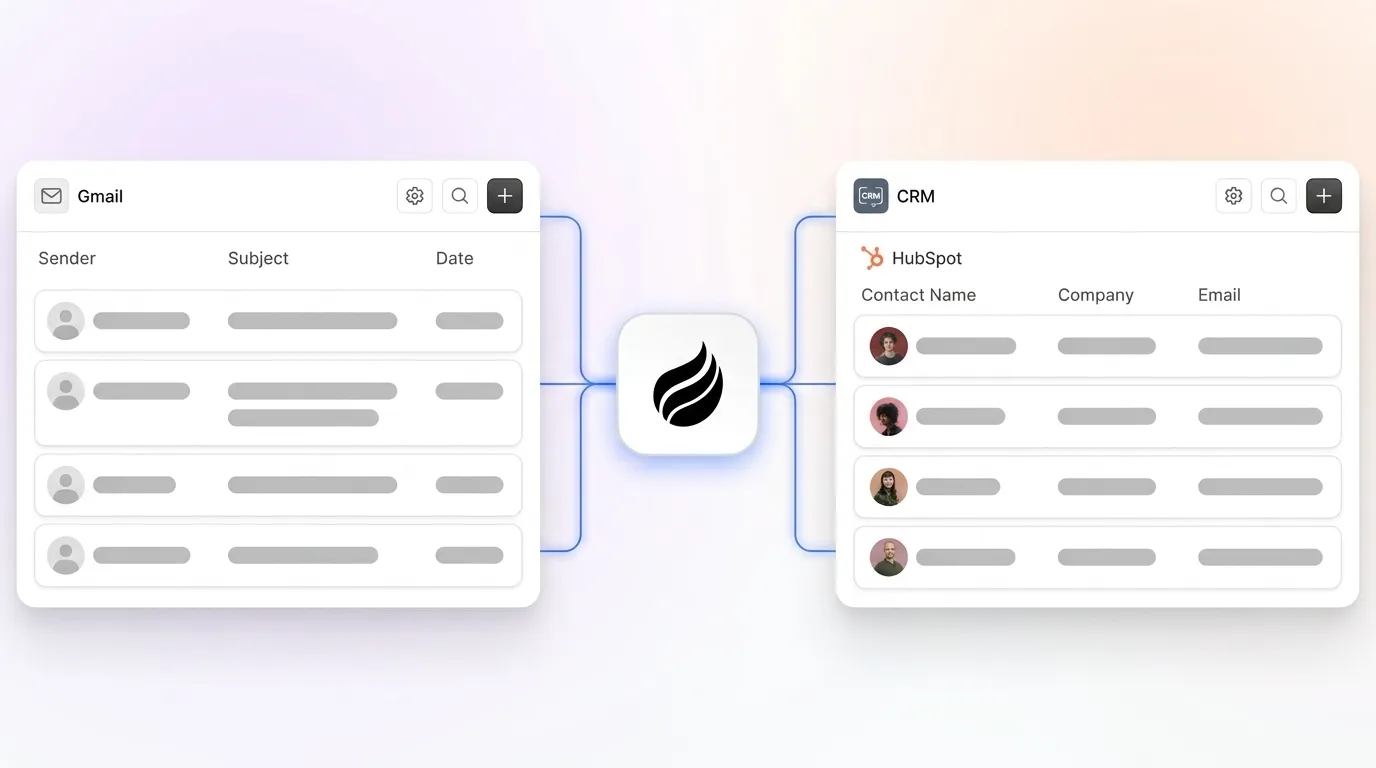
How the agent works: The Coffee Agent scans incoming and outgoing emails and calendar events to identify new contacts and companies. It auto-creates contact and company records in HubSpot, enriches them with job titles, funding data, and LinkedIn profiles via licensed data partners, and logs all interactions as activities on the correct timeline. Every note and interaction is associated with the right record automatically. The agent handles duplicate detection natively by checking for existing records before creating new ones.

AI agents integrate with CRM systems, email platforms, and calendar applications to ensure bidirectional data flow, with every interaction logged automatically in a unified timeline, which removes the information silos that manual entry and fragile Zaps create.
Troubleshooting callout: For shared inboxes, Coffee handles multiple senders from the same domain by associating contacts with the correct company record rather than creating duplicate companies. If a contact already exists in HubSpot, the agent enriches the existing record instead of creating a duplicate.

Connect Coffee to your HubSpot instance and let the agent handle contact creation from day one.
Decision Guide: Matching Each Method to Your Team
Native HubSpot fits teams that only need basic property population on contacts that already exist in the CRM and have low email volume across personal inboxes. It does not serve as a contact-creation solution.
Zapier/Make suits teams with a dedicated RevOps resource who can maintain automations, moderate email volume, and accept periodic breakage. It works as a bridge solution but rarely scales as a long-term answer for growing teams.
Coffee Agent fits teams that want zero ongoing maintenance, need contacts, companies, and activities created together, operate shared or multi-user inboxes, and want HubSpot to remain the accurate system of record without human intervention. It builds on the gaps of the first two methods by combining creation, enrichment, and logging in one autonomous layer.
Comparison Table
| Method | Setup Time | Maintenance Burden | Data Coverage | Scalability |
|---|---|---|---|---|
| Native HubSpot | 30–60 minutes | Low, but feature scope is fixed | Property population only; no contact creation, no company creation, no shared-inbox support | Limited, does not scale to shared inboxes or high volume |
| Zapier / Make | 2–4 hours per workflow | High; requires ongoing repair as APIs and field names change | Contacts and companies with manual field mapping; activity logging requires additional steps | Moderate, task-based pricing limits high-volume teams |
| Coffee Agent | Under 30 minutes (OAuth connection) | None, agent operates autonomously | Contacts, companies, activities, and enrichment from email and calendar; every interaction logged in a unified timeline automatically | High, designed for multi-inbox, multi-rep environments |
How to Validate Success
After activating any method, validate outcomes against three signals that together confirm the automation works end to end. First, check that new contacts created from email have correct company associations. Orphaned contacts with no company record indicate the method lacks company-creation logic. Second, review the activity timeline on newly created contacts to confirm emails and meetings are being logged, not just the contact record itself. This confirms the method captures the full interaction history, not only the contact’s existence. Third, measure rep-reported time on manual data entry at 30 and 60 days post-implementation to confirm the automation actually reduces workload. Companies that invest in data hygiene and automation often report gains in sales productivity, which gives you a measurable baseline for evaluating ROI.
Scaling Notes for Growing Teams
As teams grow beyond a single shared inbox, the complexity of native and Zapier-based approaches increases quickly. Multi-inbox environments require separate Zap configurations per inbox, each with its own failure surface and maintenance schedule. Traditional automation requires sales operations teams to manually analyze and update workflows on a monthly or quarterly basis, while agent-based systems perform continuous analysis autonomously. For teams routing high-fit leads into sequences, Coffee’s agent can surface enriched contacts directly into outbound workflows, and its visitor identification feature connects anonymous website traffic to named prospects, closing the loop from first email touch to active pipeline without extra tools.
Frequently Asked Questions
How long does initial setup take for each method?
Native HubSpot’s AI property-fill feature takes 30–60 minutes to configure, assuming a connected personal inbox is already in place. A Zapier or Make workflow covering contact creation, company association, and activity logging typically requires 2–4 hours of initial build time, plus additional time for testing and debugging. Coffee’s Companion App connects via OAuth in under 30 minutes. Authenticate HubSpot and your Google Workspace or Microsoft 365 account, configure your preferences, and the agent begins working immediately with no further setup required.
Is Coffee SOC 2 and GDPR compliant?
Yes. Coffee is SOC 2 Type 2 and GDPR compliant. Data processed by the Coffee Agent is not used to train public AI models. For teams in regulated industries or those handling sensitive customer data, Coffee’s compliance posture meets the standard requirements for small-to-mid-market B2B sales environments.
What happens to HubSpot data if we later switch CRMs?
Coffee writes all data, including contacts, companies, and activities, directly to HubSpot as the system of record. If your team migrates to a different CRM in the future, that data remains in HubSpot and can be exported through HubSpot’s standard data export tools. Coffee also offers a Standalone CRM option, so teams that outgrow HubSpot can transition the Coffee Agent to operate as the primary system of record without losing the automation layer.
Does the Coffee Agent work with shared team inboxes?
Yes. Coffee is designed for multi-user and shared-inbox environments. The agent scans email and calendar data across connected Google Workspace or Microsoft 365 accounts, associates contacts with the correct company records, and handles duplicate detection natively. Coffee’s agent operates across both personal and shared inbox contexts, so shared team addresses receive the same automated coverage.
Conclusion: Stop Letting Reps Act as Data-Entry Clerks
The three methods form a clear progression. Native HubSpot fills properties but does not create contacts. Zapier creates contacts but requires ongoing maintenance and struggles under volume. Coffee’s Companion App creates contacts, companies, and activities automatically, enriches records, and writes everything back to HubSpot with no Zap to repair and no manual steps to manage.
The cost of inaction is concrete. Manual data entry costs organizations roughly $28,500 per employee per year in lost productivity, which equals over 500 hours annually spent validating or correcting bad contact records instead of selling. An agent-based approach removes that cost at the source.
Start your Coffee trial today and let the agent keep HubSpot accurate while your reps focus on closing.