Written by: Doug Camplejohn, CEO & Co-Founder, Coffee
Key Takeaways for Monitoring Your Salesforce Pipeline
- Kanban views and opportunity dashboards give you visual, real-time tracking of every deal in your Salesforce pipeline.
- Custom reports and filters surface stalled deals, slippage, and core pipeline health metrics you can act on quickly.
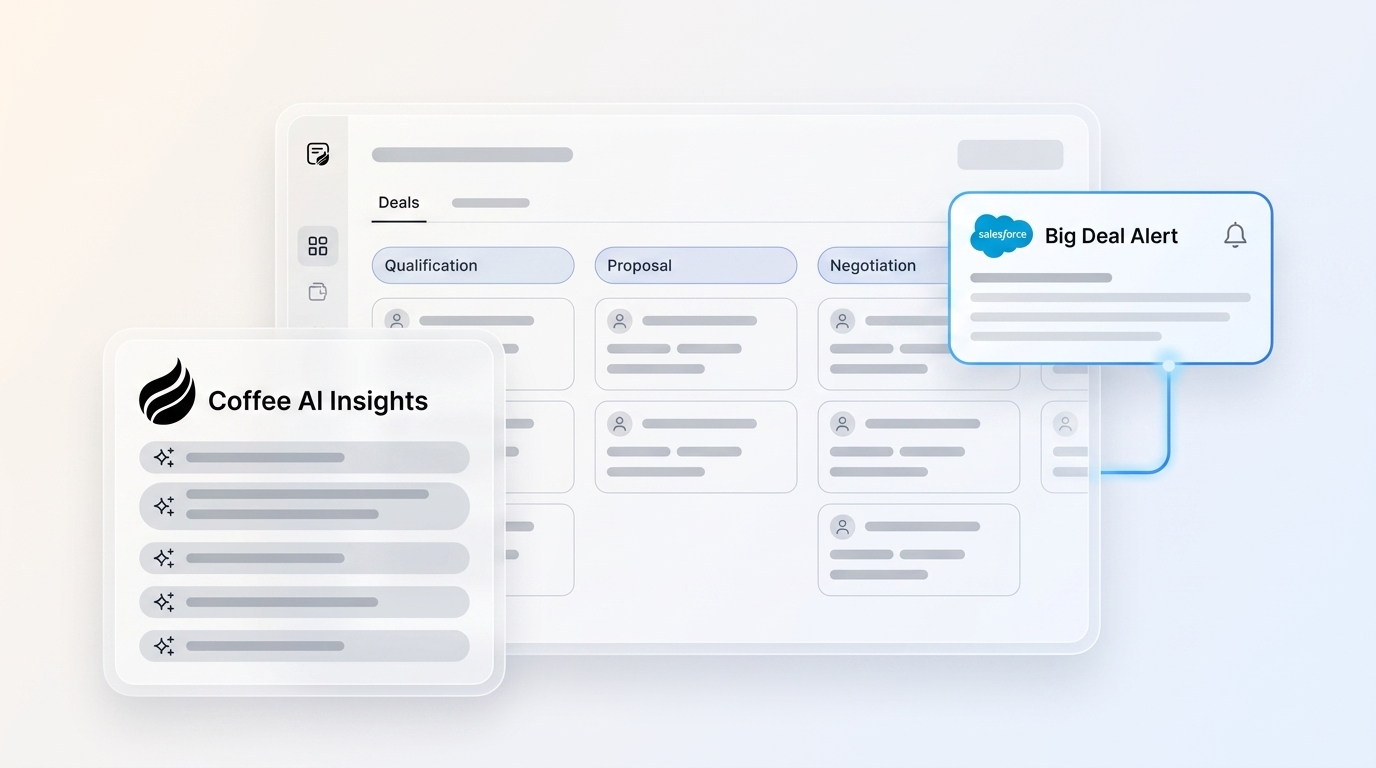
- Big Deal Alerts and Sales Path keep high-value opportunities moving with clear guidance and timely notifications.
- Einstein adds AI-driven insights but still depends on accurate, complete manual data entry.
- Pair Salesforce with Coffee’s autonomous agent to capture data automatically and improve forecast accuracy without extra admin work.
Set Up the Foundation for Reliable Salesforce Pipeline Monitoring
Effective deal monitoring starts with the right permissions, clean data, and connected tools. You need administrator access so you can configure the views, reports, and automations described in this guide. Those configurations rely on clean Opportunity records, with consistent stage naming and all required fields completed, so your visualizations and reports do not break. Integration with Google Workspace or Microsoft 365 then keeps that data current by logging activities automatically instead of relying on reps to update every interaction.
Once this foundation is in place, you can track performance against common benchmarks for three core pipeline metrics:
| Pipeline KPI | Benchmark Range | Monitoring Frequency |
|---|---|---|
| Win Rate | Inbound enterprise POC sales motion win rate benchmark range is 20-25% | Weekly |
| Sales Cycle Length | 70-162 days | Monthly |
| Pipeline Coverage | 3:1 to 4:1 | Weekly |
Build a Salesforce Kanban View That Makes Deal Progress Obvious
Kanban views turn your opportunity list into a visual, drag-and-drop board so deal progression is instantly clear. Salesforce Spring ’26 introduces Kanban Board components in Screen Flows, which lets you embed this visualization directly into guided workflows.
Setup Steps:
- Navigate to the Opportunities tab and select the “Kanban” view.
- Group records by the “Stage” field and use Spring ’26 Flow updates for richer interactions.
- Customize each card to show five key fields: Amount, Close Date, Account Name, Owner, and Last Activity.
- Set column limits so no stage becomes overcrowded and hard to manage.
- Configure summary calculations to display totals by stage, such as amount or count of deals.
Checkpoint: Confirm that every card shows complete information and that you can drag and drop deals between stages without errors.
Common Mistake: Missing activity data often hides cards or makes them misleading. Turn on automatic activity logging so the “Last Activity” field stays accurate for every opportunity.
Create Reports That Show Every Active Opportunity in Salesforce
Comprehensive opportunity reports give you a clear view of pipeline health beyond simple totals. Custom filters highlight deals that need attention right now, and historical trending reveals patterns over weeks and quarters.
Create All Opportunities Report:
- Go to the Reports tab and click “New Report.”
- Select “Opportunities” as the primary object.
- Add filters so “Stage” is not equal to Closed Lost or Closed Won, which keeps the focus on active pipeline.
- Include columns for Opportunity Name, Stage, Amount, Close Date, Days in Stage, and Last Activity.
- Sort by “Days in Stage” in descending order to bring stalled deals to the top of the list.
- Save the report as “Active Pipeline Overview” and set folder permissions for your sales leadership team.
2026 Enhancement: Use Historical Trending reports to track how quickly deals move through stages over time and to spot seasonal slowdowns or recurring bottlenecks.
These broad reports show what sits in your funnel, but they do not highlight one of the most dangerous patterns: deals that keep slipping to future dates. You need a focused view to catch that behavior.
Track Deals That Keep Getting Pushed Out
Deal slippage often points to weak qualification or stalled buyer engagement. Consistent tracking of pushed close dates reduces forecast surprises and gives managers time to intervene.
Slippage Detection Steps:
- Create a report with the filter “Close Date changed in last 30 days.”
- Add the column “Close Date (Previous Value)” so you can compare original and current dates.
- Calculate a “Days Pushed” field with a formula such as Close_Date__c minus Original_Close_Date__c.
- Apply conditional formatting, using red for more than 30 days pushed and yellow for 15 to 30 days.
- Schedule weekly email delivery of this report to sales management.
After you identify slipped deals, use clear thresholds to decide how urgently each one needs attention:
| Slippage Range | Risk Level | Action Required |
|---|---|---|
| 1-14 days | Low | Monitor |
| 15-30 days | Medium | Rep check-in |
| 30+ days | High | Manager intervention |
Use Big Deal Alerts and Sales Path to Protect High-Value Opportunities
Automated alerts and guided paths keep large deals from slipping through the cracks and help reps follow a consistent process. Big Deal Alerts call out high-value opportunities, while Sales Path walks reps through each stage with clear expectations.
Big Deal Alert Configuration:
- Open Setup and go to Process Builder or Flow Builder.
- Create a process that triggers when an Opportunity is created or edited.
- Set criteria such as Amount greater than 50,000 dollars, adjusting the threshold for your business.
- Configure an immediate email alert to sales management.
- Include opportunity details, owner, current stage, and recommended next steps in the email template.
Sales Path Activation:
- Go to Setup, then Sales Path, and click “New Path.”
- Select the Opportunity object and the Stage field.
- Define key fields that must be completed at each stage.
- Add guidance and success tips for every stage to support rep coaching.
Get More from Einstein Opportunity Insights in 2026
Einstein analyzes your opportunity data to flag risks and predict likely outcomes. Spring ’26 stores Einstein Conversation Insights natively in Salesforce, which means you can use standard reports and Flow automation on those insights.
Einstein Capabilities:
- Sentiment analysis based on email communications.
- Risk scoring that reflects activity patterns across the deal.
- Close date predictions using historical performance data.
- Competitive intelligence drawn from conversation analysis.
Key Limitations: Einstein accuracy still depends on clean, complete manual data entry. Unchecked AI models can produce biased outcomes when trained on incomplete or skewed records. Typical forecast variance ranges ±15-25% even when AI is in place.
That accuracy ceiling exists because Einstein can only work with the data your team actually enters into Salesforce. Autonomous monitoring changes that constraint by capturing activity directly from the tools your reps already use.
Go Beyond Native Salesforce with Autonomous Monitoring from Coffee
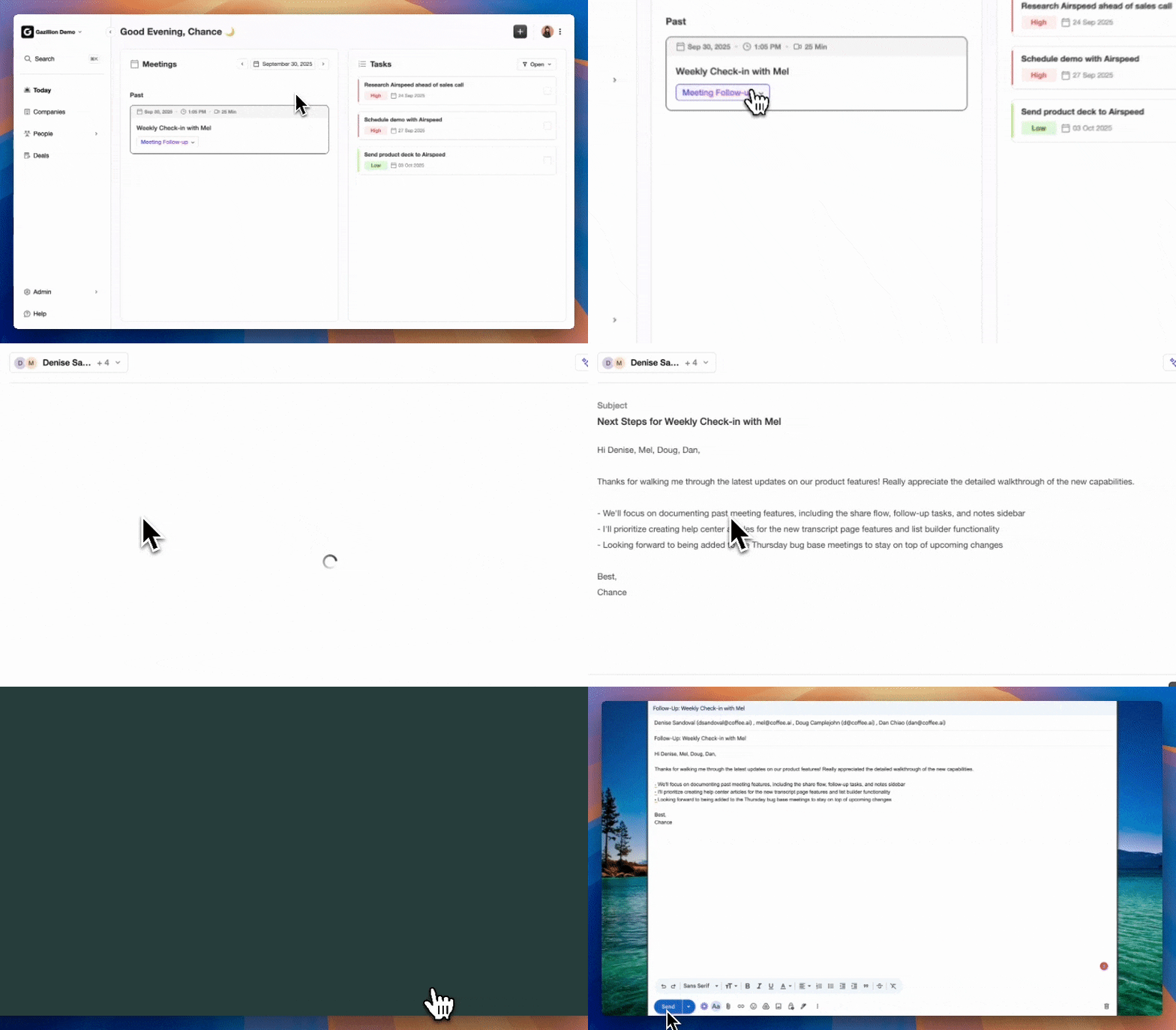
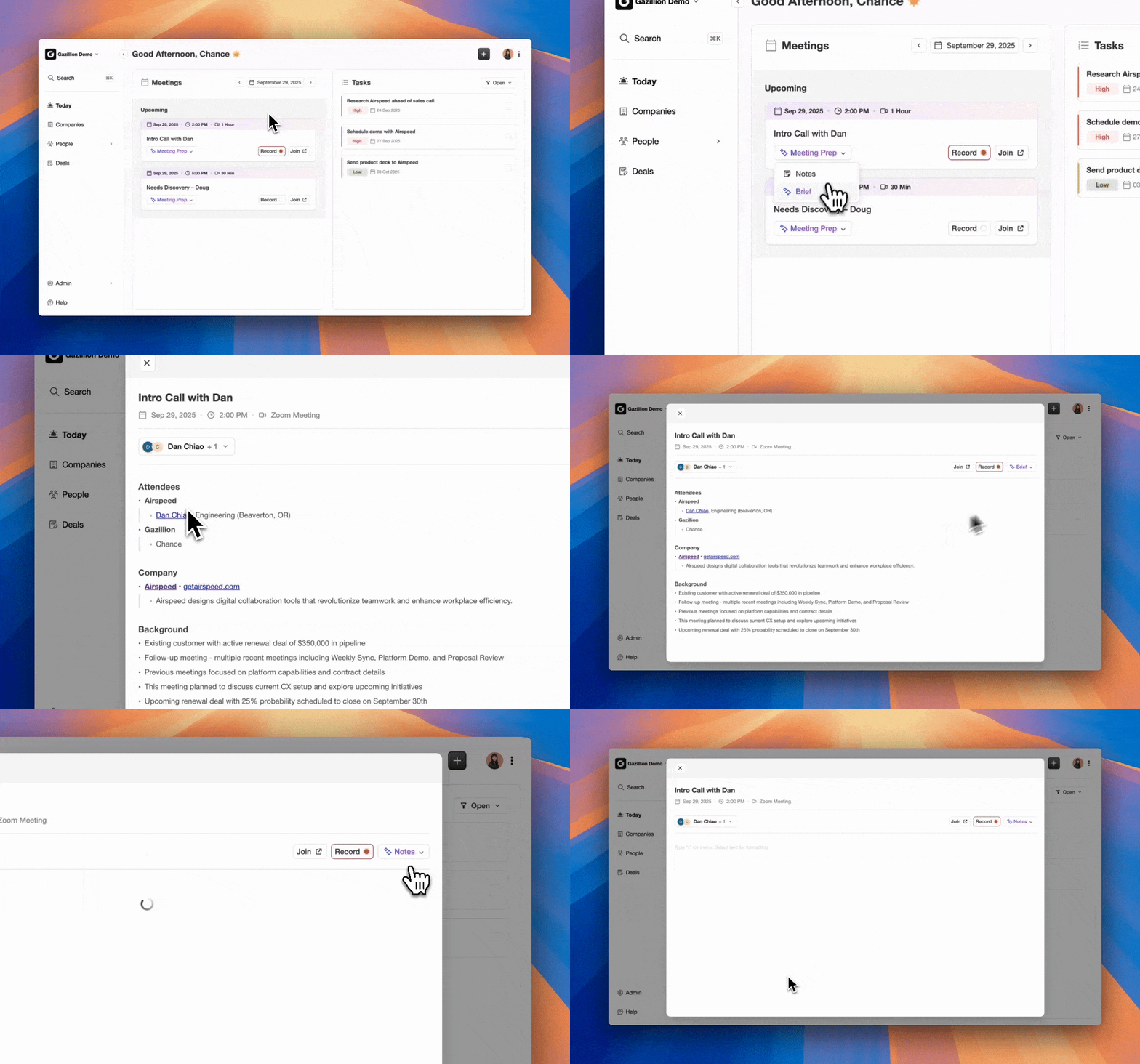
Coffee acts as a Salesforce Companion App that removes most manual data entry and adds deeper pipeline intelligence. Instead of waiting for reps to log notes, Coffee automatically captures emails and calls, enriches contact data, and powers real-time Pipeline Compare views.
Coffee Integration Steps:
- Authenticate Coffee with your Salesforce instance using OAuth so the agent can read and write records securely.
- Connect Google Workspace or Microsoft 365 to stream email and calendar activity into Salesforce.
- Turn on the Pipeline Compare feature to see week-over-week changes in your pipeline.
- Configure autonomous alerts that trigger on stalled deals, stage changes, or large swings in pipeline value.
Pipeline Compare Advantage: Coffee tracks every pipeline change automatically and highlights progressed deals, stalled opportunities, and new additions without CSV exports or spreadsheet work. Pipeline reviews shift from chasing updates to focusing on strategy and coaching.
Validation Results: Coffee saves 8 to 12 hours per week on manual data entry while maintaining SOC 2 compliance. The agent improves forecast accuracy by keeping opportunity records complete and consistent.
Get started with Coffee to experience hands-free deal monitoring that outperforms manual Salesforce workflows.
Compare Native Salesforce Monitoring to Coffee’s Autonomous Agent
| Feature | Native Salesforce | Coffee Agent |
|---|---|---|
| Data Entry | Manual (71% of sales reps say they spend too much time on data entry) | Autonomous capture from emails and calls |
| Pipeline Insights | Basic reports (see variance noted above) | Pipeline Compare with agent-level precision |
| Alerts | Workflows that require manual setup and maintenance | Autonomous, real-time notifications based on live activity |
| Forecast Impact | 85% miss 5%+ | Improved accuracy through stronger data hygiene |
Fix Common Issues and Adapt Monitoring to Team Size
Common Native Pitfalls:
- Outdated Einstein models trained on poor or incomplete historical data.
- Workflow rules that fail because required fields are missing.
- Kanban views that break when custom fields do not contain data.
- Report filters that accidentally exclude deals due to inconsistent stage progression.
Team Size Considerations: Small teams usually benefit from simple Kanban views and a few targeted alerts. Mid-market organizations often need richer dashboards plus Coffee’s automation to keep up with volume. Enterprise teams require layered reporting hierarchies combined with autonomous pipeline intelligence to support multiple regions and segments.
Frequently Asked Questions
How do I set up Salesforce big deal alerts?
Create a Process Builder or Flow that triggers when Opportunity Amount exceeds your chosen threshold, often 50,000 dollars or more. Add immediate email actions that notify sales management with opportunity details, current stage, and owner. Include clear next steps and timing guidance in the email template so leaders can respond quickly.
Does Coffee work with HubSpot too?
Yes, Coffee operates as a Companion App for both Salesforce and HubSpot. The agent delivers the same autonomous data capture, Pipeline Compare insights, and real-time alerts regardless of which CRM you use.
What is Pipeline Compare?
Pipeline Compare is Coffee’s signature feature for tracking week-over-week pipeline changes automatically. It visualizes progressed deals, flags stalled opportunities, and highlights new additions without manual exports or spreadsheet analysis. Pipeline reviews become strategic planning sessions instead of data gathering meetings.
How does Coffee fix Einstein limitations?
As described in the autonomous monitoring section above, Coffee’s agent closes the manual entry gaps that limit Einstein by capturing all relevant interactions automatically. The agent supplies ground-truth data from real buyer communications instead of relying only on partial CRM updates.
Can Coffee improve forecast accuracy?
Coffee improves forecast accuracy by keeping opportunity data complete and consistent through autonomous capture. The agent reduces the data quality issues that drive variance, and Pipeline Compare adds real-time visibility into deal movement and risk.
Conclusion: Combine Native Salesforce Tools with Coffee for Full Pipeline Visibility
Effective deal monitoring in Salesforce comes from pairing native tools with intelligent automation. Kanban views, reports, alerts, Sales Path, and Einstein create a strong foundation, but manual work limits their impact. The six native Salesforce approaches outlined here, combined with Coffee’s autonomous agent, deliver end-to-end visibility across your pipeline.
Coffee’s automation marks the shift from a passive CRM database to an active intelligence system. By handling data entry, enrichment, and analysis on its own, Coffee turns deal monitoring from repetitive admin work into a steady source of strategic insight.
Get started with Coffee to move toward autonomous deal monitoring that saves time while strengthening forecast accuracy and pipeline intelligence.