Written by: Doug Camplejohn, CEO & Co-Founder, Coffee | Last updated: September 29, 2026
Key Takeaways
- Design the matching layer early by defining external ID fields and uniqueness rules so imports do not create duplicates.
- Match the ingestion path to the source: small one-time loads go through Data Import Wizard, scheduled bulk jobs through Data Loader CLI, real-time multi-object writes through Flow HTTP Callout, and complex enterprise integrations through MuleSoft.
- Use upsert on a stable external ID for dependable deduplication, because name-and-email matching breaks on shared inboxes, aliases, and domain changes.
- Plan for ongoing monitoring, error queues, and retry logic for every automated pipeline, or failures surface only when reps notice missing records.
- Let Coffee handle the build-and-maintain work by creating and enriching Salesforce records from email and calendar data without CSV preparation or manual mapping.
See How Coffee Handles Deduplication
Start Here: Match Your Data Source To An Ingestion Path
Most Salesforce automation failures trace back to duplicates and poor data quality rather than connectivity. Design the matching layer first by defining the external ID field, the upsert key, and the uniqueness constraint before configuring any connector. The table below maps each common source to the right approach and highlights how each one should handle matching and deduplication.
| Source | Recommended Approach | Salesforce Tool / API | Dedup Consideration |
|---|---|---|---|
| CSV / Excel Files | Manual or scheduled bulk import | Data Import Wizard (<50K rows); Data Loader CLI for recurring jobs | Clean and deduplicate the file before import, then use external ID upsert for recurring loads. |
| SQL Databases (e.g., SQL Server) | Scheduled ETL via Data Loader CLI or iPaaS | Data Loader Bulk API 2.0; MuleSoft for transformation | Use the database primary key as the Salesforce external ID and mark that field Unique. |
| REST APIs | Event-driven or scheduled callout | Flow HTTP Callout with Named Credentials; MuleSoft for complex transforms | Map the API record ID to an external ID field and upsert on that key on every sync. |
| Web Forms | Real-time insert via API or Flow | Web-to-Lead; Flow HTTP Callout; Zapier for simple triggers | Match on verified email before inserting and enable Salesforce duplicate rules. |
| Email (e.g., Gmail) | Agent-based capture or iPaaS trigger | Coffee Companion App; Zapier; MuleSoft | Treat email address as a weak key because shared inboxes and aliases cause false misses. |
| PDFs / Invoices | Intelligent document processing plus validation before write | IDP platform → REST API or Flow; Salesforce Flow document processing | Route low-confidence fields to human review and write only validated extractions. |
| Another CRM / ERP (e.g., SAP, QuickBooks) | Scheduled ETL or real-time middleware | MuleSoft; Boomi; Jitterbit; Data Loader for file-based exports | Use ERP order number or customer number as the external ID and enforce a Unique constraint. |
| Legacy Desktop Apps | Export to CSV, then scheduled Data Loader CLI job | Data Loader Bulk API 2.0 | Assign a stable legacy record ID as the external ID before the first load. |
Five Practical Ways To Import Data Into Salesforce
Five ingestion paths cover most Salesforce data import scenarios, and the right choice depends on volume and ownership of the unique key.
- Data Import Wizard — browser-based, up to 50,000 records per import, insert and update only, no scheduling.
- Data Loader — desktop client, up to 5 million records per operation, supports insert, update, upsert, delete, hard delete, and export, and CLI mode enables scheduling.
- Salesforce Flow HTTP Callout — real-time, no-code outbound calls, counted against the platform limit of 100 callouts per transaction, writes to multiple objects in a single transaction.
- Middleware And iPaaS (Zapier, Make, MuleSoft) — event-driven or scheduled, with volume limits set by plan and API strategy.
- Data Cloud Ingestion Connectors — connect external data lakes and warehouses with zero-copy where supported.
Native Salesforce Tools: Data Import Wizard Vs. Data Loader
The Data Import Wizard is browser-based, requires no installation, and supports Accounts, Contacts, Leads, Solutions, Campaign Members, and custom objects. It is capped at 50,000 records and handles insert and update only, with no delete, export, or scheduling. Its key advantage is built-in duplicate detection that integrates with Salesforce matching and duplicate rules and surfaces an in-browser error summary.
The Data Loader uses the SOAP-based API by default, and admins can configure Bulk API or Bulk API 2.0 for large loads. It supports up to 5 million records per operation, and handles insert, update, upsert, delete, hard delete, export, and export all. Salesforce Trailhead documents Data Loader as appropriate for 50,000 to 150 million records, subject to org limits and storage. Data Import Wizard provides built-in duplicate detection, while Data Loader leaves deduplication entirely to the admin. Data Loader remains the right choice when you need to automate Salesforce data import on a schedule and can manage matching yourself.
Data Loader does not bypass CRUD, field-level security, validation rules, duplicate rules, required fields, sharing, row locks, flows, or Apex triggers, so the user running the load needs API Enabled plus object and field permissions for the selected operation.
Explore Coffee As A No-Maintenance Alternative
How To Schedule A Daily Salesforce Import
Data Loader is the right tool for scheduled imports, and it has no native scheduler, so scheduling happens outside Salesforce. The concrete setup follows a consistent pattern documented across Salesforce Dictionary and community CLI references:
- Create a mapping file (
.sdl) that maps CSV column headers to Salesforce field API names. API names are case-sensitive, soAccount_Name__candaccount_name__crefer to different fields. - Create
process-conf.xmldefining the operation, sObject, mapping file path, input CSV path, and success and error output paths. - Create
config.propertieswith the endpoint, username, and encrypted password. Generate the encryption key file withencrypt.bat -k <path>\dataloader.keyfrom the Data Loaderbindirectory, then reference it through theprocess.encryptionKeyFileproperty. - Run the job in batch mode from the command line using
process.bat "<config directory>" <process name>, for exampleprocess.bat "C:\Users\username\dataloaderconfig" accountUpsert. - Schedule the command with Windows Task Scheduler or cron.
Two constraints matter before you commit to a nightly job. First, Salesforce documents Data Loader CLI batch mode as supported on Windows, and some sources also describe scheduling it with cron on macOS or Linux. Second, the SOAP API login() method is being deprecated, so verify your authentication path before you build a production schedule. For unattended server-to-server integrations, the OAuth 2.0 Client Credentials Flow configured through an External Client App is the simplest replacement. The OAuth 2.0 JWT Bearer Flow is an equally valid alternative, and the web server flow fits user-driven integrations.
A scheduled job that writes an error CSV but alerts no one behaves like a silent failure that users discover only after data goes missing. Treat monitoring and alerting as part of the integration, not an optional extra.
How To Prevent Duplicate Records When Importing Into Salesforce
An external ID is a custom field of type text, number, email, or auto-number flagged as External ID in Salesforce setup. It holds the source system key such as an ERP order number, a legacy CRM customer number, or a SKU. Salesforce indexes this field automatically, so it performs well for upsert matching even at scale.
Upsert semantics are precise. No match inserts a new record, exactly one match updates the existing record, and more than one match errors the row without inserting or updating. A duplicate external ID value within the same batch is rejected outright. Running the same upsert twice with the same external identifier updates the record created by the first run rather than creating a duplicate, so upsert fits any sync where processing the same input twice must be harmless.
Name and email matching fails for predictable reasons such as shared inboxes, name variations, domain changes, and aliases. External ID matching behaves like a true key rather than a heuristic. A reliable matching order starts with a stable external system ID, then uses the CRM record ID if available, then verified email, then weaker composite keys, and finally human review.
The best practice is to mark the external ID field as both External ID and Unique. Without the Unique constraint, two records can share the same external value, and every subsequent upsert on that key fails with a multiple-match error. GRAX recommends deduplicating Leads and Contacts by email address and Accounts by company name combined with domain or website in the source file before anything touches Salesforce, which keeps duplicate rules as a safety net instead of the primary defense.
Child records can reference a parent by the parent external ID using the __r relationship form, for example Account__r: {Legacy_ID__c: "ACME-001"}. Salesforce resolves the relationship server-side, so parents and children can be loaded in any order without a lookup pass.
How To Import Into Multiple Salesforce Objects At Once
Salesforce Data Loader processes records in batches, with a default batch size of 200 records per pass for the SOAP API and up to 10,000 records per batch when Bulk API is enabled. Multi-object imports require sequencing. Load parent Accounts before child Accounts, and Accounts before Contacts and Opportunities. Export the success file, map the new Salesforce IDs back into the child CSV, then run the second pass. The success file from each Data Loader run contains the assigned Salesforce IDs for every successfully created record.
The native real-time alternative is Flow HTTP Callout with Named Credentials, which can write to multiple objects in a single transaction. Named Credentials handle authentication and token caching automatically, which keeps credentials out of code. Two constraints apply. Salesforce callouts, including Flow HTTP Callout and External Services actions, count against the platform limit of 100 callouts per transaction. Callouts also cannot run after uncommitted DML.
Salesforce Data Loader Vs. MuleSoft Vs. Zapier
Tool choice depends on volume and complexity rather than brand preference, so match each option to a clear use case.
Zapier and Make suit organizations with under 50 employees and fewer than 5 connected systems. Pricing runs roughly $20–$100/month. If a human can describe the trigger in one sentence and the volume stays under a few thousand records a month, Zapier or Make fits well. These tools do not handle bulk data transfers, complex transformations, or bidirectional real-time sync effectively.
Data Loader CLI fits scenarios where the source is a file or a database and the schedule is nightly. It requires a technical admin, handles no transformation logic, and adds no cost beyond the Salesforce license. It becomes a poor fit when the source data needs transformation before loading.
MuleSoft Anypoint Platform is Salesforce’s integration layer, acquired in 2018. Its API-led connectivity approach enables reusable APIs, so a team can build the SAP connection once and let every department reuse it. MuleSoft fits when you connect SAP, NetSuite, or an on-premise system of record, when transformation logic is complex, or when a dedicated integration team exists. MuleSoft pricing typically starts around $50,000 per year and scales with API calls and connectors.
The API-limit reality applies regardless of tool. A Salesforce Enterprise org gets roughly 100,000 API calls per day. A per-record integration that makes 50 calls per record and syncs 3,000 records daily will exhaust that ceiling by midday. Bulk API exists for this reason, because it processes records asynchronously in batches and consumes far fewer daily API calls than equivalent REST API operations.
Compare Coffee To Building Your Own Integration Stack
Handling PDFs, Invoices, And Unstructured Data
Intelligent document processing (IDP) uses OCR, NLP, and machine learning to extract structured data from unstructured documents. It classifies each page, pulls field-level data, and validates extracted values against business rules before passing anything downstream. Unlike basic OCR that only converts image pixels to text, IDP understands context, such as recognizing that a string of digits is an invoice number rather than a phone number and cross-checking extracted totals against line-item sums.
Unstructured extraction still needs a validation step before it writes to Salesforce. IDP systems route only genuinely low-confidence fields to human review rather than escalating entire documents, and this confidence-based routing determines the real touchless-processing rate. Field-level confidence thresholds, not a single document-level score, control that rate. Industry best practice sets confidence at 0.98 for payment-critical fields like IBANs and as low as 0.85 for line-item descriptions.
Salesforce Flow document processing with human review provides a native option for teams already in the Salesforce ecosystem. For higher volumes or more complex document types, dedicated IDP platforms integrate with Salesforce through REST API or middleware.
Error Handling, Retry Queues, And Monitoring
Every Data Loader run produces three files: a success CSV, an error CSV, and a summary log. If nobody reads them, the integration exists only on paper.
The recommended operational pattern logs failed rows to a custom object with the source system, the error code, and the retry count, then retries on a schedule. The error codes worth immediate alerts include:
DUPLICATES_DETECTED— duplicate rules blocked or warned on the rowREQUIRED_FIELD_MISSING— a required field, lookup, or rule-dependent value is absentFIELD_CUSTOM_VALIDATION_EXCEPTION— a validation rule rejected the rowUNABLE_TO_LOCK_ROW— parallel processing touched related records simultaneously, so sort the CSV by master ID before loadingINSUFFICIENT_ACCESS_OR_READONLY— the running user lacks access to the record or field
Integrations can fail silently when a sync breaks at 2 AM on a Saturday and nobody notices until Monday. Alert on failed batches the same day they fail, not when a rep reports missing records. Monitor load jobs on the Bulk Data Load Jobs page in Salesforce Setup and download the full results log immediately after each run, because a job showing 490,000 successes and 10,000 failures requires knowing which records failed before you decide next steps.
When To Stop Building And Let An Agent Handle Salesforce Data Entry
Every pipeline described above needs someone to build it, monitor it, fix it when it breaks, and update it when the source schema changes. For teams connecting their third, fourth, or fifth data source in a single quarter, that maintenance burden compounds quickly.
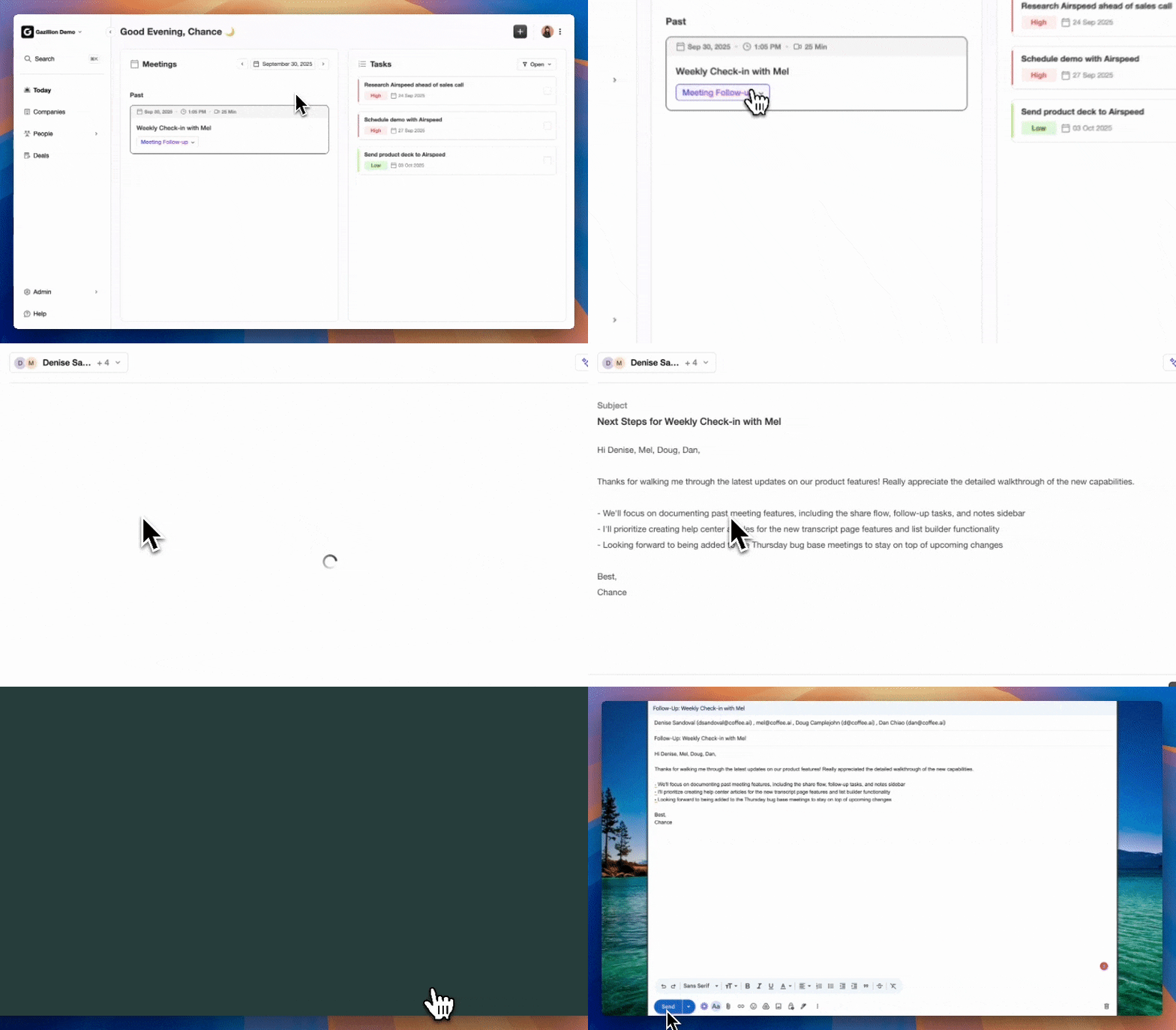
The Coffee Agent gives those teams a way to skip custom pipeline work. After you connect Google Workspace or Microsoft 365, the Coffee Companion App for Salesforce automatically creates and enriches Contacts, Companies, and Activities by scanning emails and calendars to populate the CRM without manual field mapping or CSV preparation. It logs last activity and next activity autonomously, so deal state stays current without a human touching a field. It handles both structured and unstructured data such as emails and call transcripts and writes insights back to the existing Salesforce instance. The system of record stays in Salesforce, and the agent handles the data-in layer.

Coffee is SOC 2 Type 2 and GDPR compliant, and data is not used to train public models.

Automate Salesforce Data Entry With Coffee
Frequently Asked Questions
Can Excel Integrate With Salesforce?
Yes. Small, one-time imports go through the Data Import Wizard after you export the Excel file to CSV. Larger or recurring imports go through Data Loader, which reads CSV files exported from Excel. Excel add-ins such as Microsoft’s XL-Connector 365 can push records directly to Salesforce without leaving the spreadsheet, but they are not designed for high-volume or multi-object loads. For recurring imports, the correct path is Data Loader CLI scheduled with Windows Task Scheduler, using a CSV exported from Excel as the input file.
Which Tool Is Used To Import Data Into Salesforce?
The Data Import Wizard handles simple imports under 50,000 records with built-in duplicate detection and no installation required. Data Loader handles bulk, scheduled, and upsert operations up to 5 million records per run and is the right choice whenever the import needs to run automatically on a schedule. For imports that require transformation logic or connect multiple source systems, iPaaS platforms such as MuleSoft, Workato, or Jitterbit fit better, depending on volume and complexity.
How Do You Handle Bulk Data Processing In Salesforce?
Use Bulk API 2.0 through Data Loader, which processes records asynchronously in batches and supports up to 5 million records per operation. Configure Data Loader to use Bulk API rather than the default SOAP API in the Settings screen. Monitor the job on the Bulk Data Load Jobs page in Salesforce Setup and download the full results log immediately after each run. For very large datasets, break imports into batches of 200,000 to 500,000 records so that if a batch fails, the scope of the retry stays known and contained. Sort the input CSV by master record ID before loading child records to reduce UNABLE_TO_LOCK_ROW errors from parallel batch processing.
What Is The Best Way To Automate Data Entry Into Salesforce From Multiple Sources?
Design the matching layer first by defining external ID fields and marking them both External ID and Unique, then pick an ingestion path per source using the source-to-approach table at the top of this article. For file-based sources on a nightly schedule, Data Loader CLI with Windows Task Scheduler fits well. For event-driven sources or real-time writes to multiple objects, Flow HTTP Callout with Named Credentials handles the job within the 100-callout-per-transaction limit. For SAP, NetSuite, or other on-premise systems of record that require transformation, MuleSoft or a comparable enterprise iPaaS provides the right layer. Teams that prefer not to build and maintain that pipeline themselves use Coffee’s Companion App for Salesforce, which creates and enriches records automatically from connected email and calendar data without CSV preparation or manual field mapping.
Conclusion: Design The Matching Layer First
The matching key determines whether your Salesforce data stays clean more than the connector does. Pick the ingestion path per source, then design the external ID and upsert logic before you run anything. That design includes a field marked External ID and Unique, clear upsert semantics, and a monitored error queue. Every hour spent on the matching layer before the first import saves multiples of that time in duplicate cleanup afterward.
See Coffee In Action On Your Salesforce Data