Written by: Doug Camplejohn, CEO & Co-Founder, Coffee
Key Takeaways
-
Sales reps spend most of their time on manual CRM tasks. Affinity’s native activity capture and AI enrichment automate emails, meetings, and profiles.
-
Zapier integrations sync data between email, calendar, and Affinity in real time, so teams avoid manual copy-paste work.
-
Coffee’s AI agent handles unstructured data, automatic contact creation, and meeting transcription, saving 8–12 hours weekly while cutting errors by about 90%.
-
Error-resistant workflows using Coffee’s AI validation, bulk merges, and data hygiene routines keep CRM records clean and preserve historical context.
-
Implement these strategies with Coffee’s AI automation platform to reduce manual CRM data entry and free up roughly 35% more selling time.
1. Use Affinity’s Native Activity Capture as Your Automation Foundation
Affinity CRM’s built-in activity capture creates the baseline for reducing manual data entry across your team. Affinity automatically captures email and meeting data, creating CRM records for every person and company a firm interacts with.
Setup Process:
-
Go to Settings > Integrations in your Affinity dashboard
-
Connect your Google Workspace or Microsoft 365 email and calendar
-
Turn on automatic contact creation and activity logging
-
Set data sharing permissions for the right level of team visibility
Outcomes: Affinity logs email interactions automatically, creates and updates records, and tracks relationships without manual entry.
Limitations: Affinity features, such as Notetaker, handle call transcripts and deal with context well. Teams that manage complex unstructured data from many sources may still need additional AI support.
Pitfall Alert: If historical email data does not sync, use Affinity’s API resync feature to backfill missing interactions.
2. Turn On Affinity AI Enrichment and Automation Builder
Affinity’s AI features enrich contact profiles and trigger workflows based on clear rules, which reduces routine updates. Affinity’s AI & Automation features enrich contact profiles automatically and automate workflows to keep teams focused on deals.
Configuration Steps:
-
Open the AI tab in your Affinity settings
-
Enable automatic profile enrichment for job titles, funding data, and LinkedIn profiles
-
Create Automation Builder triggers such as “new meeting scheduled → update deal stage.”
-
Configure relationship strength scoring based on interaction frequency
Pros: Automatic data population and rule-based triggers reduce manual record edits.
Cons: Even with Deal Assist and Notetaker, many workflows still depend on structured rules instead of deeper context.
Pitfall Alert: API rate limits can slow enrichment. Schedule batch processing during off-peak hours to keep performance stable.
3. Connect Zapier to Automate Affinity CRM Workflows
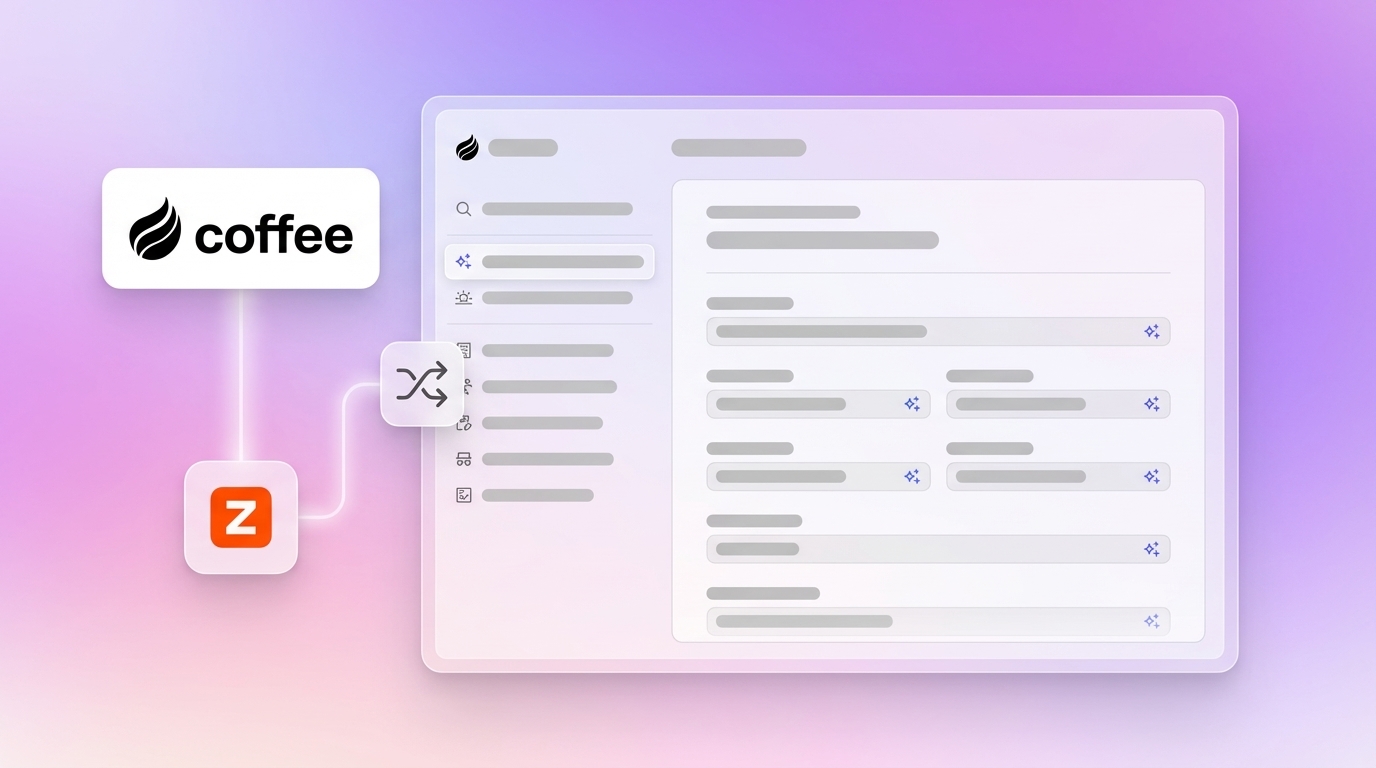
Zapier links Affinity with the rest of your tech stack, so data moves automatically instead of through manual exports and imports.
Blueprint Setup:
-
Trigger: New email received in Gmail or Outlook
-
Action: Create or update an Affinity contact with the sender’s information
-
Additional Zap: Calendar event created, then log the meeting as an activity in Affinity
-
Advanced: Form submission, then create a new deal with enriched company data
Outcomes: Email, calendar, and Affinity records stay in sync in real time without manual updates.
Pitfall Alert: Multi-step Zaps can fail when steps run too quickly. Add short delays between actions to improve reliability.
4. Add Coffee as an AI Companion for Unstructured Data and Multi-CRM Setups
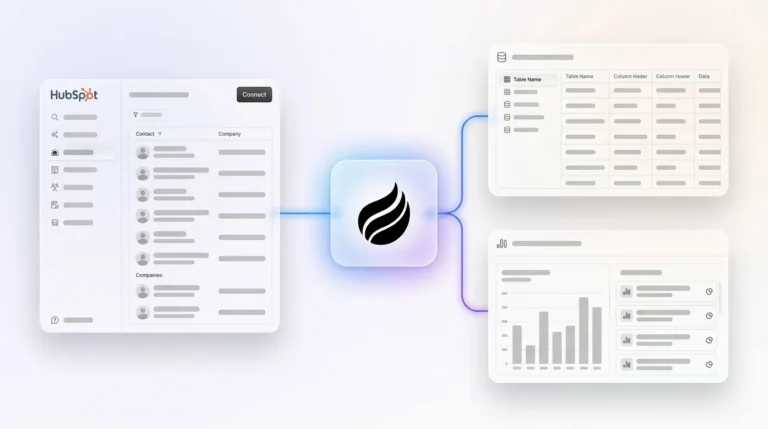
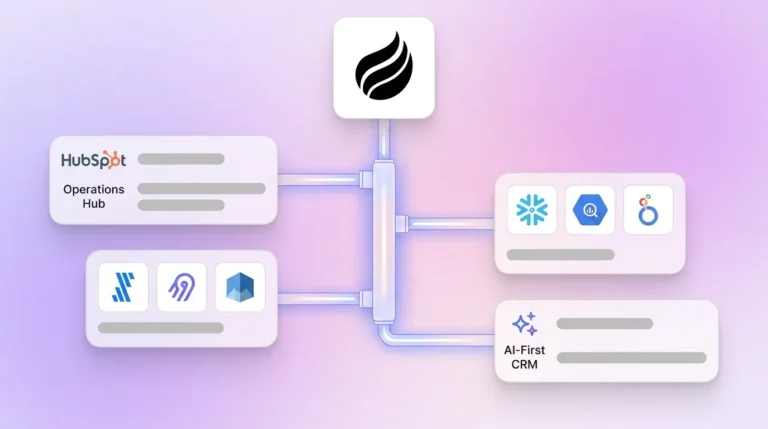
Teams that use Affinity alongside Salesforce or HubSpot often struggle with unstructured data and cross-system consistency. Coffee acts as an AI agent that supports those CRMs by handling unstructured data, meeting automation, and intelligent enrichment beyond native tools.
While Zapier moves structured fields well, Coffee focuses on emails, meetings, and documents that do not fit simple rules. This makes Coffee a useful companion for firms that rely on multiple CRMs and want consistent, enriched data across systems.
Setup Process:
-
Authenticate Google Workspace or Microsoft 365 accounts
-
Connect Coffee to your CRM through Zapier or API
-
Configure Companion mode to work with your Salesforce or HubSpot instance
-
Turn on the meeting bot for automatic call transcription and summarization
After setup, Coffee starts to collect and structure information from conversations and emails, then passes clean data into your CRM.
Pro Tip: Coffee stores structured and unstructured data in a built-in data warehouse. This supports “good data in, good data out” while staying SOC 2 compliant and avoiding usage metering.
Key Outcomes:
-
Automatic contact and company creation from email signatures and meeting participants
-
AI-generated meeting briefs and post-call summaries with clear action items
-
Context-aware enrichment that understands relationships between people, companies, and deals
-
Significant time savings on manual data entry tasks, as highlighted in the key takeaways
-
Fewer data entry mistakes through AI validation before records reach your CRM

Schedule a Coffee demo to see AI-driven meeting and data automation in your own workflow.
Pitfall Alert: Coffee manages API queues through its own orchestration layer, so most integration bottlenecks never reach your team.
5. Create a Clean, Error-Resistant CRM Workflow
Data quality problems grow over time, so preventing errors early protects pipeline visibility and reporting accuracy. Coffee’s AI helps keep data clean while your CRM handles core records.
Implementation Strategy:
-
Start by consolidating duplicate records with your CRM’s bulk merge tools to create a clean baseline.
-
With duplicates removed, deploy Coffee’s automatic data entry and enrichment so new records meet quality standards from day one.
-
Feed these high-quality records into automated data processes that keep fields consistent across your database.
-
Use Coffee’s autonomous logging to run ongoing data hygiene routines that catch and correct issues before they spread.
Outcomes: You maintain a clean database with fewer errors, while Coffee’s data warehouse preserves historical context for every interaction.
Pro Tip: Coffee’s data warehouse keeps a full interaction history instead of overwriting fields, which helps teams understand how relationships evolve.
Pitfall Alert: If duplicates appear after the first cleanup, rely on Coffee’s automatic activity logging and validation rules to block new inconsistencies.
6. Automate Meeting Notes and Follow-Ups with Coffee
Meeting notes and follow-ups often consume hours each week, yet they are essential for accurate CRM records. Coffee’s meeting bot automates this documentation so teams can focus on the conversation.
Coffee Meeting Bot Features:
-
Joins Zoom, Teams, and Google Meet calls automatically
-
Generates transcripts with about 95% accuracy, even with moderate background noise
-
Creates structured summaries with key points, decisions, and context
-
Identifies action items and assigns owners in a clear format
-
Draft follow-up emails in Gmail for quick review and sending
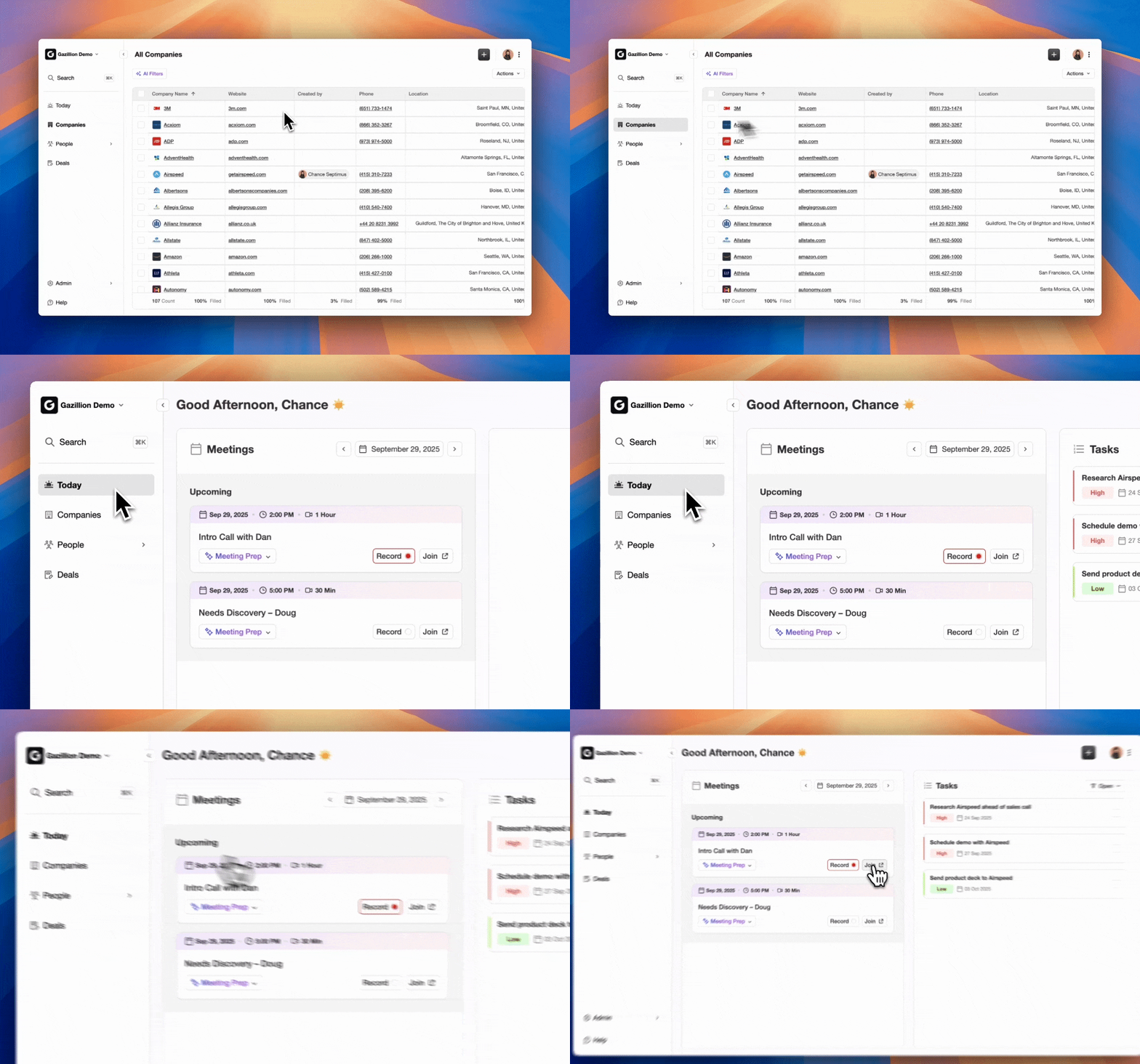
Outcomes: Teams receive instant meeting documentation, automated follow-up drafts, and accurate notes without manual typing.
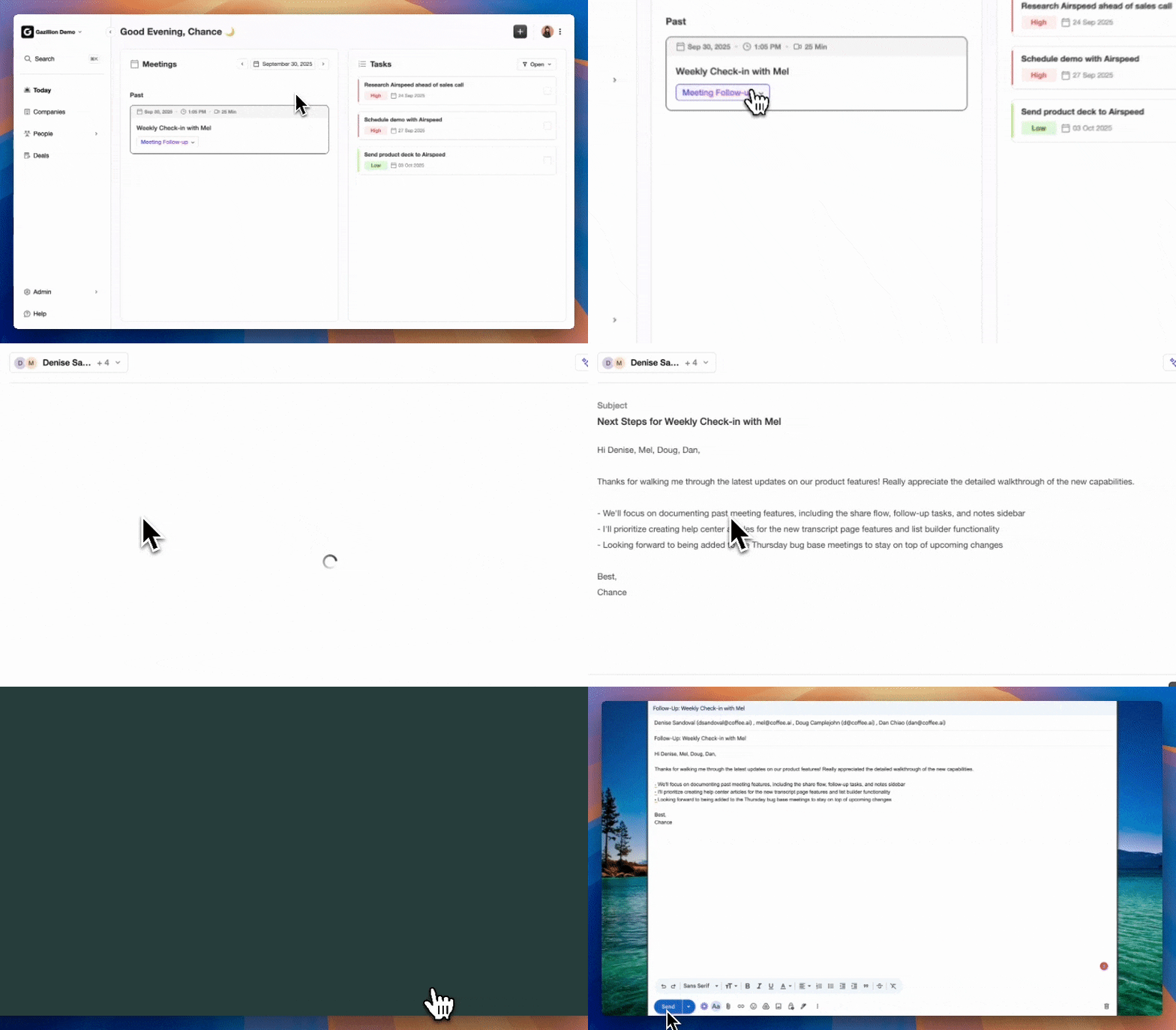
Pitfall Alert: Coffee filters noise and cross-talk effectively, but extremely poor audio may still need a quick manual check.
7. Track ROI with Coffee’s Pipeline Intelligence
Automation only pays off when leaders can see its impact on pipeline health and team productivity. Coffee’s Compare feature turns pipeline reviews into data-driven discussions instead of spreadsheet exercises.
Coffee Compare Capabilities:
-
Visualizes week-over-week pipeline changes without CSV exports or manual reports
-
Tracks deal progression, stalls, and new additions automatically
-
Improves CRM adoption by giving users clear, friendly insights into their own pipeline activity
-
Frees more selling time by reducing the need for manual reporting and status updates
Together, these capabilities form a pipeline intelligence layer that shows how automation reduces manual work and supports better decisions.
Advanced Features:
-
Builds targeted outbound lists using natural language prompts
-
Calculates ROI automatically, including time savings and productivity gains from automation
-
Connects to existing reporting workflows through API access for consistent dashboards
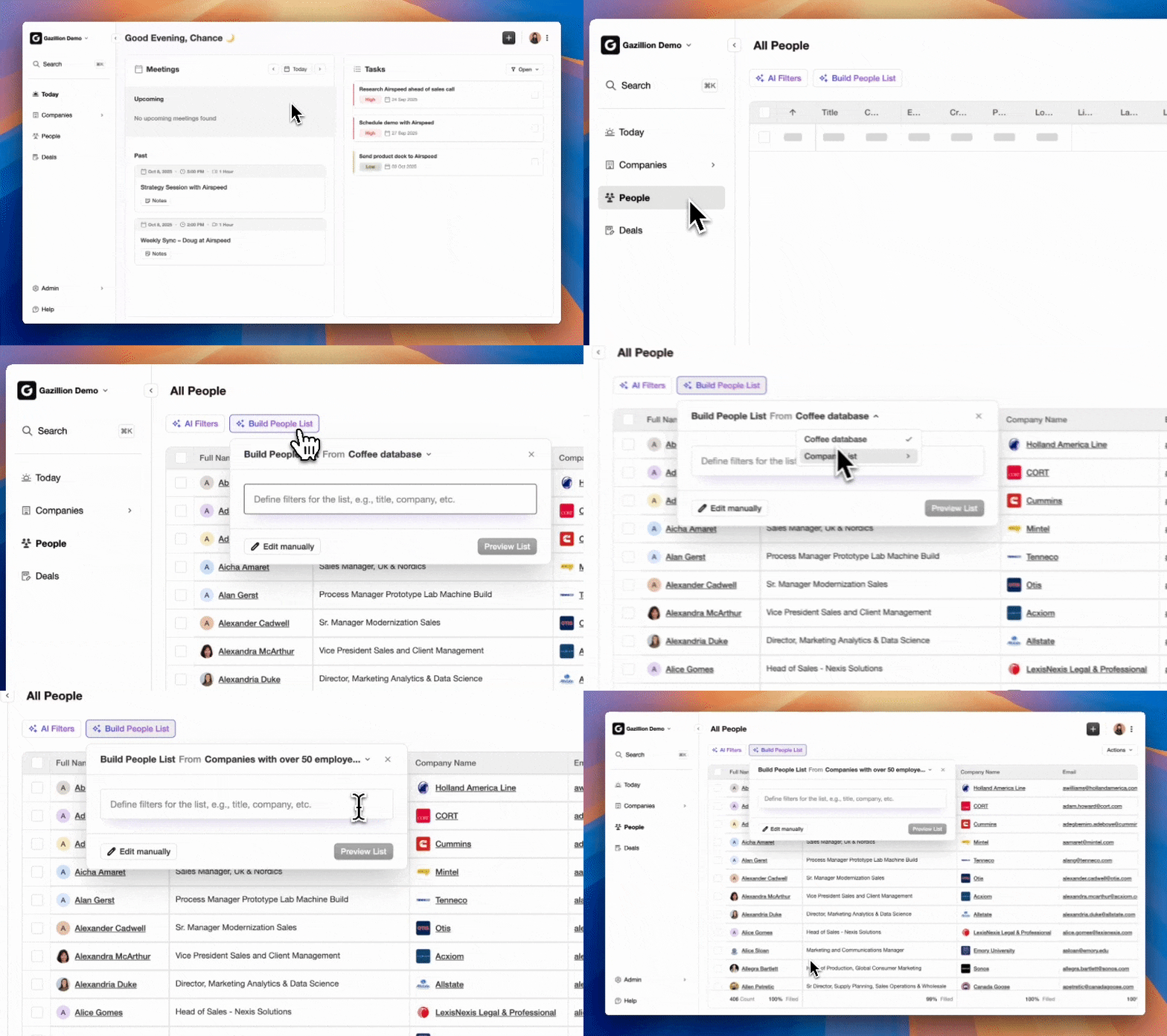
Pitfall Alert: Confirm that daily auto-sync is turned on so pipeline views always reflect current data.
Frequently Asked Questions
How can you automate Affinity CRM data entry?
Start with Affinity’s native activity capture and AI enrichment for baseline automation. Then, if your team also runs Salesforce or HubSpot, add Coffee as a companion agent to handle unstructured data, meeting automation, and context-aware enrichment that extends beyond rules. Coffee typically saves teams 8–12 hours per week by creating contacts, logging activities, and generating meeting summaries automatically.
Does Coffee integrate with Affinity CRM?
Coffee currently integrates with Salesforce and HubSpot through authentication, Zapier, and API connections. It works as a companion agent that feeds clean, enriched data into those CRM instances while preserving existing workflows. These integrations support automatic contact creation, activity logging, and meeting documentation without replacing your system of record.
How do you reduce manual data entry errors in Affinity CRM?
Combine Affinity’s bulk merge tools with Coffee’s AI validation. Coffee’s duplicate detection and data quality checks reduce errors by about 90% through context-aware validation. The system flags inconsistencies automatically and protects data integrity with its built-in data warehouse.
Which Affinity CRM integrations work with Zapier?
Affinity connects with Zapier to automate workflows between email, calendar, and CRM records. Common automations include new email triggers that create or update contacts, calendar events that log activities, and form submissions that create deals with enriched data. Multi-step Zaps support complex workflows when timing is configured correctly.
Can you reach near-zero manual data entry in Affinity?
Teams can approach zero manual data entry by pairing Affinity’s native automation with an AI agent such as Coffee for other CRMs in the stack. Coffee processes emails, calendar events, meeting transcripts, and documents to create rich CRM records with minimal human input, while maintaining high accuracy and saving many hours each week.
Which sales CRM setup reduces manual data entry through AI automation?
Coffee stands out as an AI agent for CRM automation, working as a standalone layer or as a companion to platforms like Salesforce and HubSpot. Instead of relying only on rules, Coffee processes unstructured data, understands context, and maintains data quality through continuous validation and enrichment.
Move Toward Zero Manual Data Entry in Your CRM
The seven strategies above give private capital teams a practical roadmap for cutting manual data entry across Affinity and other CRMs. 64% of sales reps save 1–5 hours per week through AI automation, and Coffee’s agent-based approach often delivers even larger gains.
Affinity’s native features provide a strong automation baseline. Coffee’s AI agent then extends that foundation for teams that also use Salesforce or HubSpot, handling unstructured data, meeting automation, and intelligent enrichment.
This combination of clean inputs and automated processing supports accurate pipeline insights, better forecasting, and more time for strategic deal work. Private capital firms that follow these steps report the adoption and productivity improvements described in the pipeline intelligence section, with teams spending far more time on real deal-making instead of admin work.
Explore Coffee’s pricing and start your free trial to bring AI-powered automation into your CRM stack today.