Written by: Doug Camplejohn, CEO & Co-Founder, Coffee | Last updated: September 1, 2026
Key Takeaways
- Day.ai pipeline stages are customizable phases that AI manages using natural language commands and signals from tools like Gmail, Outlook, and Slack.
- Accurate setup depends on specific prompts and clearly defined entry and exit criteria so AI can forecast reliably.
- Strong pipelines usually keep 5–7 stages, require key fields, and include a human review of AI-suggested stage changes.
- Day.ai focuses on unstructured data capture, while teams that rely on structured CRM data often adopt more integrated platforms.
- Teams that want pipeline automation without heavy manual setup can explore Coffee’s pricing, a CRM Agent built for full-funnel automation.
Why Clear Stage Definitions Matter Before You Touch Day.ai
Clear stage definitions turn Day.ai from a note-taker into a forecasting tool you can trust. Vague labels create noisy data, confused reps, and AI suggestions that feel random. Strong definitions give Day.ai a stable framework so every automated update lines up with how your team actually sells.
How to Set Up Day.ai Pipeline Stages: Step-by-Step
Follow these steps in order. Each UI element is bolded exactly as it appears in Day.ai’s interface.
- Open Settings: Go to your Day.ai Dashboard and open the Settings menu in the left sidebar.
- Navigate to Pipeline: Click Pipeline in the Settings menu.
- Click Stages: Select Stages to open the configuration screen where you define your pipeline phases.
- Use Natural Language: Type plain-text descriptions into the stage creation field. For example: “Create stages: New, Qualified, Proposal, Negotiation, Closed Won.”
- Review AI-Generated Stages: Check the AI-generated properties, including stage names, descriptions, and win probability percentages. Edit as needed before saving.
- Save: Save the configuration once it matches your workflow.
Pro Tip: Vague sales stage definitions lead to inaccurate AI forecasts, flawed lead scoring, and erosion of trust in AI tools. “Qualified” generates a generic stage. “Qualified Lead — has budget and authority” generates a stage with the right entry criteria.
Common Mistake: Avoid subjective language like “Interested,” “Engaged,” or “Hot Lead” in stage names. Day.ai’s AI will create stages without clear entry criteria, and your pipeline will be unreliable within a month.
Define Entry and Exit Criteria for Each Stage
Without exit criteria, reps move deals forward on optimism rather than evidence, and the forecast becomes fiction. Deals that move through stages with verified evidence have a 31% higher close rate than deals that advance on rep assertion alone.
The table below maps common pipeline stages to their entry and exit criteria, drawn from practitioner frameworks.
| Stage | Entry Criteria | Exit Criteria |
|---|---|---|
| Prospecting | Lead identified, contact info captured | Contact responds to outreach or a meeting is scheduled |
| Qualified | Live conversation scheduled | Buyer Persona Confirmed, Pain Points Documented, Budget Confirmed, next meeting booked |
| Proposal | Proposal Sent (date), Pricing Model Confirmed, Legal Review Status logged | Proposal Accepted (boolean), Contract Sent (date) |
| Negotiation | Contract Sent (date), Redlines Received (count), named decision-maker engaged | Contract Signed (date), Payment Terms Agreed |
| Closed Won | Contract Signed (date), First Payment Received (date) | N/A — terminal stage |
Copy-Paste Prompts for Day.ai Pipeline Setup
The prompts below are ready to paste directly into Day.ai’s stage creation field. Specificity is the key variable. AI models learn from historical data, so ambiguous inputs create ambiguous outputs.
For B2B SaaS:
Create stages: Lead, Marketing Qualified Lead (MQL), Sales Qualified Lead (SQL), Demo, Proposal, Negotiation, Closed Won. Move to SQL only after they book a demo. Move to Proposal only after they request pricing.For Agency / Professional Services:
Create stages: Inquiry, Discovery Call, Proposal Sent, Contract Negotiation, Closed Won. Move to Proposal Sent only after the discovery call is complete and scope is defined.For Real Estate:
Create stages: Lead, Tour Scheduled, Offer Made, Under Contract, Closed. Move to Tour Scheduled only after a showing is confirmed.For E-commerce / B2C:
Create stages: Lead, Cart Abandoned, Order Placed, Shipped, Delivered. Move to Order Placed only after payment is confirmed.For Enterprise Sales (long cycle):
Create stages: Lead, Qualified, Discovery Complete, Demo, Security Review, Procurement, Negotiation, Closed Won. Move to Security Review only after the prospect's security team requests documentation.For MEDDIC-based teams:
Create stages: Lead, Qualified (M.E.D.D.I.C. criteria met), Discovery Complete, Proposal, Negotiation, Closed Won. Move to Qualified only after Metrics, Economic Buyer, Decision Criteria, Decision Process, Identify Pain, and Champion are all documented.Customize Pipeline Properties for Consistent Data
Pipeline properties control which deal details Day.ai tracks at each stage. Strong property setup keeps reports clean and makes AI suggestions easier to trust.
Day.ai allows you to add or modify properties, such as Amount, Close Date, and custom fields, using natural language. For example: “Add a property called ‘Deal Size’ with type currency.”
Day.ai supports custom CRM fields that auto-populate from conversations and web research, allowing teams to tailor data to their business logic and pipeline stages. To keep properties consistent across your pipeline:
- Use the same property names across all deals to prevent reporting fragmentation.
- Set required fields at the stage level so the CRM enforces what information must be captured before a deal can advance.
- Review stage definitions annually or whenever there is a significant change in sales motion or product offering.
Pro Tip: Day.ai’s AI can auto-populate custom fields from conversations and web research. If a prospect mentions their budget on a call, the AI can update the “Deal Size” property automatically. AI meeting summaries are drafts, so a human should verify customer commitments, amounts, dates, and stage changes before writing to the CRM.
Best Practices for Day.ai Pipeline Management
Organizations with a well-defined sales pipeline management process report 28% higher revenue growth than companies without a structured approach. Teams using AI-powered pipeline tools see higher close rates and shorter sales cycles.
Most B2B teams should maintain 5–7 well-defined pipeline stages. Too few stages hide where deals stall. Too many stages create rep fatigue and inconsistent data entry. To keep those stages reliable, use the following practices.
- Define clear exit criteria for every stage before enabling AI automation.
- Review the pipeline weekly, and consider daily reviews during high-volume periods or near quarter end.
- Use Day.ai’s AI to log activities automatically, and verify AI-suggested stage changes before accepting them.
- Tie properties like amount and close date to stage logic so forecast values update from real deal signals instead of manual guesses.
- Set stage probabilities based on historical win rates, using past deals rather than rough estimates.
Troubleshooting Day.ai Pipeline Setup
Problem: AI misinterprets stage names
Use more specific language. Instead of “Qualified,” type “Qualified Lead — has budget and authority.” AI does not guess; it calculates. Ambiguous data inputs create ambiguous outputs.
Problem: Duplicate stages created
Overlapping stages that lack a clear entry condition cause reps to skip stages and weaken consistency. If the AI creates duplicates, use more specific language and review the output before saving. Delete duplicates manually via the Stages configuration screen.
Problem: Stages not appearing in the pipeline view
Confirm that you saved the configuration after editing. If stages still do not appear, refresh the dashboard or log out and back in to force a sync.
Problem: Properties not saving
Check that you are using the correct property type, such as currency, date, or text. If a property will not save, try recreating it with a slightly different name. Property-type mismatches are the most common cause of save failures.
Problem: AI suggests wrong stage changes from conversations
Conversation-derived signals require extra care. A transcript may contain a target date, concern, or competitor mention, but the system can misattribute a speaker or flatten conditional language, so extracted fields should be treated as proposals requiring review. If Day.ai consistently misinterprets signals, tighten your stage definitions and use more specific, verifiable language.
How Day.ai Automatically Updates Stages from Conversations
Day.ai’s meeting assistant joins video calls to generate concise summaries, highlight key moments, and identify action items automatically. When a prospect asks for pricing on a call, the AI may suggest moving the deal to Proposal. When a signed document is detected in an email thread, it may suggest Closed Won.
This automation is useful but limited. The biggest risk of AI pipeline management is AI moving a deal, changing its value, or closing it based on ambiguous signals instead of confirmed evidence. This pattern makes a forecast confidently wrong instead of simply incomplete. Day.ai focuses on unstructured data from emails and calls. It does not work with structured CRM data the way a purpose-built data warehouse does.
A safer rollout pattern starts with recommendation mode on live deals. Enable automatic updates only for deterministic, low-risk fields such as activity logging and meeting-booked confirmation. Keep commercial stage changes under human review.
Common Mistake: Avoid letting the AI auto-move deals without review. Day.ai’s AI can misinterpret a passing mention of pricing as a buying signal. Always confirm AI-suggested stage changes, especially for high-stakes moves like Negotiation or Closed Won.
When Teams Outgrow Day.ai and Add Coffee
Day.ai works well for early-stage teams that want AI-driven data capture without heavy manual entry. Its natural language setup is fast, and its conversation intelligence reduces note-taking burden. As teams mature, many need deeper control over structured data, forecasting, and CRM rules.
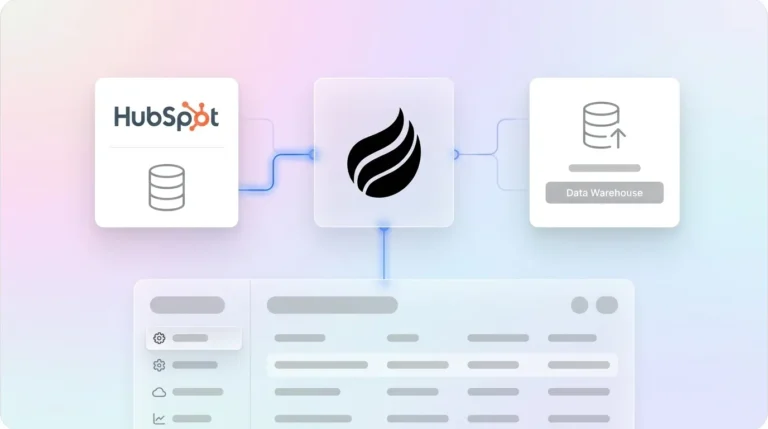
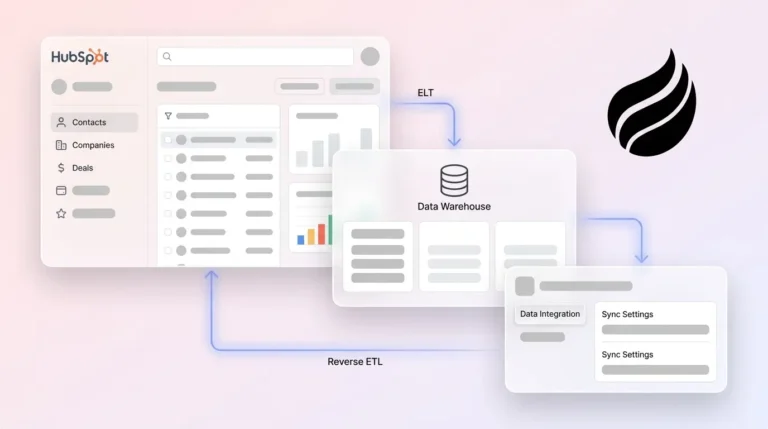
Day.ai focuses on unstructured data such as emails, calls, and Slack messages. It lacks the deep Salesforce and HubSpot integration that established revenue teams rely on for quotas, forecasting, and required fields. Coffee is built differently. It works with both structured and unstructured data, and its data warehouse preserves historical context instead of overwriting it. Coffee saves reps 8–12 hours per week on data entry and operates as either a standalone CRM or a Companion App layered on top of existing Salesforce or HubSpot instances.
| Capability | Day.ai | Coffee |
|---|---|---|
| Data handling | Unstructured only (emails, calls) | Structured and unstructured, built on a data warehouse |
| Salesforce / HubSpot integration | Limited; lacks support for quotas, forecasting, and required fields | Deep, native Companion App integration |
| Pipeline intelligence | AI suggestions from conversations | Automated tracking with Pipeline Compare (week-over-week changes) |
| Data entry automation | Partial (conversation capture only) | Full automation; contacts, companies, and activities created automatically |
Teams that want this level of automation and visibility can see Coffee’s plans and features and decide how it fits alongside Day.ai or as a replacement.
Frequently Asked Questions
What are the 5 stages of a sales pipeline?
The five classic stages are Prospecting, Qualification, Proposal, Negotiation, and Closed Won or Lost. Prospecting covers lead identification and initial outreach. Qualification confirms that the prospect has budget, authority, need, and a relevant timeline. Proposal covers the delivery and review of a formal offer. Negotiation addresses commercial terms, legal review, and decision-maker alignment. Closed Won is the terminal stage, entered only when a contract is signed and payment is confirmed. As noted earlier, most B2B teams should keep 5–7 stages so they can see where deals stall without overloading reps.
How do I set up an AI pipeline?
Start by defining clear entry and exit criteria for each stage before touching any AI configuration. Vague stage definitions produce vague AI interpretations, and the AI will inherit and amplify whatever ambiguity exists in your process. Once criteria are defined, use specific natural language prompts, like the copy-paste examples in this guide, to create stages in Day.ai. Review every AI-generated stage before saving, and run the configuration against a sample of real historical deals to confirm the stages reflect how your team actually sells. Enable AI-driven automatic updates first for low-risk, deterministic fields such as activity logging and meeting confirmations. Keep commercial stage changes under human review until the AI’s suggestions have proven reliable.
Can Day.ai integrate with Salesforce?
Day.ai’s Salesforce integration is limited compared to dedicated tools. It captures unstructured data from emails and calls but does not support the deep integration capabilities that established teams need for quota management, forecasting, required fields, and validation rules. Teams that have built their revenue operations around Salesforce or HubSpot will encounter gaps when trying to enforce stage gates, sync pipeline data bidirectionally, or run forecast rollups through Day.ai. Coffee’s Companion App is built specifically for this use case. It acts as an intelligent layer on top of existing Salesforce or HubSpot instances, handling the data-in process automatically so the system of record stays accurate without manual effort from reps.
How do I change pipeline stages in Day.ai?
Open Settings → Pipeline → Stages, then use natural language to modify existing stages or create new ones. For example: “Rename ‘Qualified’ to ‘Qualified Lead — has budget and authority.'” The AI interprets the command and updates the stage definition. Review the AI’s output carefully before saving. Check that stage names, descriptions, and win probability percentages reflect your intended criteria. If the AI generates unexpected results, use more specific language and resubmit. Delete any duplicate stages manually before saving the final configuration.
Is Day.ai better than Coffee?
Day.ai suits early-stage teams that want AI-driven data capture without manual entry and do not yet need deep CRM integration. It excels at pulling context from emails, calls, and Slack into a lightweight pipeline view. Coffee suits teams that need more robust automation, structured data handling, and integration with Salesforce or HubSpot. Coffee works with both structured and unstructured data, built on a data warehouse that preserves historical context. It automates data entry, enriches records with job titles, funding, and LinkedIn profiles, and provides pipeline intelligence through its Pipeline Compare feature. Teams can run Coffee as a standalone CRM or as a Companion App on top of existing infrastructure.
Conclusion: Turn Day.ai Into a Reliable Forecasting Engine
Day.ai’s natural language AI offers a fast way to configure pipeline stages by telling your Assistant what you need, without manual configuration. The official setup guide provides example prompts to help you know what to type. Clear prompts create clear stages, and clear stages support reliable forecasts. This guide gave you the navigation path, copy-paste prompts, entry and exit criteria, and troubleshooting steps to set up Day.ai pipeline stages correctly in one sitting.
Teams that need deeper Salesforce and HubSpot integration, structured data handling, automated enrichment, and pipeline intelligence that does not require constant human verification often add Coffee to their stack. If that sounds like your team, you can review Coffee’s pricing and deployment options and decide when to bring a CRM Agent into your pipeline.