Written by: Doug Camplejohn, CEO & Co-Founder, Coffee | Last updated: September 12, 2026
Key Takeaways
- A CRM agent captures sales calls, extracts structured deal signals using frameworks like BANT or MEDDIC, and writes those signals to typed Salesforce or HubSpot fields instead of dumping prose into notes.
- The Sync step is the most critical and failure-prone phase. Write-back must target specific CRM objects and fields to keep reporting, forecasting, and workflows accurate.
- Fields such as CloseDate, Amount, and StageName should be suggested for human review. Competitor mentions, pain points, and objections can often be written automatically once mappings are validated.
- Guardrails like sandbox testing, field-level permissions, duplicate-rule enforcement, and a defined human-review window prevent wrong-deal matches, hallucinated commitments, and validation-rule failures at scale.
- Coffee handles the full Capture/Extract/Sync/Output workflow as a standalone CRM or companion app on top of Salesforce and HubSpot, letting teams get started with Coffee without manual data entry.
How The Capture/Extract/Sync/Output Workflow Automates Notes
Each step in the workflow has a distinct technical function.
- Capture: In the Capture step, a CRM agent either joins the call as a visible AI bot (such as RingCentral’s AI Receptionist, which collects caller information via its Lead capture skill before transfer) or captures the call bot-free through API or webhook-based CRM integrations and calendar booking. This produces a transcript or structured activity record such as a HubSpot Call engagement with transcript and recording URL.
- Extract: The agent identifies pain points, decision makers, next steps, competitors, and commitments using BANT, MEDDIC, or MEDDPICC as the extraction schema.
- Sync: The agent maps each extracted signal to a specific CRM object and field, such as Opportunity, Contact Role, Task, or a custom field, instead of dumping prose into a description field.
- Output: The agent writes structured values to Salesforce or HubSpot and surfaces pipeline intelligence, which enables accurate forecasting and reporting.
The Sync step is where most implementations fail. Salesforce reporting, forecasting, validation rules, and Flows run on typed fields, not on prose in a Description or Task Comments field, so write-back must target typed fields to be reportable. The rest of this guide explains how to design that write-back layer safely.
Field-By-Field Mapping For CRM Write-Back
The table below maps common conversation signals to Salesforce and HubSpot objects and fields. It also indicates whether the agent should write the value automatically or surface it as a suggestion for human review.
| Conversation Signal | Salesforce Object and Field | HubSpot Object and Field | Write or Suggest |
|---|---|---|---|
| Pain point | Opportunity: Description or custom Pain_Point__c field | Custom multiline text property on the HubSpot Deal object (for example, a “Pain Points” property), with supporting detail stored in the Notes activity object | Suggest |
| Decision maker identified | US Patent 12147995 describes an Intelligent Write Back system that writes an entry for the opportunity and the contact, with the contact’s role set to decision maker | Contact: association label such as Decision Maker or Economic Buyer | Write |
| Next step with owner and date | Task: Subject, ActivityDate, OwnerId linked to Opportunity | HubSpot Task associated with a Deal, with Due date and Assigned to (owner) properties, plus a Deal-level “Next step” property | Suggest |
| Competitor mentioned | Custom Competitor__c field on the Salesforce Opportunity object or the native OpportunityCompetitor child object with a CompetitorName field | Custom competitor property on the Deal or Contact object, often a dropdown for primary and secondary competitors | Write |
| Budget signal | Opportunity: Amount or custom qualification field | HubSpot Deal: Amount property storing total deal value | Suggest |
| Timeline signal | Opportunity: CloseDate or custom timeline field | HubSpot timeline event on the matched contact or company record, not the Deal Close date property | Suggest |
| Objection raised | Opportunity: custom Objection__c field, rather than the standard Notes object | Custom property on the Deal object, or custom objects or associations | Write |
| Deal stage signal | Opportunity: StageName (restricted picklist) | Deal: Deal stage | Suggest |
Fields the agent can write automatically include activity records, call summaries, enrichment fields, competitor mentions, pain points, and objections. Next-step tasks are drafted by the agent but require human review before committing. Fields the agent should only suggest for human review include CloseDate, Amount, StageName, and qualification scores. Auto-extraction is reliable for direct-quote signals such as next steps, timeline statements, and competitor mentions, while subjective qualification scores are best AI-drafted for a rep to confirm in one click before the write commits.
One structural note for Salesforce users: the standard Salesforce Notes object does not support custom fields and is unsupported by Reports, List Views, Formulas, Validation Rules, and Record Triggered Flow, which makes it unsuitable as a write-back target for structured deal data. Write to custom fields on the Opportunity or to a custom object with a lookup relationship instead.
Choosing Between Bot-Join And Bot-Free Capture
The choice between a bot that joins calls and bot-free capture affects compliance and context more than feature lists.
Bot-joins-call capture (such as the Grain bot, which joins as a visible participant) can work well for external-facing discovery and demo calls when recording consent is disclosed and the prospect is comfortable with a visible participant. Many teams still prefer bot-free capture for client-facing conversations because a visible bot can feel intrusive and some jurisdictions require all-party consent regardless of the bot’s visibility. The bot produces a diarized transcript with speaker labels, which enables higher-fidelity extraction of direct quotes, commitments, and competitor mentions.
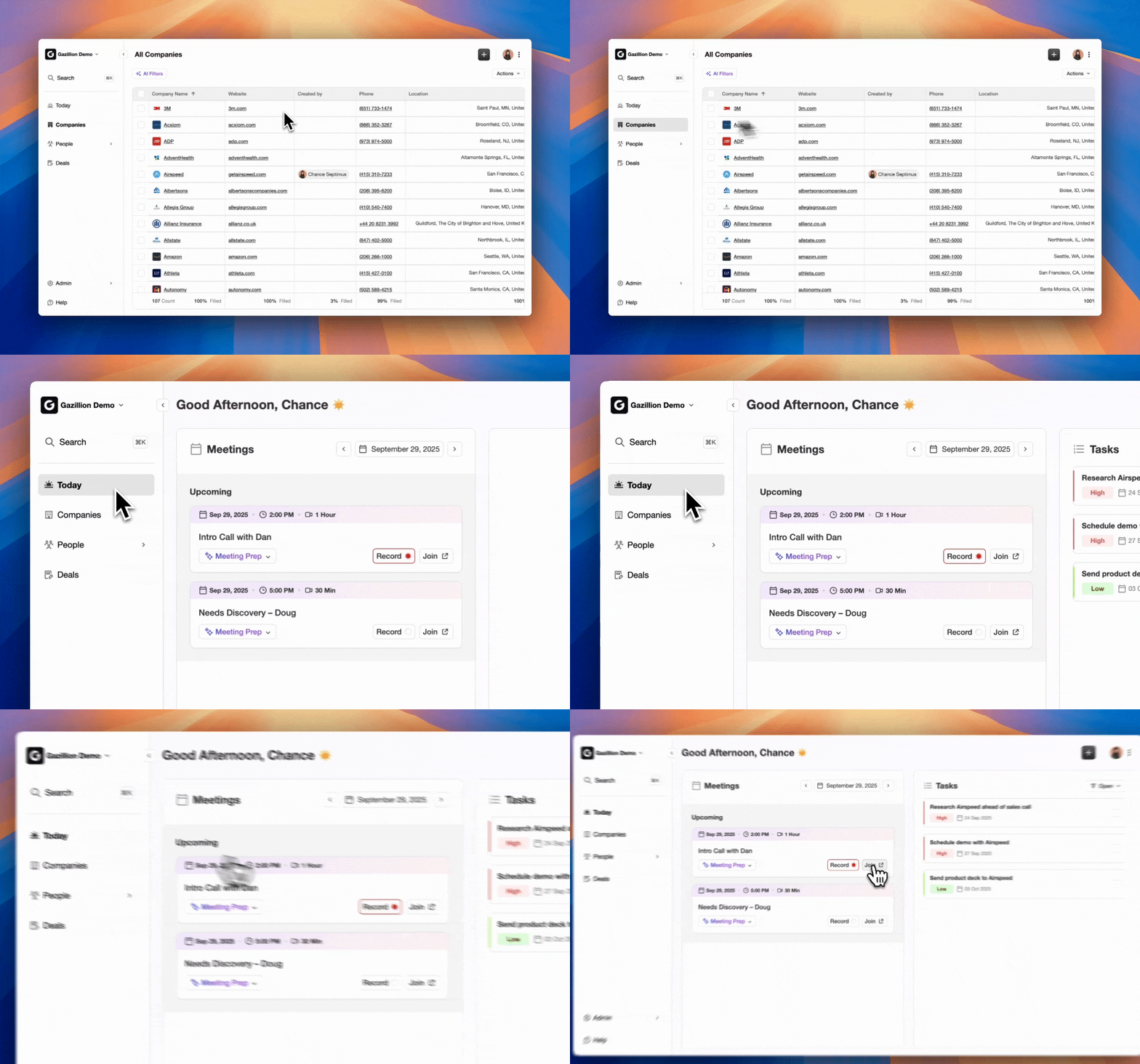
Bot-free capture fits external client calls, sales discovery, in-person meetings, ad-hoc huddles, and any conversation where a visible bot would be denied entry or damage rapport, while bot-based tools remain suitable for internal meetings where recording is already normalized. Bot-free capture processes native audio through deep integrations without an external bot joining the meeting, which reduces prospect privacy anxiety. Email and calendar ingestion covers the activity layer, such as which emails were sent or which meetings happened. It does not capture the qualitative layer of what was discussed and what the next step is, so next-step extraction still requires a review step before qualitative updates write to the CRM.
Recording consent law governs both modes. The law of the state where the prospect is located governs call recording consent, not the state where the sales rep’s office is located. All-party consent states, including California, Florida, Illinois, Maryland, and Washington, require every participant to agree before recording begins. For mixed-state calls where participants are in different jurisdictions, the safe practice is to default to the stricter all-party consent standard.
Coffee supports both capture modes so teams can configure the right approach by call type without switching tools.
Failure Modes And Guardrails For CRM Write-Back
Several recurring failure modes explain many of the CRM write-back problems seen in production deployments, and each one benefits from specific guardrails.
Wrong-deal matching: A valid API call can attach accurate meeting notes to the wrong person or opportunity. To prevent this, deal tracking systems assign incoming activities from email, VoIP, and calendar to deals through a deterministic rule hierarchy: thread ID, then deal ID, then ownership, then recency, then fallback. Activities that fail every deterministic match go to a fallback queue instead of being attached to a deal. Ambiguous matches such as common names or shared domains should route to human review, and the note should be held outside the CRM until the association is confirmed.
Hallucinated commitments: Draft CRM notes pushed to systems like Salesforce without human review can contain hallucinated specifics such as numbers or commitments that were never made. Set confidence thresholds before writing commitments, and require rep approval for any field that changes deal stage or forecast category. Conversation sentiment does not provide enough authority to advance an opportunity stage, so stage changes should require explicit seller approval and the organization’s defined stage-entry criteria.
Duplicate activity records: A timeout occurring after a successful write is a known duplicate-creation failure mode in CRM call logging. Use idempotency keys tied to a stable meeting identifier, check for an existing activity record before creating a new one, and verify actual CRM state after writing rather than trusting the API response.
Required-field and validation-rule conflicts: An extracted value that does not match an existing picklist option causes the API to silently drop just that field, while a validation rule or required field rejects the entire update. Set read-only or suggest-only permissions for sensitive fields and validate field requirements before attempting the write.
One additional Salesforce-specific risk also matters. Salesforce duplicate rules do not fire by default on records created through API integrations, which means every automated write-back can bypass duplicate prevention entirely unless Apex code or custom deduplication logic is built in.
Structuring CRM Notes After A Sales Call
A structured CRM note should answer the key questions for someone who was not on the call. The recommended CRM contact note schema includes sections for Date and Participants, Purpose, Key Discussion Points, Decisions and Commitments, and Next Steps. Key Discussion Points typically cover business goals, pain points, questions asked, features discussed, objections or concerns, competitors mentioned, and budget or timeline information.
The Coffee Agent can structure its notes according to BANT, MEDDIC, or SPICED, which helps ensure consistent qualification data enters the system. Coffee’s Custom Meeting Briefings And Summaries, launched in February 2026, let teams define exact formats, from high-level executive summaries to granular technical breakdowns. Summary templates are writable back to Coffee, HubSpot, or Salesforce, so the system of record stays current without manual entry.
Teams that want to see this in action can see how Coffee structures CRM-ready notes.
Pre-Rollout Checklist For CRM Agents
Validate CRM field mapping on 10 test calls before enabling automatic sync for the full team. Field mismatches compound with volume, and errors that are trivial at five calls per day become systemic at fifty.
- Test in a sandbox first. Before touching production data, run the full Capture/Extract/Sync/Output workflow against a CRM sandbox (for example, a Salesforce sandbox or HubSpot test portal). Seed the sandbox with synthetic-corresponding records so integration tests do not silently reference records that do not exist on the synthetic side.
- Set field-level permissions. Restrict the integration user’s write access to only the fields the agent is authorized to update. Fields like StageName, Amount, and CloseDate should be suggest-only until the team has validated accuracy.
- Limit stage write-back. Prohibit automatic stage advancement. Stage changes must require rep confirmation regardless of what the transcript suggests.
- Define a human review window. A human review window for suggested field updates should define a target SLA, such as under 5 minutes for critical items, under 1 hour for standard items, and under 24 hours for items needing more info. Include an explicit Expired state that triggers escalation or a default action when the SLA is breached.
- Verify required-field handling. Confirm that the agent validates required fields and picklist values before attempting a write, not after a failed API call.
- Confirm duplicate rules. Verify that deduplication logic is active for API-created records, since Salesforce duplicate rules do not fire on API writes by default.
- Review 10 test call outputs manually. Compare agent-extracted values against what a rep would have written. Identify any field mismatches, hallucinated values, or wrong-deal associations before enabling full-team sync.
AI Notetaker Vs. CRM Agent: What Actually Differs
Standalone AI notetakers such as Sybill and the native notetaker features in HubSpot and Salesforce do more than transcription and summary. They can automatically write structured values into CRM fields, such as BANT, MEDDPICC, and custom properties, instead of merely appending a summary block to the activity feed. Even with that capability, a rep may still need to review what matters and confirm the CRM fields that drive reporting, forecasting, and pipeline reviews.
A CRM agent like Coffee captures and processes sales data and then writes insights back to the CRM with minimal human data entry. Stopping at the transcript delivers only about 15% of the pattern’s potential value. The full value appears when the Sync and Output steps run and structured values land in typed CRM fields that Salesforce Flows, HubSpot workflows, and forecasting models can read.
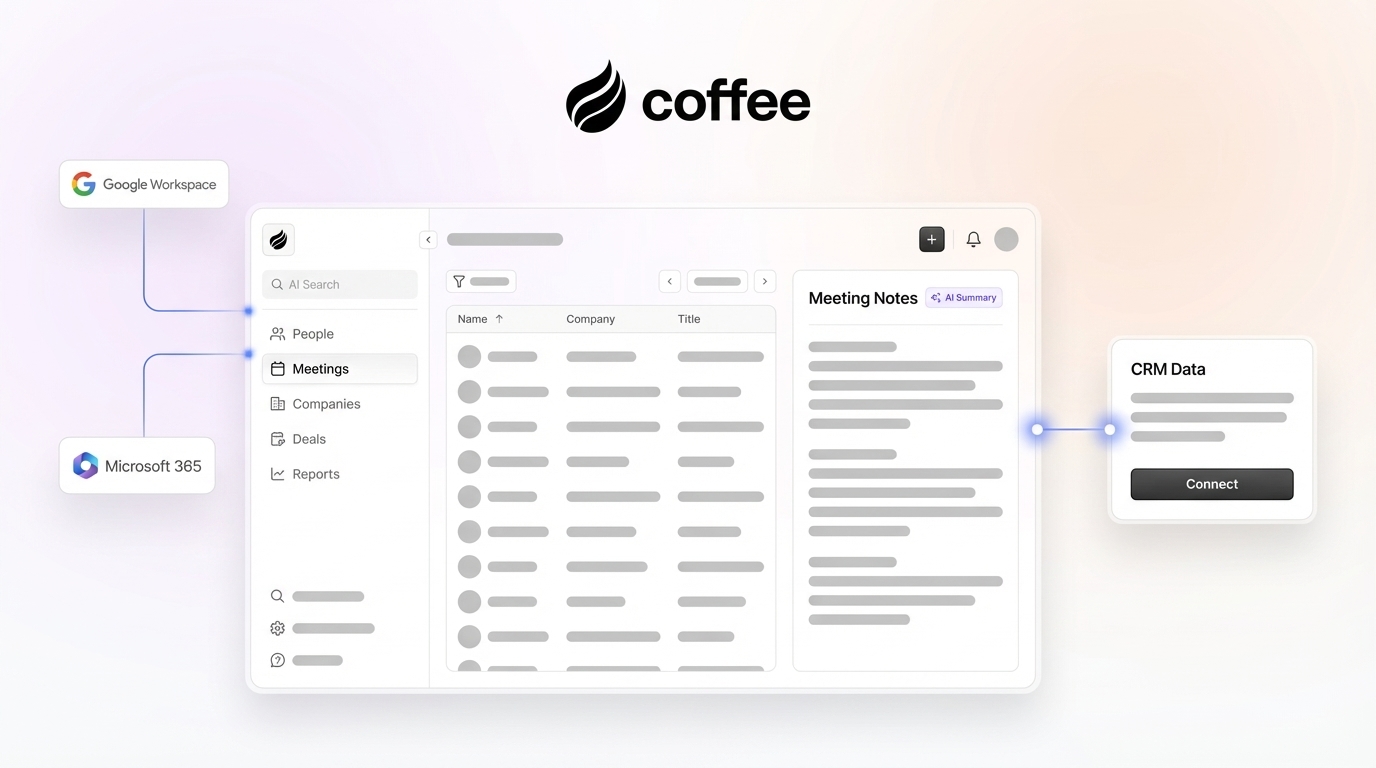
Coffee works as a standalone CRM for small teams or as a companion app on top of Salesforce and HubSpot, so the system of record stays accurate without reps acting as data entry clerks. Coffee completed SOC 2 Type II re-certification in January 2026, and the platform does not use customer data to train public models. The Coffee Agent saves reps 8–12 hours per week on data entry, which returns that time to selling instead of updating fields after calls.
Frequently Asked Questions
How Do You Automate Meeting Notes?
Use a CRM agent that captures the call, extracts structured signals using a qualification framework like BANT or MEDDIC, and syncs those signals to specific CRM fields automatically. The key distinction from a basic notetaker is the Sync step, where the agent writes to typed fields on the correct CRM object instead of generating only a summary document. Coffee handles this workflow without human data entry, either as a standalone CRM or as a companion app on top of Salesforce or HubSpot.
Is There an AI Program That Will Take Notes at a Meeting?
Several AI tools take meeting notes, and the meaningful distinction is whether they only transcribe or also write structured data back to your CRM. Tools that stop at transcription still require a rep to update deal fields manually, which is where many data quality problems originate. Coffee goes further by capturing the call, extracting deal signals, and writing them to the correct Salesforce or HubSpot fields without any manual step. It also supports bot-free capture for calls where a visible bot would change the conversation dynamic and structures notes according to BANT, MEDDIC, or SPICED so qualification data stays consistent across every rep.
Salesforce vs. HubSpot Meeting-Note Automation: What Changes?
The objects and field names differ between platforms, but the Capture/Extract/Sync/Output workflow remains identical. In Salesforce, the primary objects are Opportunity, Contact, Contact Role, Task, and custom __c fields. In HubSpot, the equivalent objects are Deal, Contact, Task, and Company, with association labels used to capture stakeholder roles. The critical difference appears at the API layer. Salesforce enforces strict validation rules, required fields, and picklist constraints, whereas HubSpot is more permissive and its property validation rules and conditional logic differ from Salesforce’s enforcement. HubSpot also does not validate Salesforce picklists for you, so the write-back layer must be configured separately for each platform. Coffee handles both natively, with field mapping validated against each CRM’s schema before any write is attempted.
Conclusion: Turn On Write-Back Without Creating Garbage
Manual note-taking is dead, yet ungoverned automation creates garbage at scale, including wrong-deal associations, hallucinated close dates, duplicate activity records, and validation-rule failures that silently drop field values the moment they hit the API. The answer is to implement automation with field-level governance from the start.
Coffee is the definitive CRM agent for this workflow. It handles the entire write-back process, from Capture through Extract and Sync to Output, without human data entry, as a standalone CRM for small teams or as a companion app on top of Salesforce and HubSpot. The field mapping, guardrails, note schema, and pre-rollout checklist in this guide create the difference between a CRM that gets cleaner over time and one that accumulates errors at the speed of your call volume.
Start your governed write-back setup with Coffee